> ## Documentation Index
> Fetch the complete documentation index at: https://help.get-ryze.ai/llms.txt
> Use this file to discover all available pages before exploring further.
# Reports
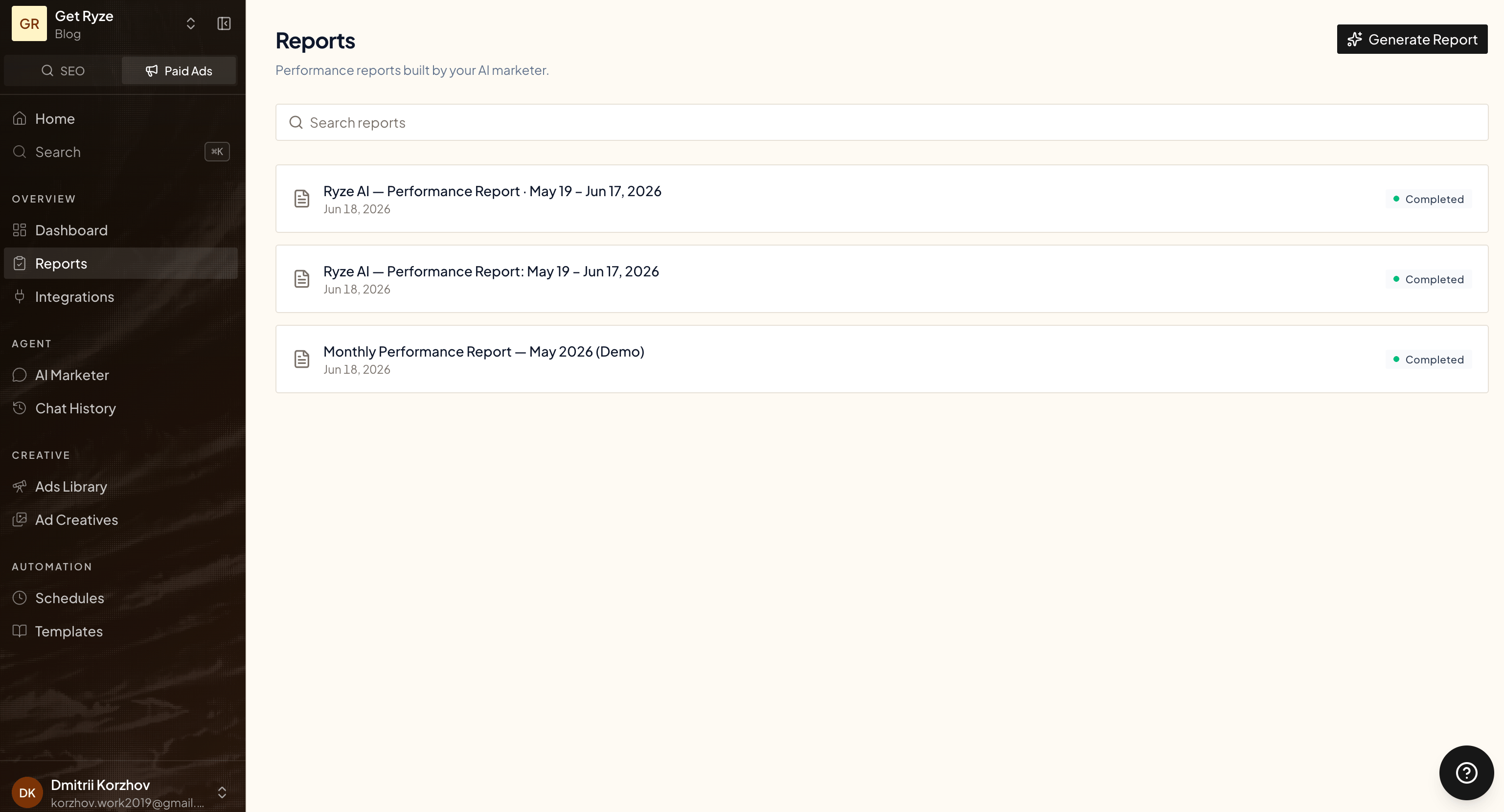
> Ask your AI marketer for a performance report — it pulls the numbers and writes it up as a clean, shareable document you can download as a PDF or email to a client.
Reports are write-ups your AI marketer builds from your live data — spend by channel, ROAS, conversions, a trend chart, an executive summary. Instead of a wall of chat, you get a structured document with its own page that you can download or send on.
Find them under **Reports** in the sidebar.
 ## Generate a report
Click **Generate Report** and you land in a chat with the agent. It asks what kind of report you want and what to cover, then pulls the data and writes it.
## Generate a report
Click **Generate Report** and you land in a chat with the agent. It asks what kind of report you want and what to cover, then pulls the data and writes it.
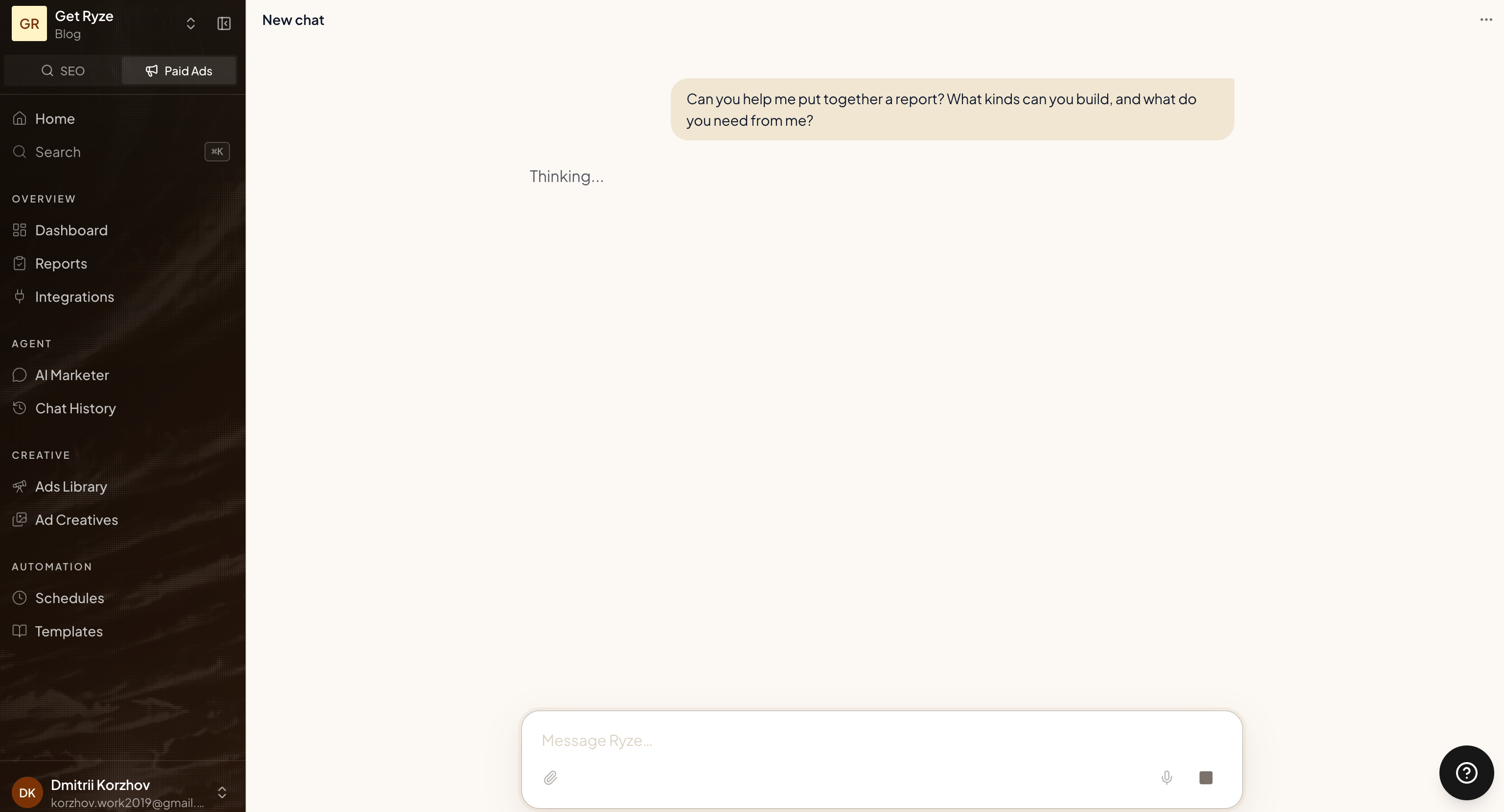 You don't have to use the button — just ask the agent for a report in any chat ("put together a May performance report"). When it has the numbers, it builds the report and gives you a link to open it.
The agent only writes the report once it has real data from your connected accounts — it won't invent metrics. Connect your ad accounts first so it has something to pull.
## Read a report
Each report opens on its own page: a title, an executive summary with an overall score, then sections of metrics, tables, and charts.
You don't have to use the button — just ask the agent for a report in any chat ("put together a May performance report"). When it has the numbers, it builds the report and gives you a link to open it.
The agent only writes the report once it has real data from your connected accounts — it won't invent metrics. Connect your ad accounts first so it has something to pull.
## Read a report
Each report opens on its own page: a title, an executive summary with an overall score, then sections of metrics, tables, and charts.
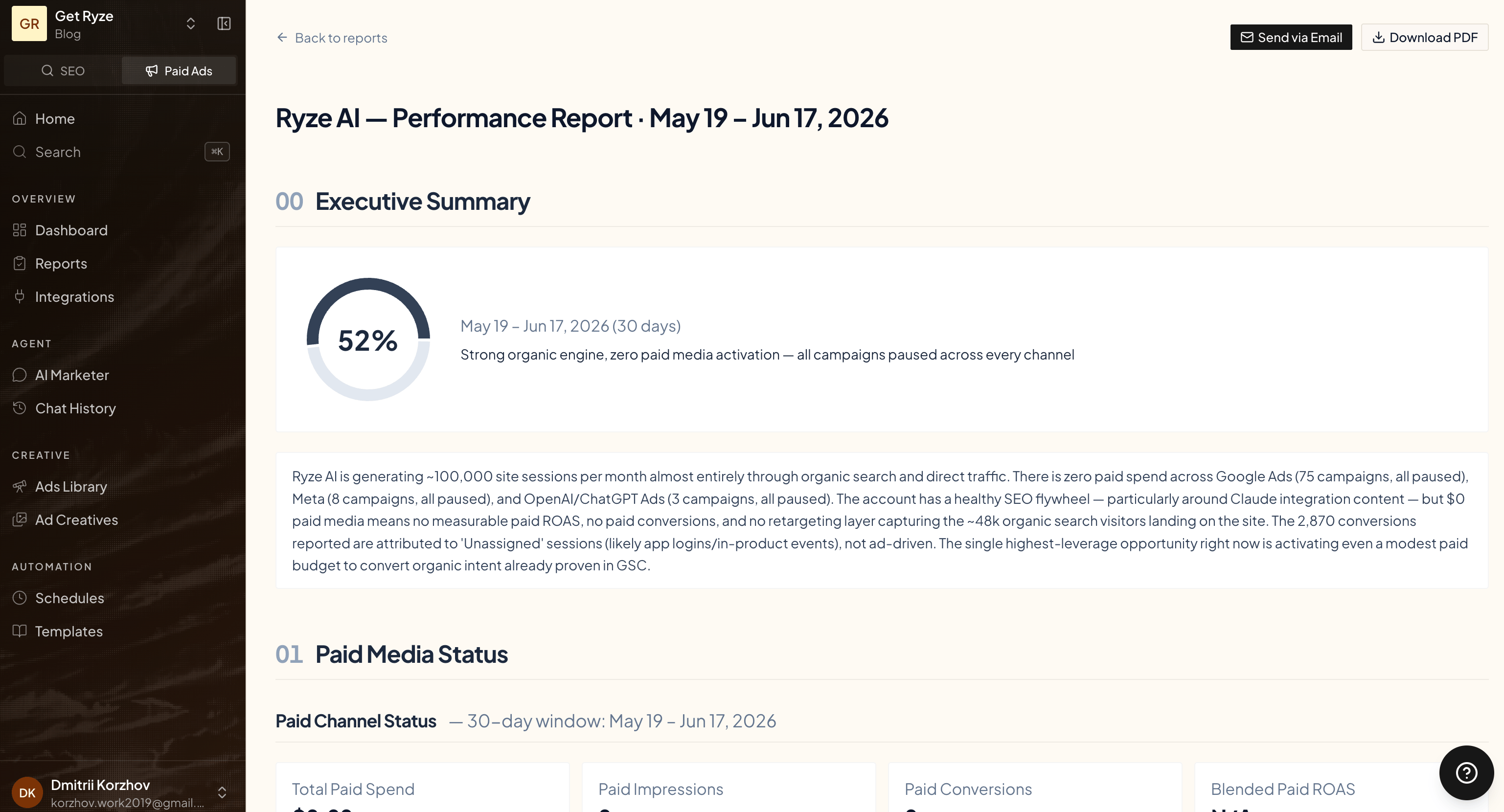 From the top of any report you can:
* **Download PDF** — render the report to a clean, branded PDF.
* **Send via Email** — email it as a PDF attachment without leaving the page.
## Send a report by email
Click **Send via Email**, enter one or more addresses, and send. Each recipient gets the report as a PDF attachment.
From the top of any report you can:
* **Download PDF** — render the report to a clean, branded PDF.
* **Send via Email** — email it as a PDF attachment without leaving the page.
## Send a report by email
Click **Send via Email**, enter one or more addresses, and send. Each recipient gets the report as a PDF attachment.
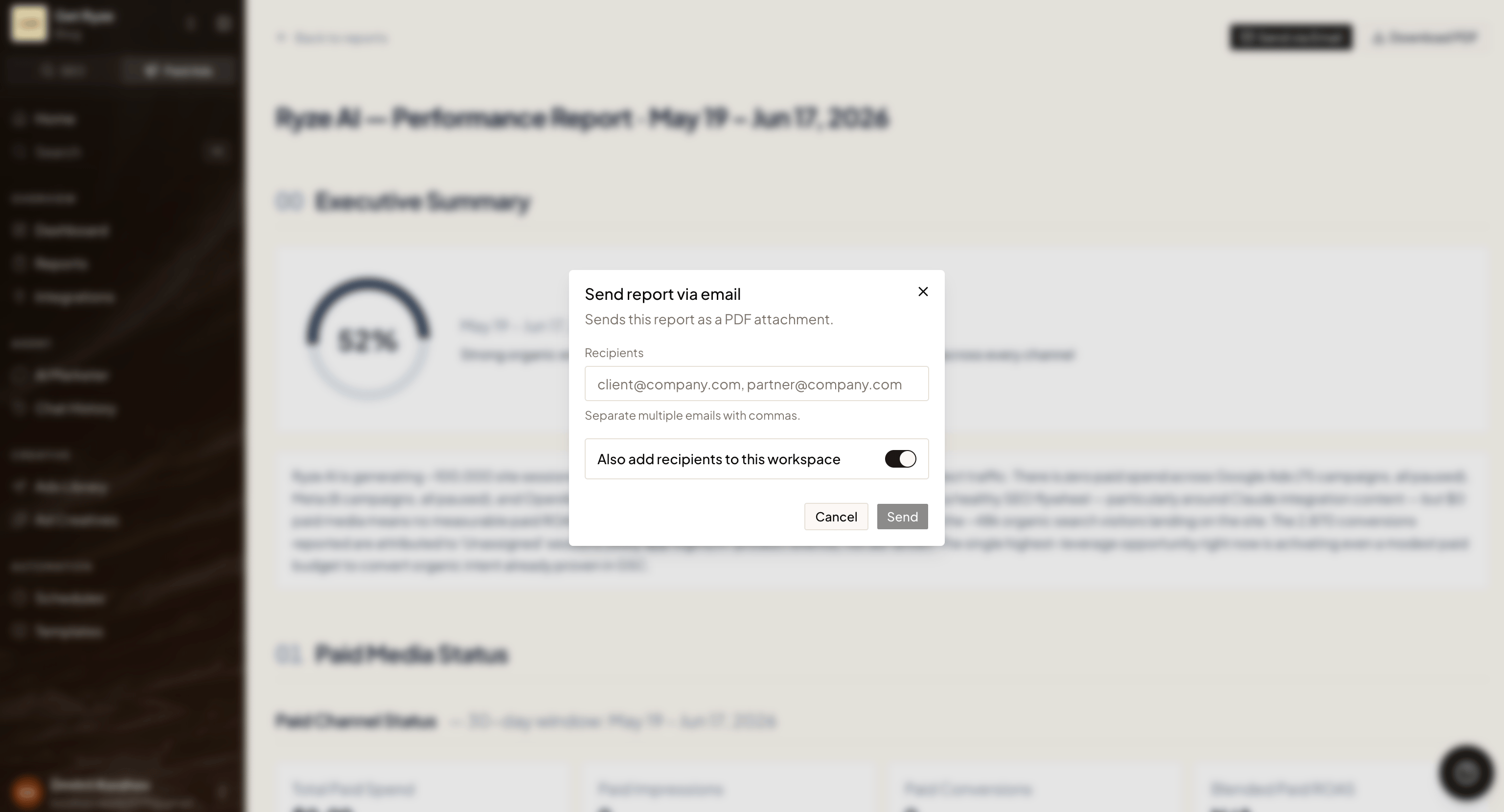 * **Recipients** — type one email or several, separated by commas.
* **Also add recipients to this workspace** — on by default. Each recipient is added as a member of this workspace so they can sign in and see your reports directly. Turn it off to just send the PDF without giving access.
Adding someone to the workspace gives them access to everything in it, not just this report. Turn the switch off if you only want to share the single PDF.
## Related
Have the agent build a report on a recurring schedule.
How agent work is billed.
* **Recipients** — type one email or several, separated by commas.
* **Also add recipients to this workspace** — on by default. Each recipient is added as a member of this workspace so they can sign in and see your reports directly. Turn it off to just send the PDF without giving access.
Adding someone to the workspace gives them access to everything in it, not just this report. Turn the switch off if you only want to share the single PDF.
## Related
Have the agent build a report on a recurring schedule.
How agent work is billed.