> ## Documentation Index
> Fetch the complete documentation index at: https://help.get-ryze.ai/llms.txt
> Use this file to discover all available pages before exploring further.
# Scheduled Tasks
> Have the agent run a task on a repeating schedule or once at a specific time, and email you the result — a weekly recap, a daily spend check, or a one-off reminder before a sale ends.
Set a task once and Ryze runs it on its own — either **repeating** (every day, week, or month) or **one-time** at a specific moment in the future. Each run does the work in a fresh chat and emails you the result, so the report is waiting in your inbox instead of being something you have to go pull.
One-time tasks are great for reminders and one-off checks — "pull this report tomorrow at 9am", or "check spend after the sale ends Friday". After a one-time task runs, it's marked **Completed** and won't run again.
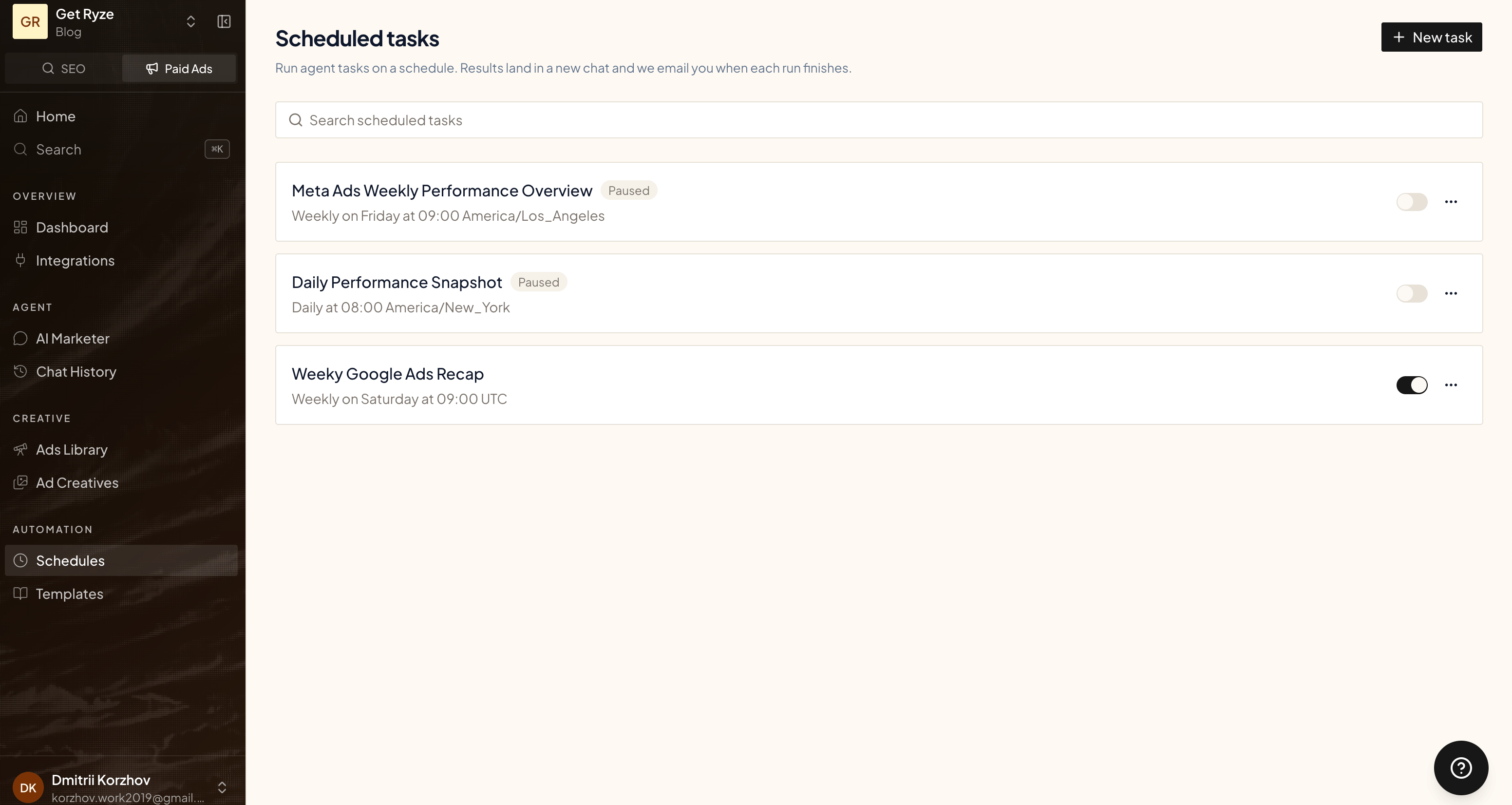
Find it under **Schedules** in the sidebar.
 ## Create a scheduled task
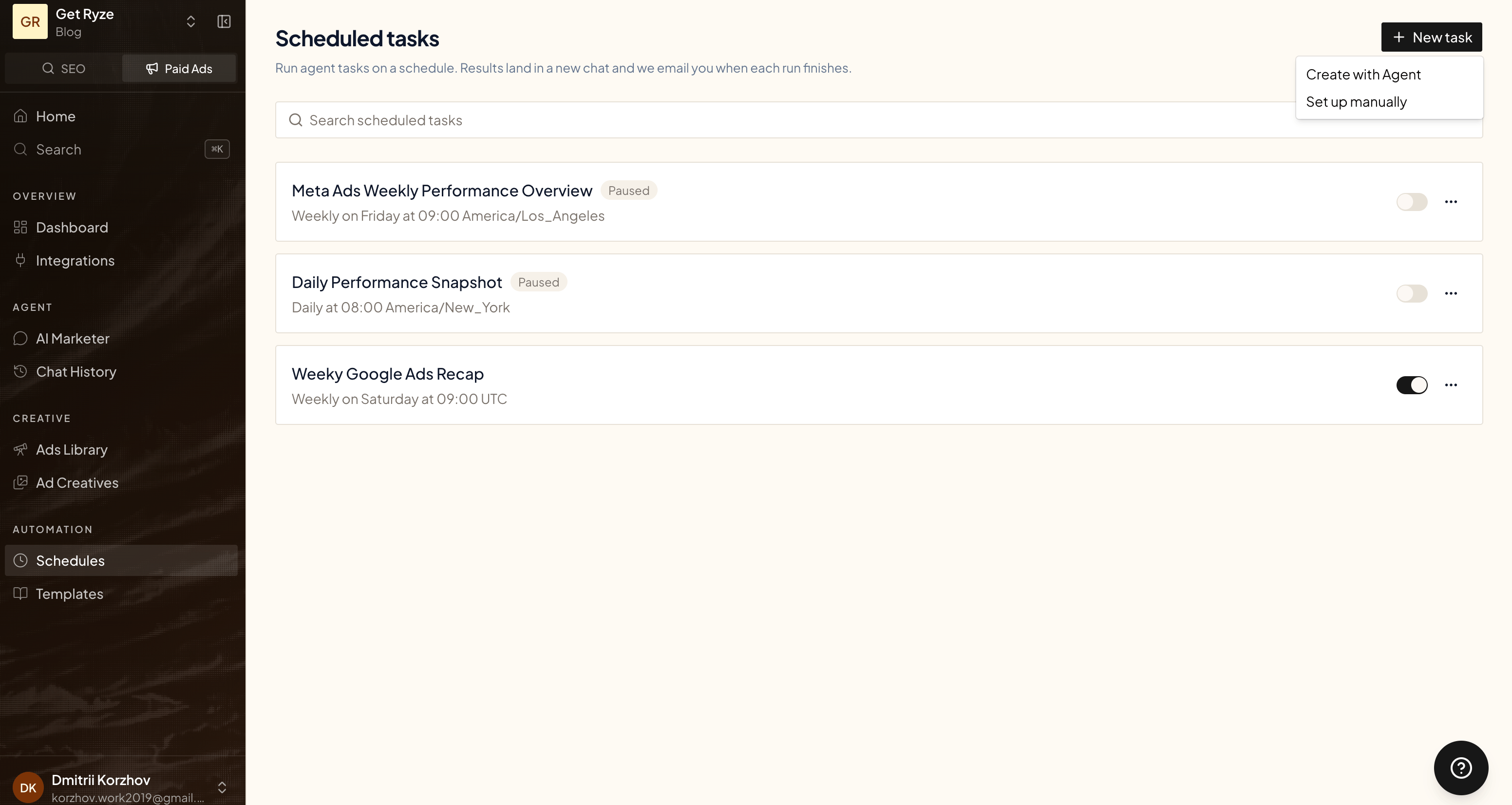
Click **New task** and pick how you want to set it up.
## Create a scheduled task
Click **New task** and pick how you want to set it up.
 ### Ask the agent
Pick **Create with Agent** and just say what you want in chat. The agent asks a couple of questions to nail down the cadence and what to report, then creates the schedule for you.
### Ask the agent
Pick **Create with Agent** and just say what you want in chat. The agent asks a couple of questions to nail down the cadence and what to report, then creates the schedule for you.
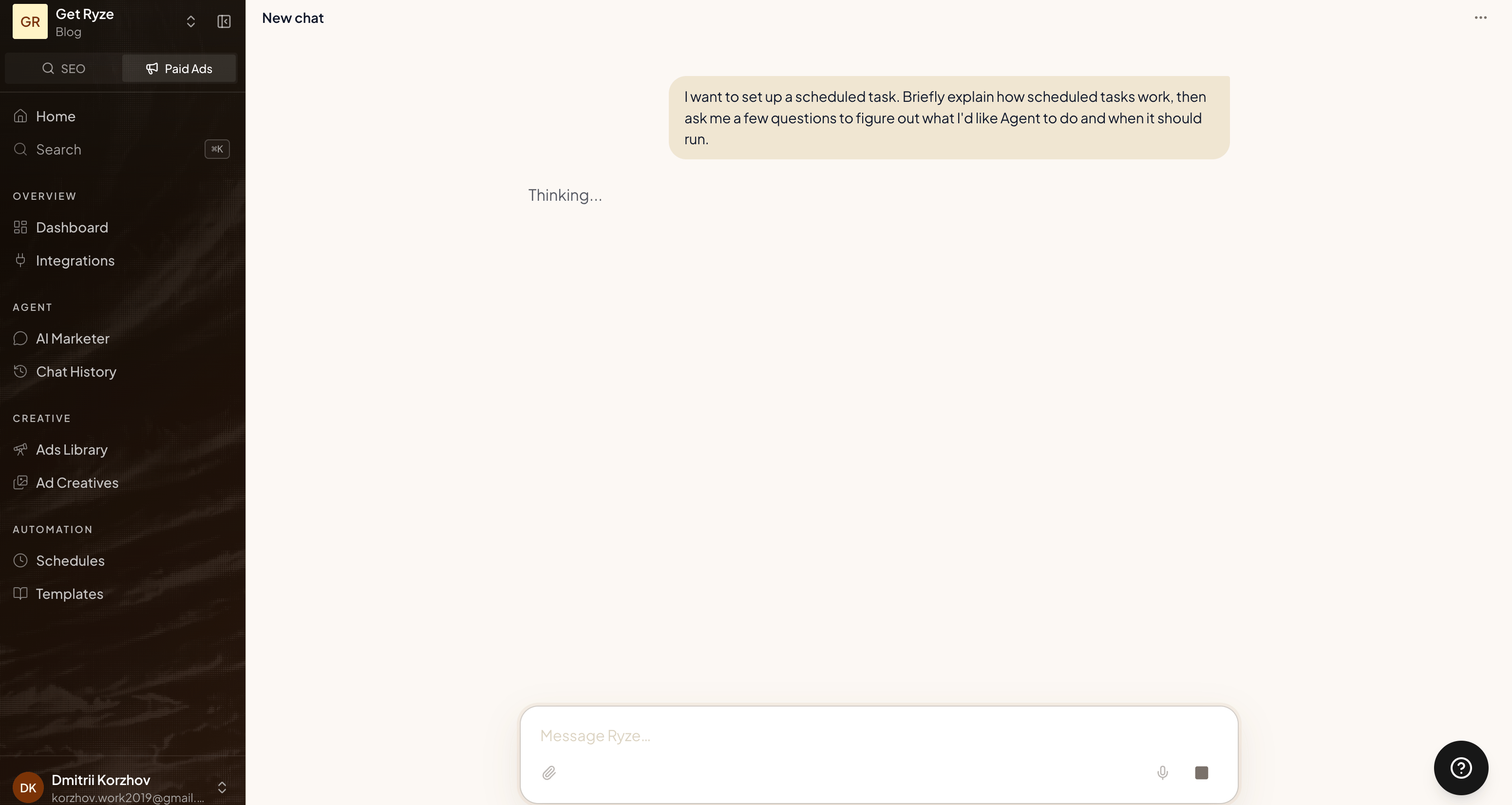 It also offers this on its own — ask a question you'll clearly want answered again next week and the agent suggests a recurring task, or mention a specific moment ("check this after the sale ends Friday") and it suggests a one-time task for that time.
### Set it up manually
Pick **Set up manually** to fill in the details yourself.
It also offers this on its own — ask a question you'll clearly want answered again next week and the agent suggests a recurring task, or mention a specific moment ("check this after the sale ends Friday") and it suggests a one-time task for that time.
### Set it up manually
Pick **Set up manually** to fill in the details yourself.
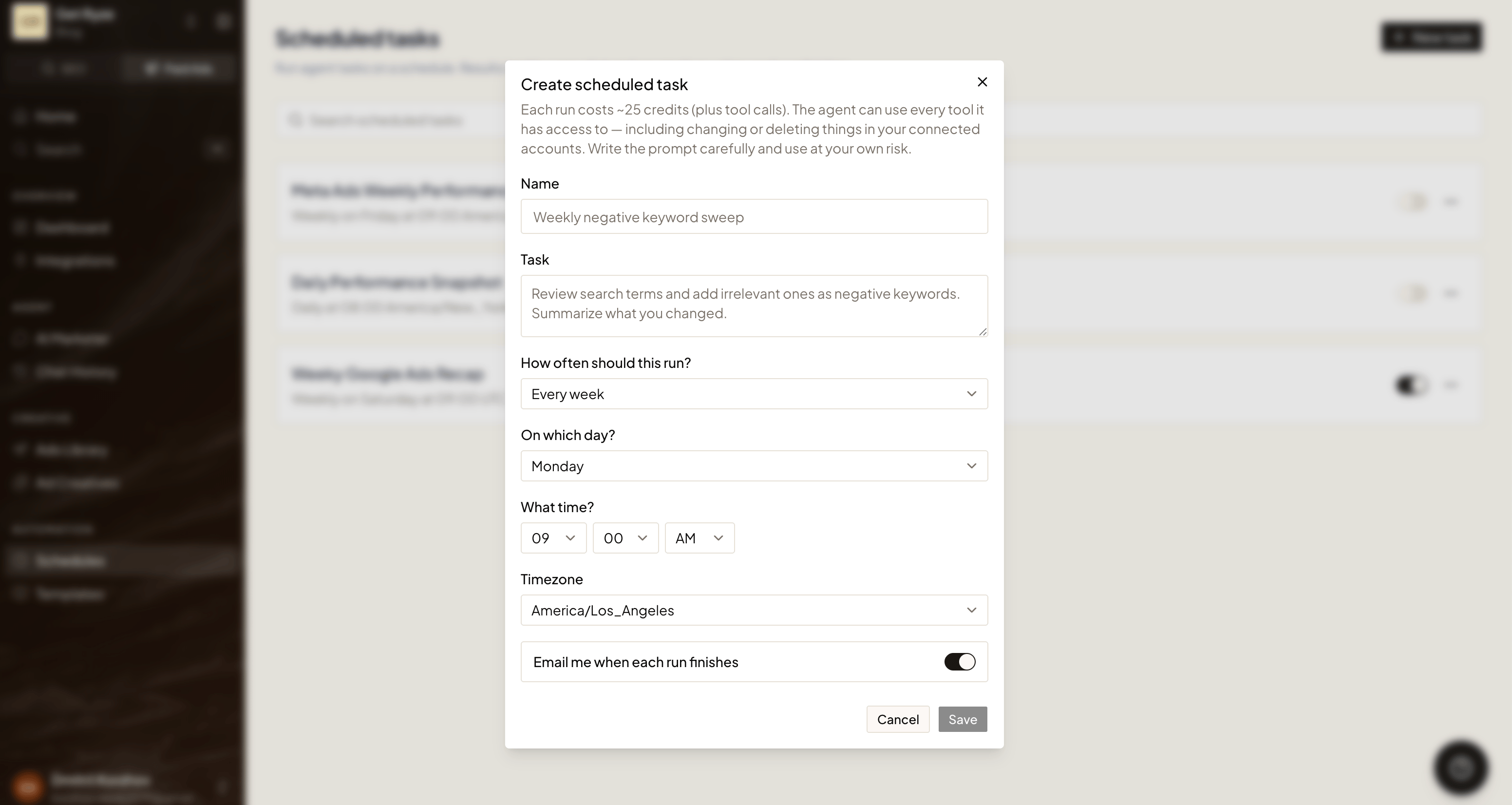 * **Name** — what this task is, e.g. "Weekly Google Ads recap".
* **Task** — the instructions the agent runs each time. Write it like a prompt: what to check, what to report.
* **When should this run?** — choose **repeating** or **one-time**.
* **Repeating** — daily, weekly (pick a day), or monthly (pick a date), at the time and timezone you choose.
* **One-time** — pick a date and time (interpreted in the timezone you select). It must be in the future, and it runs exactly once.
* **Email me when each run finishes** — on by default. Turn it off if you only want the result in the chat.
New tasks are **active as soon as you create them**.
Runs are billed per AI step like any agent work (see [Credits & Usage](/agent/credits)), and the agent can use every tool it has access to — including changing or deleting things in your connected accounts. Write the task carefully and use at your own risk.
## What happens on each run
When a schedule fires, Ryze:
1. **Starts a fresh chat** and runs your task as the agent.
2. **Writes the result** — the agent does the work and ends with a short recap: the verdict and the key numbers.
3. **Emails you** that recap (if email is on), with a link to open the full chat.
* **Name** — what this task is, e.g. "Weekly Google Ads recap".
* **Task** — the instructions the agent runs each time. Write it like a prompt: what to check, what to report.
* **When should this run?** — choose **repeating** or **one-time**.
* **Repeating** — daily, weekly (pick a day), or monthly (pick a date), at the time and timezone you choose.
* **One-time** — pick a date and time (interpreted in the timezone you select). It must be in the future, and it runs exactly once.
* **Email me when each run finishes** — on by default. Turn it off if you only want the result in the chat.
New tasks are **active as soon as you create them**.
Runs are billed per AI step like any agent work (see [Credits & Usage](/agent/credits)), and the agent can use every tool it has access to — including changing or deleting things in your connected accounts. Write the task carefully and use at your own risk.
## What happens on each run
When a schedule fires, Ryze:
1. **Starts a fresh chat** and runs your task as the agent.
2. **Writes the result** — the agent does the work and ends with a short recap: the verdict and the key numbers.
3. **Emails you** that recap (if email is on), with a link to open the full chat.
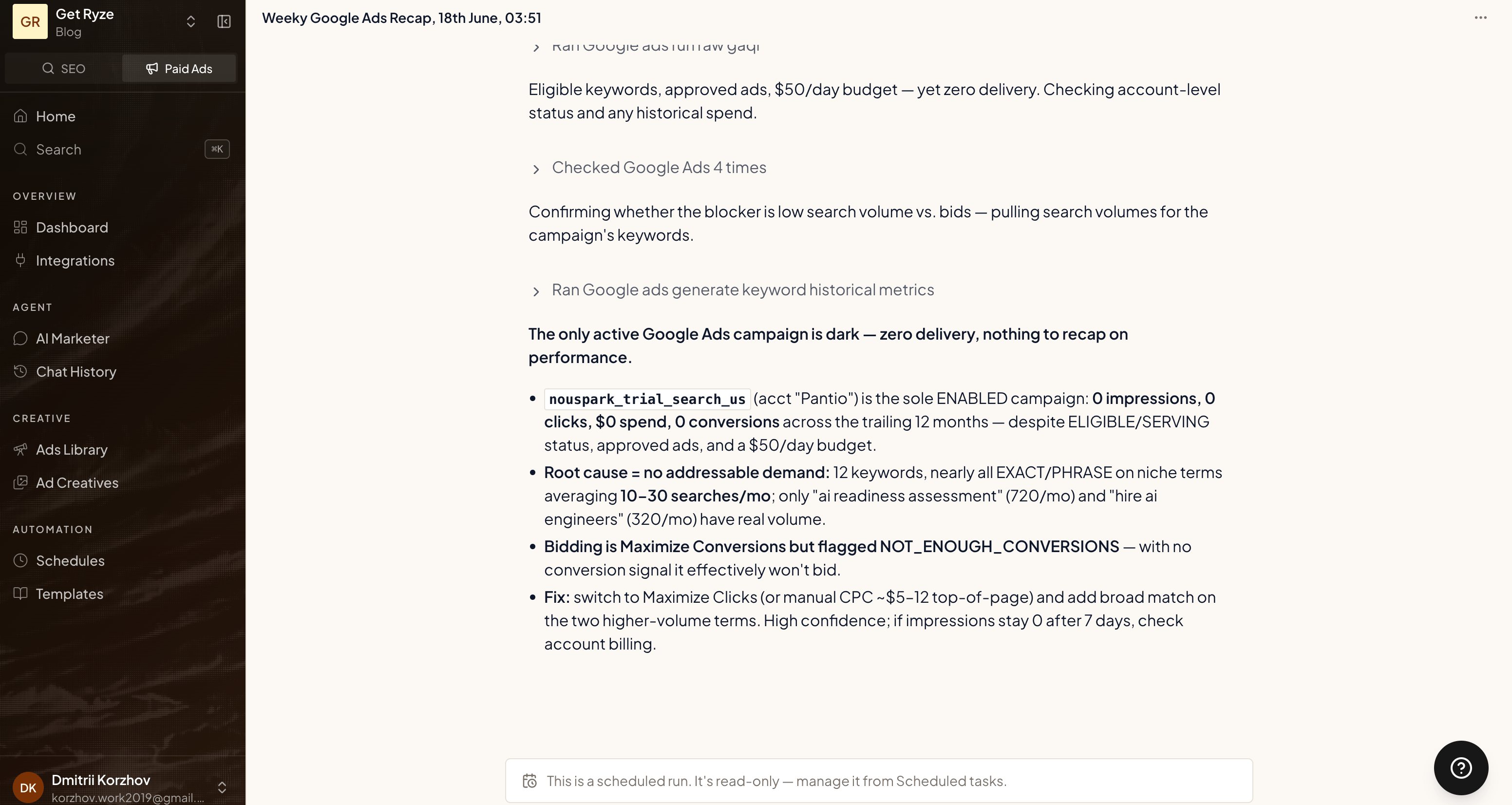 The email is a short headline. The full reasoning and detail live in the chat behind the **View full report** link.
Scheduled-run chats are read-only — they're a record of what the agent did, not a conversation you continue. To change what runs, edit the task.
## Manage a task
Open any task to see its run history, trigger it on demand, or change it.
The email is a short headline. The full reasoning and detail live in the chat behind the **View full report** link.
Scheduled-run chats are read-only — they're a record of what the agent did, not a conversation you continue. To change what runs, edit the task.
## Manage a task
Open any task to see its run history, trigger it on demand, or change it.
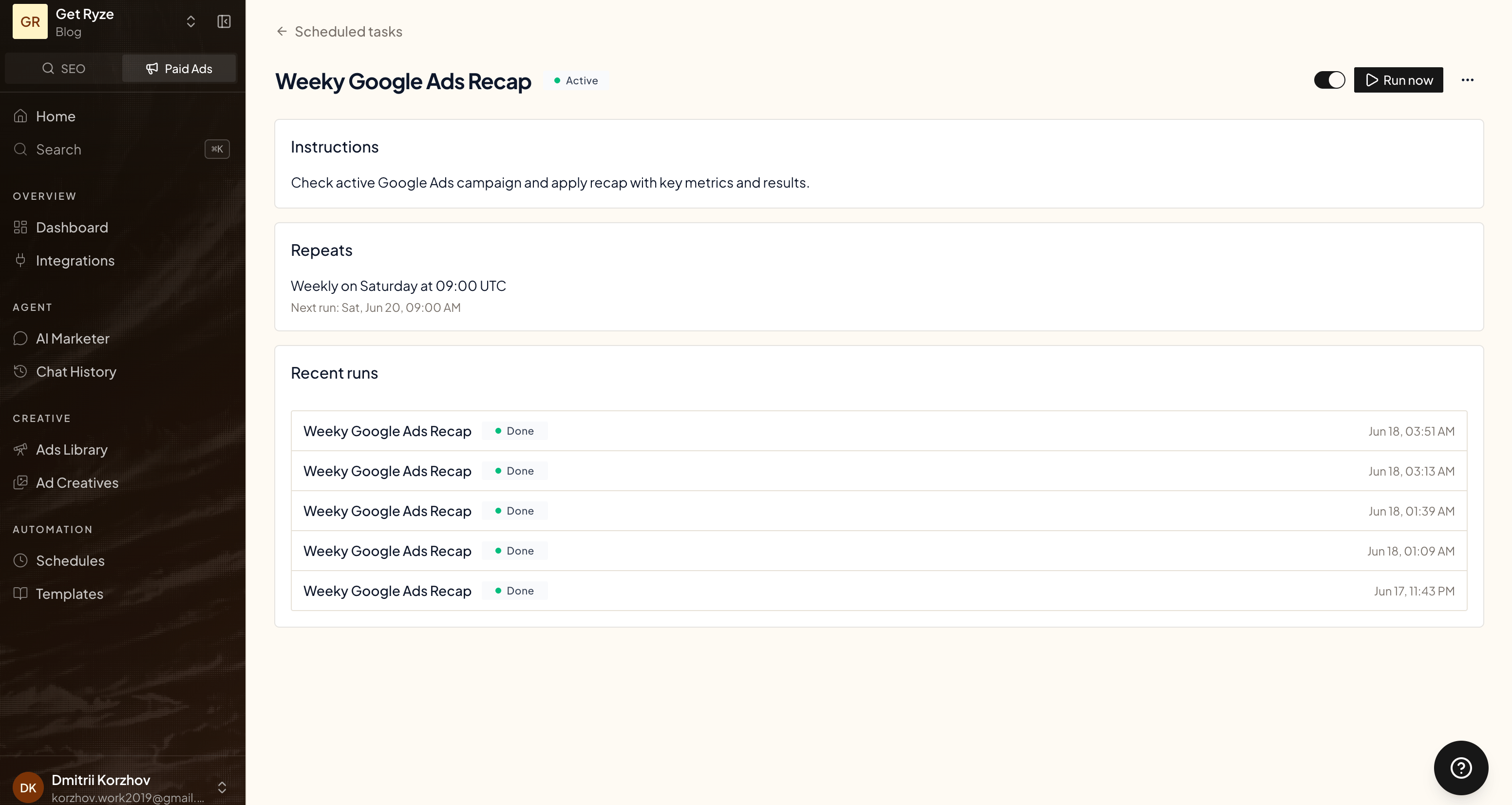 * **Run now** — fire the task immediately. For a one-time task this is a one-off extra run — it doesn't use up the scheduled time, which still fires as planned.
* **Toggle (Active / Paused)** — pause or resume a repeating schedule. Paused tasks don't run and don't bill. (One-time tasks show **Completed** once they've run.)
* **Edit / Delete** — from the menu. Deleting a task stops all future runs and removes its history.
## Related
How runs are billed.
Improvements the agent proposes on its own.
* **Run now** — fire the task immediately. For a one-time task this is a one-off extra run — it doesn't use up the scheduled time, which still fires as planned.
* **Toggle (Active / Paused)** — pause or resume a repeating schedule. Paused tasks don't run and don't bill. (One-time tasks show **Completed** once they've run.)
* **Edit / Delete** — from the menu. Deleting a task stops all future runs and removes its history.
## Related
How runs are billed.
Improvements the agent proposes on its own.