> ## Documentation Index
> Fetch the complete documentation index at: https://help.get-ryze.ai/llms.txt
> Use this file to discover all available pages before exploring further.
# Invoices & Payment Method
> Find your invoices and update your payment card.
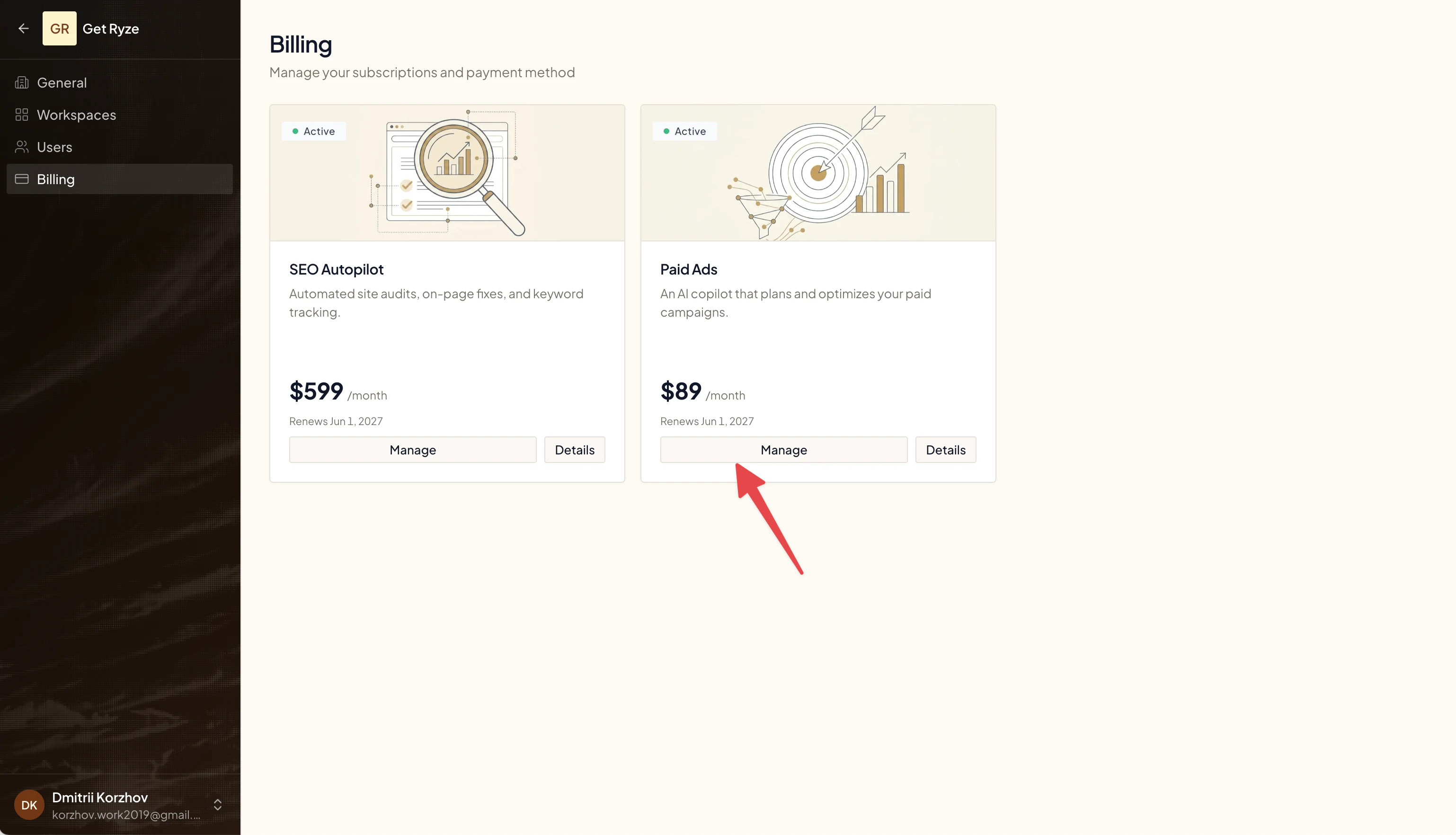
Everything billing-related lives behind one button: **Manage**.
## Open billing
Go to [Billing](https://reports.get-ryze.ai/settings/billing) in your organization settings. You'll see a card for each subscription with its status and renewal date.
 ## Download invoices
1. Click **Manage** on a subscription.
2. The billing portal opens.
3. View and download any invoice or receipt as a PDF.
Invoices are also emailed to your billing address after each successful payment.
## Update your payment card
Click **Manage**, then update your payment method in the billing portal. The new card applies to your next charge.
## Add company or VAT details
In the billing portal, edit your billing details to add a company name, address, or VAT / tax ID. These appear on all future invoices.
## Related
Change your plan or cancel.
Common billing questions.
## Download invoices
1. Click **Manage** on a subscription.
2. The billing portal opens.
3. View and download any invoice or receipt as a PDF.
Invoices are also emailed to your billing address after each successful payment.
## Update your payment card
Click **Manage**, then update your payment method in the billing portal. The new card applies to your next charge.
## Add company or VAT details
In the billing portal, edit your billing details to add a company name, address, or VAT / tax ID. These appear on all future invoices.
## Related
Change your plan or cancel.
Common billing questions.