> ## Documentation Index
> Fetch the complete documentation index at: https://help.get-ryze.ai/llms.txt
> Use this file to discover all available pages before exploring further.
# Connect Ryze to ChatGPT
> Add Ryze as a custom connector in ChatGPT and chat with your ad data. Takes about two minutes.
Ryze works inside ChatGPT. Once connected, you can ask ChatGPT about your Google Ads and Meta data in plain language — no dashboards, no exports.
You'll need a ChatGPT plan that supports apps and connectors (Plus, Pro, or Business), and **Developer mode** turned on — the steps below cover it.
## Your connector URL
You'll need this when adding Ryze to ChatGPT:
```
https://connector.get-ryze.ai/mcp
```
## Add Ryze as a connector
In ChatGPT, open **Settings**, then click the **Apps** tab on the left.
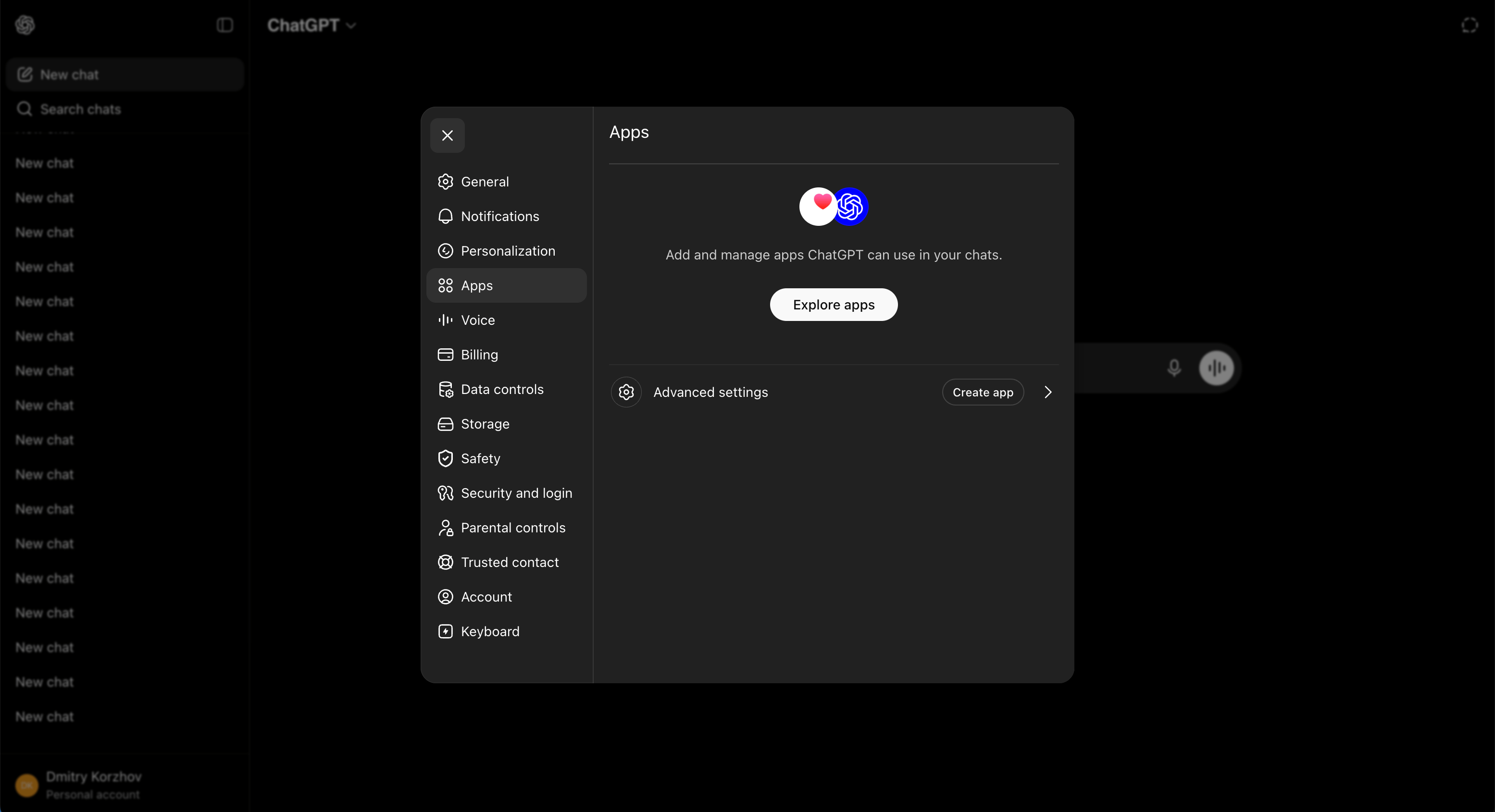
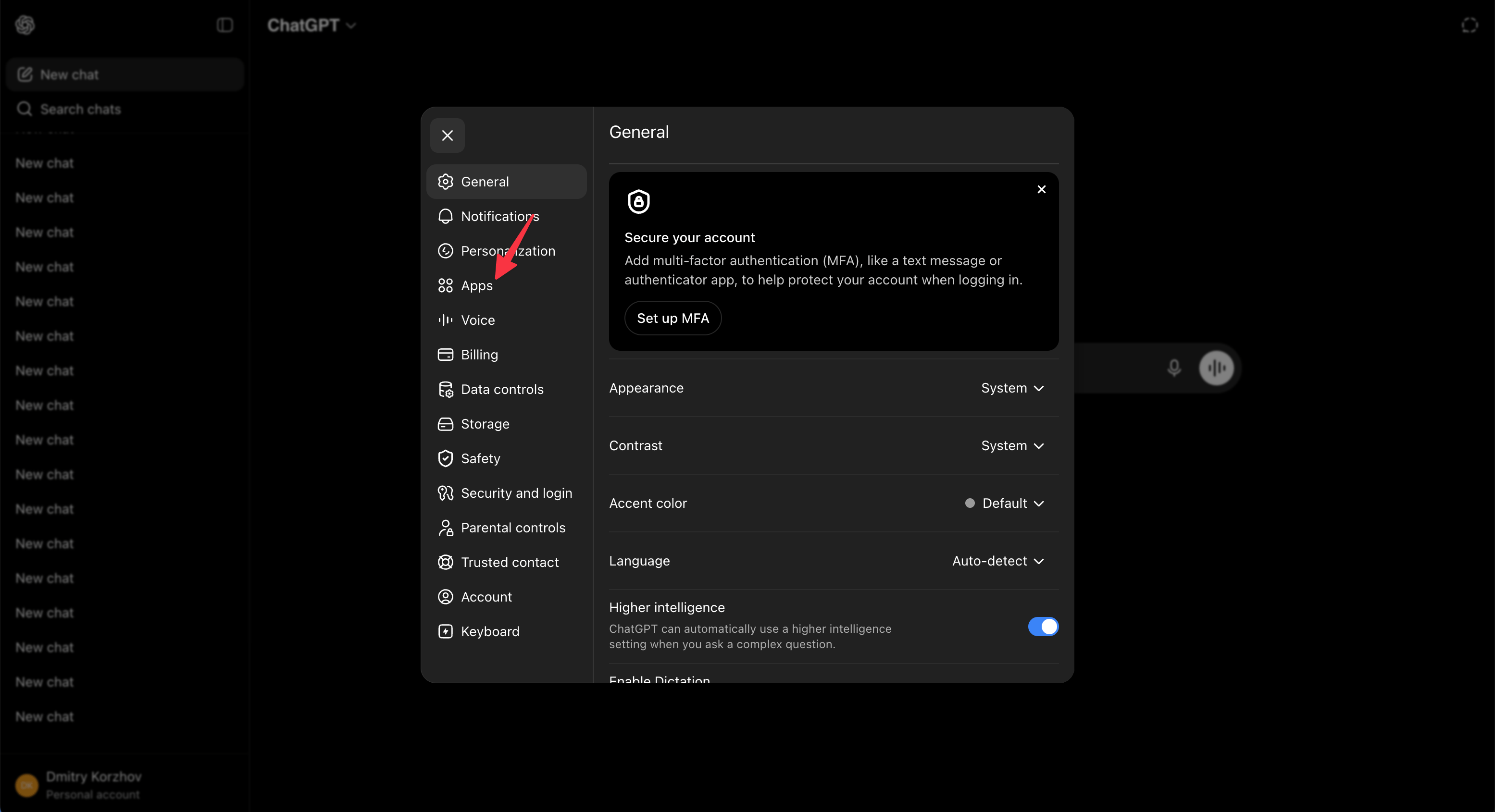 On the Apps page, find **Advanced settings**.
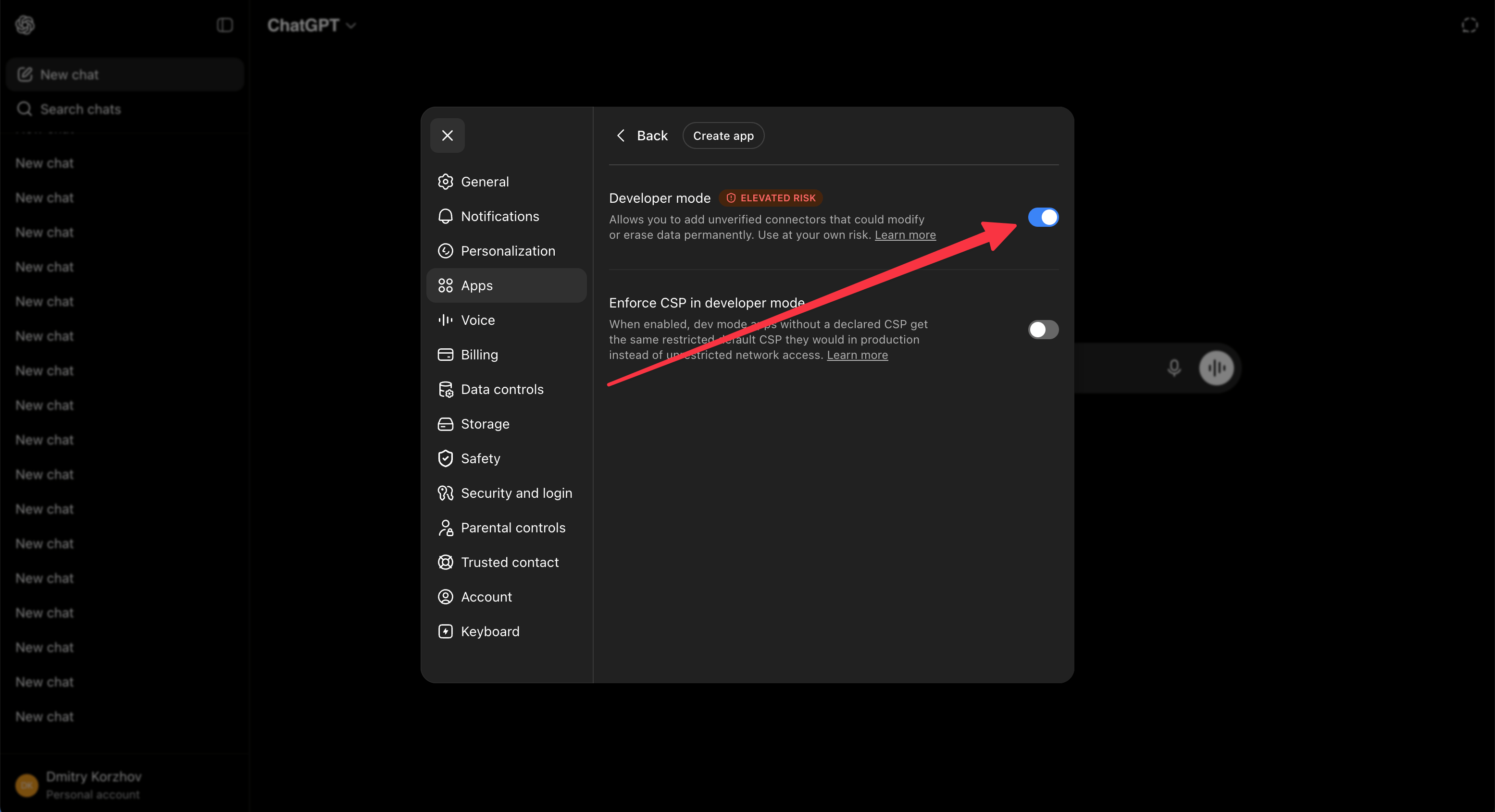
 Enable **Developer mode**. This is what lets you add a custom connector.
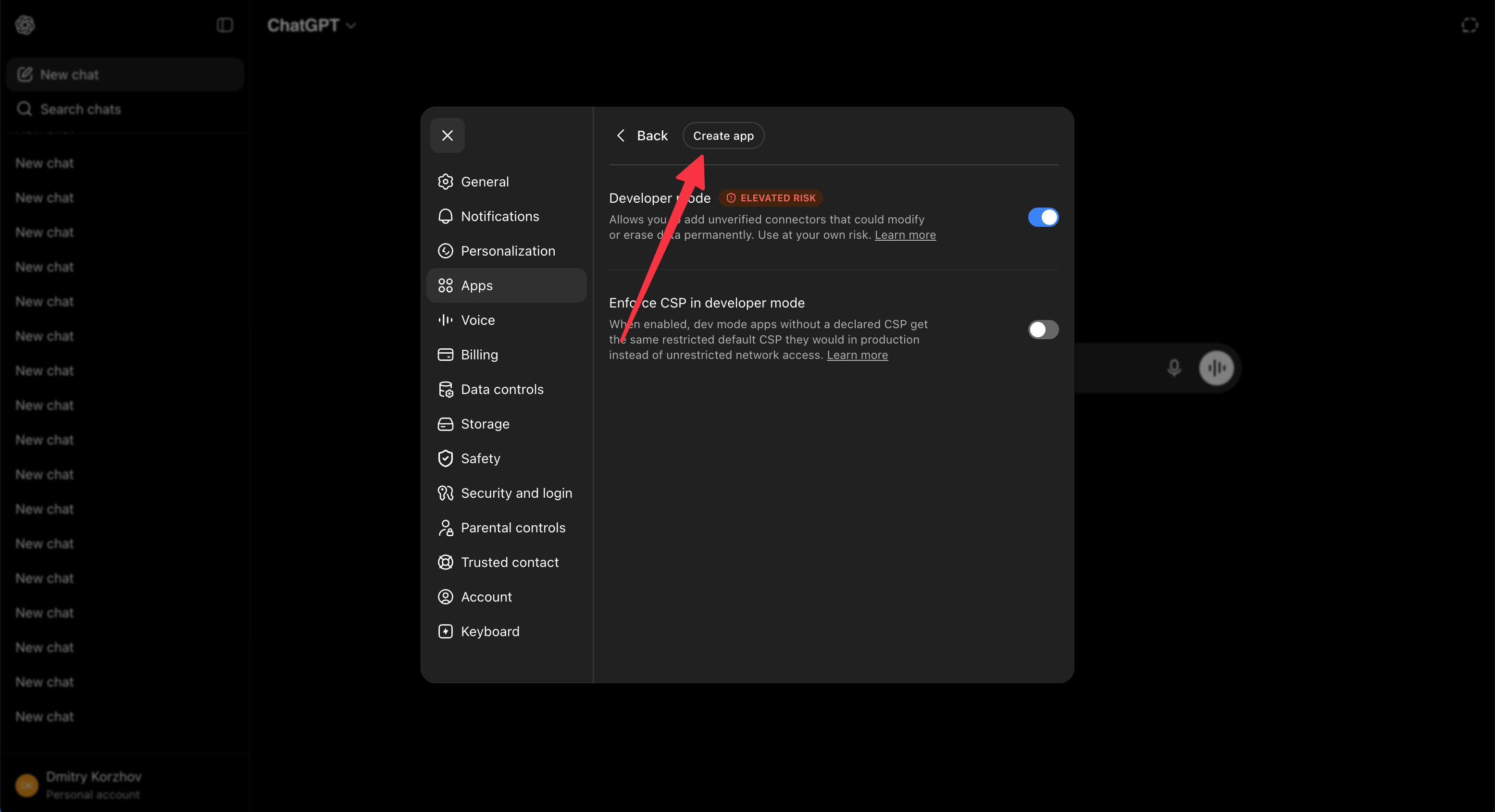
 Click **Create app** at the top.
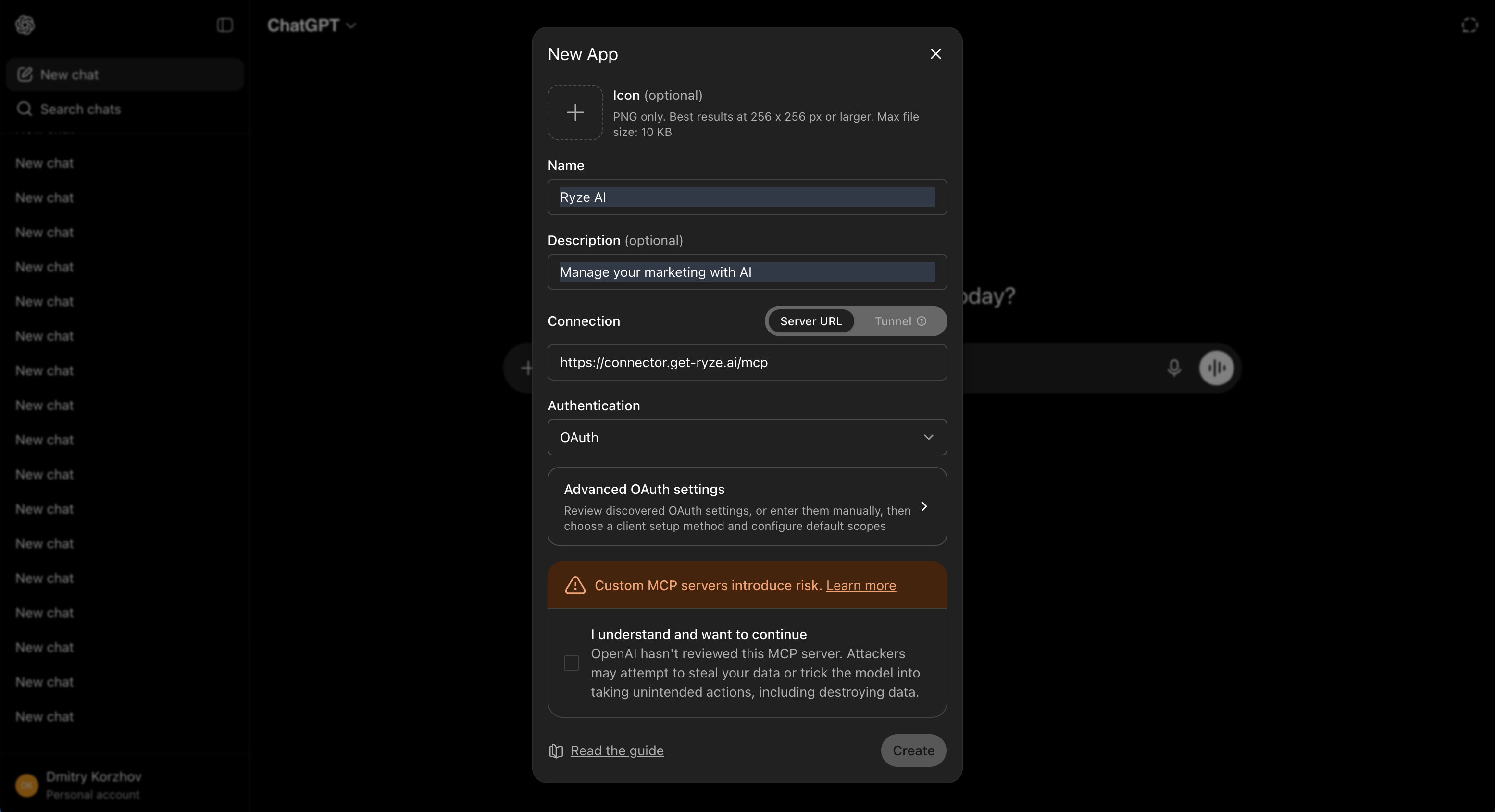
 * **Name** — enter `Ryze AI`
* **MCP server URL** — enter `https://connector.get-ryze.ai/mcp` (keep **Server URL** selected, not Tunnel)
* **Authentication** — choose **OAuth**
* Tick **I understand and want to continue**, then click **Create**
* **Name** — enter `Ryze AI`
* **MCP server URL** — enter `https://connector.get-ryze.ai/mcp` (keep **Server URL** selected, not Tunnel)
* **Authentication** — choose **OAuth**
* Tick **I understand and want to continue**, then click **Create**
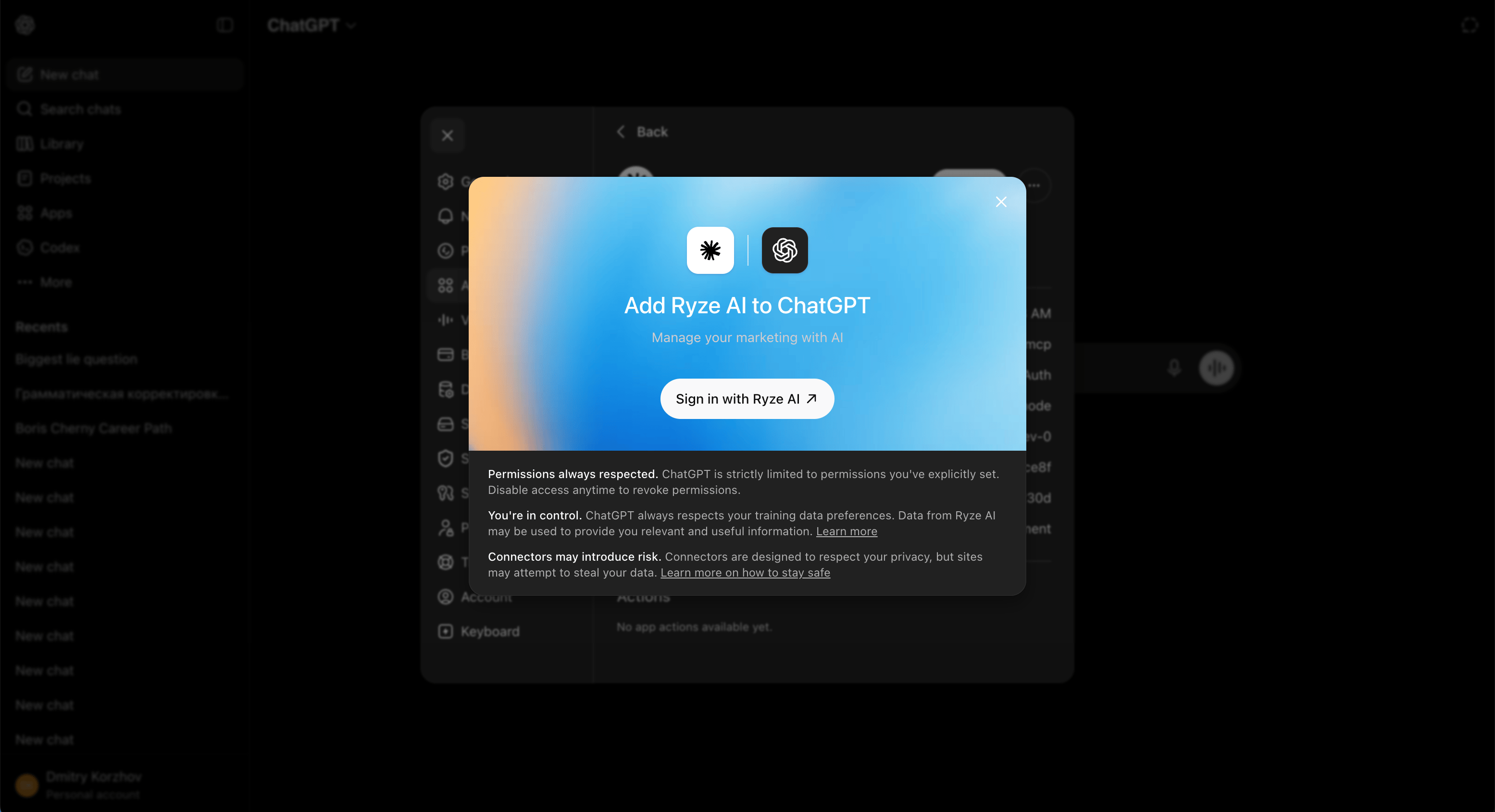
 ChatGPT opens a Ryze authorization page. Click **Sign in with Ryze AI**.
 Choose the workspace you want ChatGPT to read from, then click **Allow** to connect.
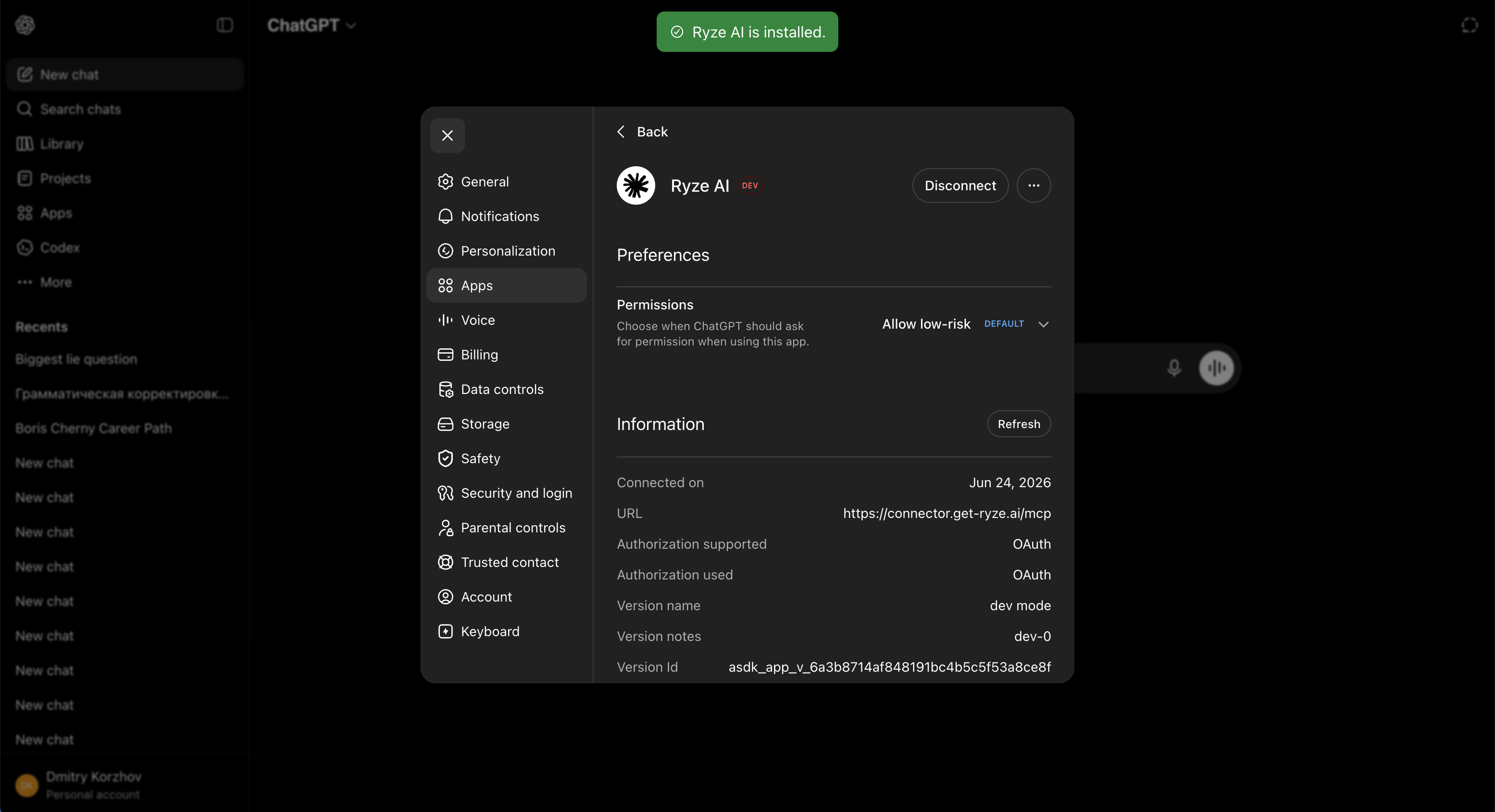
You'll see a green **Ryze AI is installed** toast. The app page lists the connection details and the tools ChatGPT can call — Google Ads, Meta Ads, GA4, Search Console, and more.
Choose the workspace you want ChatGPT to read from, then click **Allow** to connect.
You'll see a green **Ryze AI is installed** toast. The app page lists the connection details and the tools ChatGPT can call — Google Ads, Meta Ads, GA4, Search Console, and more.
 ## Try it
Start a **new chat** in ChatGPT and ask for what you want:
> Pull the last 7 days of Google Ads spend and break it down by campaign.
ChatGPT uses Ryze tools to answer.
Always start a **new chat** after connecting or reconnecting. Existing chats won't pick up the connection.
## Next steps
Control which actions the assistant can take on your accounts.
Link Google, Meta, Analytics and more.
Having trouble connecting? See the [FAQ](/claude/faq) or email [support@get-ryze.ai](mailto:support@get-ryze.ai).
## Try it
Start a **new chat** in ChatGPT and ask for what you want:
> Pull the last 7 days of Google Ads spend and break it down by campaign.
ChatGPT uses Ryze tools to answer.
Always start a **new chat** after connecting or reconnecting. Existing chats won't pick up the connection.
## Next steps
Control which actions the assistant can take on your accounts.
Link Google, Meta, Analytics and more.
Having trouble connecting? See the [FAQ](/claude/faq) or email [support@get-ryze.ai](mailto:support@get-ryze.ai).