> ## Documentation Index
> Fetch the complete documentation index at: https://help.get-ryze.ai/llms.txt
> Use this file to discover all available pages before exploring further.
# Connect Framer
> Connect Framer using a project URL and API key.
Framer connects with two things: your **project URL** and an **API key** you generate in Framer.
## Step 1 — Create an API key in Framer
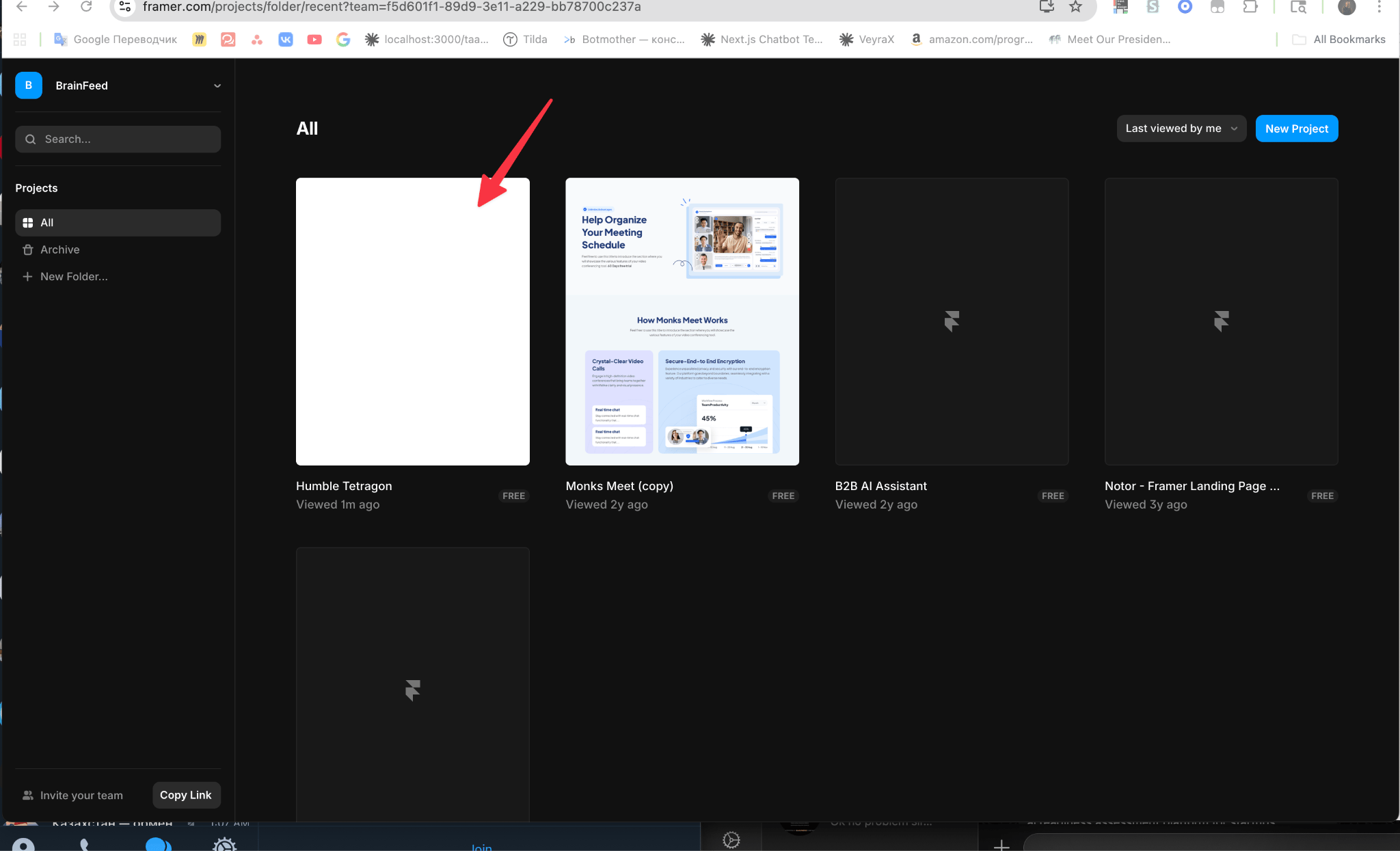
Open your project in Framer.
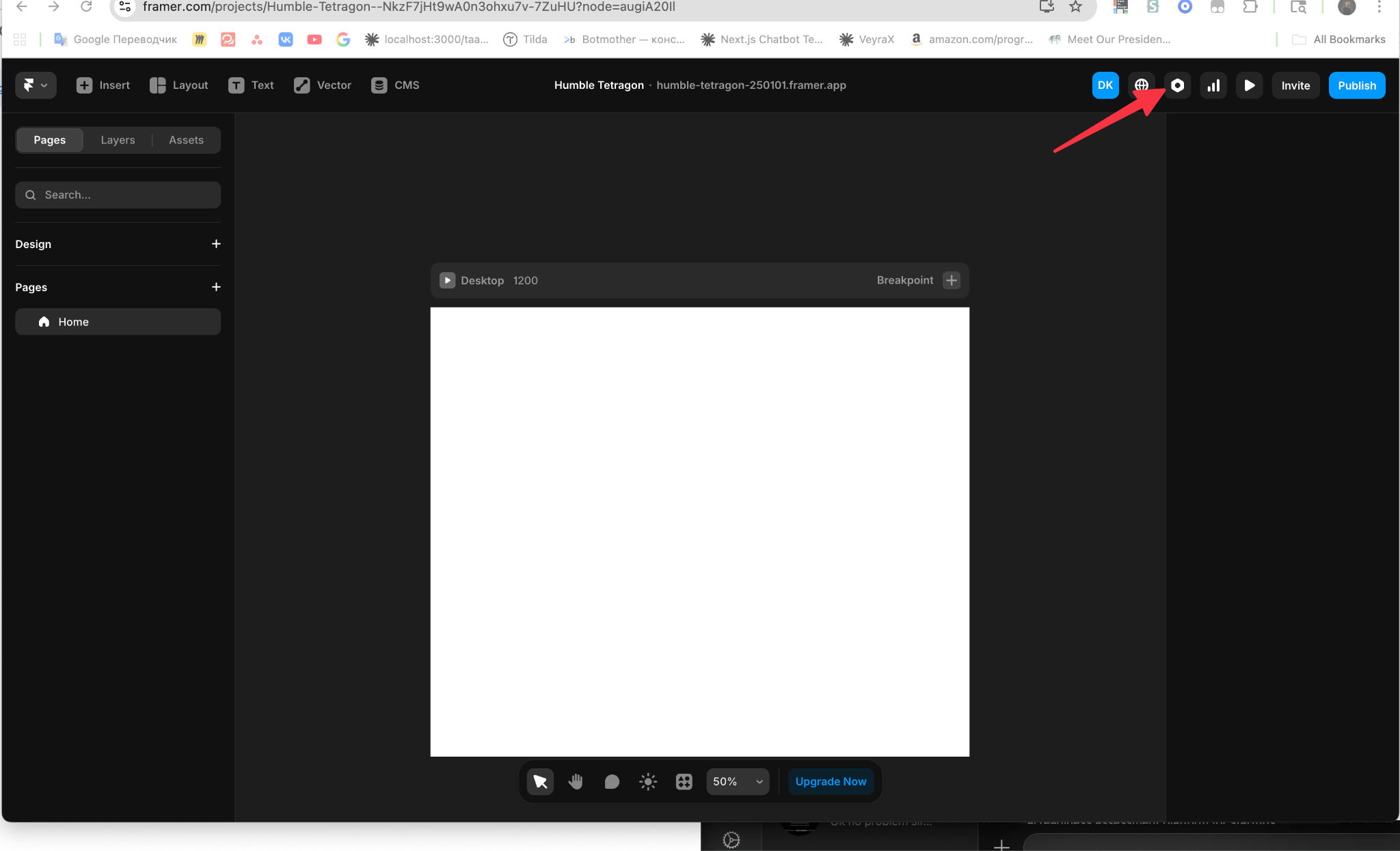
 Click the settings icon in the top-right corner to open project settings.
 In General settings, scroll down to the end.
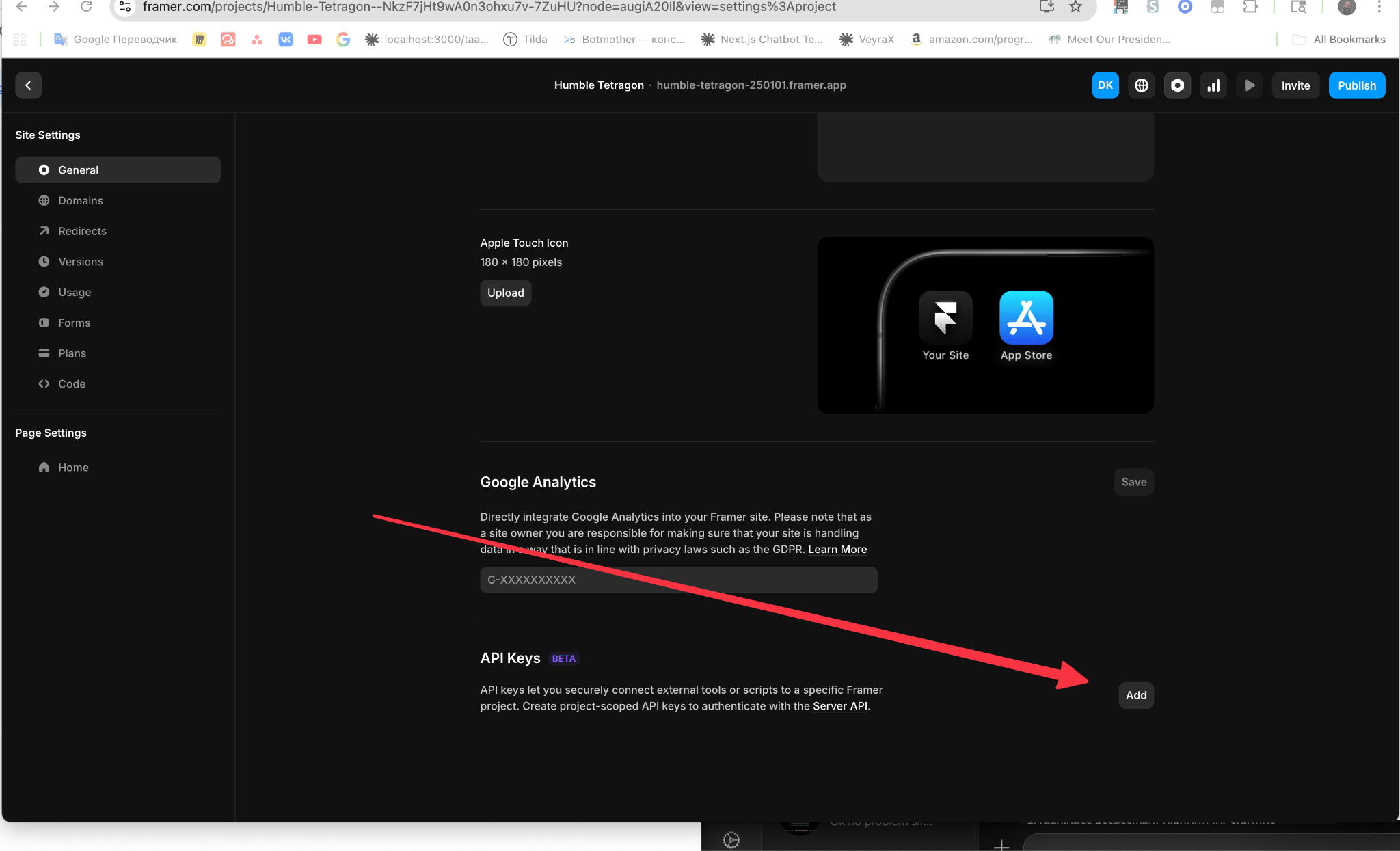 Create an API token and copy it. You'll paste it into Ryze next.
## Step 2 — Connect in Ryze
In **Workspace Settings → Integrations**, click **Connect** on the Framer card and fill in:
* **Project URL** — e.g. `https://framer.com/projects/...`
* **API key** — the token you copied from Framer
Create an API token and copy it. You'll paste it into Ryze next.
## Step 2 — Connect in Ryze
In **Workspace Settings → Integrations**, click **Connect** on the Framer card and fill in:
* **Project URL** — e.g. `https://framer.com/projects/...`
* **API key** — the token you copied from Framer
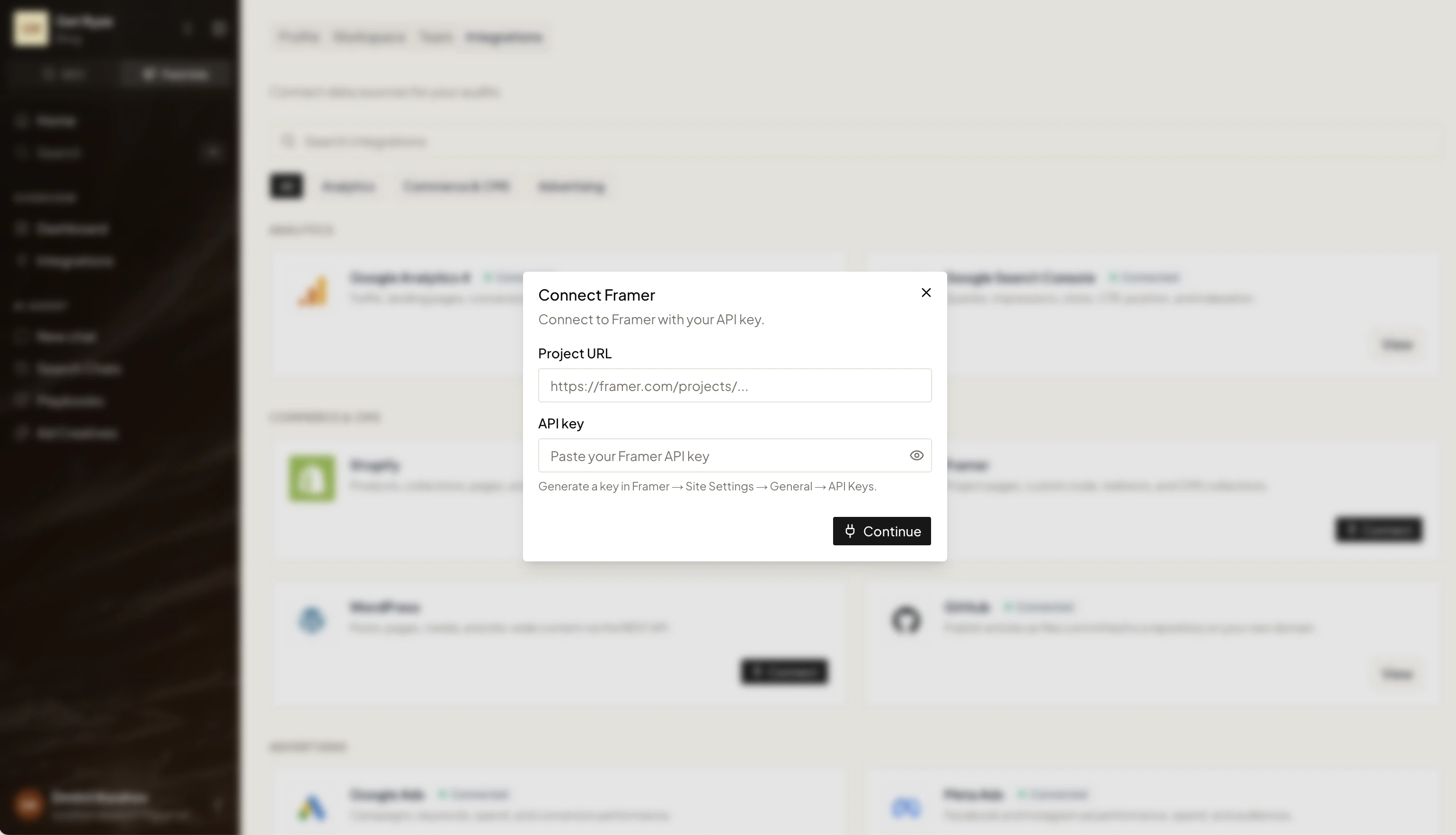 Click **Continue**. You're connected.
## Step 3 — Choose a Collection
After connecting, open the Framer integration settings and pick a **Collection** — the CMS collection where generated articles are published.
Click **Continue**. You're connected.
## Step 3 — Choose a Collection
After connecting, open the Framer integration settings and pick a **Collection** — the CMS collection where generated articles are published.
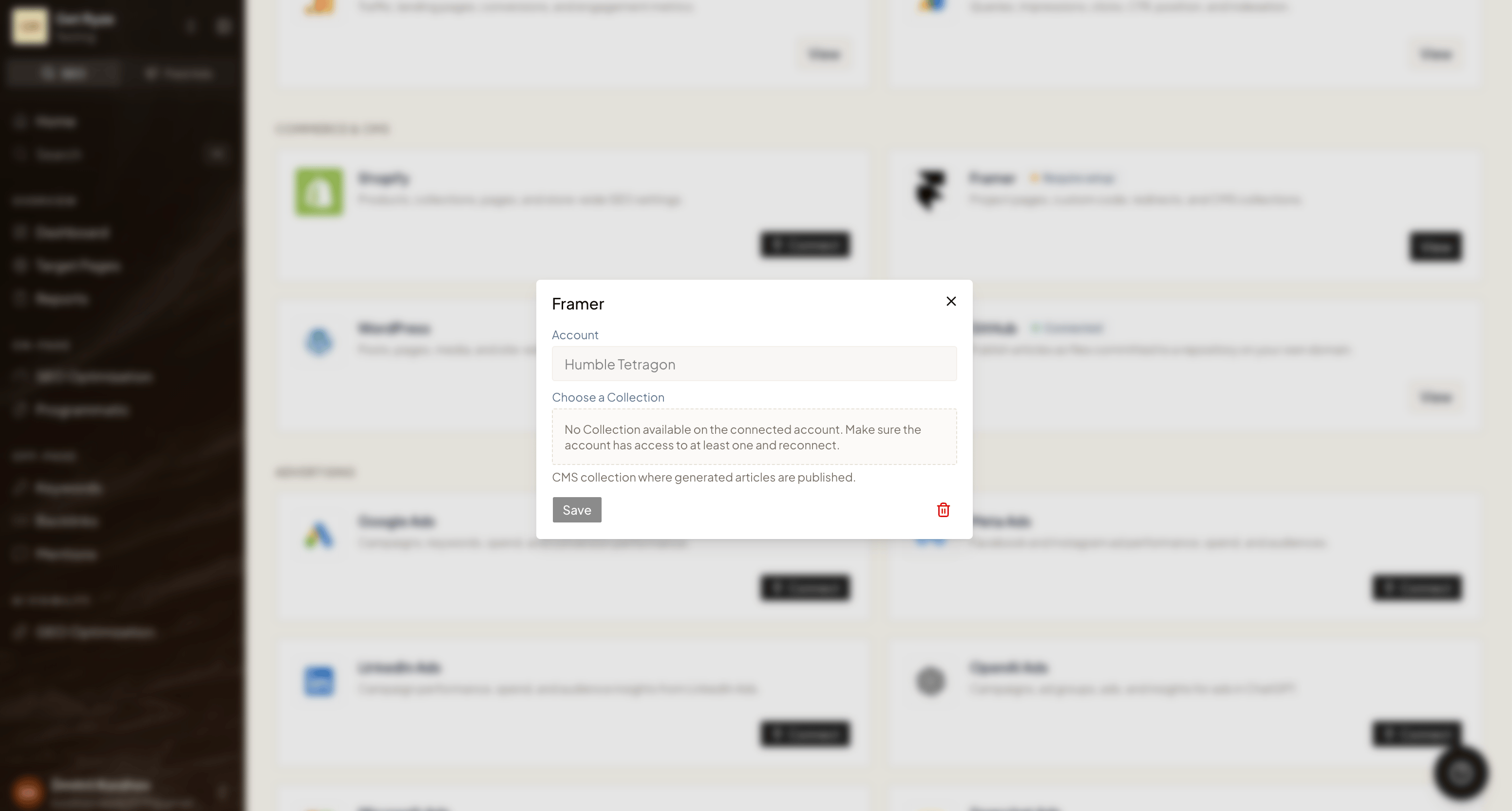 If the dropdown says **No Collection available**, your Framer project doesn't have a CMS collection yet (or the API key doesn't have access to one). Create a collection in Framer's CMS, then reconnect and pick it.
Click **Save**.
Need help? Email [support@get-ryze.ai](mailto:support@get-ryze.ai).
If the dropdown says **No Collection available**, your Framer project doesn't have a CMS collection yet (or the API key doesn't have access to one). Create a collection in Framer's CMS, then reconnect and pick it.
Click **Save**.
Need help? Email [support@get-ryze.ai](mailto:support@get-ryze.ai).