> ## Documentation Index
> Fetch the complete documentation index at: https://help.get-ryze.ai/llms.txt
> Use this file to discover all available pages before exploring further.
# Connect Klaviyo
> Connect your Klaviyo account with a private API key so Ryze can read and manage your email and SMS marketing.
Klaviyo connects with a **private API key** — a key you generate in Klaviyo that lets Ryze work with your campaigns, flows, lists, and reporting without sharing your login. Pick the access level that matches what you want Ryze to do: **Full Access** if you want the agent to create and manage things (campaigns, lists, flows), or **Read-Only** if you only want reporting.
 ## Step 1 — Generate a private API key
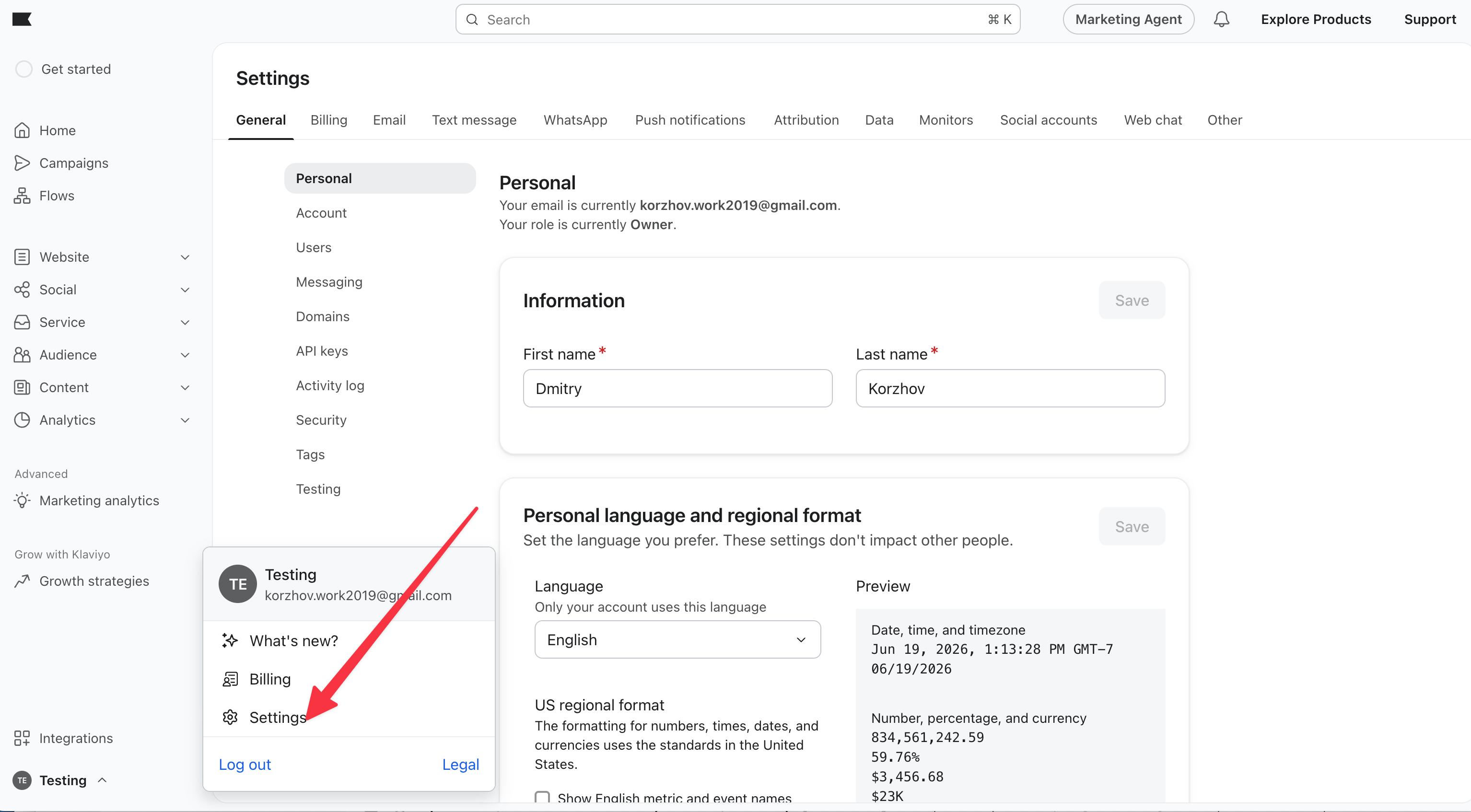
In Klaviyo, click your **account name** in the lower-left corner, then click **Settings**.
## Step 1 — Generate a private API key
In Klaviyo, click your **account name** in the lower-left corner, then click **Settings**.
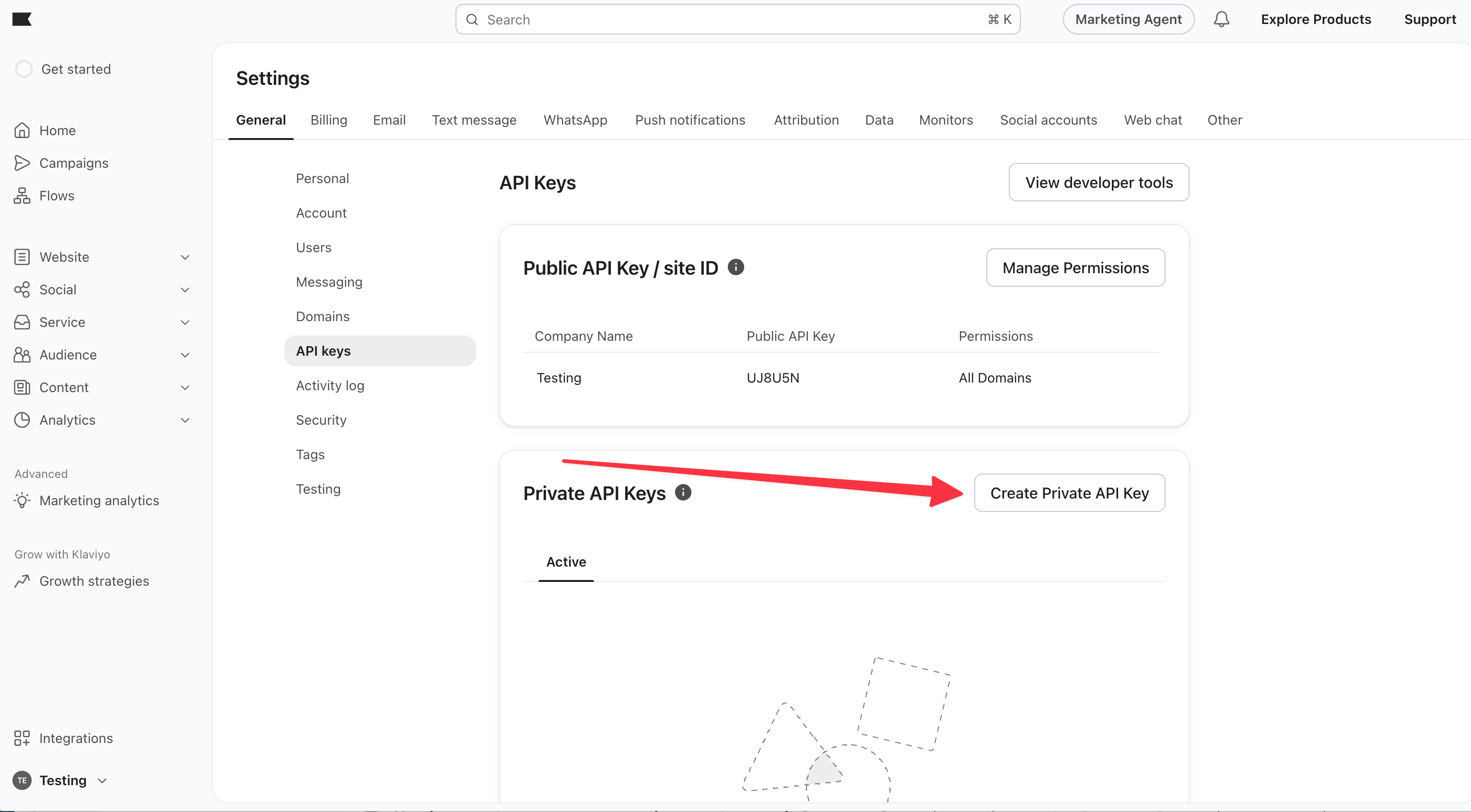
 Go to the **API keys** tab and click **Create Private API Key**. Give it a name like `Ryze` so you can recognize it later.
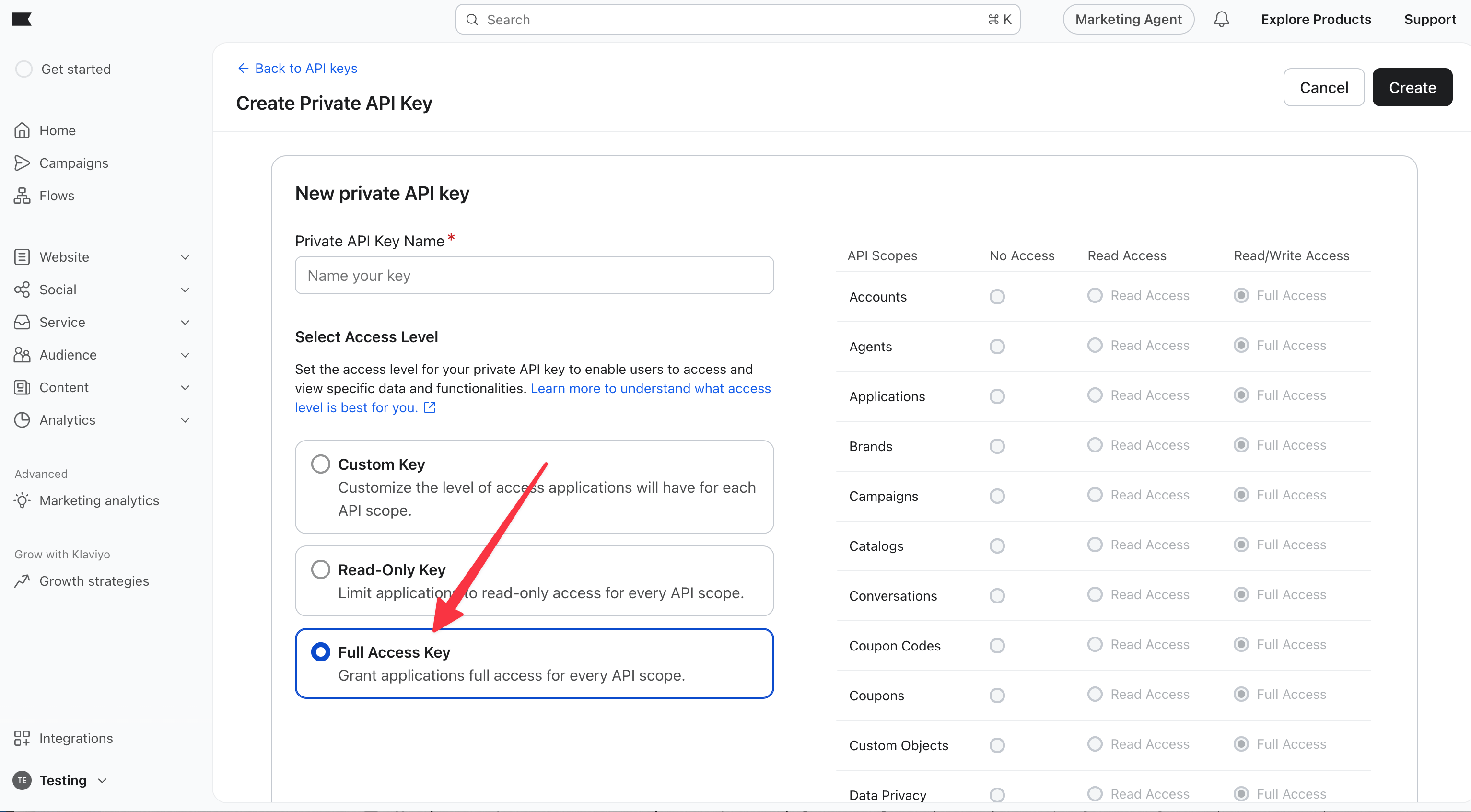
 Pick **Full Access** if you want Ryze to create and manage campaigns, lists, and flows. Pick **Read-Only** if you only want reporting. Avoid a custom key unless you know which scopes you're enabling.
 Click **Create**, then copy the key (it starts with `pk_`). Klaviyo shows it once — copy it now.
The private API key is shown only once. If you lose it, delete it in Klaviyo and create a new one — keys can't be edited after creation.
## Step 2 — Connect in Ryze
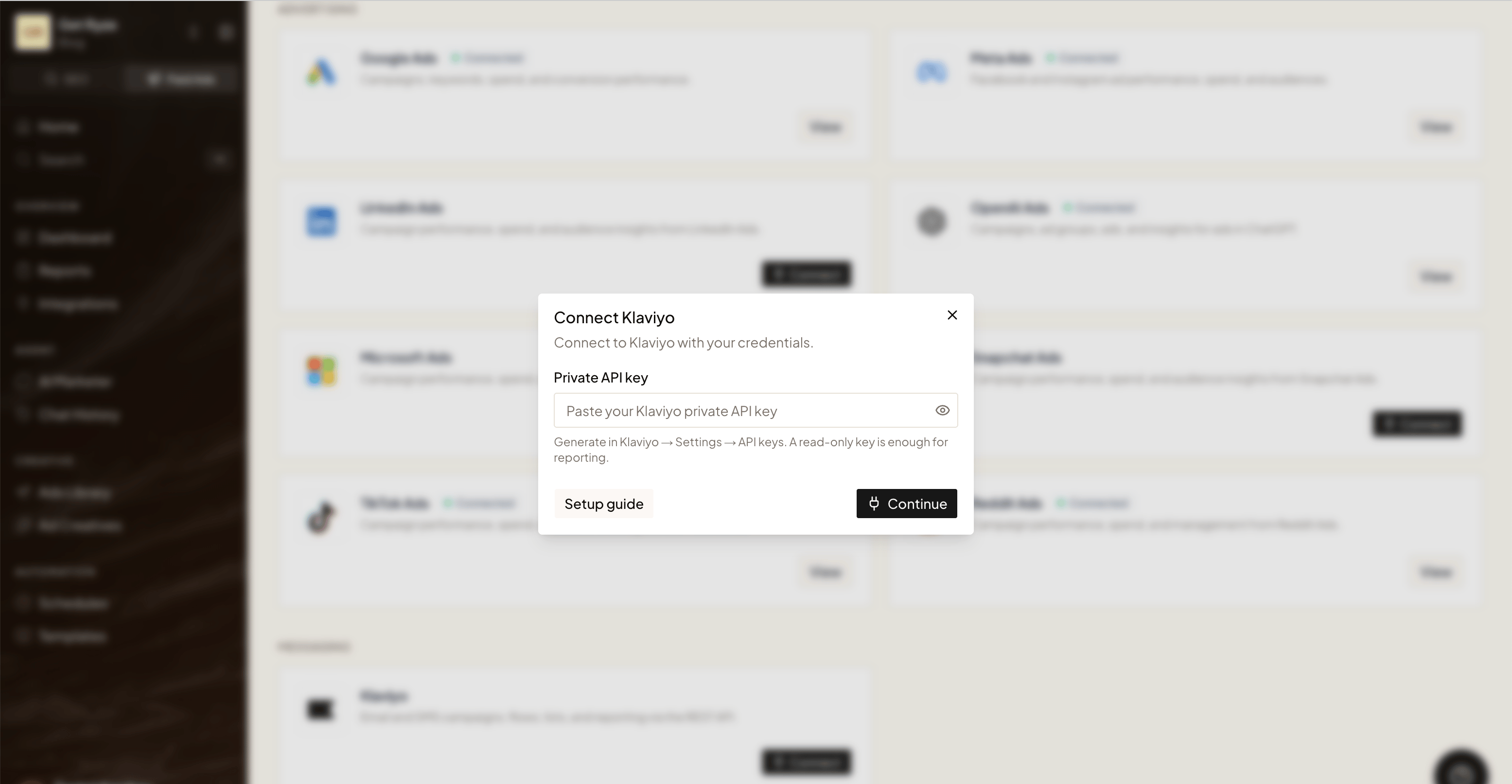
In **Workspace Settings → Integrations**, click **Connect** on the Klaviyo card, then paste your key into the **Private API key** field and click **Continue**. Ryze verifies the key against your Klaviyo account and confirms the account name.
## Troubleshooting
* **Key rejected** — make sure you copied the full `pk_...` key and that it has the `accounts:read` scope. A Read-only or Full key always includes it; a custom key may not.
* **Can't find API keys** — they live under **Settings → API keys** (click your account name in the lower-left to reach Settings).
* **Wrong account connected** — each key belongs to one Klaviyo account. To connect a different account, generate a key while logged into that account.
Still stuck? Email [support@get-ryze.ai](mailto:support@get-ryze.ai).
Click **Create**, then copy the key (it starts with `pk_`). Klaviyo shows it once — copy it now.
The private API key is shown only once. If you lose it, delete it in Klaviyo and create a new one — keys can't be edited after creation.
## Step 2 — Connect in Ryze
In **Workspace Settings → Integrations**, click **Connect** on the Klaviyo card, then paste your key into the **Private API key** field and click **Continue**. Ryze verifies the key against your Klaviyo account and confirms the account name.
## Troubleshooting
* **Key rejected** — make sure you copied the full `pk_...` key and that it has the `accounts:read` scope. A Read-only or Full key always includes it; a custom key may not.
* **Can't find API keys** — they live under **Settings → API keys** (click your account name in the lower-left to reach Settings).
* **Wrong account connected** — each key belongs to one Klaviyo account. To connect a different account, generate a key while logged into that account.
Still stuck? Email [support@get-ryze.ai](mailto:support@get-ryze.ai).