> ## Documentation Index
> Fetch the complete documentation index at: https://help.get-ryze.ai/llms.txt
> Use this file to discover all available pages before exploring further.
# Connect Multiple Accounts
> Connect several accounts for the same platform and choose which one Claude uses by default.
You can connect more than one account for the same platform in a single workspace — for example, two Google Ads logins or several GA4 accounts. Each account is kept separately, with its own property or ad-account selection, and you choose which one is **primary**.
## What is the primary account?
When a platform has more than one connected account, one of them is the **primary**. The primary is the account Claude uses **by default** when you don't name a specific one. You can change it at any time, and you can still ask Claude to use any of the other accounts (see [Using a specific account in Claude](#using-a-specific-account-in-claude)).
A platform with a single connected account doesn't need a primary — that account is always used.
## Add an account
Go to **Workspace Settings → Integrations** and click **View** on the connected platform's card.
Click **+ Add account** and authorize the other login (OAuth) or enter its credentials (API-key platforms). The new account is added alongside the existing ones — nothing is overwritten.
Choose the property or ad account for the new connection, then click **Save**. Each account keeps its own selection.
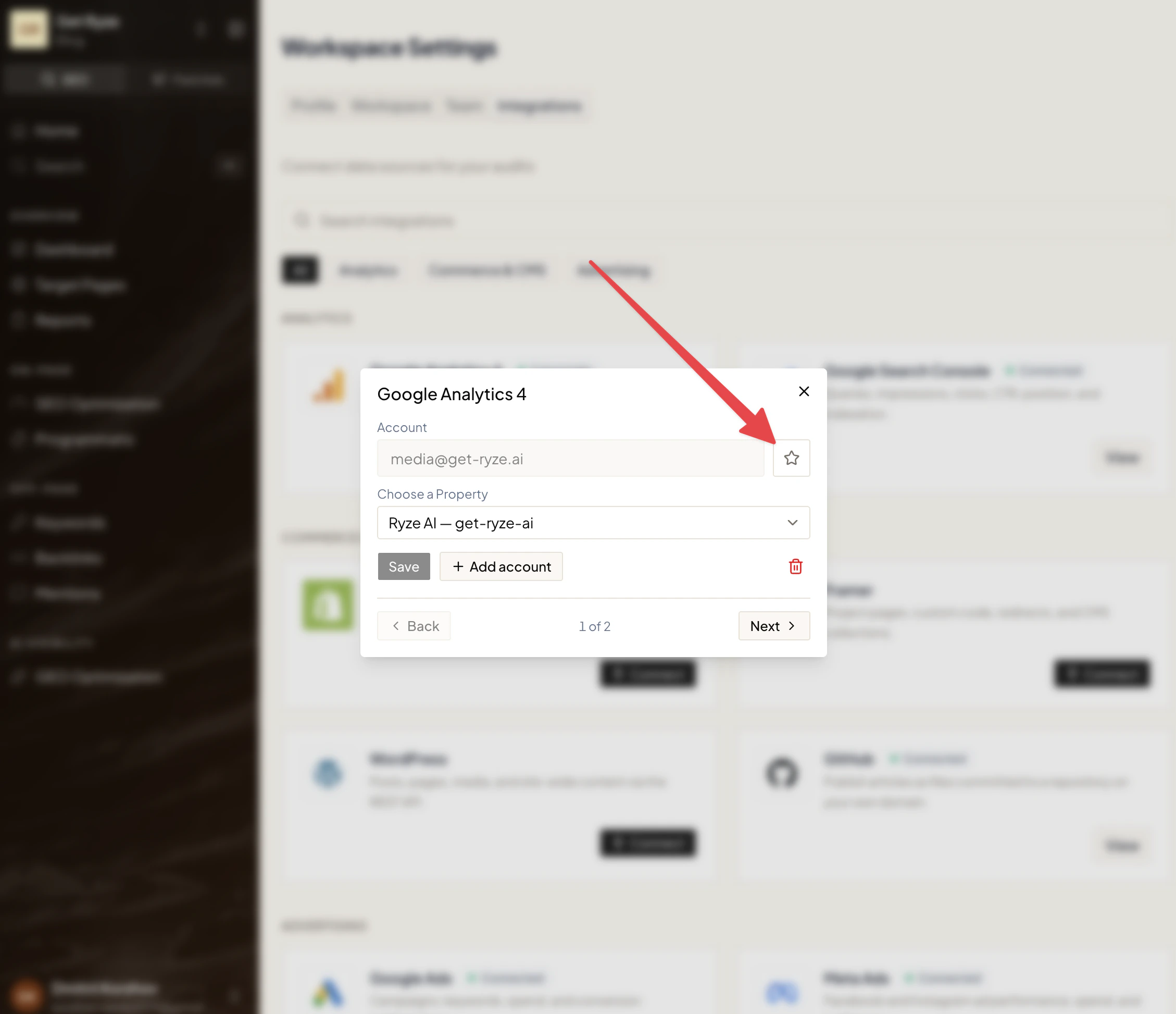
Use **Back** and **Next** to page through the connected accounts (for example, *1 of 2*).
 ## Set the primary account
Next to the account field is a **star**:
* A **filled** star marks the current primary.
* An **empty** star means that account isn't primary — click it to make it the primary.
Setting a new primary only changes Claude's default; it doesn't disconnect anything.
## Agent default accounts
For platforms where you manage many accounts — an agency running dozens of clients through one Google Search Console or Google Ads login — you can pick which accounts the **Ryze agent** works with by default. Open the platform's dialog and use **Agent default accounts** to select them.
## Set the primary account
Next to the account field is a **star**:
* A **filled** star marks the current primary.
* An **empty** star means that account isn't primary — click it to make it the primary.
Setting a new primary only changes Claude's default; it doesn't disconnect anything.
## Agent default accounts
For platforms where you manage many accounts — an agency running dozens of clients through one Google Search Console or Google Ads login — you can pick which accounts the **Ryze agent** works with by default. Open the platform's dialog and use **Agent default accounts** to select them.
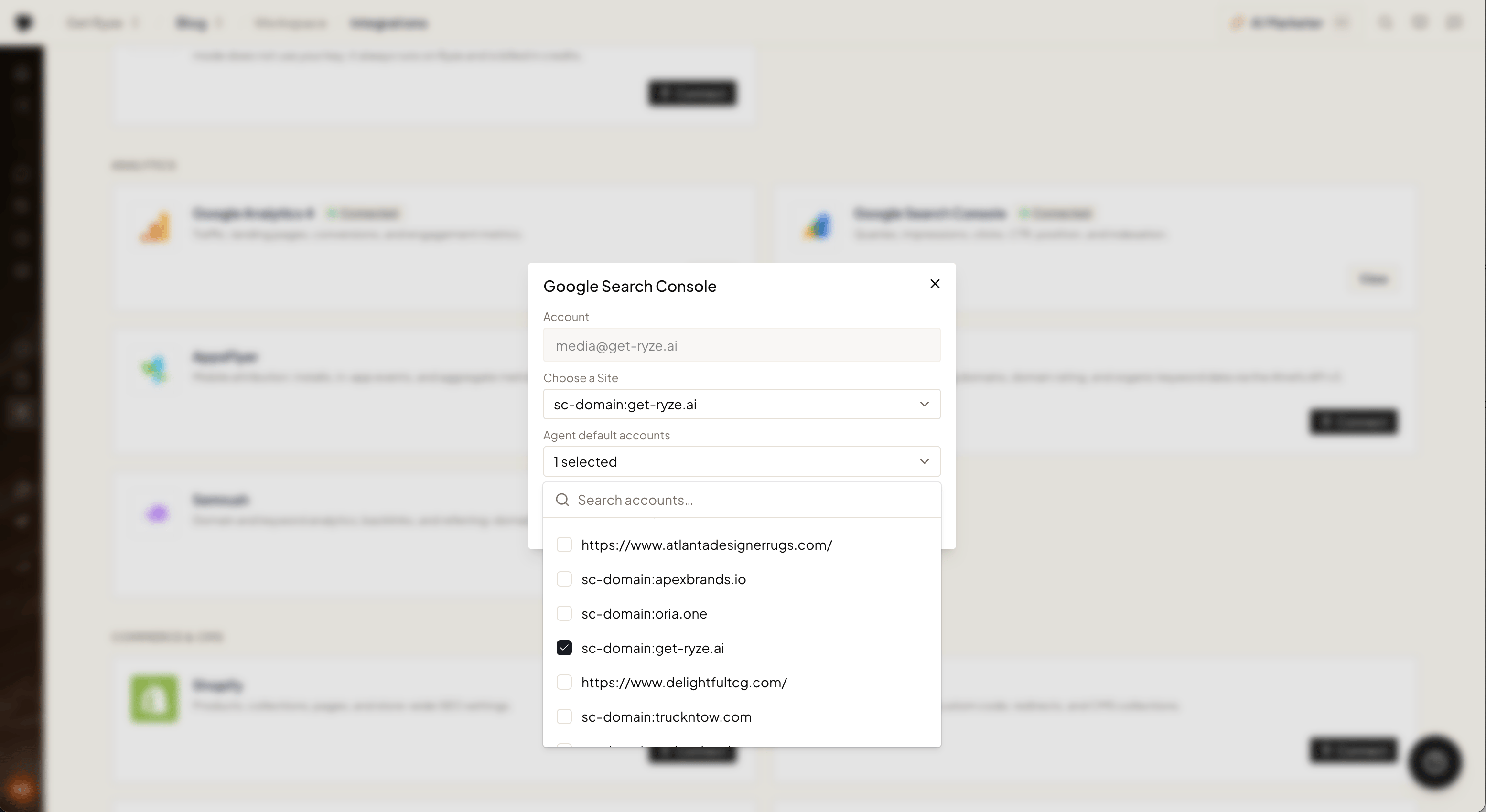 * When you don't name an account, the agent uses your defaults instead of guessing across everything it can see.
* All other accounts stay reachable — just name one in chat and the agent switches to it.
* Selecting all accounts (or none) means no filter: the agent considers everything.
This applies everywhere the agent works: platform chat, scheduled tasks, and MCP.
## Using a specific account in Claude
By default Claude uses the **primary** account. To work with another one, just ask — no setup required:
> **You:** Claude, show my connected Google Analytics accounts.
> **You:** Pull last week's spend for my other Google Ads account.
Claude lists the connected accounts and uses the one you point to.
After adding an account or changing the primary, start a **new chat** in Claude so it picks up the change.
* When you don't name an account, the agent uses your defaults instead of guessing across everything it can see.
* All other accounts stay reachable — just name one in chat and the agent switches to it.
* Selecting all accounts (or none) means no filter: the agent considers everything.
This applies everywhere the agent works: platform chat, scheduled tasks, and MCP.
## Using a specific account in Claude
By default Claude uses the **primary** account. To work with another one, just ask — no setup required:
> **You:** Claude, show my connected Google Analytics accounts.
> **You:** Pull last week's spend for my other Google Ads account.
Claude lists the connected accounts and uses the one you point to.
After adding an account or changing the primary, start a **new chat** in Claude so it picks up the change.