> ## Documentation Index
> Fetch the complete documentation index at: https://help.get-ryze.ai/llms.txt
> Use this file to discover all available pages before exploring further.
# Overview
> Connect Google, Meta, Analytics and more so Claude can read your data.
Before Claude can answer questions about your accounts, connect your platforms in Ryze. This happens in your workspace settings, not in Claude.
Ryze supports **50+ integrations** — connect any of them. They're grouped into three categories:
* **Analytics** — Google Analytics, Search Console, and more
* **Advertising** — Google Ads, Meta, and every other ad platform
* **Commerce & CMS** — Shopify, WordPress, Framer, and more
## Open Integrations
Go to **Workspace Settings → Integrations**. Use the **Search integrations** box or the category filters to find any platform.
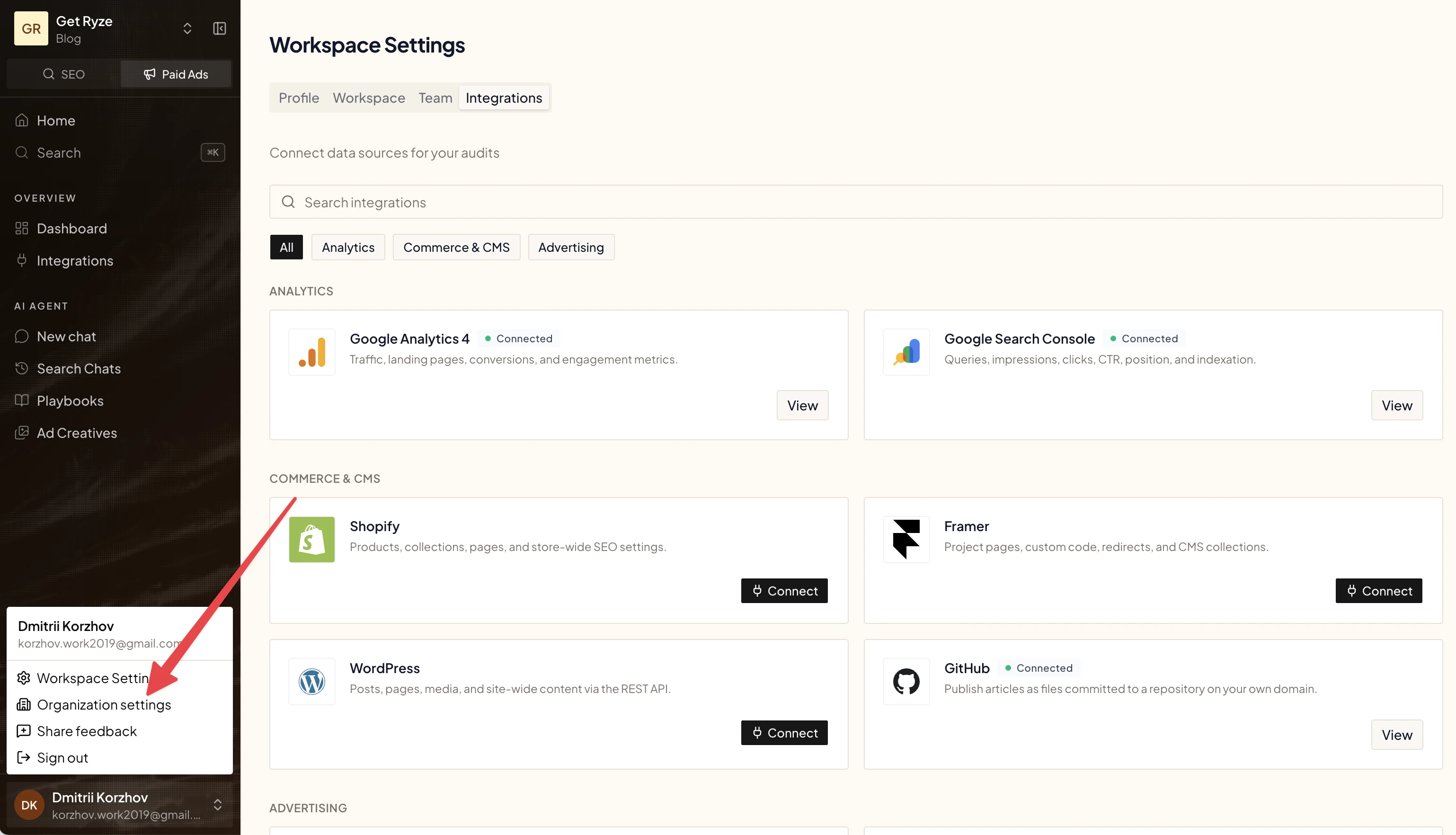 ## Connect a platform
Find the platform's card and click **Connect**.
For Google, Meta, and other OAuth platforms, you're redirected to that platform to sign in and approve access. For API-key platforms (like Framer and WordPress), you enter your credentials instead.
If asked, choose the specific account or property — for example, the Google Ads account or GA4 property.
The card then shows a **Connected** badge.
After connecting a new platform, start a **new chat** in Claude so it picks up the change.
## Reconnect a platform
If a platform stops working or shows as disconnected, click **Reconnect** on its card and re-authorize. Then start a new chat in Claude.
## Connect multiple accounts
You can connect more than one account for the same platform in a single workspace — for example, two Google Ads logins or several GA4 accounts. See [Connect multiple accounts](/integrations/multiple-accounts).
## Platform setup guides
Connect with an application password.
Connect with a project URL and API key.
Publish articles as JSON files committed to your repo.
Connect OpenAI Ads with an API key.
Connect Klaviyo with a private API key.
Publish to Ghost with an Admin API key.
Host your blog on your own domain.
Connect your own Ahrefs API key.
Connect your own Semrush API key.
Connect HubSpot CRM and CMS with OAuth.
## Connect a platform
Find the platform's card and click **Connect**.
For Google, Meta, and other OAuth platforms, you're redirected to that platform to sign in and approve access. For API-key platforms (like Framer and WordPress), you enter your credentials instead.
If asked, choose the specific account or property — for example, the Google Ads account or GA4 property.
The card then shows a **Connected** badge.
After connecting a new platform, start a **new chat** in Claude so it picks up the change.
## Reconnect a platform
If a platform stops working or shows as disconnected, click **Reconnect** on its card and re-authorize. Then start a new chat in Claude.
## Connect multiple accounts
You can connect more than one account for the same platform in a single workspace — for example, two Google Ads logins or several GA4 accounts. See [Connect multiple accounts](/integrations/multiple-accounts).
## Platform setup guides
Connect with an application password.
Connect with a project URL and API key.
Publish articles as JSON files committed to your repo.
Connect OpenAI Ads with an API key.
Connect Klaviyo with a private API key.
Publish to Ghost with an Admin API key.
Host your blog on your own domain.
Connect your own Ahrefs API key.
Connect your own Semrush API key.
Connect HubSpot CRM and CMS with OAuth.