> ## Documentation Index
> Fetch the complete documentation index at: https://help.get-ryze.ai/llms.txt
> Use this file to discover all available pages before exploring further.
# Connect Ryze Hosting
> Publish your Ryze blog to a domain you own — no CMS required. Ryze hosts the pages; you point one DNS record at them.
Ryze Hosting is a publishing destination for sites without a CMS. Ryze hosts your blog, and you point a domain you own at it — a subdomain like `blog.example.com` or your root domain. Articles then publish straight to your own branded blog, with HTTPS handled for you.
 ## Step 1 — Add your domain
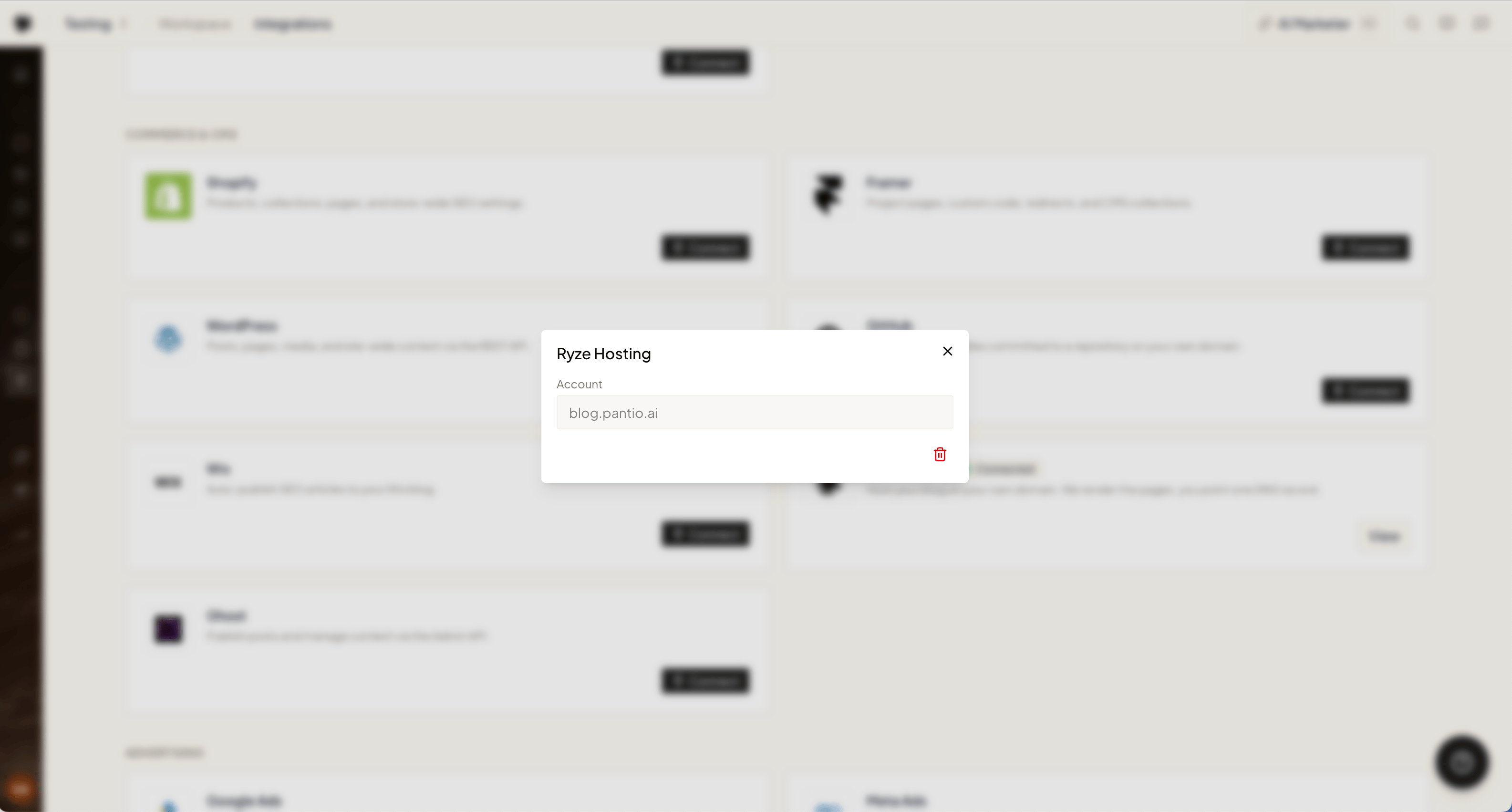
In **Workspace Settings → Integrations**, click **Connect** on the **Ryze Hosting** card and enter the domain you want your blog to live on.
* **A subdomain** (recommended) — e.g. `blog.example.com`, keeping your main site untouched.
* **Your root domain** — e.g. `example.com`, if the whole domain is for the blog.
## Step 2 — Add the DNS record
Ryze shows the exact record to add at your domain provider. Which one depends on what you entered:
| Domain type | Record | Name | Value |
| ------------------------------ | --------- | ------ | ---------------------- |
| Subdomain (`blog.example.com`) | **CNAME** | `blog` | `cname.vercel-dns.com` |
| Root domain (`example.com`) | **A** | `@` | `76.76.21.21` |
If Ryze also shows a **verification** record (a `TXT` or extra `CNAME`), add that one too — it's needed when the domain is already used elsewhere.
Ryze detects your DNS provider and gives you a button straight to its panel — Cloudflare, GoDaddy, Namecheap, Route 53, Vercel, Google Domains, DigitalOcean, Name.com, DNSimple, or Porkbun.
## Step 1 — Add your domain
In **Workspace Settings → Integrations**, click **Connect** on the **Ryze Hosting** card and enter the domain you want your blog to live on.
* **A subdomain** (recommended) — e.g. `blog.example.com`, keeping your main site untouched.
* **Your root domain** — e.g. `example.com`, if the whole domain is for the blog.
## Step 2 — Add the DNS record
Ryze shows the exact record to add at your domain provider. Which one depends on what you entered:
| Domain type | Record | Name | Value |
| ------------------------------ | --------- | ------ | ---------------------- |
| Subdomain (`blog.example.com`) | **CNAME** | `blog` | `cname.vercel-dns.com` |
| Root domain (`example.com`) | **A** | `@` | `76.76.21.21` |
If Ryze also shows a **verification** record (a `TXT` or extra `CNAME`), add that one too — it's needed when the domain is already used elsewhere.
Ryze detects your DNS provider and gives you a button straight to its panel — Cloudflare, GoDaddy, Namecheap, Route 53, Vercel, Google Domains, DigitalOcean, Name.com, DNSimple, or Porkbun.
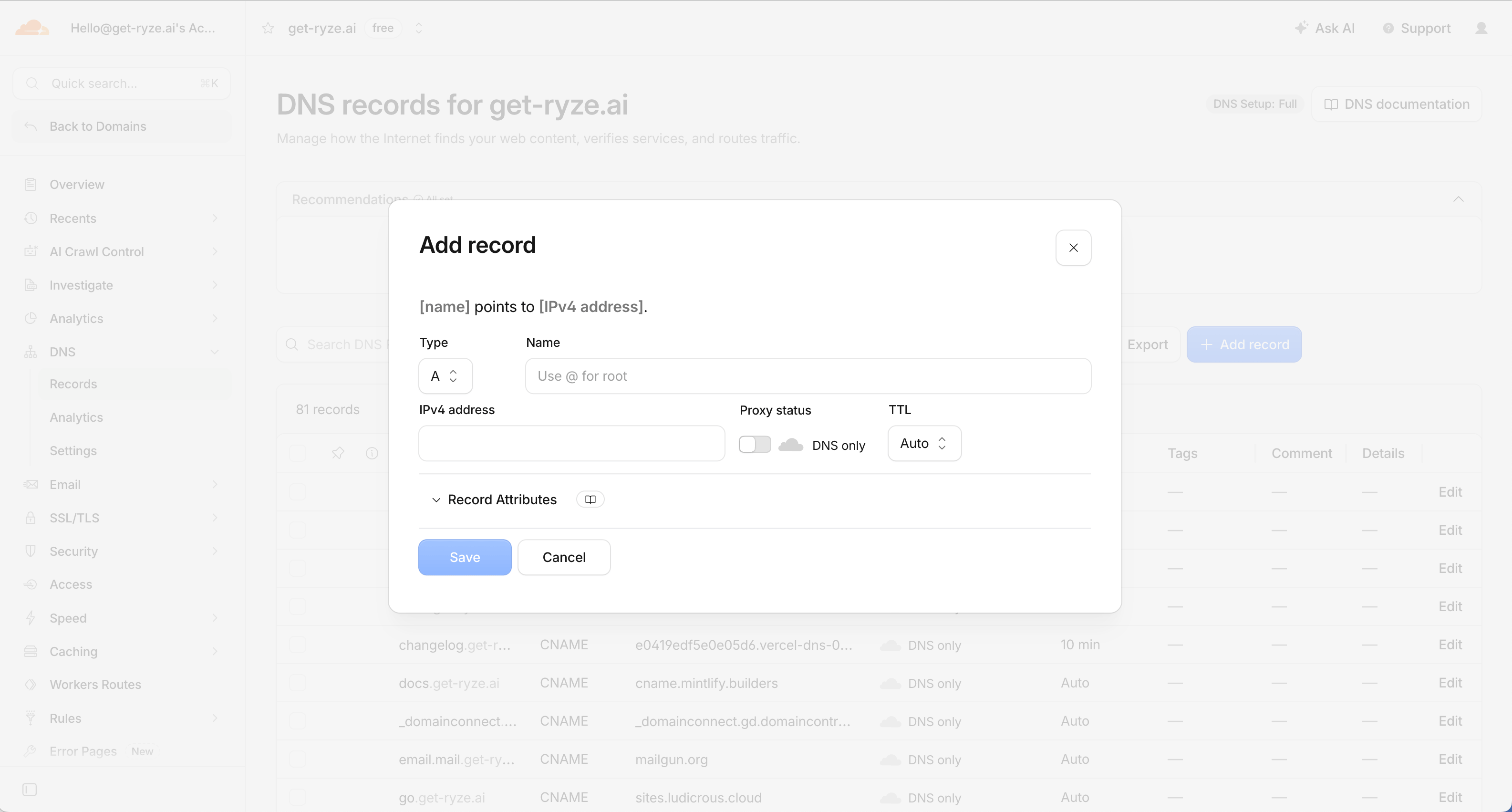 On **Cloudflare**, set the record to **DNS only** (grey cloud), not proxied (orange cloud). A proxied record breaks verification.
## Step 3 — Verify
Back in Ryze, click **Check status**. Ryze checks your DNS and verifies the domain once the record resolves — usually a few minutes, up to about an hour for DNS to propagate. It keeps re-checking on its own, so you can close the dialog and come back.
Once verified, HTTPS is issued automatically and your blog is live at your domain.
On **Cloudflare**, set the record to **DNS only** (grey cloud), not proxied (orange cloud). A proxied record breaks verification.
## Step 3 — Verify
Back in Ryze, click **Check status**. Ryze checks your DNS and verifies the domain once the record resolves — usually a few minutes, up to about an hour for DNS to propagate. It keeps re-checking on its own, so you can close the dialog and come back.
Once verified, HTTPS is issued automatically and your blog is live at your domain.
 ## Publishing to it
With Ryze Hosting connected, it works like any other publishing destination — programmatic articles publish to your hosted blog on schedule. See [Programmatic Articles](/seo/programmatic).
## Troubleshooting
* **Not verifying** — DNS can take up to an hour. Confirm the record type matches your domain (CNAME for a subdomain, A for a root), and that the name and value are exact.
* **Cloudflare stuck** — the record must be **DNS only** (grey cloud). Switch off the proxy and check again.
* **Verification record ignored** — if Ryze showed a second (verification) record, both records must be present.
Still stuck? Email [support@get-ryze.ai](mailto:support@get-ryze.ai).
## Publishing to it
With Ryze Hosting connected, it works like any other publishing destination — programmatic articles publish to your hosted blog on schedule. See [Programmatic Articles](/seo/programmatic).
## Troubleshooting
* **Not verifying** — DNS can take up to an hour. Confirm the record type matches your domain (CNAME for a subdomain, A for a root), and that the name and value are exact.
* **Cloudflare stuck** — the record must be **DNS only** (grey cloud). Switch off the proxy and check again.
* **Verification record ignored** — if Ryze showed a second (verification) record, both records must be present.
Still stuck? Email [support@get-ryze.ai](mailto:support@get-ryze.ai).