> ## Documentation Index
> Fetch the complete documentation index at: https://help.get-ryze.ai/llms.txt
> Use this file to discover all available pages before exploring further.
# Connect Shopify Custom App
> Connect Shopify through your own custom app — full control over permissions, credentials, and revocation.
The default [Shopify connection](/integrations/shopify) needs only your store domain and one approval click — Ryze requests a standard set of permissions for you. A **custom app** is the alternative for teams that want to stay in control:
* You define exactly which Admin API scopes Ryze gets — nothing more.
* You can rotate the credentials or revoke access any time from your Shopify admin.
* Access runs through an app your team owns, not a third-party install.
If our defaults work for you, the default connection is faster. Otherwise, follow the steps below: create the app, configure it, copy the credentials, connect.
## Step 1 — Create a custom app in Shopify
In your Shopify admin, go to **Settings**, then open **Apps and sales channels**.
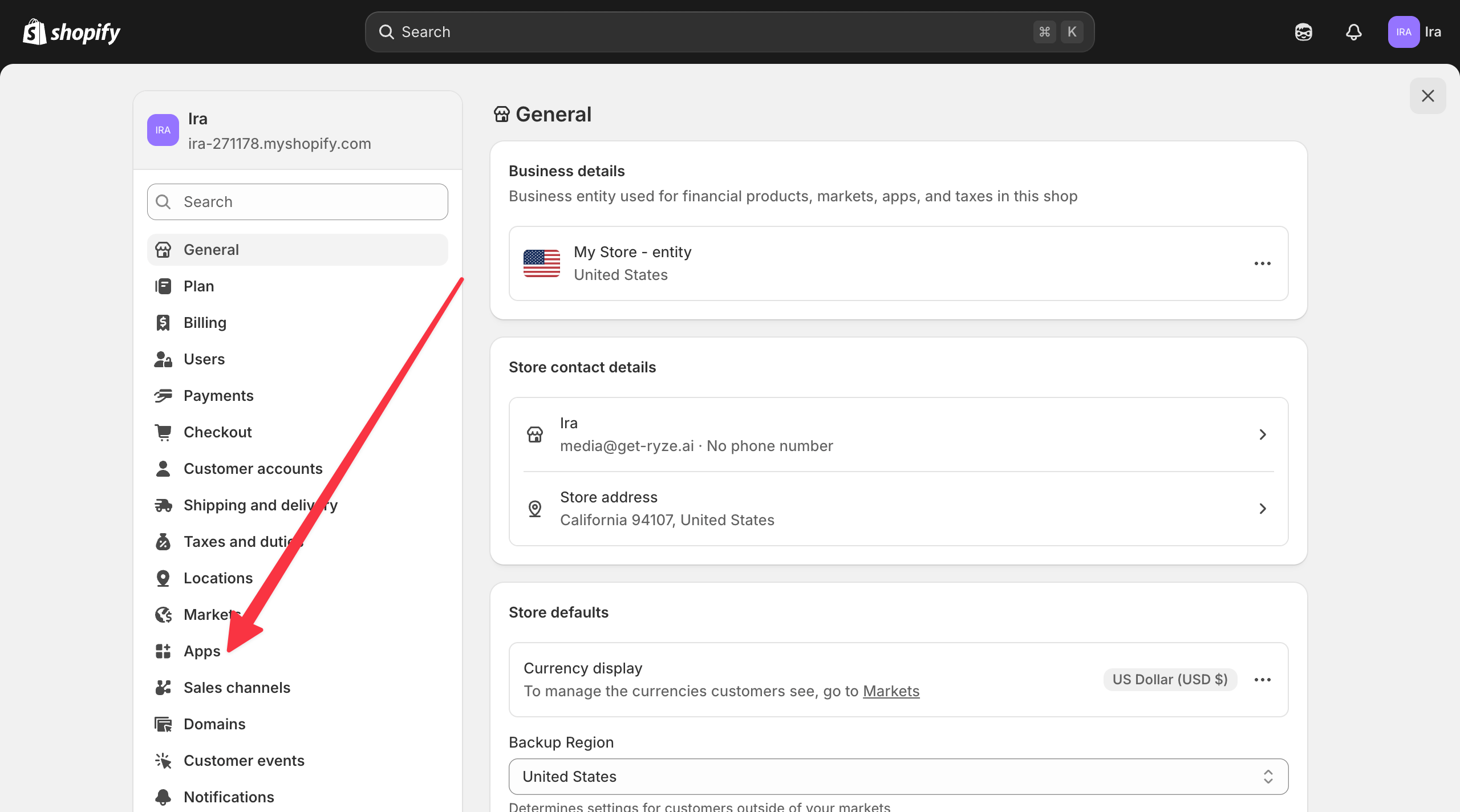 In the top-right corner, click **Develop apps**.
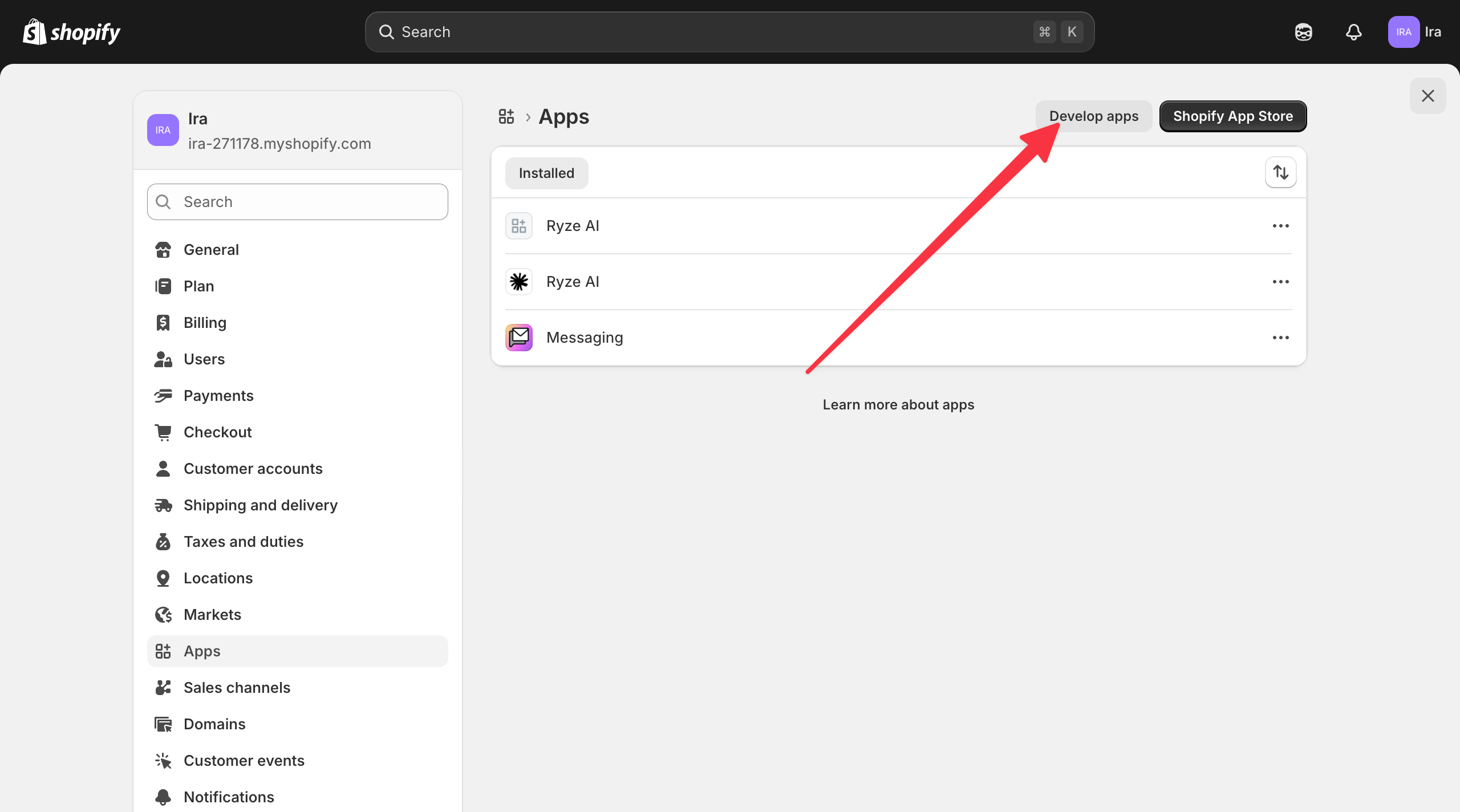 Click **Build apps in Dev Dashboard**.
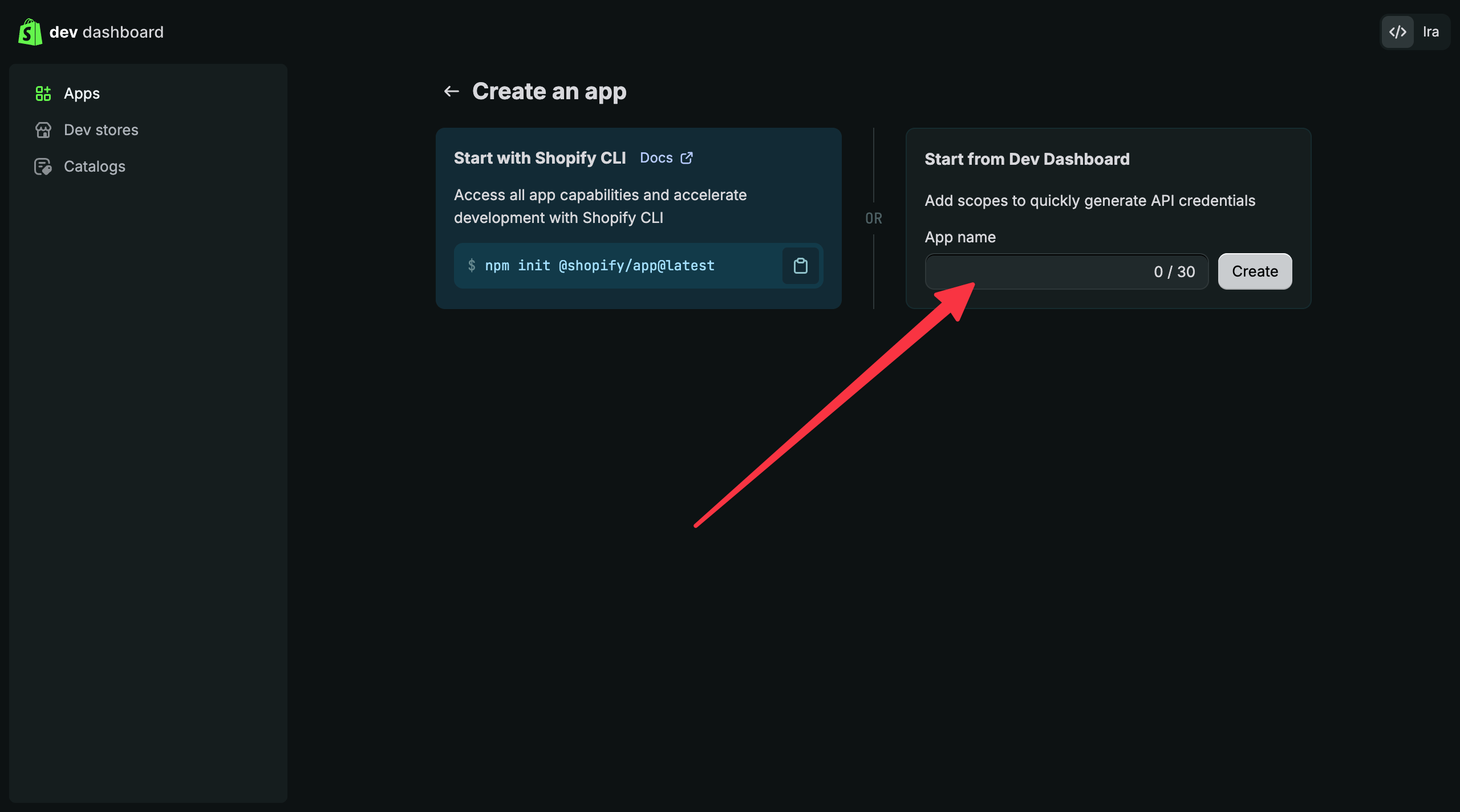
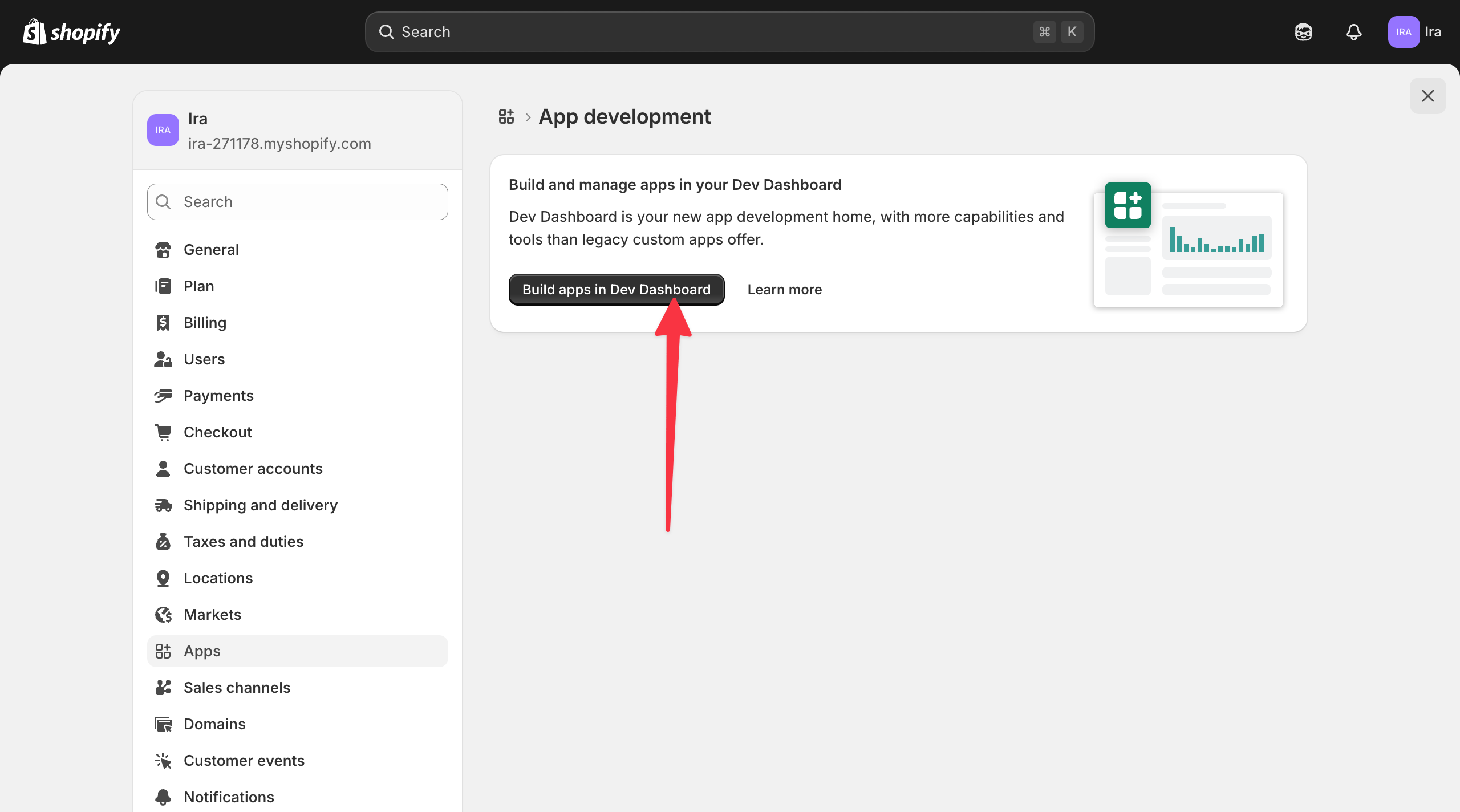 Click **Create app**.
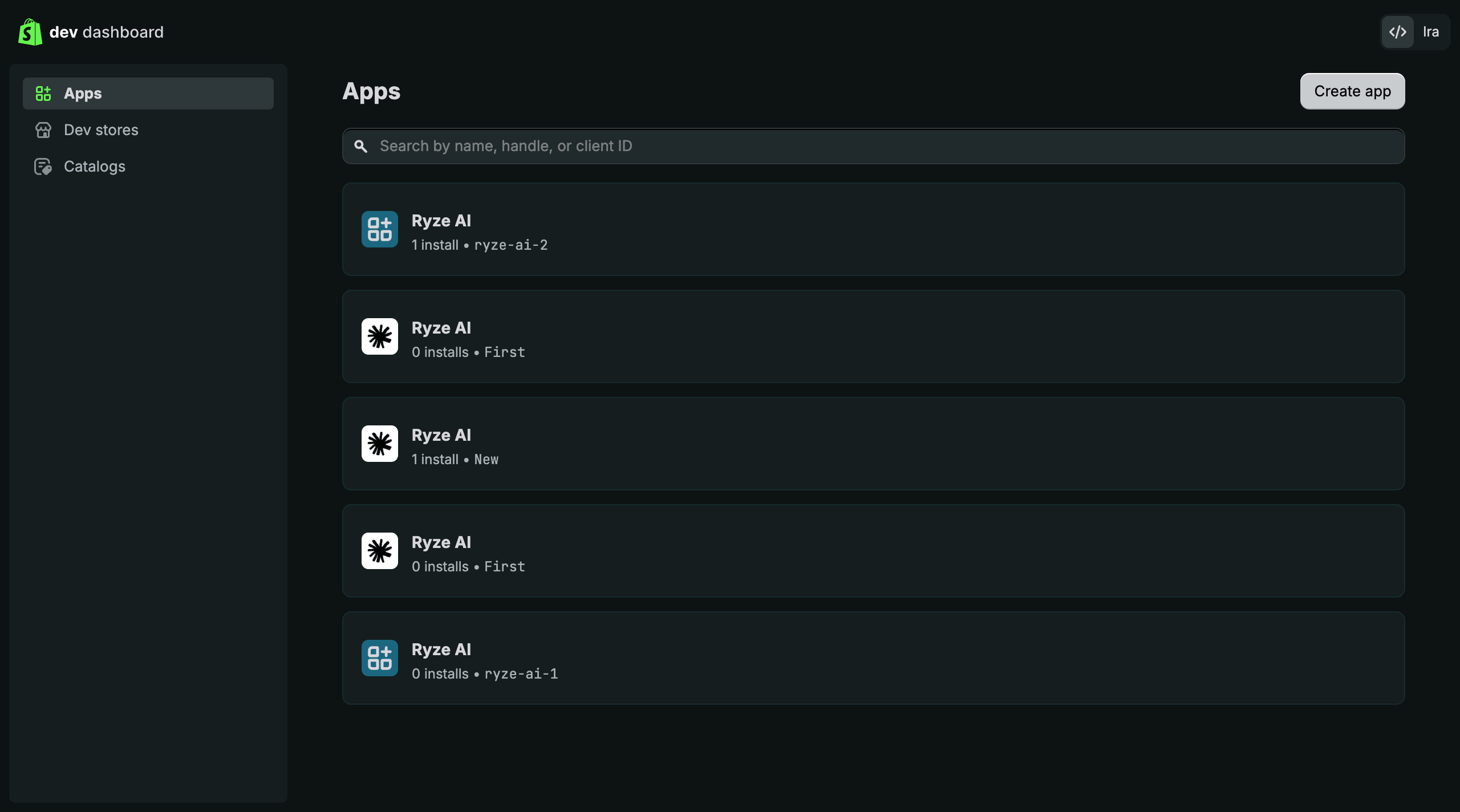 Under **Start from Dev Dashboard**, enter a name (e.g. `Ryze AI`) and click **Create**.
 ## Step 2 — Configure the app
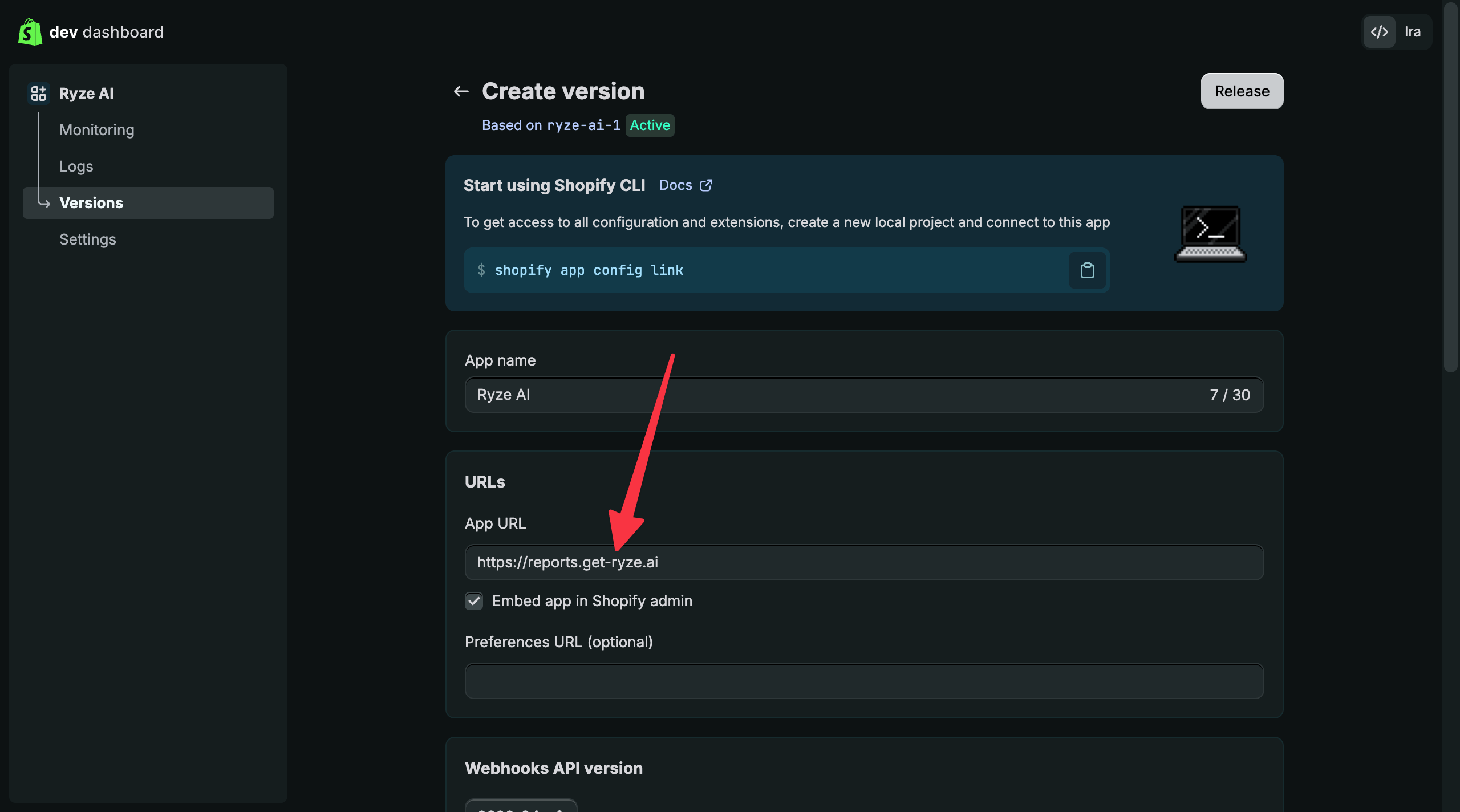
Under **URLs → App URL**, enter `https://reports.get-ryze.ai` and keep **Embed app in Shopify admin** checked.
## Step 2 — Configure the app
Under **URLs → App URL**, enter `https://reports.get-ryze.ai` and keep **Embed app in Shopify admin** checked.
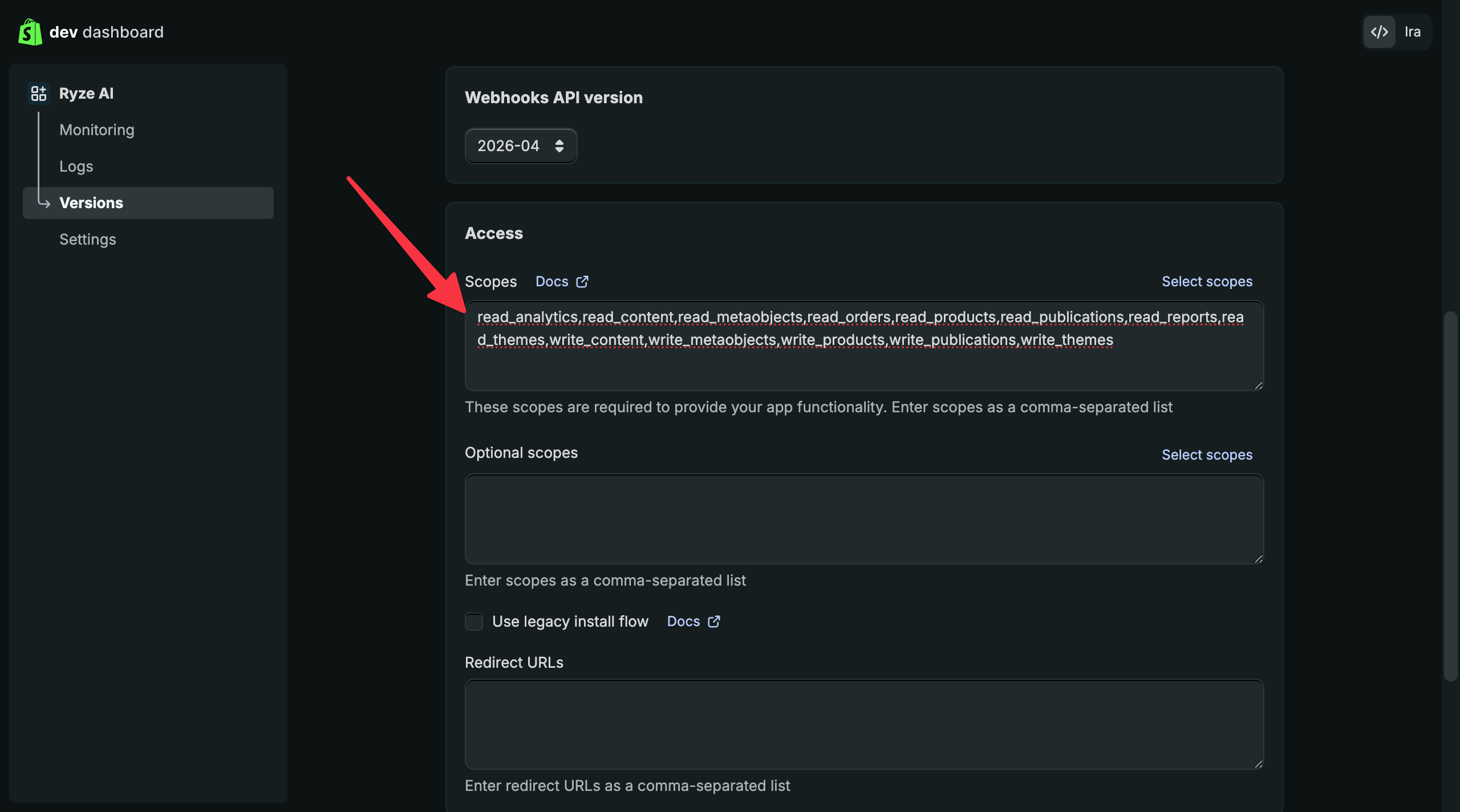
 Under **Access → Scopes**, paste this comma-separated list — or trim it to just the features you plan to use. Missing scopes won't block the connection, but the related features will fail later (for example, without `write_content` Ryze can't publish articles to your blog). You can always add scopes later in the same screen — but scopes added later only take effect after you **Release** a new version and **Install/approve** it on your store (Steps below), then reconnect once in Ryze.
```
read_analytics,read_content,read_metaobjects,read_orders,read_products,read_publications,read_reports,read_themes,write_content,write_metaobjects,write_products,write_publications,write_themes
```
A custom app can also grant scopes our default connection never requests. Add these only if you need them: `read_markets,write_markets` for market and domain settings, and `write_online_store_navigation` for URL redirects. Proposals that depend on these stay **Blocked** on the default connection, because those scopes are not part of the standard Ryze app.
Under **Access → Scopes**, paste this comma-separated list — or trim it to just the features you plan to use. Missing scopes won't block the connection, but the related features will fail later (for example, without `write_content` Ryze can't publish articles to your blog). You can always add scopes later in the same screen — but scopes added later only take effect after you **Release** a new version and **Install/approve** it on your store (Steps below), then reconnect once in Ryze.
```
read_analytics,read_content,read_metaobjects,read_orders,read_products,read_publications,read_reports,read_themes,write_content,write_metaobjects,write_products,write_publications,write_themes
```
A custom app can also grant scopes our default connection never requests. Add these only if you need them: `read_markets,write_markets` for market and domain settings, and `write_online_store_navigation` for URL redirects. Proposals that depend on these stay **Blocked** on the default connection, because those scopes are not part of the standard Ryze app.
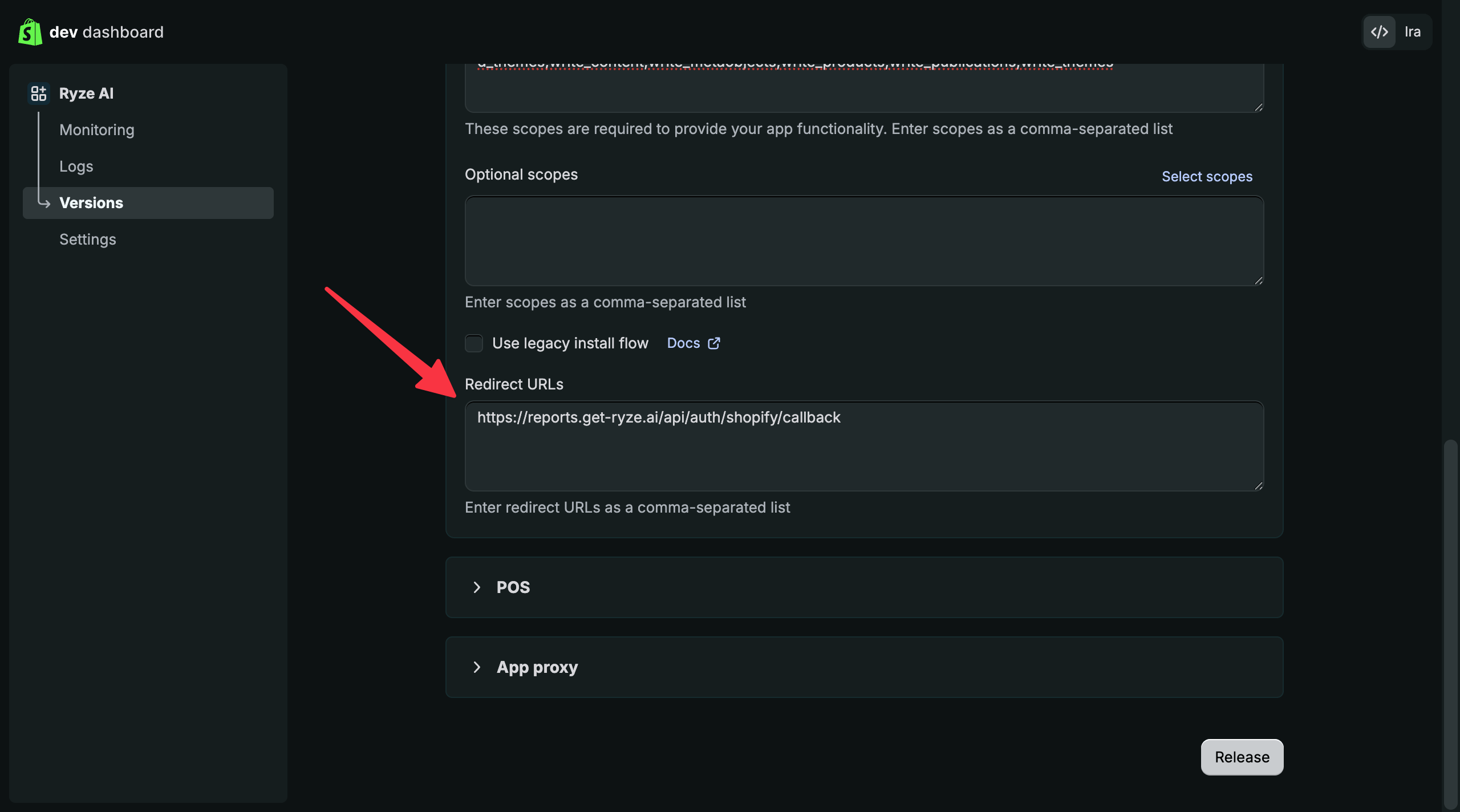
 Under **Redirect URLs**, enter `https://reports.get-ryze.ai/api/auth/shopify/callback`.
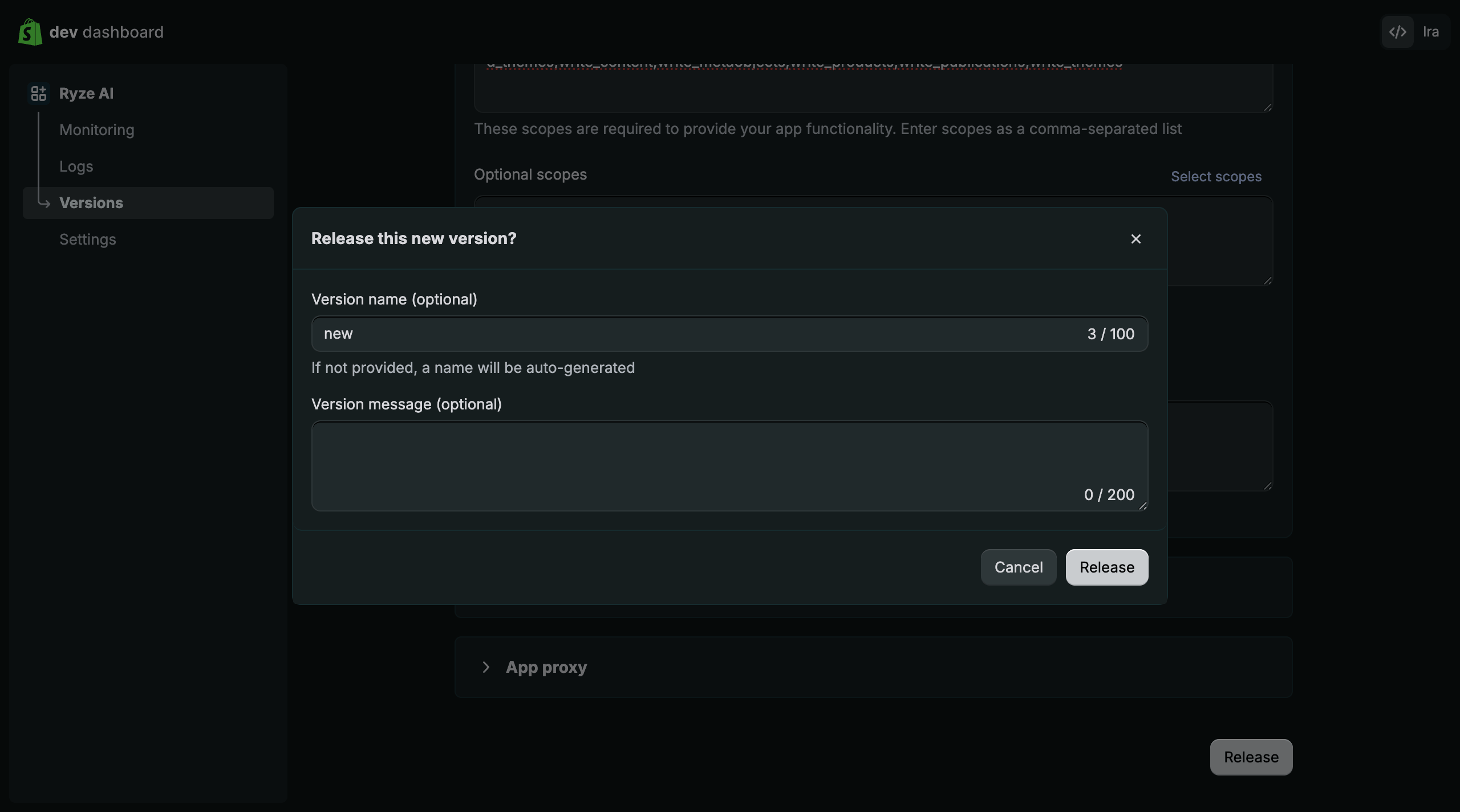
 Click **Release**, confirm in the dialog, and release the version. This activates the app.
 Open the app and click **Install app** (top-right). This installs the app on your store so Ryze can fetch an access token.
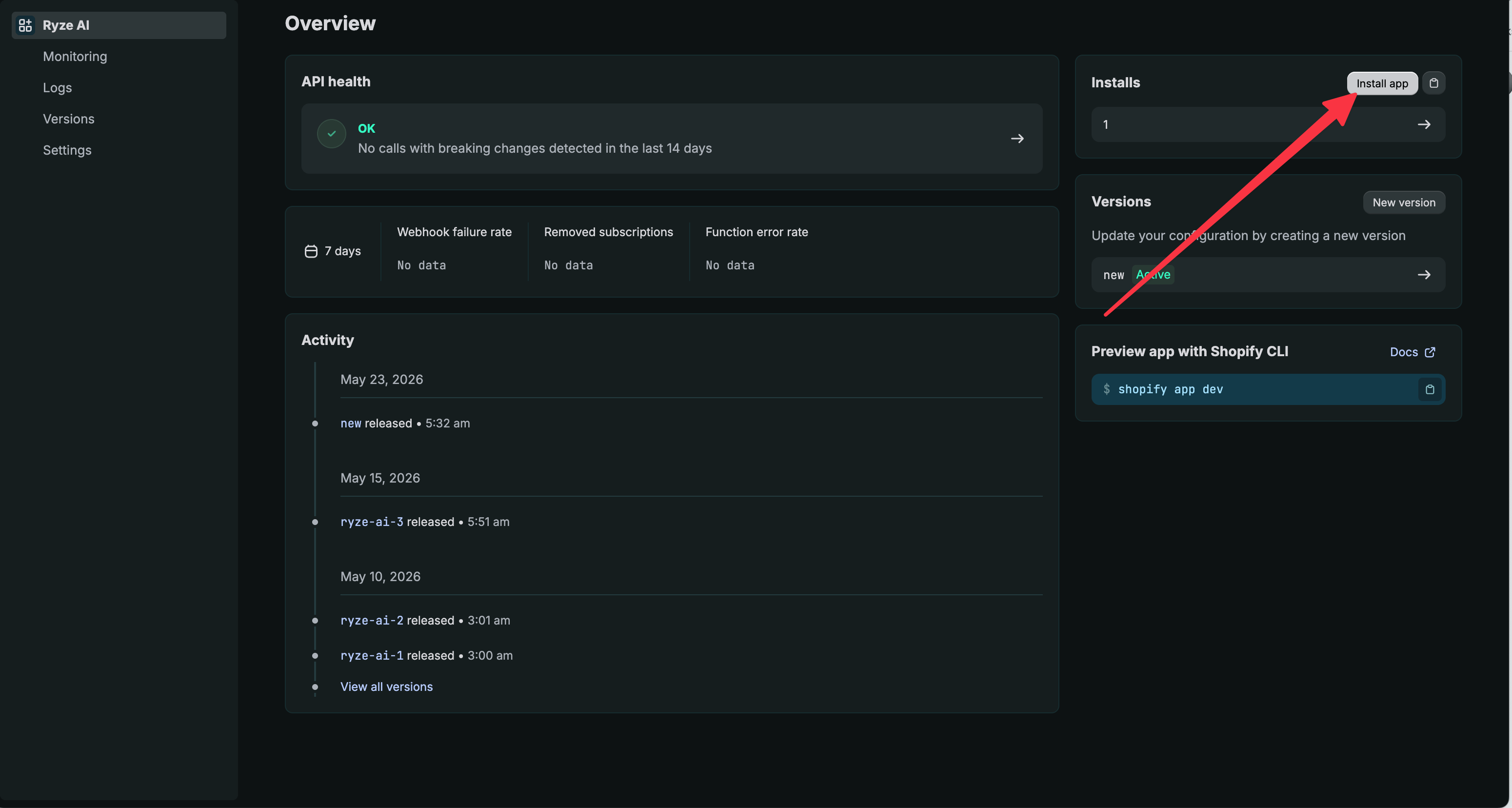 Don't skip this step. Without installing the app, the connection fails with `app_not_installed` and Ryze can't authenticate — even though your Client ID and Secret are correct.
## Step 3 — Copy your credentials
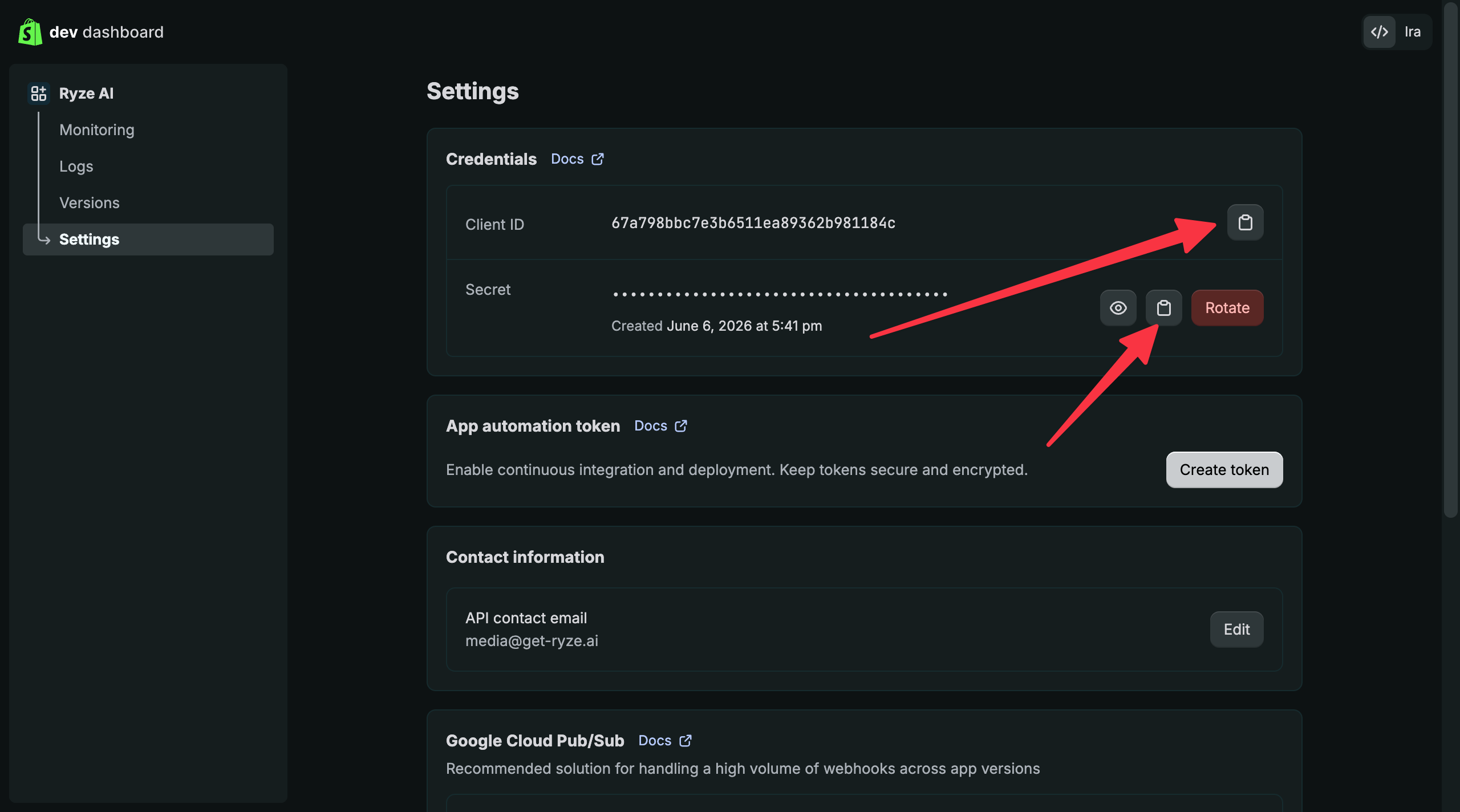
In the app, open **Settings**. Copy the **Client ID**, then reveal and copy the **Secret** (this is your Client secret).
Don't skip this step. Without installing the app, the connection fails with `app_not_installed` and Ryze can't authenticate — even though your Client ID and Secret are correct.
## Step 3 — Copy your credentials
In the app, open **Settings**. Copy the **Client ID**, then reveal and copy the **Secret** (this is your Client secret).
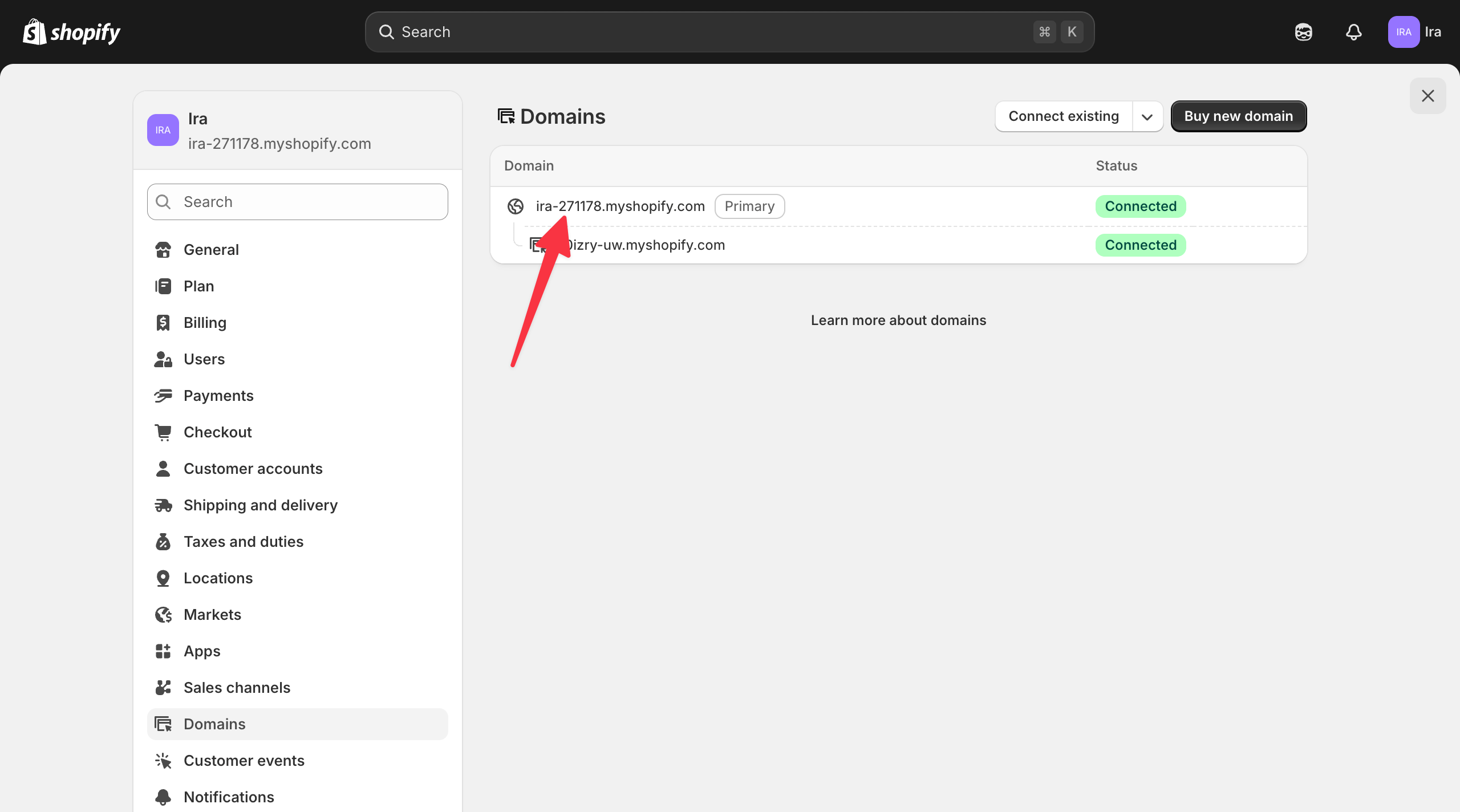
 Back in your Shopify admin, open **Settings → Domains**. Your store domain is the `.myshopify.com` address marked **Primary**.
 ## Step 4 — Connect in Ryze
In **Workspace Settings → Integrations**, click **Connect** on the Shopify card and switch to the **Custom app** tab, then fill in:
* **Store domain** — e.g. `yourstore.myshopify.com`
* **Client ID** — the Client ID you copied
* **Client secret** — the Secret you copied
Click **Continue**. Ryze verifies the credentials against your store immediately — if something's wrong, you'll know right away. Tokens refresh automatically using your app's credentials, no maintenance needed.
To revoke access later, uninstall the app in your Shopify admin. To rotate the secret, generate a new one under **Credentials** and reconnect in Ryze.
Need help? Email [support@get-ryze.ai](mailto:support@get-ryze.ai).
## Step 4 — Connect in Ryze
In **Workspace Settings → Integrations**, click **Connect** on the Shopify card and switch to the **Custom app** tab, then fill in:
* **Store domain** — e.g. `yourstore.myshopify.com`
* **Client ID** — the Client ID you copied
* **Client secret** — the Secret you copied
Click **Continue**. Ryze verifies the credentials against your store immediately — if something's wrong, you'll know right away. Tokens refresh automatically using your app's credentials, no maintenance needed.
To revoke access later, uninstall the app in your Shopify admin. To rotate the secret, generate a new one under **Credentials** and reconnect in Ryze.
Need help? Email [support@get-ryze.ai](mailto:support@get-ryze.ai).