> ## Documentation Index
> Fetch the complete documentation index at: https://help.get-ryze.ai/llms.txt
> Use this file to discover all available pages before exploring further.
# Connect Wix
> Connect your Wix site with an API key and Site ID to auto-publish SEO articles to your Wix blog.
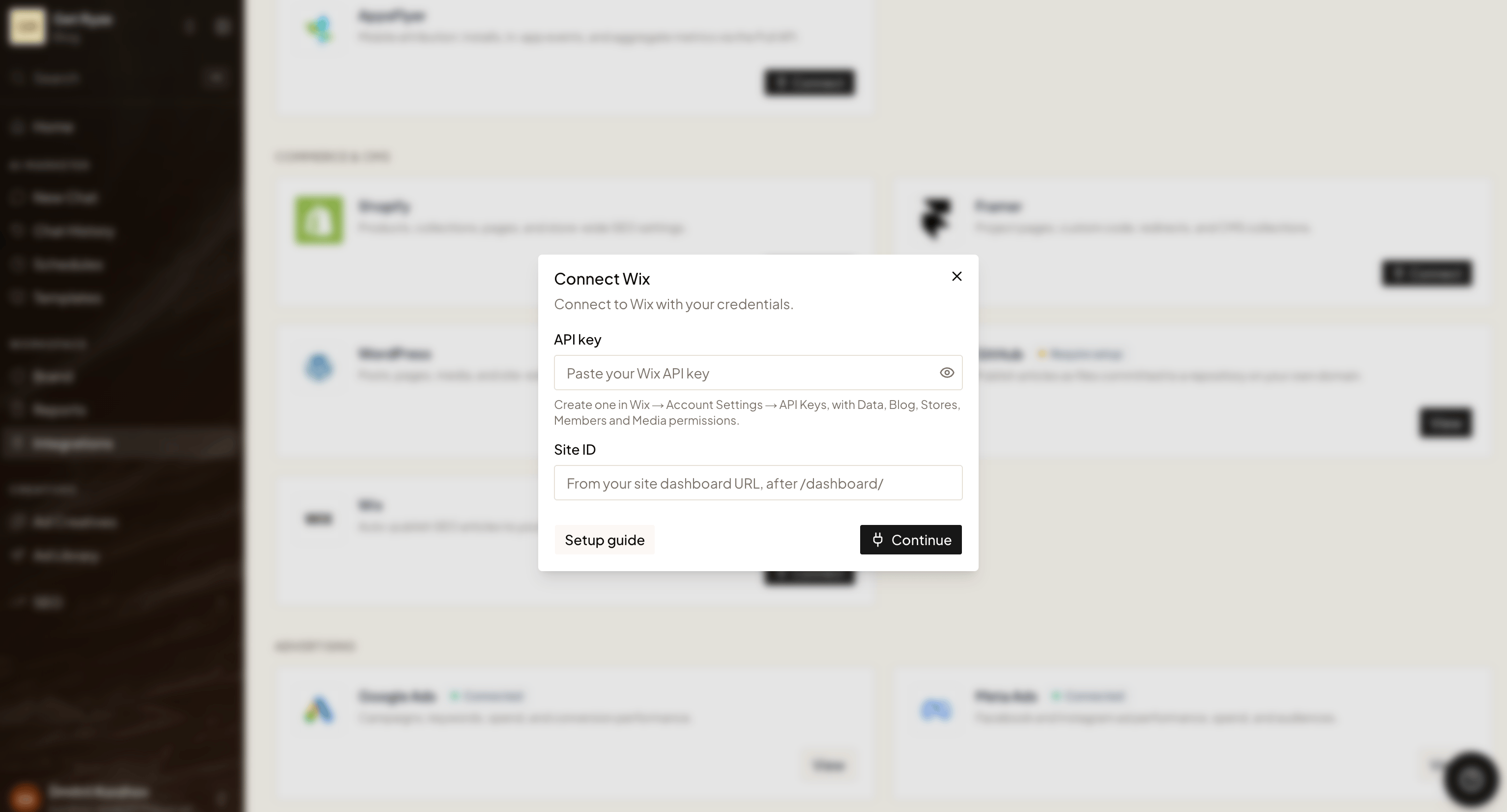
Wix connects with two things: an **API key** you generate in your Wix account and your **Site ID**. Ryze uses them to publish generated articles straight to your Wix blog.
In **Workspace Settings → Integrations**, click **Connect** on the Wix card. You'll be asked for those two values — here's how to get each.
 Your site needs the **Wix Blog** app installed — that's where Ryze publishes. If it isn't added yet, install **Blog** from the Wix App Market first, then connect.
## Step 1 — Create an API key in Wix
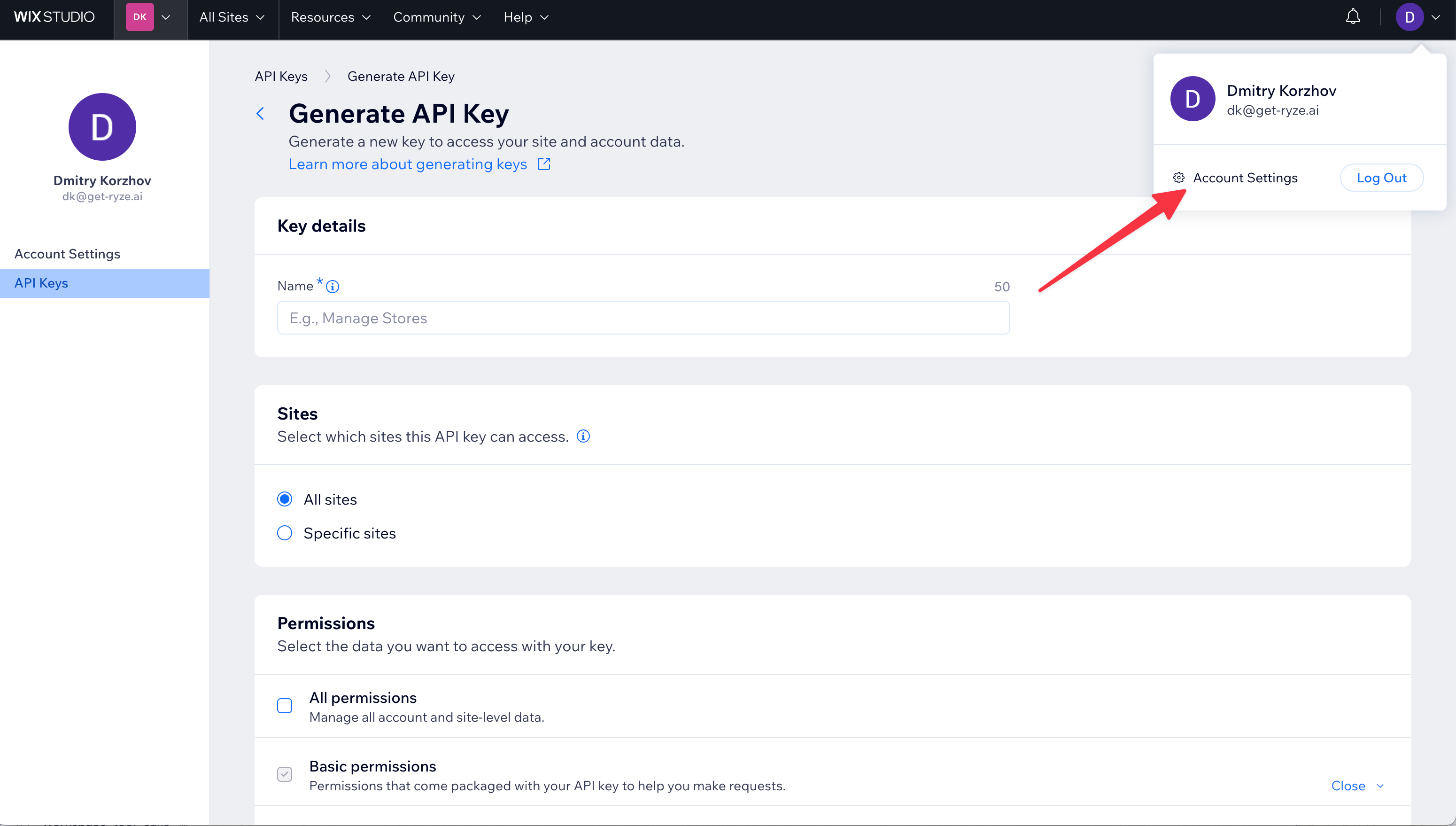
In Wix, click your profile avatar in the top-right corner and choose **Account Settings**.
Your site needs the **Wix Blog** app installed — that's where Ryze publishes. If it isn't added yet, install **Blog** from the Wix App Market first, then connect.
## Step 1 — Create an API key in Wix
In Wix, click your profile avatar in the top-right corner and choose **Account Settings**.
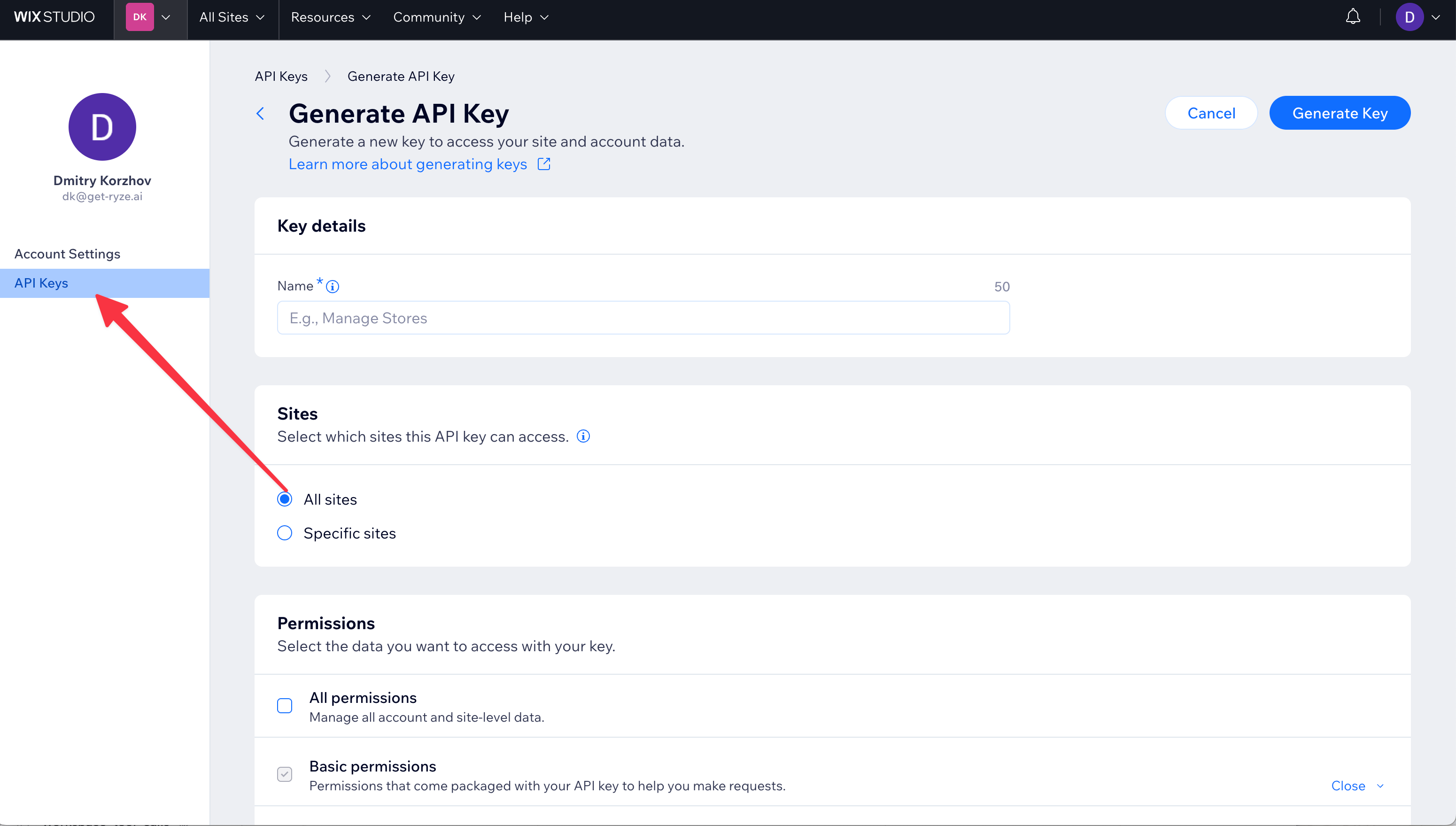
 In the left sidebar under **Account Settings**, open **API Keys**, then click **Generate API Key**. Give it a name like `RyzeAI`. Leave **Sites** set to **All sites** (or pick **Specific sites** and include the site you'll publish to).
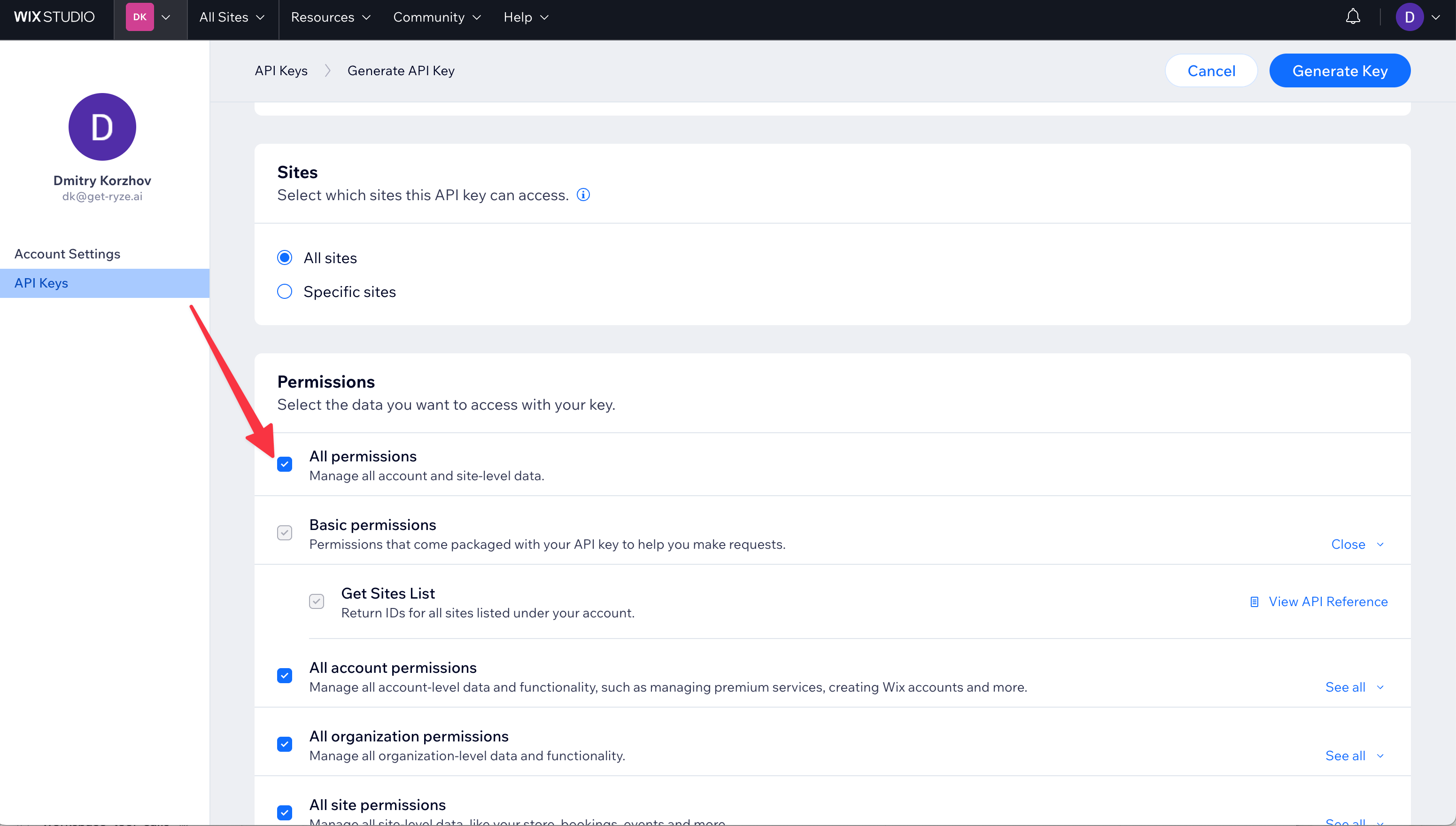
 Under **Permissions**, tick **All permissions** — the simplest option that's guaranteed to work. (The minimum Ryze actually needs is **Blog**, **Media**, **Members**, and **Site read**, but All permissions saves you picking them one by one.)
 Click **Generate Key**. Wix creates the key and copies the token to your clipboard automatically — paste it somewhere safe, you'll need it in Ryze.
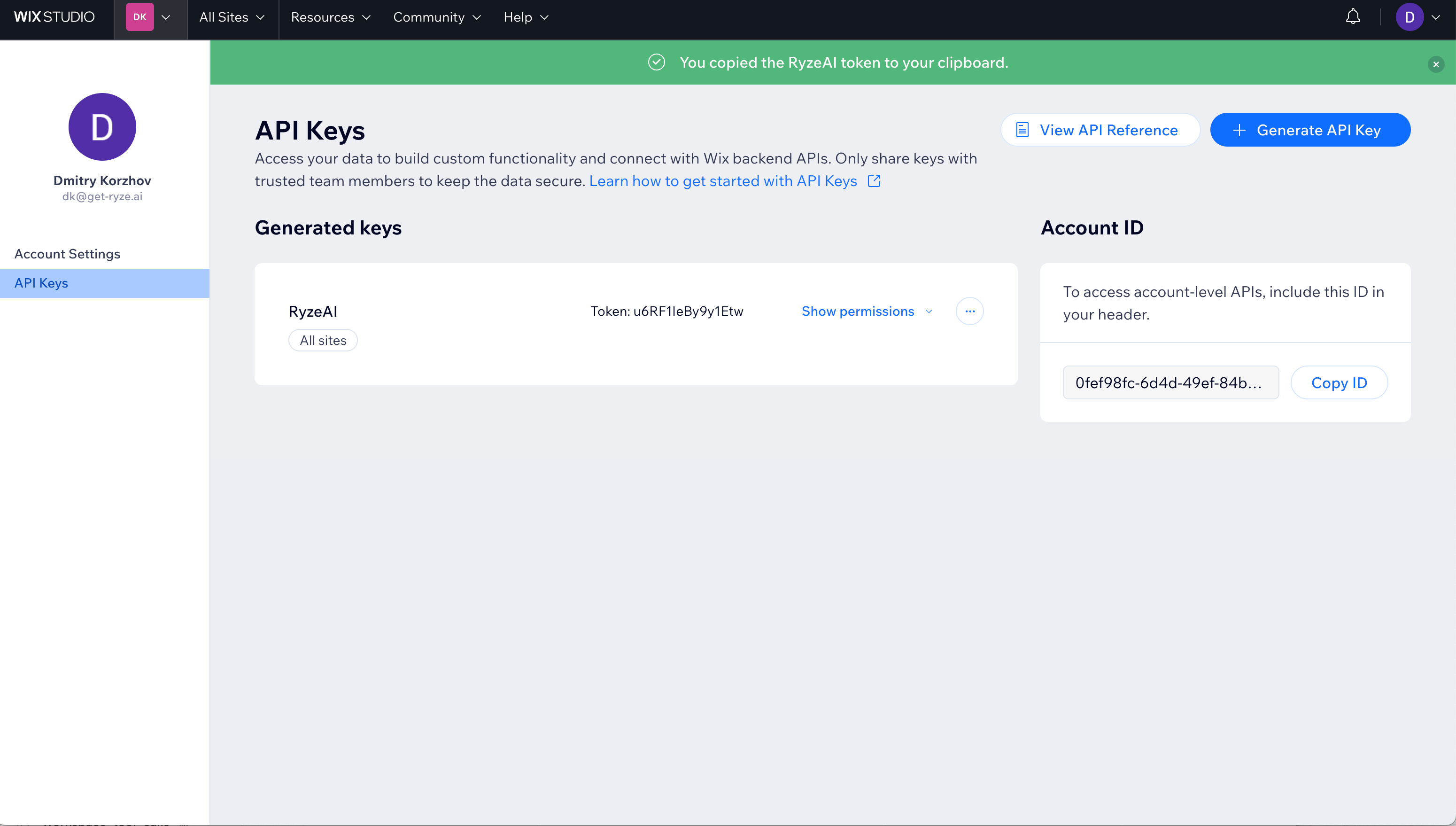 The full token is shown only at creation. If you lose it, generate a new key and reconnect.
## Step 2 — Find your Site ID
Your **Site ID** is in your site's dashboard URL. Open the site's dashboard and look at the address bar:
```
https://manage.wix.com/dashboard/SITE_ID/home
```
The part right after `/dashboard/` is your Site ID — copy it.
The Site ID is **not** the Account ID shown on the API Keys page. Make sure you take the value from the **dashboard URL** of the specific site you want to publish to.
## Step 3 — Connect in Ryze
In **Workspace Settings → Integrations**, click **Connect** on the Wix card and fill in:
* **API key** — the token you copied from Wix
* **Site ID** — the value from your dashboard URL
Click **Continue**. Ryze verifies the key against your site and you're connected. Generated articles will now publish to your Wix blog.
## Troubleshooting
* **API key or Site ID rejected** — double-check both values, and confirm the key has access to this site (use **All sites** or include this site under **Specific sites**).
* **Blog not found** — install the **Wix Blog** app from the App Market, then reconnect.
* **Missing permissions** — regenerate the key with **All permissions** selected and reconnect.
* **Wrong site** — make sure the Site ID comes from the dashboard URL of the exact site you want to publish to, not the Account ID.
Still stuck? Email [support@get-ryze.ai](mailto:support@get-ryze.ai).
The full token is shown only at creation. If you lose it, generate a new key and reconnect.
## Step 2 — Find your Site ID
Your **Site ID** is in your site's dashboard URL. Open the site's dashboard and look at the address bar:
```
https://manage.wix.com/dashboard/SITE_ID/home
```
The part right after `/dashboard/` is your Site ID — copy it.
The Site ID is **not** the Account ID shown on the API Keys page. Make sure you take the value from the **dashboard URL** of the specific site you want to publish to.
## Step 3 — Connect in Ryze
In **Workspace Settings → Integrations**, click **Connect** on the Wix card and fill in:
* **API key** — the token you copied from Wix
* **Site ID** — the value from your dashboard URL
Click **Continue**. Ryze verifies the key against your site and you're connected. Generated articles will now publish to your Wix blog.
## Troubleshooting
* **API key or Site ID rejected** — double-check both values, and confirm the key has access to this site (use **All sites** or include this site under **Specific sites**).
* **Blog not found** — install the **Wix Blog** app from the App Market, then reconnect.
* **Missing permissions** — regenerate the key with **All permissions** selected and reconnect.
* **Wrong site** — make sure the Site ID comes from the dashboard URL of the exact site you want to publish to, not the Account ID.
Still stuck? Email [support@get-ryze.ai](mailto:support@get-ryze.ai).