> ## Documentation Index
> Fetch the complete documentation index at: https://help.get-ryze.ai/llms.txt
> Use this file to discover all available pages before exploring further.
# Connect WordPress
> Connect a self-hosted site with an application password, or a WordPress.com / Jetpack site with one click.
There are two ways to connect WordPress, depending on where your site lives:
* **Self-hosted site** — your WordPress runs on your own hosting (you log in at `yoursite.com/wp-admin`). Connects with an **application password**.
* **WordPress.com / Jetpack** — your site is hosted on WordPress.com, or it's self-hosted but connected through the Jetpack plugin. Connects with one click — you're redirected to WordPress.com to authorize access, no passwords to copy.
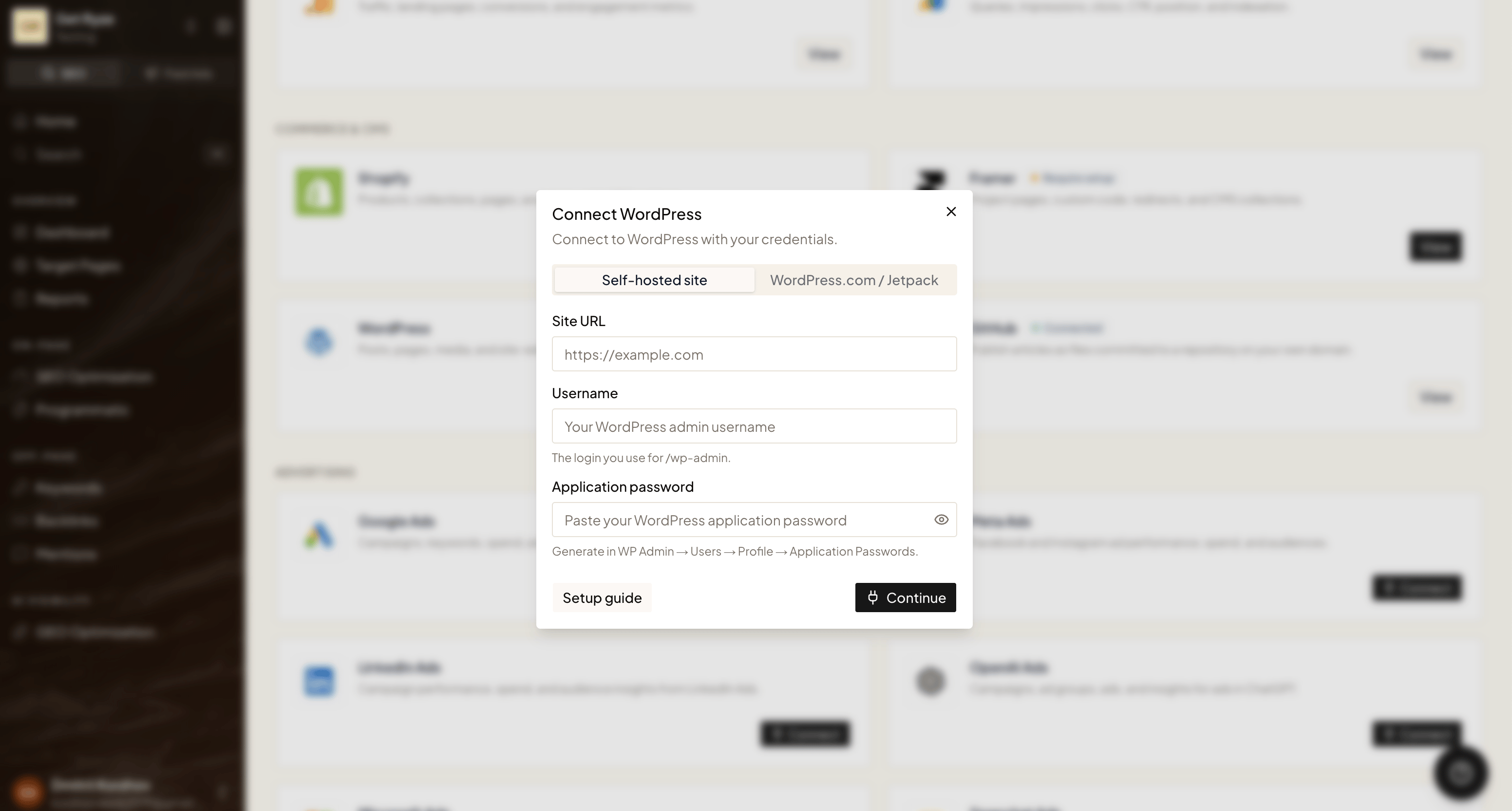 Not sure which one you have? If you log in at `wordpress.com`, pick **WordPress.com / Jetpack**. If you log in at your own domain's `/wp-admin`, pick **Self-hosted site**.
## Option A — WordPress.com / Jetpack
In **Workspace Settings → Integrations**, click **Connect** on the WordPress card and select the **WordPress.com / Jetpack** tab.
You're redirected to WordPress.com. Sign in and approve access.
If your account has several sites, choose the one Ryze should publish to. Done — no passwords needed.
For Jetpack sites, make sure the Jetpack **JSON API** module is enabled — Ryze publishes through it. If the connection fails, enable the module in Jetpack settings and reconnect.
## Option B — Self-hosted site
A self-hosted site connects with an **application password** — a special key you generate in WordPress that lets Ryze access your site without sharing your real login.
### Step 1 — Generate an application password
In your WordPress admin, go to **Users → Profile** (or **Users → All Users → your user → Edit**).
Scroll to the bottom of the profile page to the **Application Passwords** section.
Enter a name like `Ryze`, then click **Add New Application Password**. WordPress shows the generated password **once** — copy it now.
Not sure which one you have? If you log in at `wordpress.com`, pick **WordPress.com / Jetpack**. If you log in at your own domain's `/wp-admin`, pick **Self-hosted site**.
## Option A — WordPress.com / Jetpack
In **Workspace Settings → Integrations**, click **Connect** on the WordPress card and select the **WordPress.com / Jetpack** tab.
You're redirected to WordPress.com. Sign in and approve access.
If your account has several sites, choose the one Ryze should publish to. Done — no passwords needed.
For Jetpack sites, make sure the Jetpack **JSON API** module is enabled — Ryze publishes through it. If the connection fails, enable the module in Jetpack settings and reconnect.
## Option B — Self-hosted site
A self-hosted site connects with an **application password** — a special key you generate in WordPress that lets Ryze access your site without sharing your real login.
### Step 1 — Generate an application password
In your WordPress admin, go to **Users → Profile** (or **Users → All Users → your user → Edit**).
Scroll to the bottom of the profile page to the **Application Passwords** section.
Enter a name like `Ryze`, then click **Add New Application Password**. WordPress shows the generated password **once** — copy it now.
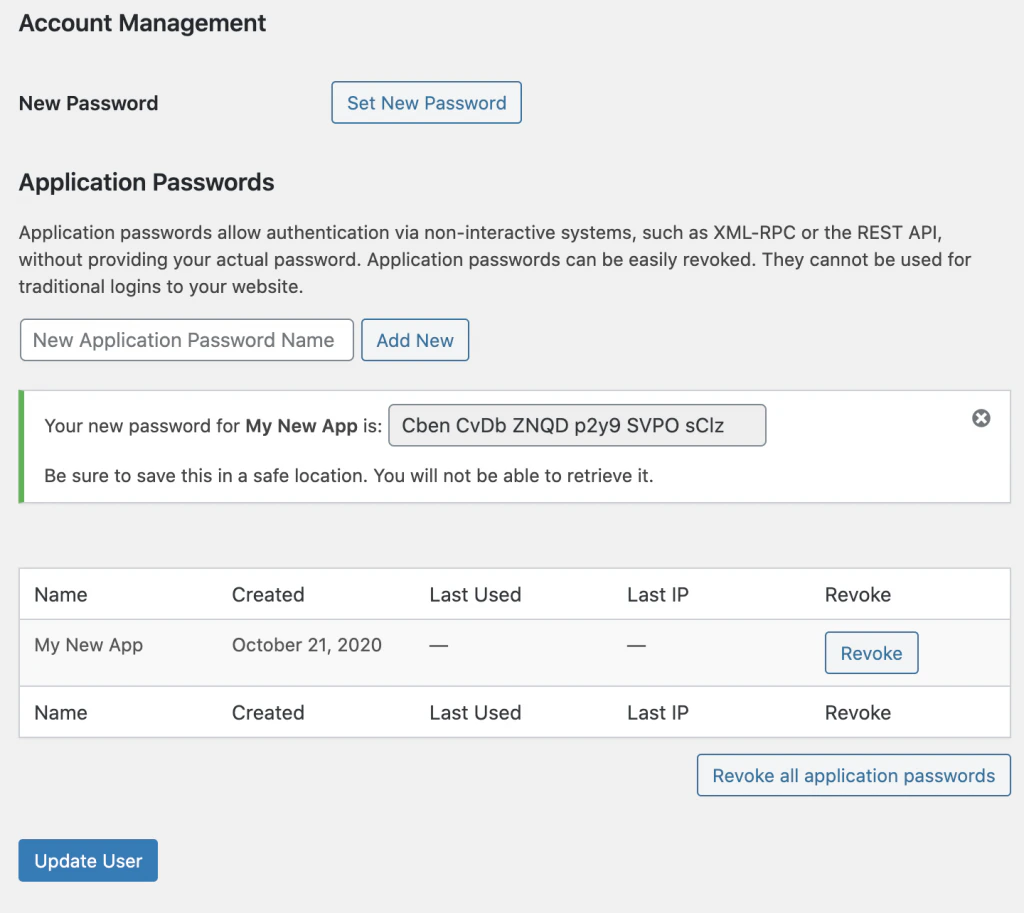 The application password is shown only once. If you lose it, just generate a new one.
### Step 2 — Connect in Ryze
In **Workspace Settings → Integrations**, click **Connect** on the WordPress card, select the **Self-hosted site** tab, and fill in:
* **Site URL** — your site address, e.g. `https://example.com`
* **Username** — the login you use for `/wp-admin`
* **Application password** — the password you just copied
Click **Continue**. Ryze verifies the connection.
## Troubleshooting
* **Credentials rejected** (self-hosted) — double-check the username and application password.
* **REST API not found** — make sure the WordPress REST API is enabled and the site URL is correct.
* **Jetpack site won't connect** — enable the Jetpack JSON API module, then reconnect.
* **Can't reach the site** — verify the site URL is reachable and uses `https://`.
Still stuck? Email [support@get-ryze.ai](mailto:support@get-ryze.ai).
The application password is shown only once. If you lose it, just generate a new one.
### Step 2 — Connect in Ryze
In **Workspace Settings → Integrations**, click **Connect** on the WordPress card, select the **Self-hosted site** tab, and fill in:
* **Site URL** — your site address, e.g. `https://example.com`
* **Username** — the login you use for `/wp-admin`
* **Application password** — the password you just copied
Click **Continue**. Ryze verifies the connection.
## Troubleshooting
* **Credentials rejected** (self-hosted) — double-check the username and application password.
* **REST API not found** — make sure the WordPress REST API is enabled and the site URL is correct.
* **Jetpack site won't connect** — enable the Jetpack JSON API module, then reconnect.
* **Can't reach the site** — verify the site URL is reachable and uses `https://`.
Still stuck? Email [support@get-ryze.ai](mailto:support@get-ryze.ai).