> ## Documentation Index
> Fetch the complete documentation index at: https://help.get-ryze.ai/llms.txt
> Use this file to discover all available pages before exploring further.
# Local SEO
> Connect your Google Business Profile to see where you rank on Google Maps around your office, reply to reviews, publish posts and improve your listing — all from SEO → Local.
Local SEO is for businesses that customers find on Google Maps — a clinic, an agency, a salon, a shop with a street address. When someone nearby searches for what you do, Google shows a short list of businesses on the map. Local SEO shows where you appear in that list from different spots around your office, who beats you there and why, and lets you fix it.
Open **SEO → Local** in the sidebar. The page has four tabs:
| Tab | What it's for |
| - | - |
| **Map rankings** | Your position on Google Maps for up to 5 searches, checked from 49 spots around your office |
| **Reviews** | Every Google review, which ones still need a reply, and replying from Ryze |
| **Posts** | The posts on your Google profile, writing new ones with AI |
| **Business profile** | Your listing — categories, description, hours, photos, website, phone — and the changes the agent proposes |
Local SEO is part of both SEO plans. Without an SEO plan, the page shows **Unlock** instead. See [Plans & pricing](/plans/overview).
## Connect Google Business Profile
Local SEO works on one Google Business Profile location per workspace. Until it's connected, the Local page shows a **Connect** button that takes you to Integrations.
Open **Integrations** in the left sidebar and find the **Google Business Profile** card — type it into **Search integrations** or use the **Analytics** filter.
You're redirected to Google. Sign in with the Google account that manages your business listing and allow access. The Google screen may show the name of our connection partner rather than Ryze — that's expected.
Back in Ryze, choose the **Location** this workspace works on and click **Save**. One connection is one location.
The Local page fills itself from your listing. On **Map rankings**, pick the searches to track (see below).
If you leave before choosing a location, the card shows **Require setup** and the Local page shows **Choose your Google Business Profile location** with a **Choose location** button. Click it and pick the location. See [Google Business Profile](/integrations/google-business-profile) for the integration itself.
### If something goes wrong
| What you see | What to do |
| - | - |
| Your location isn't in the **Location** list | You signed in with a Google account that doesn't manage the listing. Disconnect and connect again with the account that owns or manages it on Google. |
| **No location is selected for this Google Business Profile connection yet** | Pick one in **Integrations → Google Business Profile**. If the sign-in was more than 15 minutes ago, reconnect and pick it again. |
| **Google has no coordinates for this location yet. Verify the listing on Google and reconnect it.** | The listing isn't verified on Google, so Google shares only part of its data — the map can't be drawn and reviews may be missing. Verify the listing in Google Business Profile, then reconnect it in Ryze. |
| The wrong business is connected | Disconnect it in **Integrations → Google Business Profile** and connect again, choosing the right **Location**. |
| **Google Business Profile did not answer…** | Google didn't respond for a moment. Wait a minute and click **Retry**. |
## Map rankings
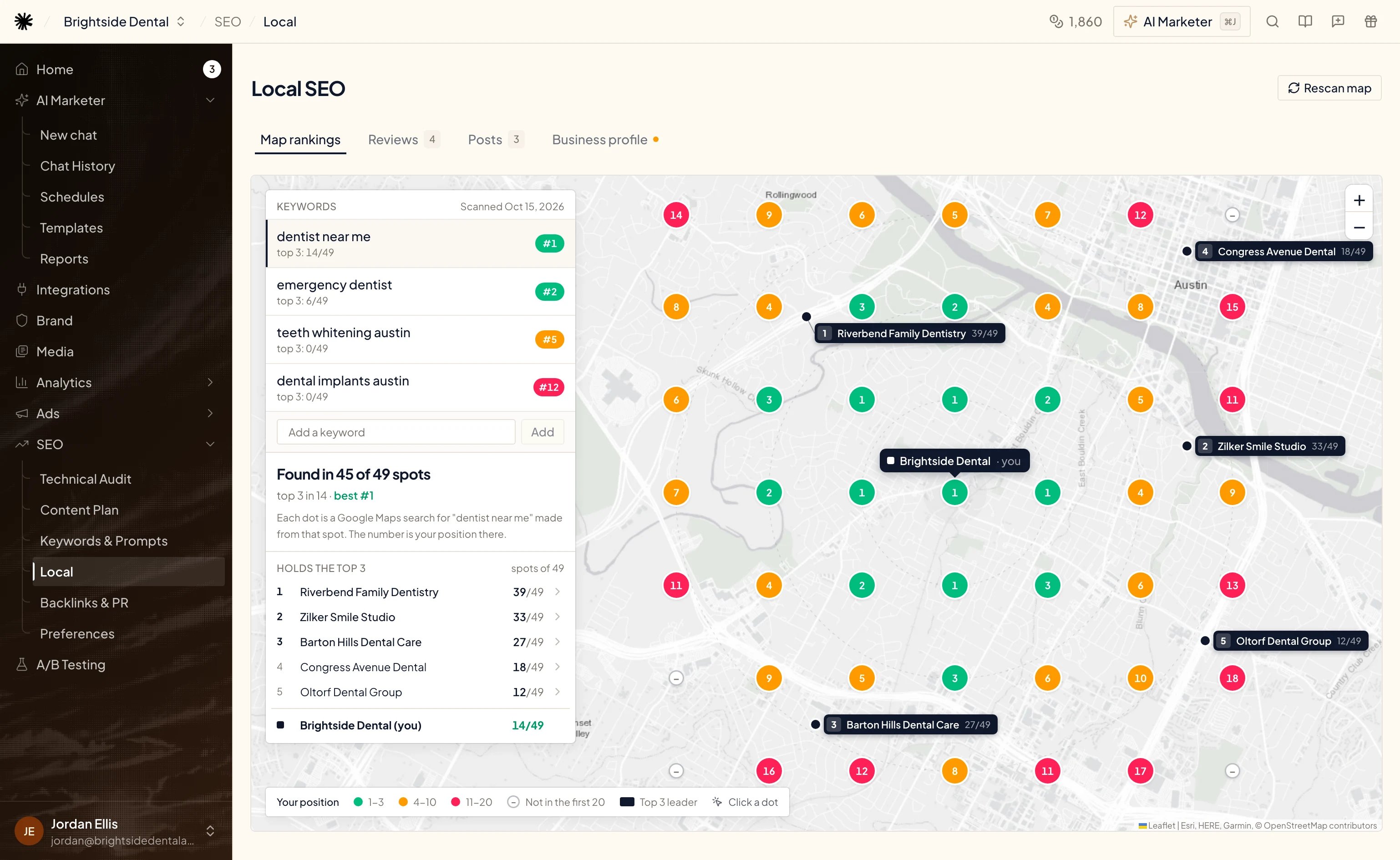
The map shows what someone sees when they search Google Maps from different spots around you. Ryze runs each search from **49 spots** — a 7×7 grid, **1 km apart**, centered on your office — and reads the first 20 results at each spot.
 ### Choose your keywords
The first time you open the tab, Ryze suggests searches built from your Google categories, your city and the searches people already find you by. Pick the ones your customers type, or click **Add your own** to type one of your own (for example, dentist downtown austin), then click **Scan N keywords**. The counter shows how many of the 5 you've picked.
* You can track **up to 5 keywords per location**.
* Scanning takes about a minute per keyword.
* To add one later, type it into **Add a keyword** on the Keywords card and click **Add** — it's scanned right away. Once you have 5, the box disappears.
### Read the map
Each dot is a Google Maps search made from that spot; the number is your position there.
| Dot | Meaning |
| - | - |
| Green | 1–3 — you're in the top 3, the part of the list people actually see |
| Amber | 4–10 |
| Red | 11–20 |
| Empty | Not in the first 20 |
The **Keywords** card on the left shows, for the selected keyword, **Found in N of 49 spots**, how many spots you hold the top 3 in and your **best** position. Click another keyword to switch the map. Below it, **Holds the top 3** lists the businesses that win the most spots, with your own business at the bottom for comparison. Their pins are shown on the map too.
### See who beats you and why
* **Click a dot** to see what Google Maps shows from that spot: the top 3 there, and your own position. When you're not first, **Why … wins here** compares you with the leader — distance to the search, reviews, rating, photos and whether they have a category you don't.
* **Click a competitor** in **Holds the top 3** (or its pin) to see **You vs …** — their top-3 spots, rating, reviews, photos, categories and description length, **Their categories** (with **You have it** next to the ones you share) and **What their clients write about** in their reviews.
### What moves you up
When you click a dot, **What moves you up** lists the fixes that apply there:
* **Add the "…" category** — when the map leaders list a category you don't. **Fix with AI** asks the agent to add it to your listing.
* **Get more reviews** — your review count next to the leader's. **Open reviews** takes you to the Reviews tab.
* **Add photos of the office and team** — when the leader has more photos. **Upload** takes you to Business profile.
You can't change how far a search is from your office. A stronger profile — the right categories, more reviews, more photos — is what lets you rank farther from it.
### Rescan
Click **Rescan map** at the top of the page to check positions again. Each keyword is scanned **at most once a day**: if every keyword was already scanned today, you'll see a message and nothing new runs. Adding a new keyword always scans it right away.
The map also rescans on its own together with your keyword refresh, if **Auto-refresh** is set to **Weekly** or **Monthly** on [Keywords & Prompts](/seo/keywords). The Keywords card shows the date of the last scan.
## Reviews
The **Reviews** tab lists every Google review on your listing. The line at the top shows how many you have and your average rating — and, if the map leaders have more reviews, how many they have. Asking happy clients for a review is the fastest lever.
### Choose your keywords
The first time you open the tab, Ryze suggests searches built from your Google categories, your city and the searches people already find you by. Pick the ones your customers type, or click **Add your own** to type one of your own (for example, dentist downtown austin), then click **Scan N keywords**. The counter shows how many of the 5 you've picked.
* You can track **up to 5 keywords per location**.
* Scanning takes about a minute per keyword.
* To add one later, type it into **Add a keyword** on the Keywords card and click **Add** — it's scanned right away. Once you have 5, the box disappears.
### Read the map
Each dot is a Google Maps search made from that spot; the number is your position there.
| Dot | Meaning |
| - | - |
| Green | 1–3 — you're in the top 3, the part of the list people actually see |
| Amber | 4–10 |
| Red | 11–20 |
| Empty | Not in the first 20 |
The **Keywords** card on the left shows, for the selected keyword, **Found in N of 49 spots**, how many spots you hold the top 3 in and your **best** position. Click another keyword to switch the map. Below it, **Holds the top 3** lists the businesses that win the most spots, with your own business at the bottom for comparison. Their pins are shown on the map too.
### See who beats you and why
* **Click a dot** to see what Google Maps shows from that spot: the top 3 there, and your own position. When you're not first, **Why … wins here** compares you with the leader — distance to the search, reviews, rating, photos and whether they have a category you don't.
* **Click a competitor** in **Holds the top 3** (or its pin) to see **You vs …** — their top-3 spots, rating, reviews, photos, categories and description length, **Their categories** (with **You have it** next to the ones you share) and **What their clients write about** in their reviews.
### What moves you up
When you click a dot, **What moves you up** lists the fixes that apply there:
* **Add the "…" category** — when the map leaders list a category you don't. **Fix with AI** asks the agent to add it to your listing.
* **Get more reviews** — your review count next to the leader's. **Open reviews** takes you to the Reviews tab.
* **Add photos of the office and team** — when the leader has more photos. **Upload** takes you to Business profile.
You can't change how far a search is from your office. A stronger profile — the right categories, more reviews, more photos — is what lets you rank farther from it.
### Rescan
Click **Rescan map** at the top of the page to check positions again. Each keyword is scanned **at most once a day**: if every keyword was already scanned today, you'll see a message and nothing new runs. Adding a new keyword always scans it right away.
The map also rescans on its own together with your keyword refresh, if **Auto-refresh** is set to **Weekly** or **Monthly** on [Keywords & Prompts](/seo/keywords). The Keywords card shows the date of the last scan.
## Reviews
The **Reviews** tab lists every Google review on your listing. The line at the top shows how many you have and your average rating — and, if the map leaders have more reviews, how many they have. Asking happy clients for a review is the fastest lever.
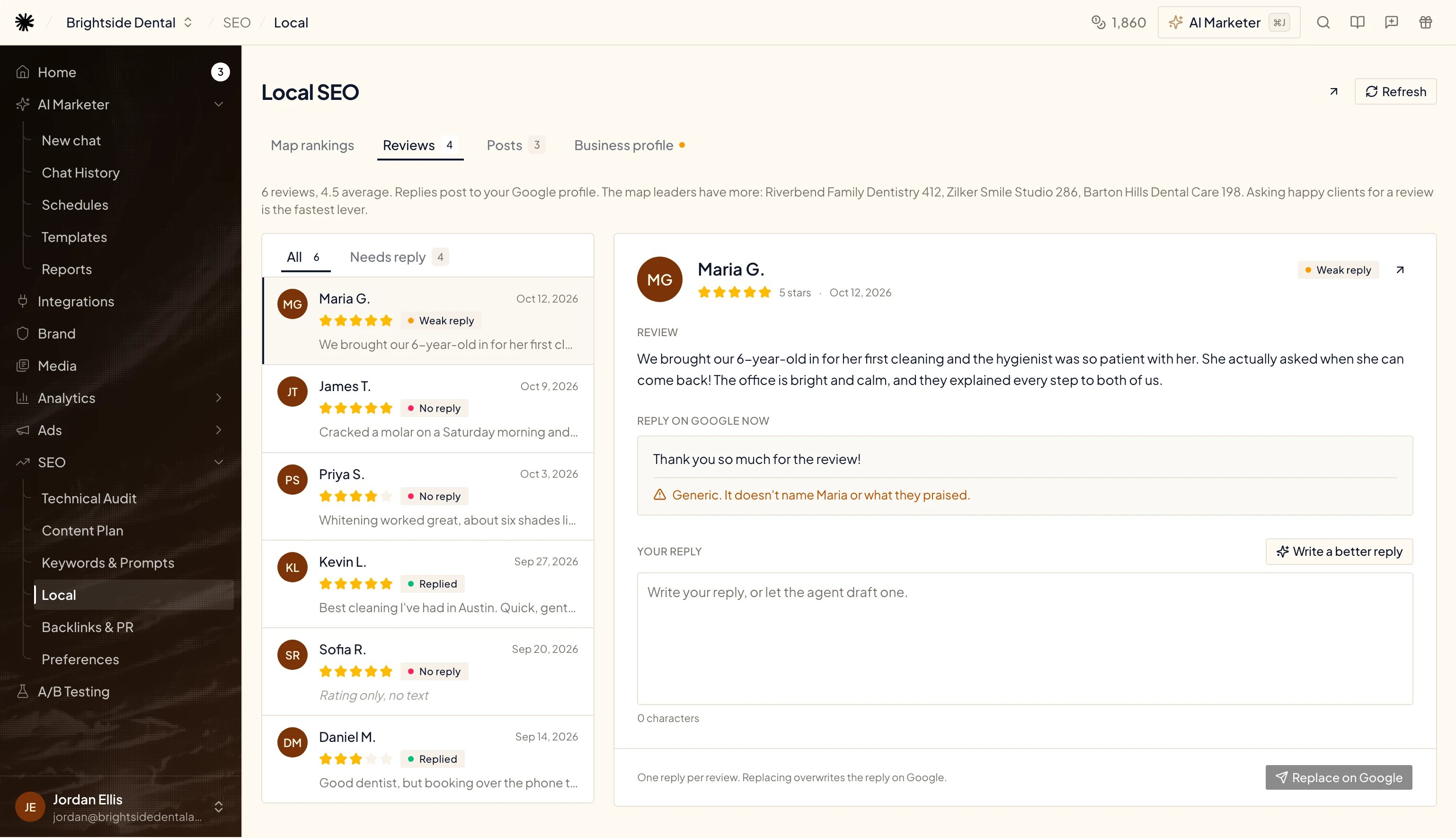 * **All** shows every review; **Needs reply** shows the ones with no reply yet. The number next to **Reviews** in the page tabs is how many need a reply.
* Each review is labeled **No reply**, **Weak reply** (a generic reply that doesn't name the reviewer or what they praised) or **Replied**.
* **Refresh** at the top loads new reviews from Google; the external-link button opens your listing on Google.
### Reply to a review
It opens on the right with the review text and **Reply on Google now** — the reply that's live today, if any.
Type it under **Your reply**, or click **Write a better reply**: the agent opens in the side panel, drafts a reply that names your service and city and picks up a detail from the review, and shows it to you before posting.
Click **Reply on Google** — or **Replace on Google** if the review already has a reply.
Google keeps **one reply per review**. Replacing overwrites the reply on Google, including one you typed in Google Business Profile yourself.
## Posts
The **Posts** tab shows the posts on your Google profile — the ones published from Ryze and the ones published straight on Google. Select a post to see **How it looks on your Google profile**.
* **All** shows every review; **Needs reply** shows the ones with no reply yet. The number next to **Reviews** in the page tabs is how many need a reply.
* Each review is labeled **No reply**, **Weak reply** (a generic reply that doesn't name the reviewer or what they praised) or **Replied**.
* **Refresh** at the top loads new reviews from Google; the external-link button opens your listing on Google.
### Reply to a review
It opens on the right with the review text and **Reply on Google now** — the reply that's live today, if any.
Type it under **Your reply**, or click **Write a better reply**: the agent opens in the side panel, drafts a reply that names your service and city and picks up a detail from the review, and shows it to you before posting.
Click **Reply on Google** — or **Replace on Google** if the review already has a reply.
Google keeps **one reply per review**. Replacing overwrites the reply on Google, including one you typed in Google Business Profile yourself.
## Posts
The **Posts** tab shows the posts on your Google profile — the ones published from Ryze and the ones published straight on Google. Select a post to see **How it looks on your Google profile**.
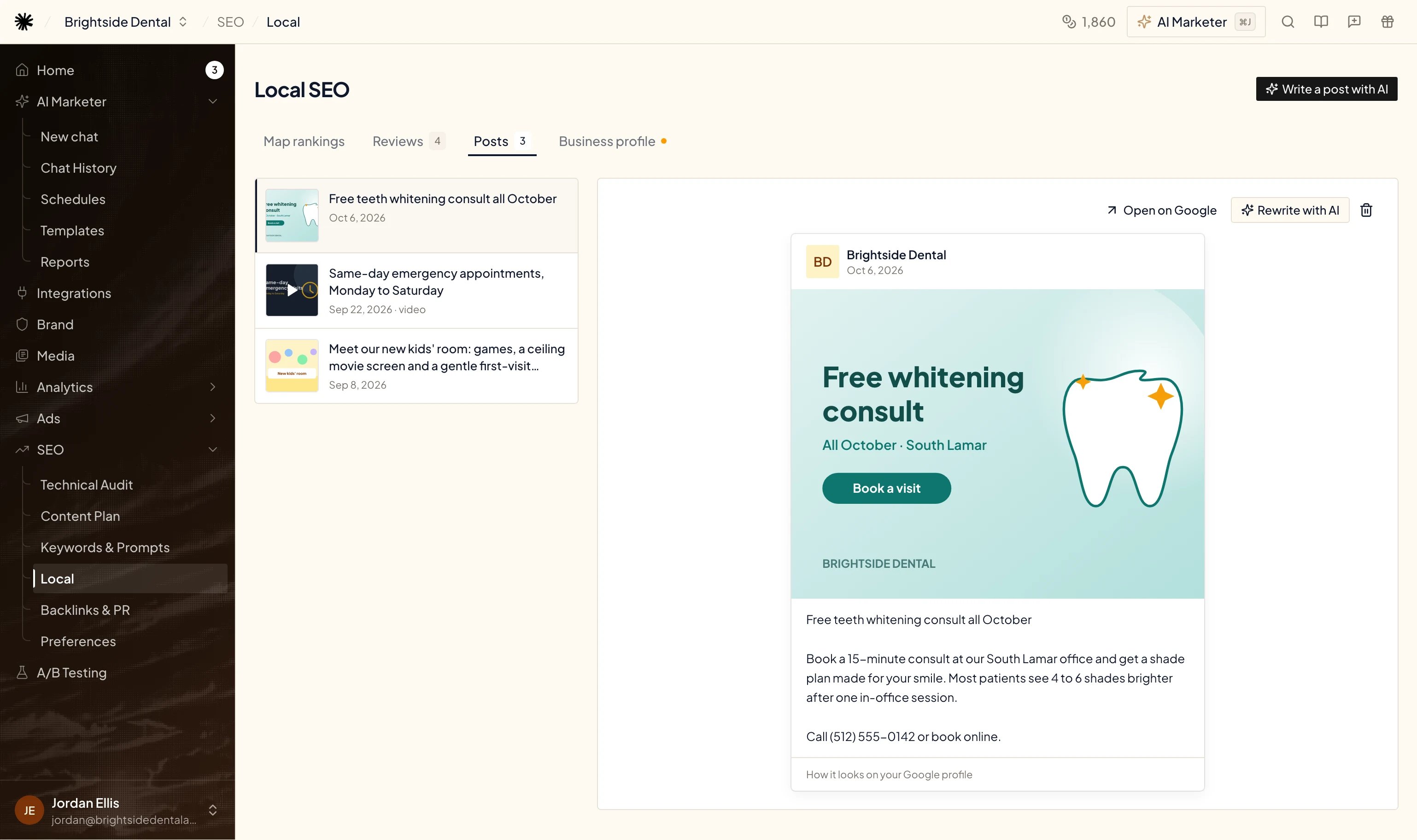 * **Write a post with AI** (top right) — the agent reads your listing, reviews and earlier posts, writes one post about a service or a result your clients praise (up to 1,500 characters) and shows you the draft. It publishes only after you confirm.
* **Rewrite with AI** — on a selected post: the agent rewrites it more clearly, keeping the topic and the image, and replaces the old post after you confirm.
* **Open on Google** — opens the live post.
* **Delete post** (trash icon) — removes the post from Google Search and Maps. This can't be undone.
A new post can take 24–48 hours to appear on Google. Posts stay visible on Google Search and Maps for about a week, so a steady rhythm works better than one big post.
## Business profile
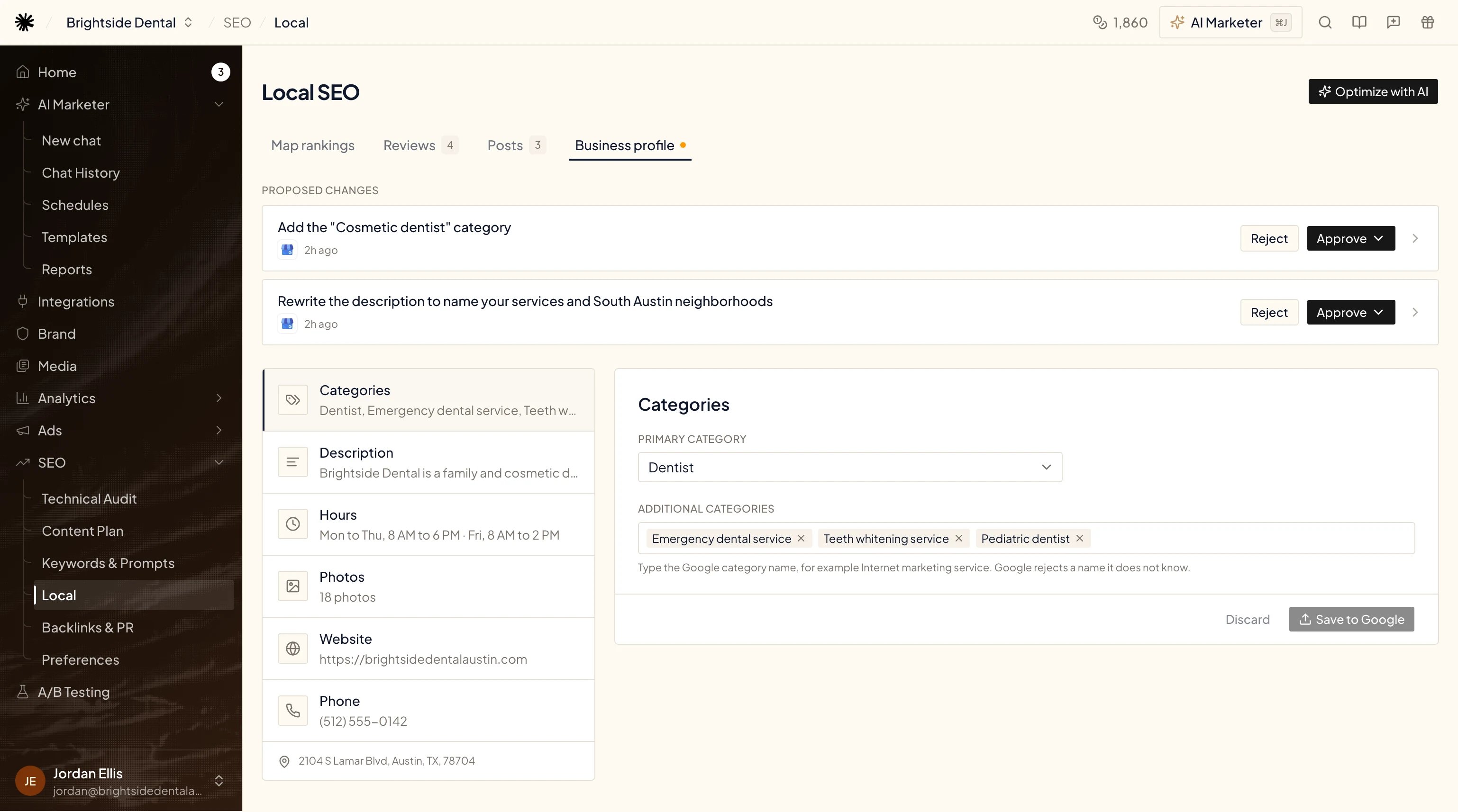
The **Business profile** tab shows your listing as Google has it: **Categories**, **Description**, **Hours**, **Photos**, **Website** and **Phone**, plus your address. Click a field to edit it on the right, then click **Save to Google** (or **Discard**). Changes are public on Google Search and Maps, and Google may review them before they show.
* **Write a post with AI** (top right) — the agent reads your listing, reviews and earlier posts, writes one post about a service or a result your clients praise (up to 1,500 characters) and shows you the draft. It publishes only after you confirm.
* **Rewrite with AI** — on a selected post: the agent rewrites it more clearly, keeping the topic and the image, and replaces the old post after you confirm.
* **Open on Google** — opens the live post.
* **Delete post** (trash icon) — removes the post from Google Search and Maps. This can't be undone.
A new post can take 24–48 hours to appear on Google. Posts stay visible on Google Search and Maps for about a week, so a steady rhythm works better than one big post.
## Business profile
The **Business profile** tab shows your listing as Google has it: **Categories**, **Description**, **Hours**, **Photos**, **Website** and **Phone**, plus your address. Click a field to edit it on the right, then click **Save to Google** (or **Discard**). Changes are public on Google Search and Maps, and Google may review them before they show.
 | Field | What you can change |
| - | - |
| **Categories** | The **Primary category** and up to 9 **Additional categories**. Type the Google category name, for example *Internet marketing service* — Google rejects a name it doesn't know. |
| **Description** | What you do, for whom and where — up to 750 characters. |
| **Hours** | Opening hours for each day: mark a day **Closed**, change the times, or **Add hours** for a second period. |
| **Photos** | Click **Add photos**, choose up to 10 JPEG or PNG files under 5 MB from your [Media library](/workspaces/media) (or upload new ones there), and pick where they show — **Listing photo**, **Cover photo** or **Logo**. Google reviews each photo before it appears. |
| **Website** | Your site's address. |
| **Phone** | Country and phone number. |
### Optimize with AI and Proposed changes
**Optimize with AI** (top right) asks the agent to compare your listing with the businesses that hold the top 3 on your map and propose changes to categories, description and hours. They arrive as cards under **Proposed changes**.
Once a week the agent also reviews your map, listing and reviews on its own. What it finds — a category the leaders share and you lack, reviews left without a reply, a thin description — arrives as a card under **Proposed changes** at the top of this tab, labeled **Local SEO**. Nothing is applied until you approve it. Approving, rejecting and approving with a note work as described in [Inbox and approvals](/agent/approvals). A dot on the **Business profile** tab means a proposal is waiting.
## Ask the AI Marketer
With Google Business Profile connected, you can ask the agent about your listing in any [chat](/agent/chat). For example:
* "Which of my reviews from the last month have no reply? Draft replies for the negative ones."
* "How many calls and direction requests did my profile get on Google in the last 30 days?"
* "Which searches did people use to find my business on Google last month?"
* "Write a post about our weekend opening hours and schedule it for Friday."
* "Who holds the top 3 on the map for my main keyword, and what do they have that I don't?"
The agent reads freely. Anything that changes your public listing — a reply, a post, a new photo, an edit — follows the [Tool approvals](/agent/chat#tool-approvals) setting of your chat, and the Local SEO buttons always show you the draft first. Google reports profile performance with a 2–3 day delay.
## FAQ
Yes, for the full picture. For an unverified listing Google doesn't share coordinates or the Maps place, so the map can't be drawn and reviews may not load. Verify the listing on Google, then reconnect it in Ryze.
Each workspace works on one location. To track another location, connect it in its own workspace — see [Create a workspace](/workspaces/create-workspace).
Google Maps results depend on where the search is made. Ryze searches from 49 fixed spots around your office, so your own search from your desk shows only one of those spots. Click the dot closest to you to compare.
Each keyword is scanned at most once a day. If every keyword was already scanned today, **Rescan map** shows a message and waits for the next scan. Adding a new keyword scans it right away.
Up to 5 per location, each checked from 49 spots.
No. Replies, posts and listing edits go to Google only when you click the button yourself or confirm the agent's draft. The weekly proposals wait under **Proposed changes** until you approve them.
Google keeps one reply per review. Posting a new one replaces the current reply.
Posts can take 24–48 hours to appear, and Google reviews new photos and listing edits before they go live.
This documentation is built and hosted on [Mintlify](https://mintlify.com), a developer documentation platform.
| Field | What you can change |
| - | - |
| **Categories** | The **Primary category** and up to 9 **Additional categories**. Type the Google category name, for example *Internet marketing service* — Google rejects a name it doesn't know. |
| **Description** | What you do, for whom and where — up to 750 characters. |
| **Hours** | Opening hours for each day: mark a day **Closed**, change the times, or **Add hours** for a second period. |
| **Photos** | Click **Add photos**, choose up to 10 JPEG or PNG files under 5 MB from your [Media library](/workspaces/media) (or upload new ones there), and pick where they show — **Listing photo**, **Cover photo** or **Logo**. Google reviews each photo before it appears. |
| **Website** | Your site's address. |
| **Phone** | Country and phone number. |
### Optimize with AI and Proposed changes
**Optimize with AI** (top right) asks the agent to compare your listing with the businesses that hold the top 3 on your map and propose changes to categories, description and hours. They arrive as cards under **Proposed changes**.
Once a week the agent also reviews your map, listing and reviews on its own. What it finds — a category the leaders share and you lack, reviews left without a reply, a thin description — arrives as a card under **Proposed changes** at the top of this tab, labeled **Local SEO**. Nothing is applied until you approve it. Approving, rejecting and approving with a note work as described in [Inbox and approvals](/agent/approvals). A dot on the **Business profile** tab means a proposal is waiting.
## Ask the AI Marketer
With Google Business Profile connected, you can ask the agent about your listing in any [chat](/agent/chat). For example:
* "Which of my reviews from the last month have no reply? Draft replies for the negative ones."
* "How many calls and direction requests did my profile get on Google in the last 30 days?"
* "Which searches did people use to find my business on Google last month?"
* "Write a post about our weekend opening hours and schedule it for Friday."
* "Who holds the top 3 on the map for my main keyword, and what do they have that I don't?"
The agent reads freely. Anything that changes your public listing — a reply, a post, a new photo, an edit — follows the [Tool approvals](/agent/chat#tool-approvals) setting of your chat, and the Local SEO buttons always show you the draft first. Google reports profile performance with a 2–3 day delay.
## FAQ
Yes, for the full picture. For an unverified listing Google doesn't share coordinates or the Maps place, so the map can't be drawn and reviews may not load. Verify the listing on Google, then reconnect it in Ryze.
Each workspace works on one location. To track another location, connect it in its own workspace — see [Create a workspace](/workspaces/create-workspace).
Google Maps results depend on where the search is made. Ryze searches from 49 fixed spots around your office, so your own search from your desk shows only one of those spots. Click the dot closest to you to compare.
Each keyword is scanned at most once a day. If every keyword was already scanned today, **Rescan map** shows a message and waits for the next scan. Adding a new keyword scans it right away.
Up to 5 per location, each checked from 49 spots.
No. Replies, posts and listing edits go to Google only when you click the button yourself or confirm the agent's draft. The weekly proposals wait under **Proposed changes** until you approve them.
Google keeps one reply per review. Posting a new one replaces the current reply.
Posts can take 24–48 hours to appear, and Google reviews new photos and listing edits before they go live.
This documentation is built and hosted on [Mintlify](https://mintlify.com), a developer documentation platform.