> ## Documentation Index
> Fetch the complete documentation index at: https://help.get-ryze.ai/llms.txt
> Use this file to discover all available pages before exploring further.
# Branding
> Brand the whole app as your own — set the colors your clients see across the app, reports, and login page, and add your logo.
White label lets an agency brand Ryze as its own. Your clients see your colors and logo across the app, their reports, and the login page — Ryze stays behind the scenes.
Find it under **White Label → Branding** in your organization settings.
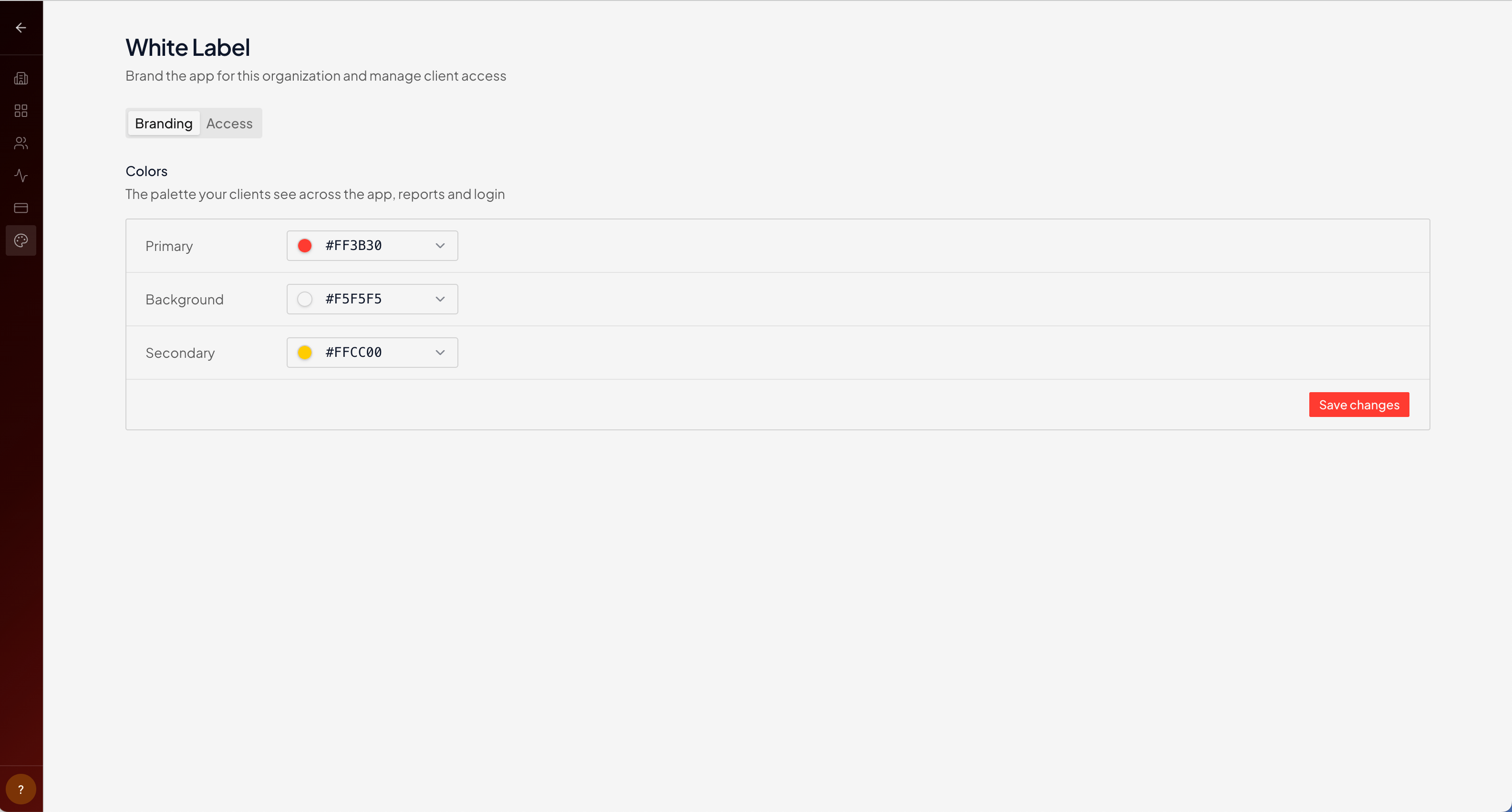 ## Colors
Set three colors and Ryze derives the rest of the theme from them:
* **Primary** — your brand color, used for buttons, links, and accents.
* **Background** — the app's base background.
* **Secondary** — a supporting accent.
These apply everywhere your clients look — the app, the reports you share, and the branded login page.
## Logo
Add your logo and it replaces Ryze's across the branded surfaces.
Click **Save changes** to apply. Updates show up for your clients right away.
## Related
Branded login link and inviting clients.
One workspace per client.
## Colors
Set three colors and Ryze derives the rest of the theme from them:
* **Primary** — your brand color, used for buttons, links, and accents.
* **Background** — the app's base background.
* **Secondary** — a supporting accent.
These apply everywhere your clients look — the app, the reports you share, and the branded login page.
## Logo
Add your logo and it replaces Ryze's across the branded surfaces.
Click **Save changes** to apply. Updates show up for your clients right away.
## Related
Branded login link and inviting clients.
One workspace per client.