> ## Documentation Index
> Fetch the complete documentation index at: https://help.get-ryze.ai/llms.txt
> Use this file to discover all available pages before exploring further.
# Create a Workspace
> Add a workspace for each client or site. Ryze reads the site to learn the business.
A workspace holds one site or client — its connections, settings, and data. Create one per business you manage.
## Create a workspace
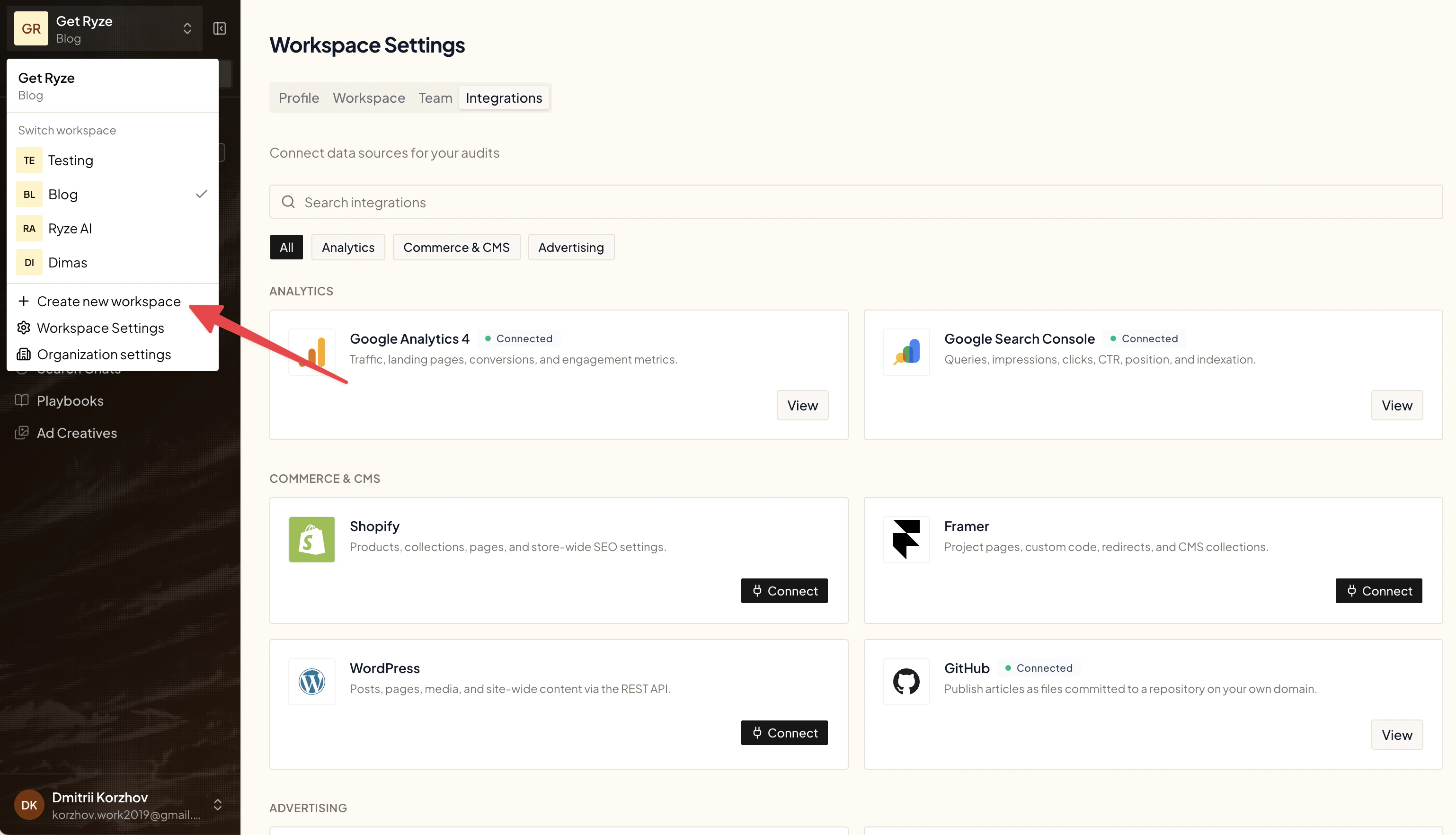
Click the workspace name at the top-left, then choose **Create new workspace**.
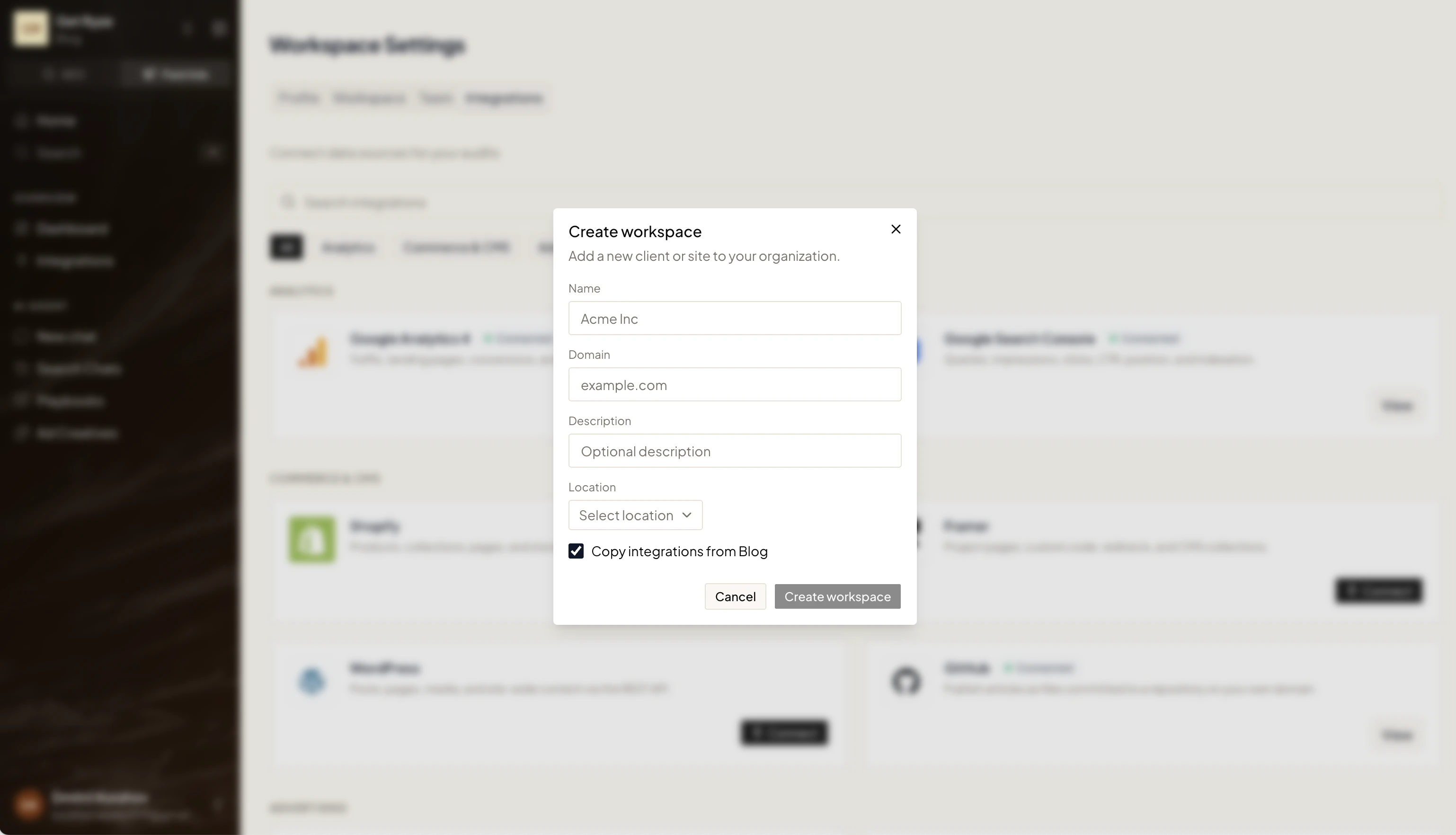
 Enter a **Name**, the **Domain**, an optional **Description**, and a **Location**. Tick **Copy integrations** to reuse connections from your current workspace.
 Click **Create workspace**. Ryze reads your site to learn your business, catalog, and market.
## Switching workspaces
Use the same switcher at the top-left to move between workspaces. Each one keeps its own connections, settings, and data.
## Next steps
Name, domain, location, and brand voice.
Link Google, Meta, Analytics, and more.
Click **Create workspace**. Ryze reads your site to learn your business, catalog, and market.
## Switching workspaces
Use the same switcher at the top-left to move between workspaces. Each one keeps its own connections, settings, and data.
## Next steps
Name, domain, location, and brand voice.
Link Google, Meta, Analytics, and more.