Prefer video? Watch the Generating ad creatives guide.
Generate creatives in chat
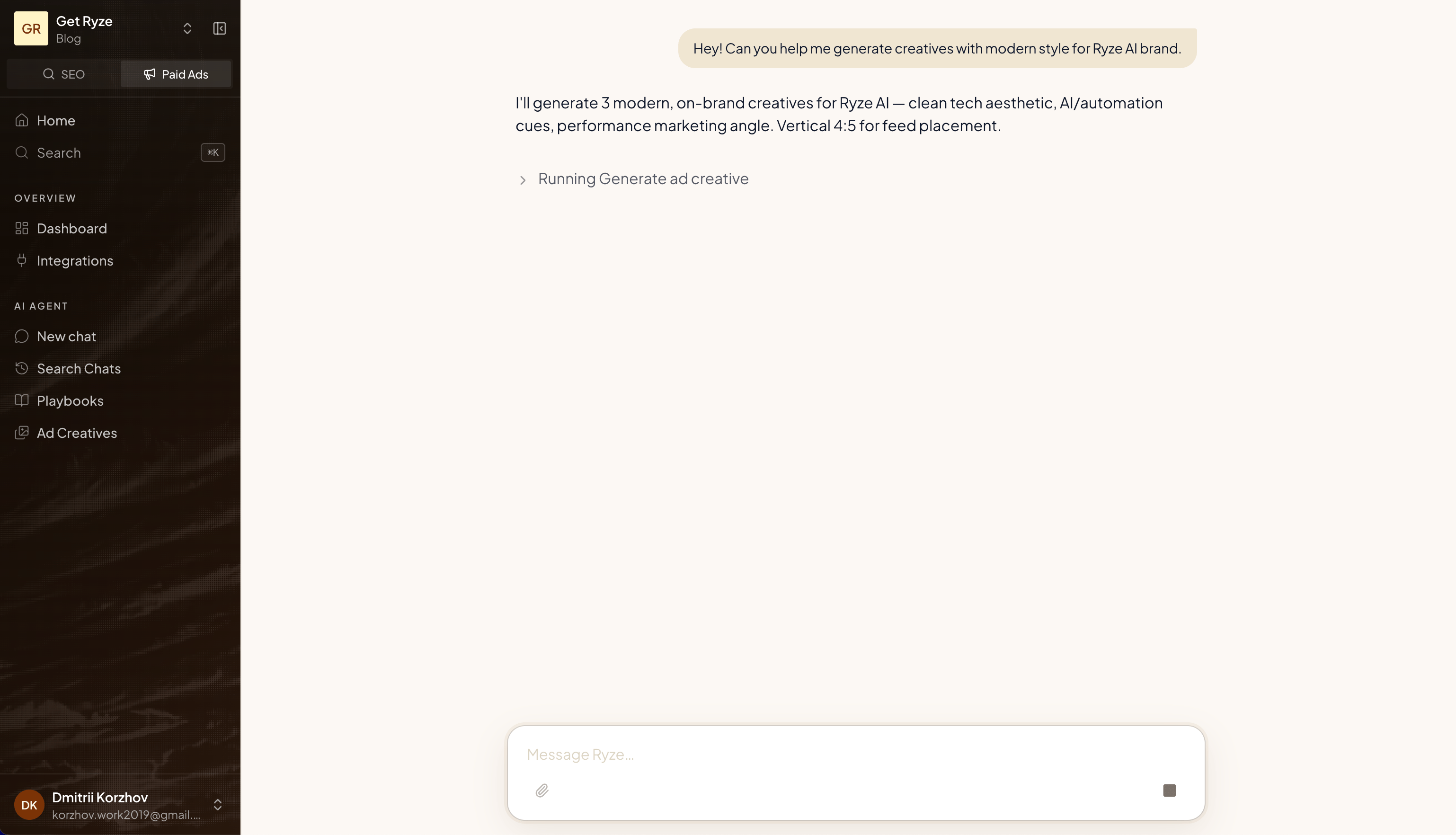
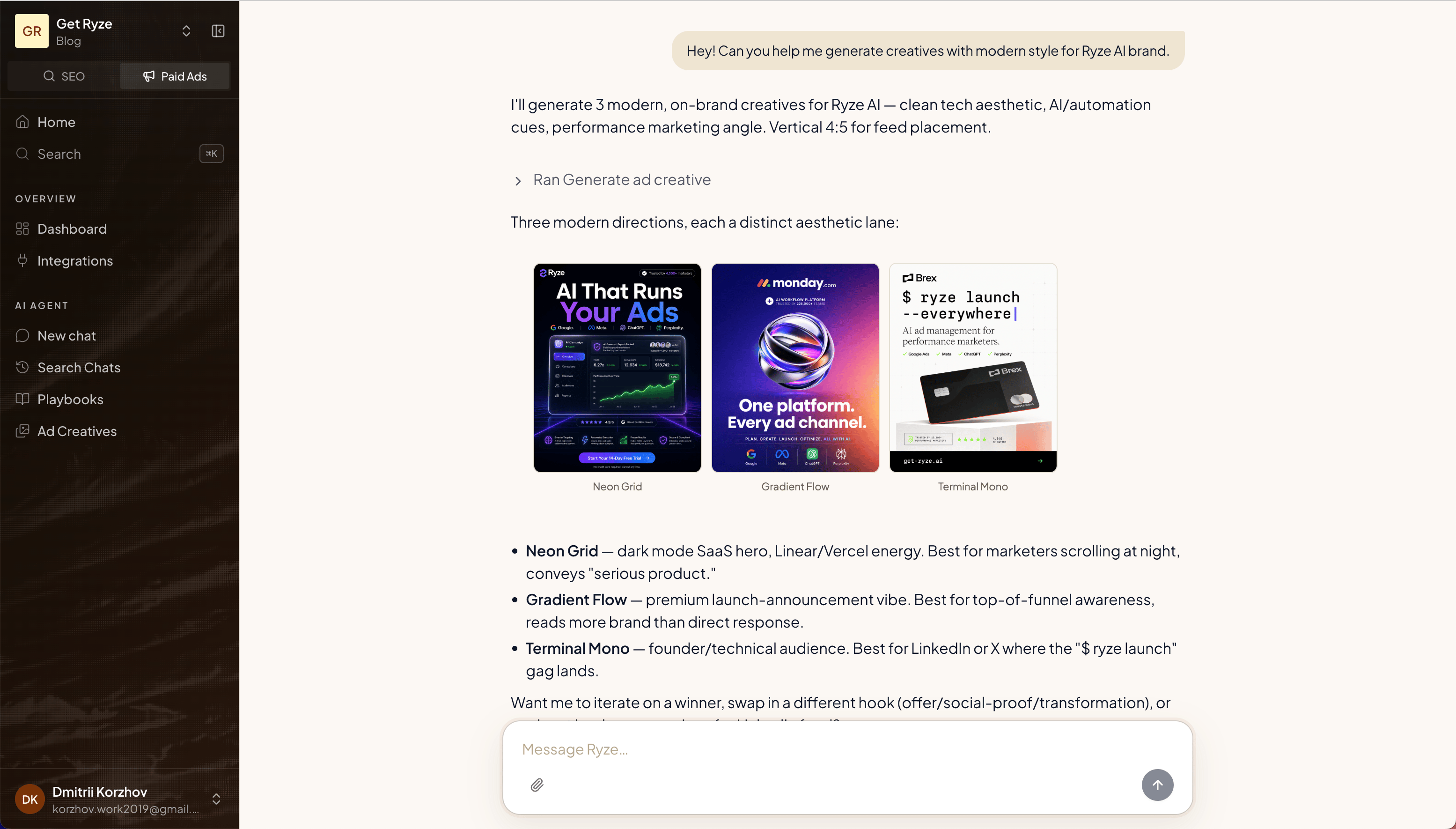
Just describe what you want:Can you help me generate creatives with a modern style for the Ryze AI brand?
Write a good brief
The more you give Ryze, the better the output. Include:- Brand — who it’s for and the vibe
- Format — e.g. vertical 4:5 for feed
- Angle — the hook, offer, or message
- Style — modern, minimal, bold, etc.
The + menu in the composer
The + button in the chat composer gives you four ways to steer a creative run without typing it all out:- Attach files — upload images from your computer, or pick files from Google Drive.
- Reference ads — pick one or more of your existing ad creatives as visual references; they’re attached to your message so the new directions follow their look.
- Use brand kit — a toggle that tells Ryze to use your workspace brand styles for everything it generates in this conversation.
- Aspect — Auto, Square, Story, or Wide. Pick one to fix the creative size for the whole conversation instead of describing the format in every message.
Add your brand references
Ryze pulls your logo and palette from your site automatically and feeds them into every creative it generates. To steer the look further, add reference creatives. Open Brand in the sidebar, switch to the Visual tab and find Ad creative examples. Ryze auto-pulls creatives from your connected Meta and LinkedIn ad accounts; click Add ad creatives to upload your own. They’re saved per workspace and used as visual references the next time you generate.Review, annotate, and iterate
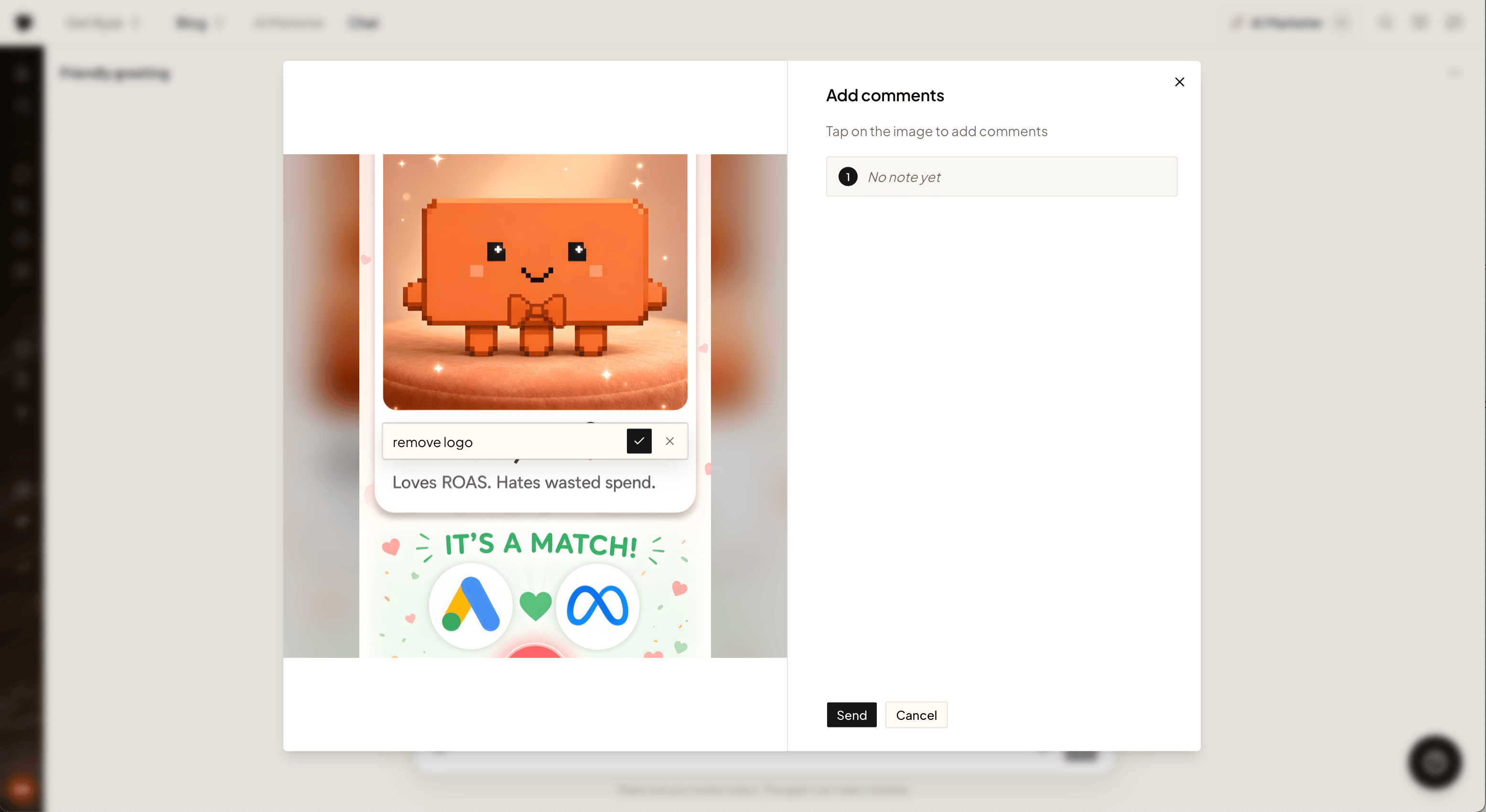
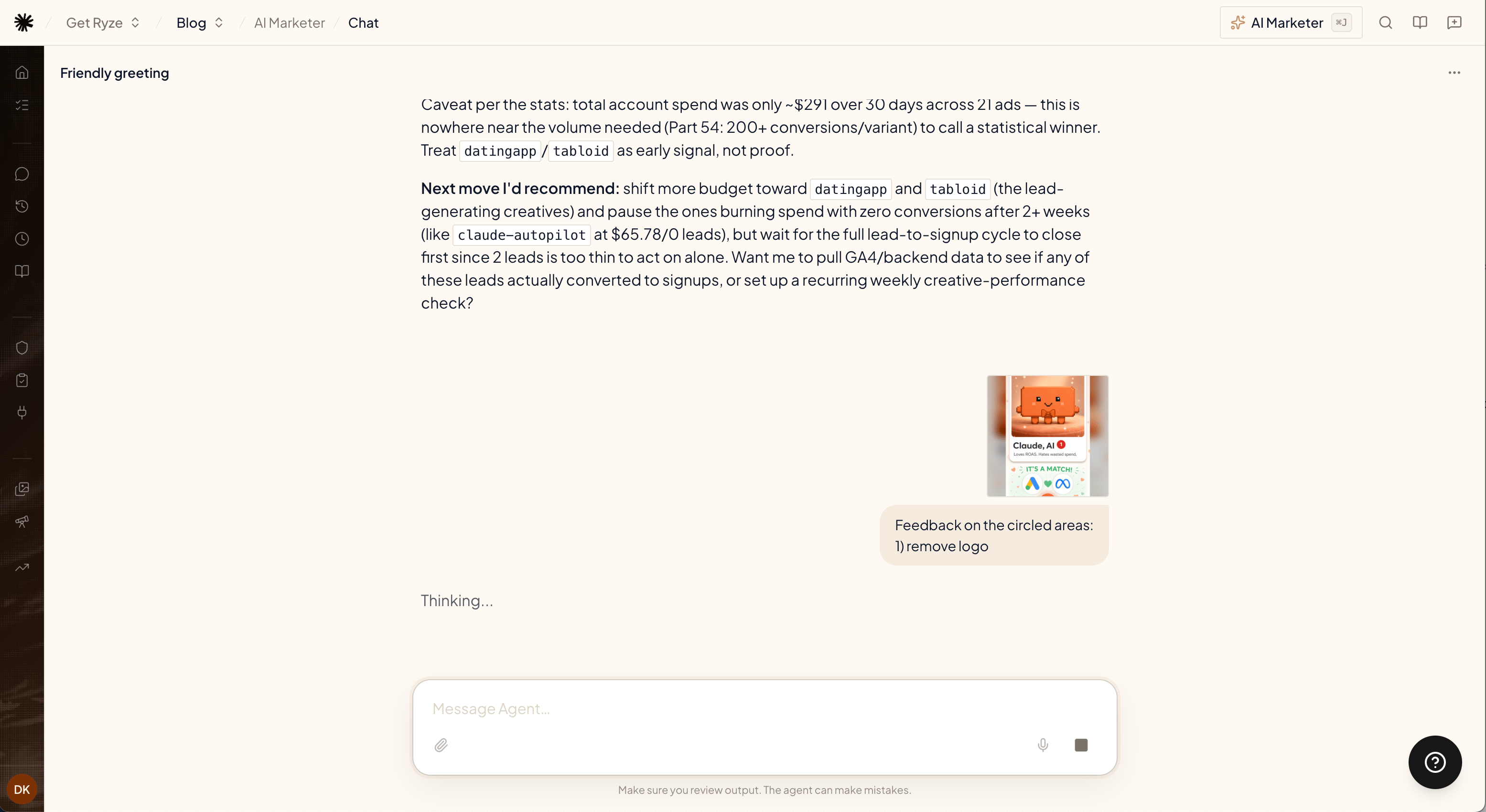
Every creative in chat opens fullscreen — click it to inspect the details, download it, or leave feedback right on the image.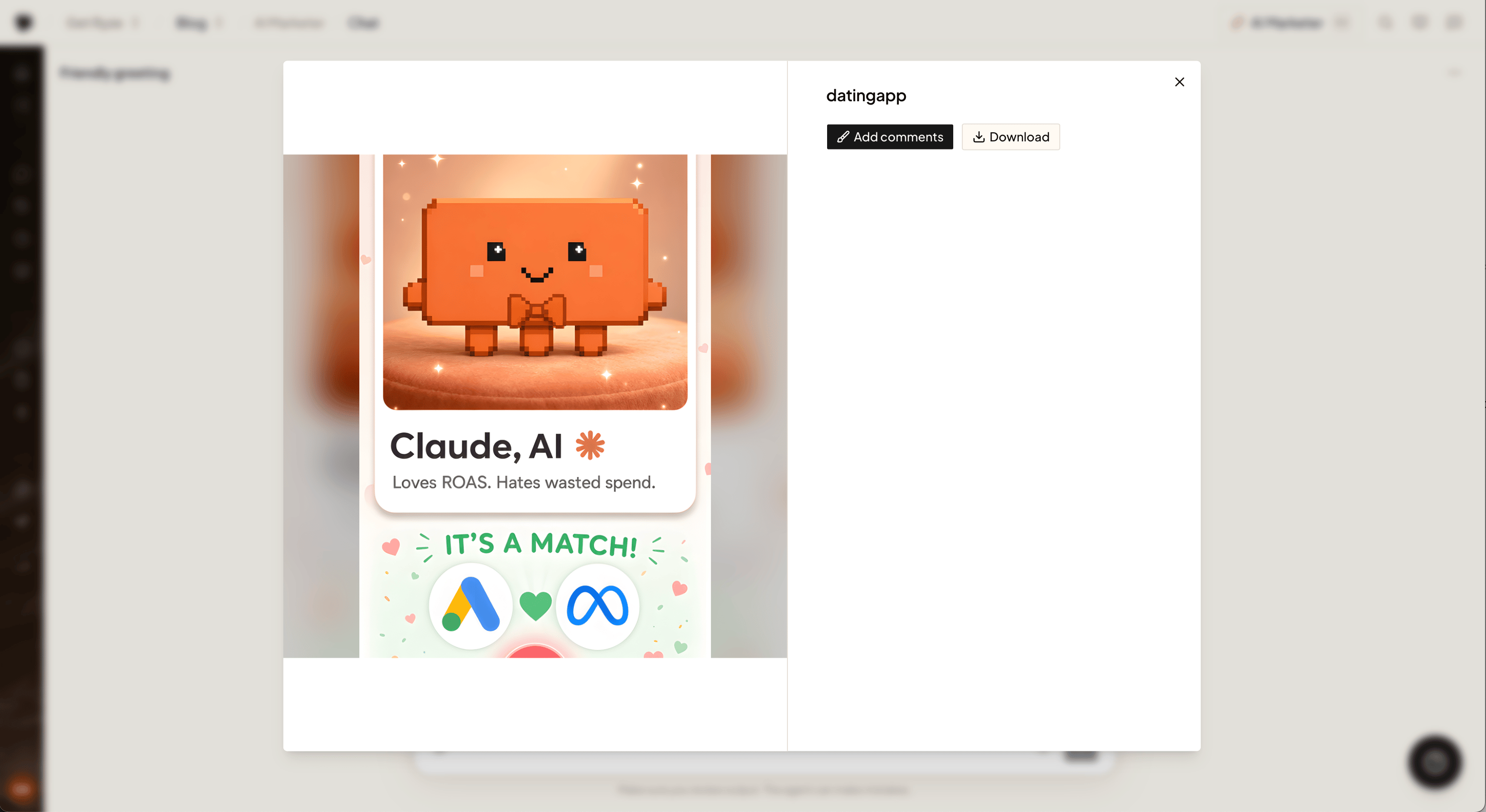
See your live ads in chat
The same widget shows creatives that are already running. Ask about your Meta, LinkedIn, Snapchat, or TikTok ads and the agent pulls the actual images with their performance — spend, clicks, CTR — side by side.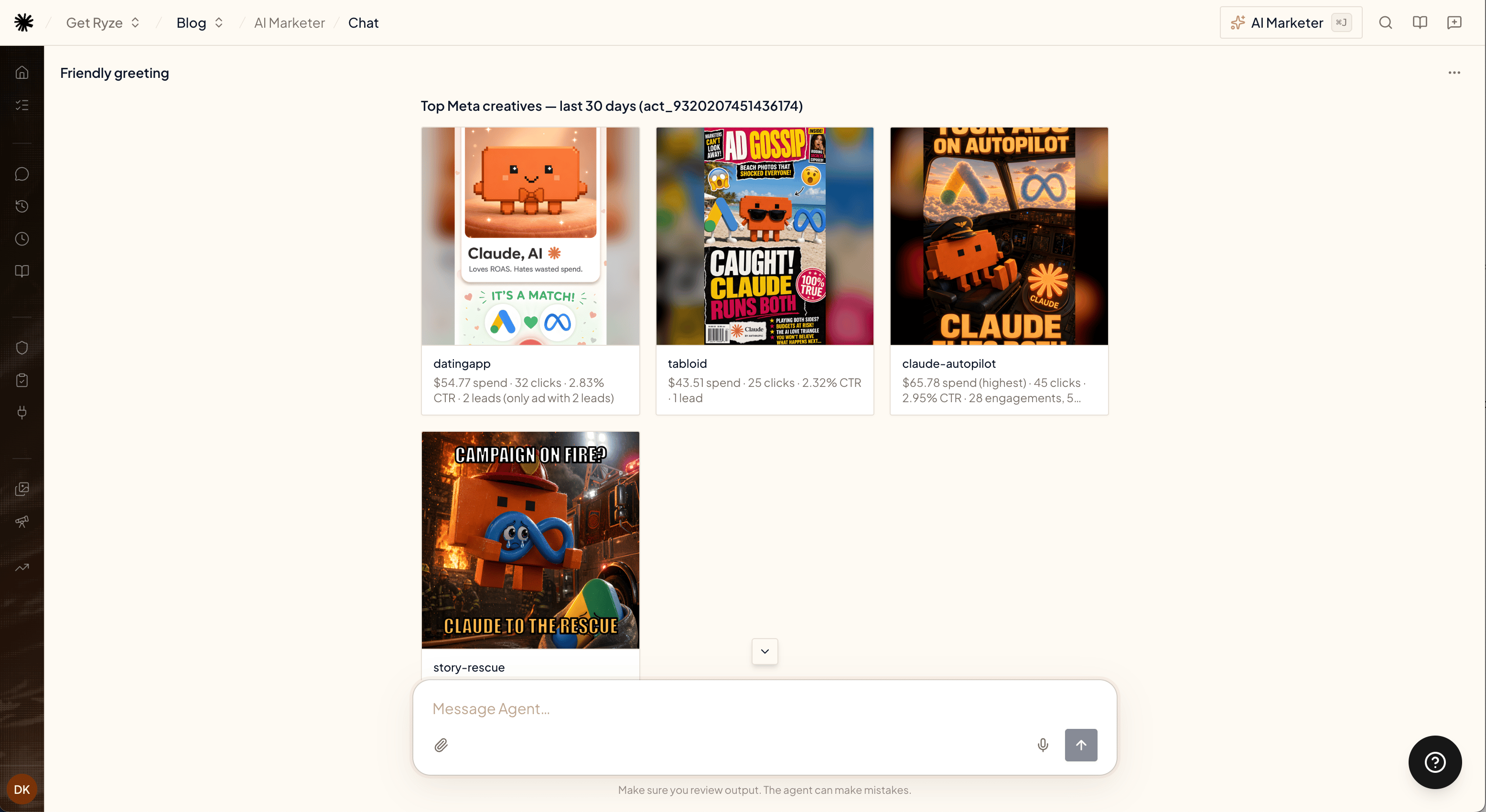
Browse your creatives
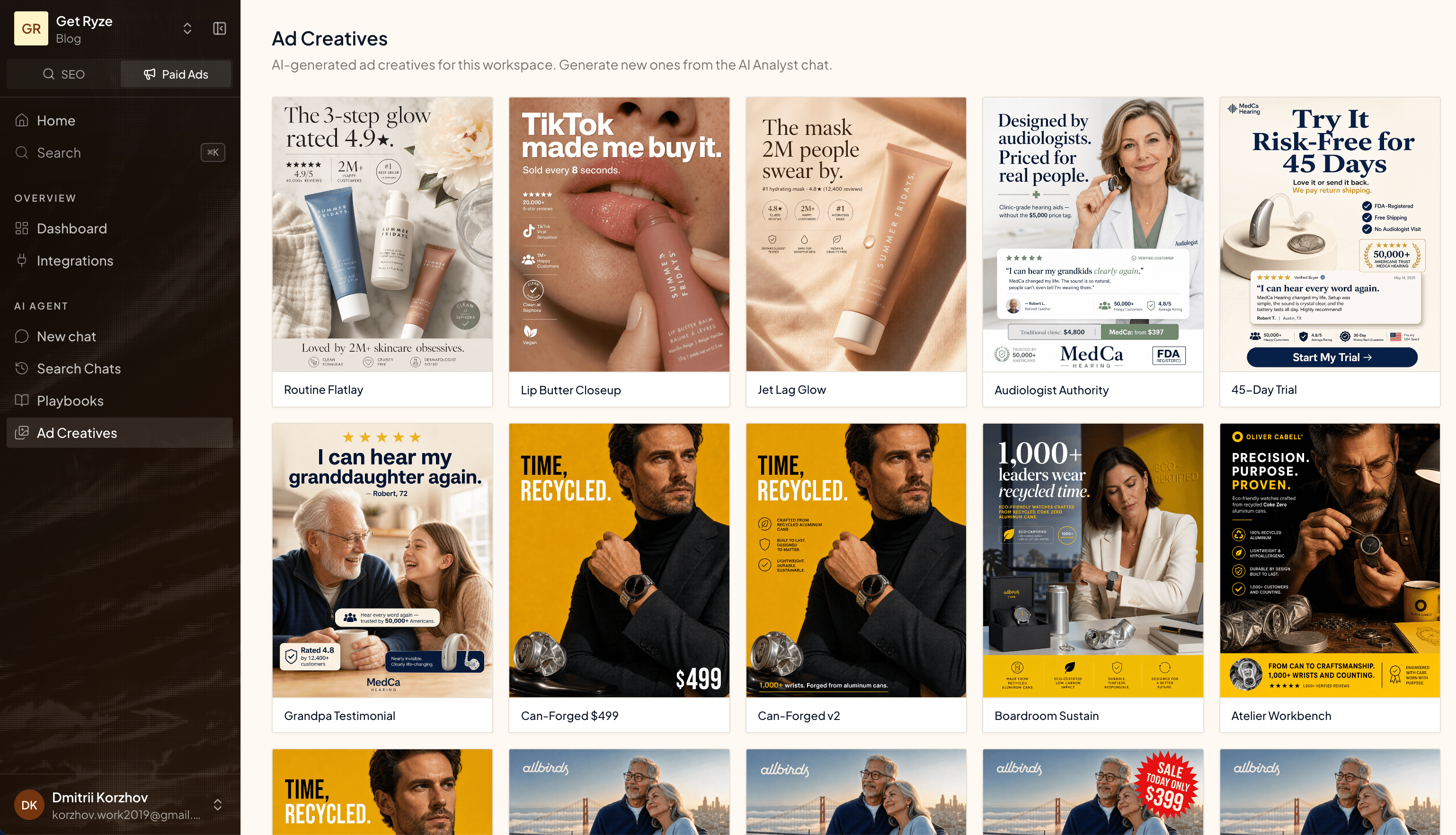
All generated creatives live in Ad Creatives.