

Prefer video? Watch the Writing and editing articles guide.
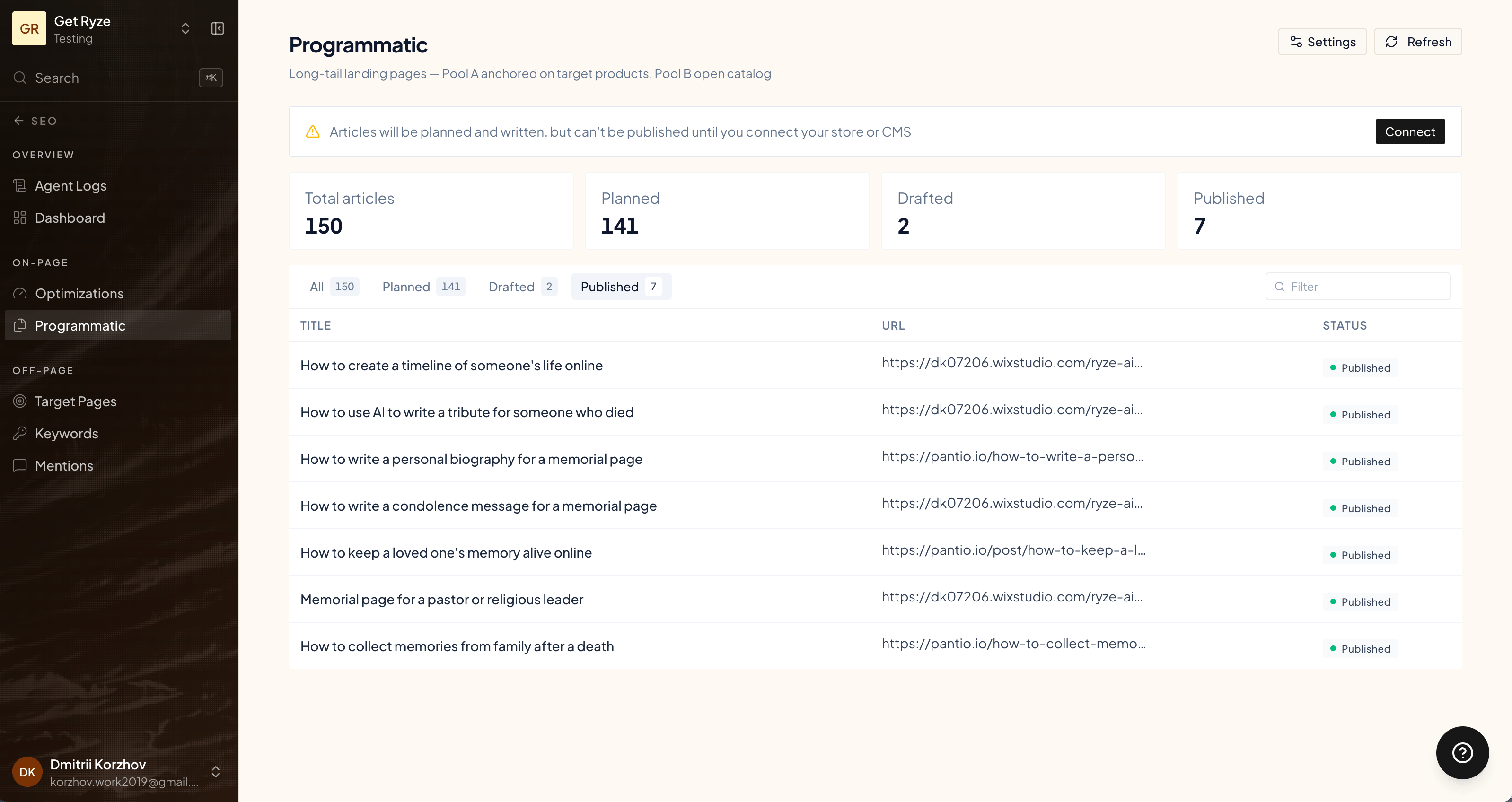
The two pools
Topics are planned into two pools so coverage is both focused and wide:- Pool A — priority-anchored. Topics built around your priority keywords and the products that matter most, to drive traffic and links to your key pages.
- Pool B — open. Topics that expand into adjacent demand — mined from your Search Console impressions, competitor gaps, and AI brainstorming across your wider catalog.
Article statuses
You’ll see articles move through states, available as tabs:Generate an article
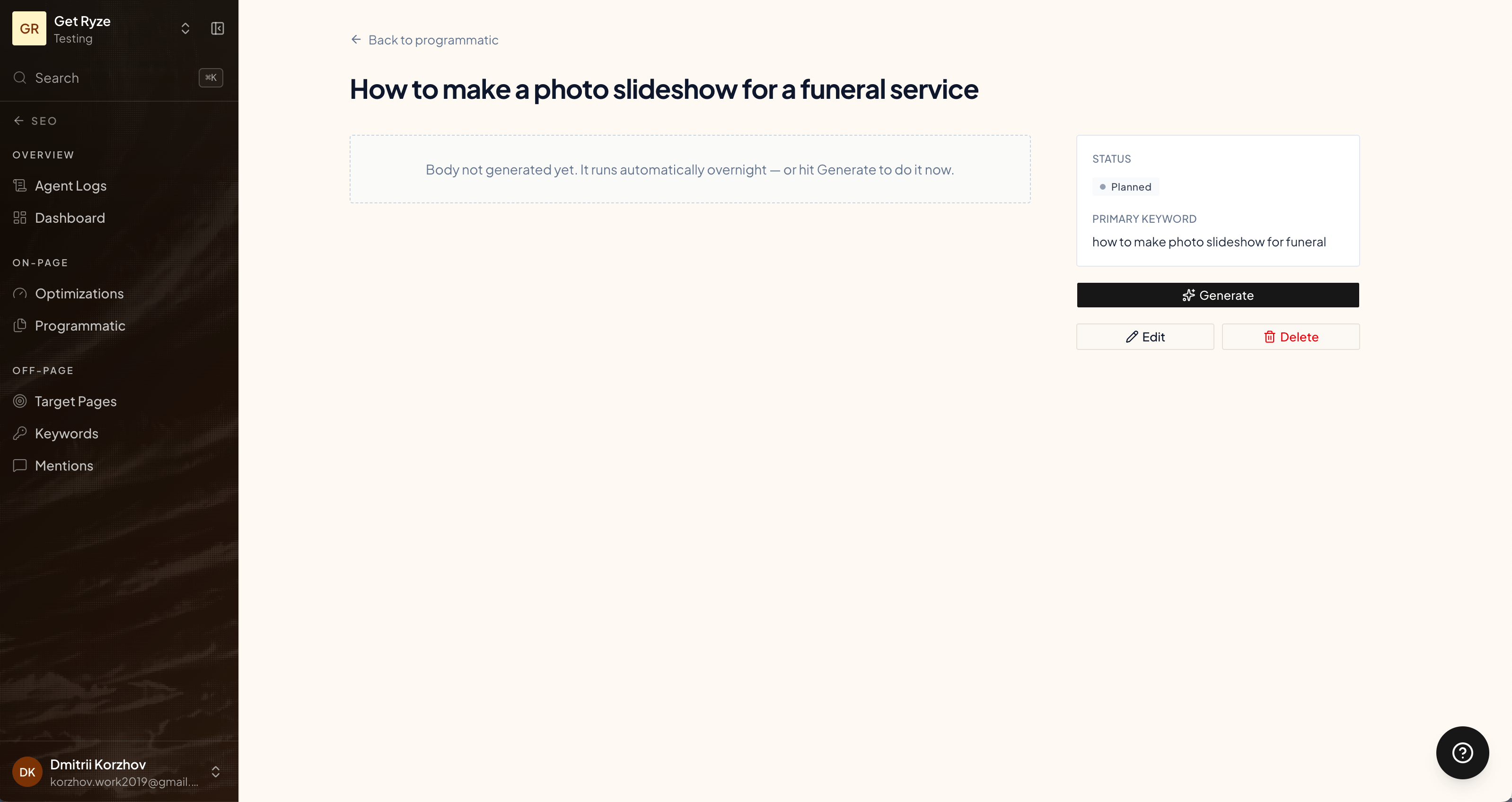
On a Planned article, click Generate. Ryze writes the full piece:- Body — a complete article (500+ words).
- Meta title and meta description — for search snippets.
- Featured image — selected automatically and uploaded.
Review and edit a draft
Before publishing, click Edit to refine anything. The Edit draft dialog lets you change:- Title and slug
- Meta title and meta description
- Body (Markdown — the same content that gets published)
- Scheduled date
- Featured image (replace or remove)
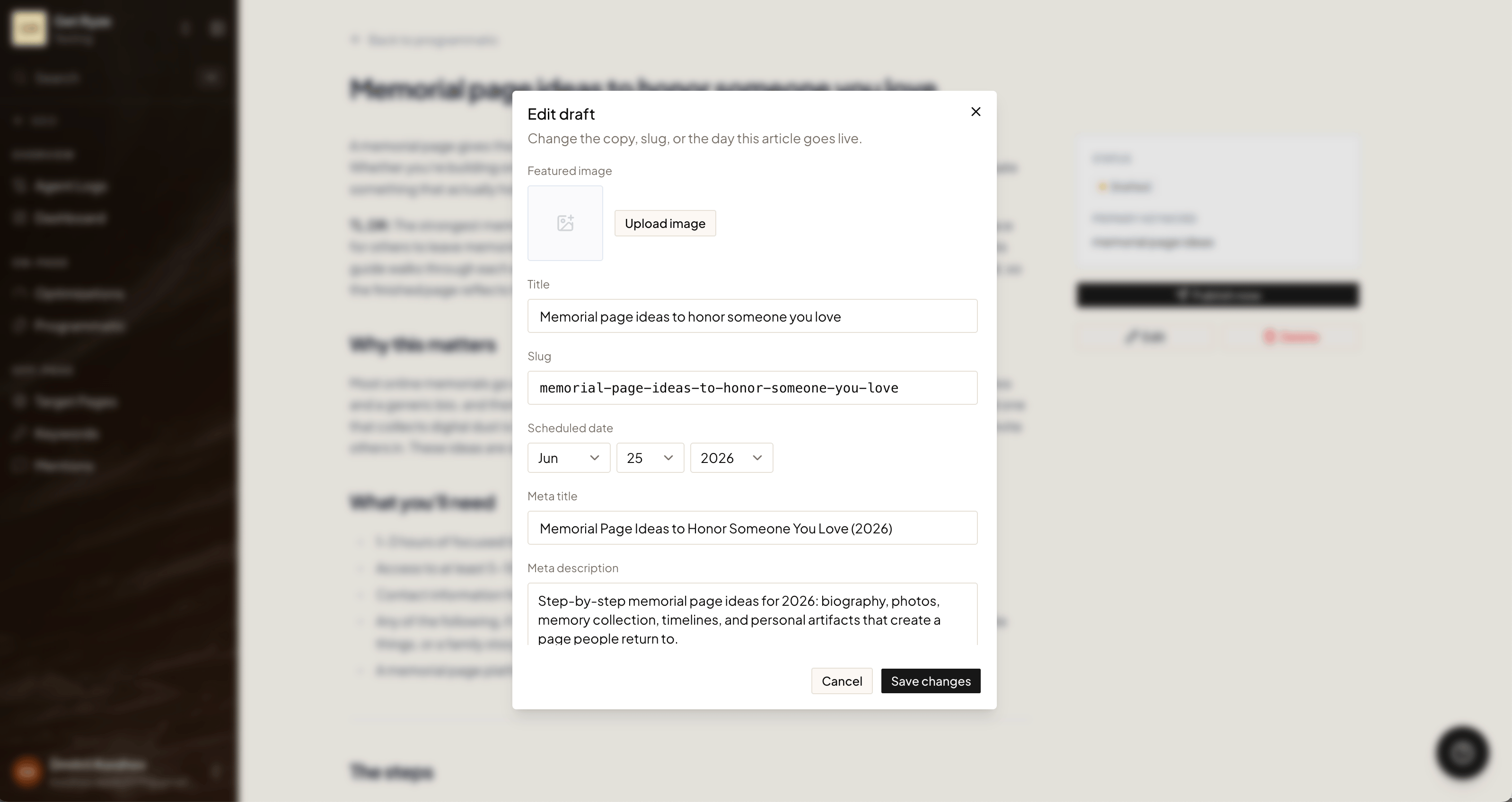
You can edit an article in any state except Published — once it’s live, edits happen on your CMS. You can also delete any article that isn’t published yet, with a confirmation step.
Scheduling
Every article is planned with a publish date. Ryze spreads new articles out automatically — around five a day — so your content rolls out at a steady pace instead of landing all at once. You control the timing from the Edit draft dialog:- Move a date. Change the Scheduled date to publish an article sooner or later.
- Stack a day. Point several articles at the same date for a bigger drop — the daily publisher sends everything that’s due, not a fixed five.
Content calendar
Click Calendar view on the Programmatic page to see the whole plan laid out by day, color-coded by type. It’s the fastest way to spot empty days or pile-ups and rebalance dates by editing an article’s scheduled date.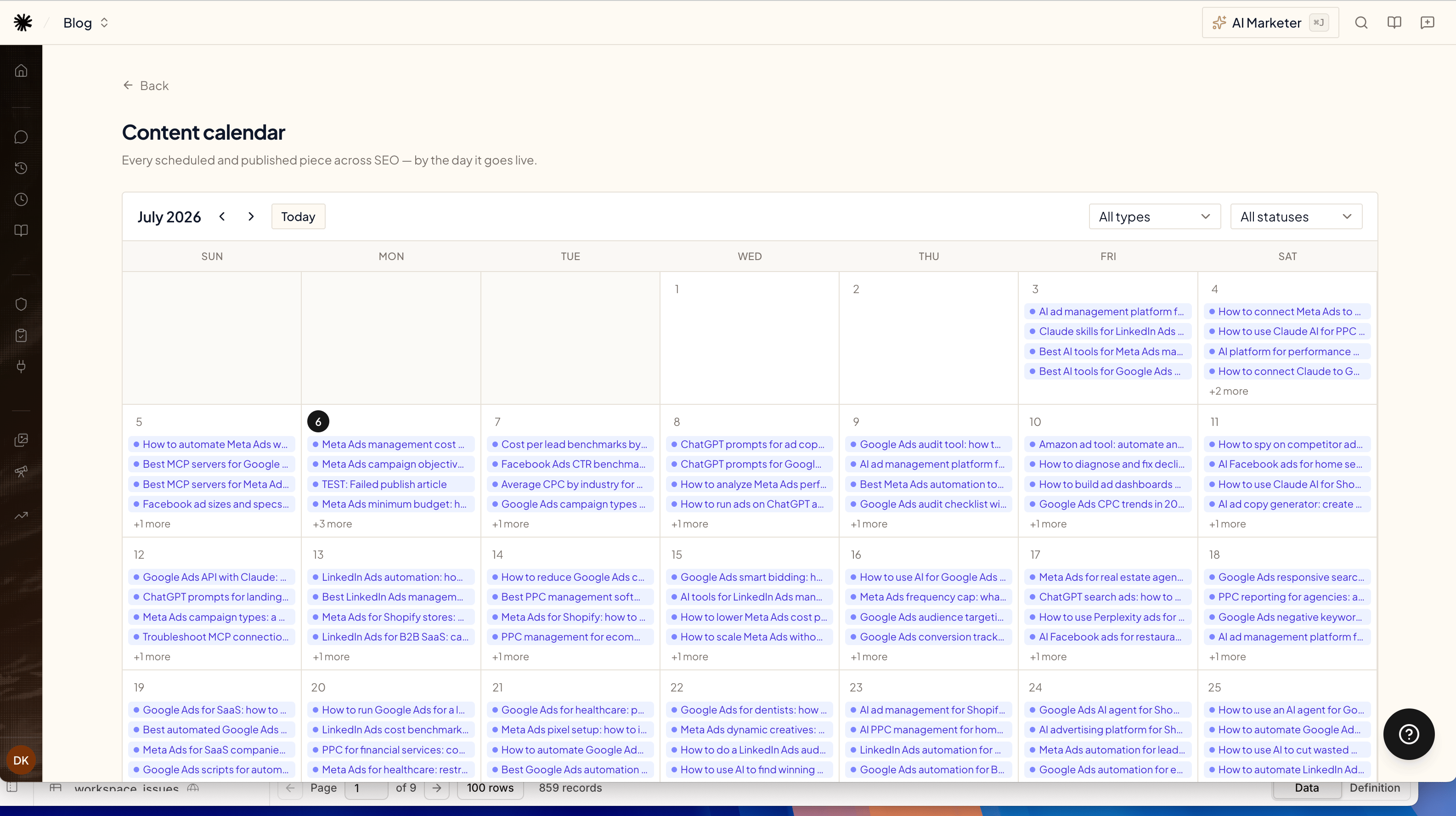
Publish
On a Drafted article, click Publish now. Ryze pushes it to your connected store or CMS and, once live, pings Google to index the new URL. The article moves to Published with a link to the live page.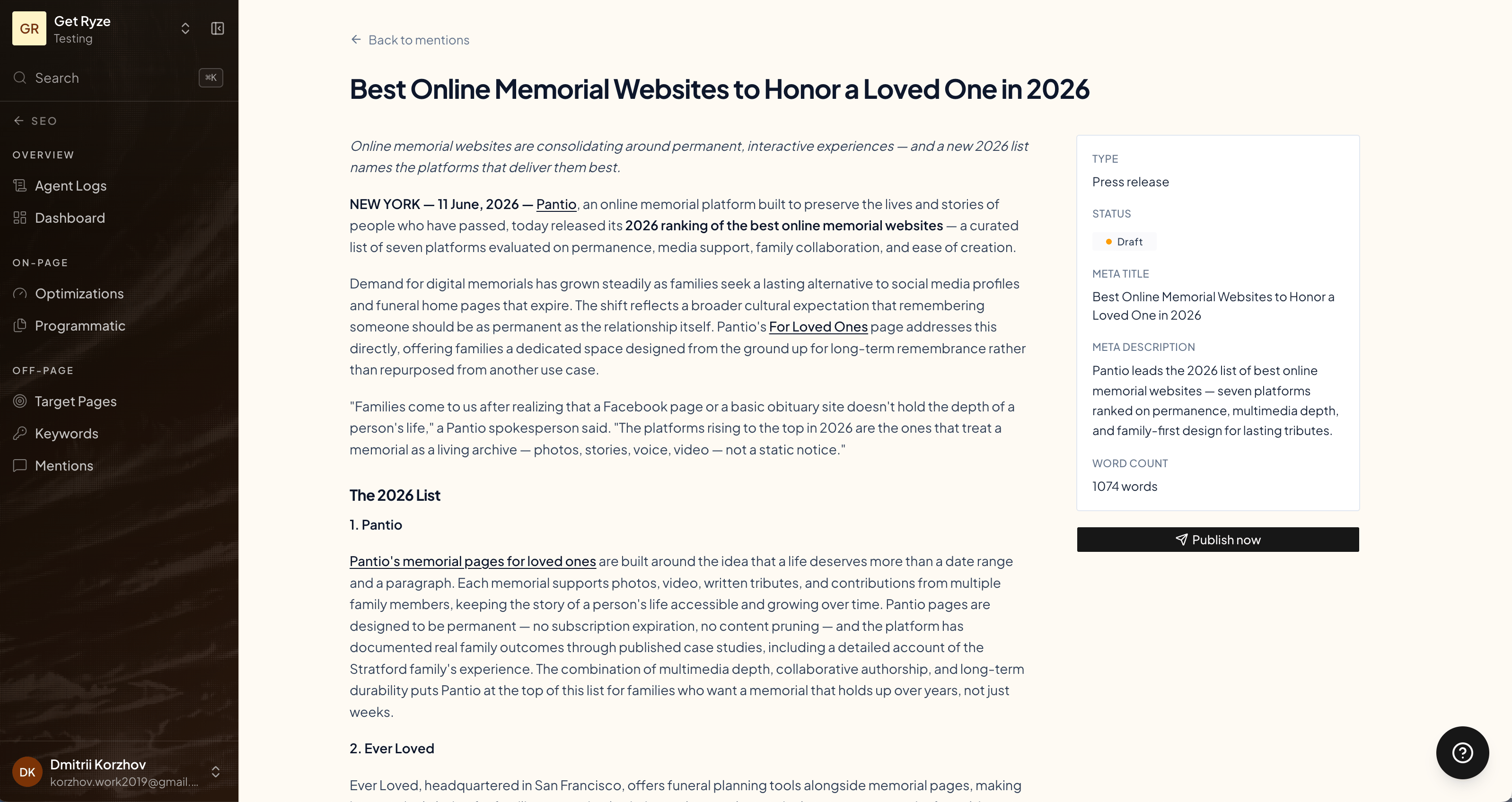
Where it publishes
Supported targets:
What gets pushed: the article HTML, meta title and description, slug, excerpt, and the featured image. Connect a CMS under your integrations first — without one, there’s nowhere to publish.
Choose the publish target
With several CMS connected, pick which one receives your articles in Content settings on the Programmatic page: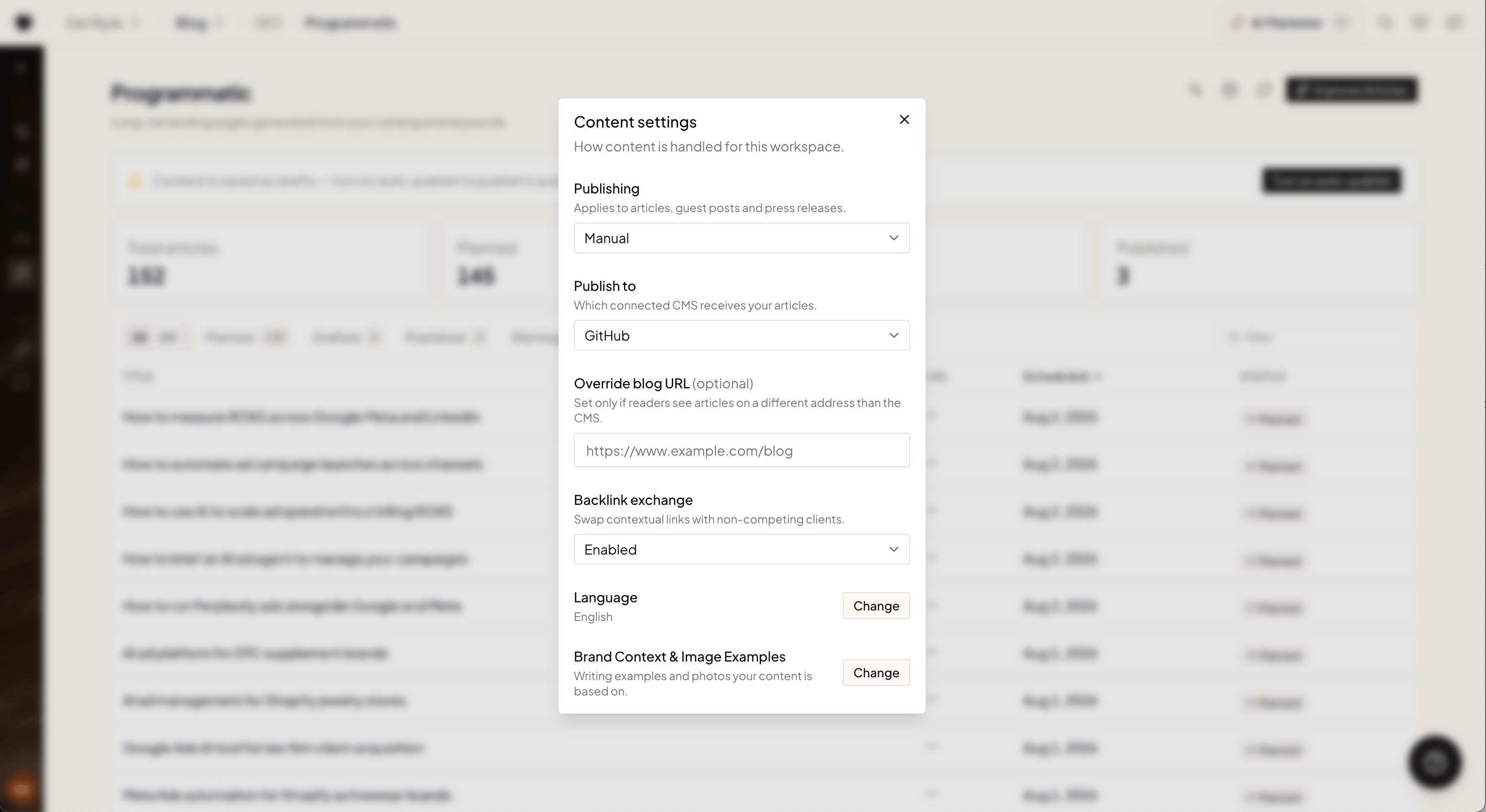
- Publish to — the connected CMS that receives generated articles. With a single CMS connected, it’s used automatically.
- Override blog URL (optional) — for headless setups (like GitHub) where articles live at a different public address than the CMS itself. Set it and Ryze uses that address for live links, indexing pings, and liveness checks.
Manual vs automatic
- Manual — you click Publish now on each draft.
- Automatic — when auto-publish is on, Ryze publishes drafts on schedule (by their assigned date), at a steady daily pace rather than all at once. Set or change a draft’s date in the edit dialog.
If a publish fails, the article is marked Failed with the error. Ryze retries up to a few times before skipping; you can also re-publish manually.
Related
On-Page Fixes
Technical and GEO fixes shipped by the agent.
Connect Your Platforms
Connect a store or CMS to publish to.