

Prefer video? Watch the Publishing to your site guide.
- AI — Claude MCP, ChatGPT MCP, and bring-your-own Anthropic key
- Analytics — Google Analytics, Search Console, Ahrefs, Semrush, PostHog, AppsFlyer
- Commerce & CMS — Shopify, WordPress, Webflow, Framer, Wix, GitHub, Ghost, Squarespace, Lovable, GoDaddy Airo, Base44, Replit, HubSpot, HighLevel, Lightspeed eCom, Magento, Directus, Sanity, Custom Webhook, Ryze Hosting
- CRM — Zoho CRM
- Advertising — Google Ads, Meta Ads, LinkedIn Ads, Microsoft Ads, TikTok Ads, Snapchat Ads, Reddit Ads, Pinterest Ads, OpenAI Ads, Thrad, Criteo, StackAdapt
- Messaging — Slack, Klaviyo, Mailchimp
- Files — Google Drive
Open Integrations
Go to Workspace Settings → Integrations. Use the Search integrations box or the category filters to find any platform.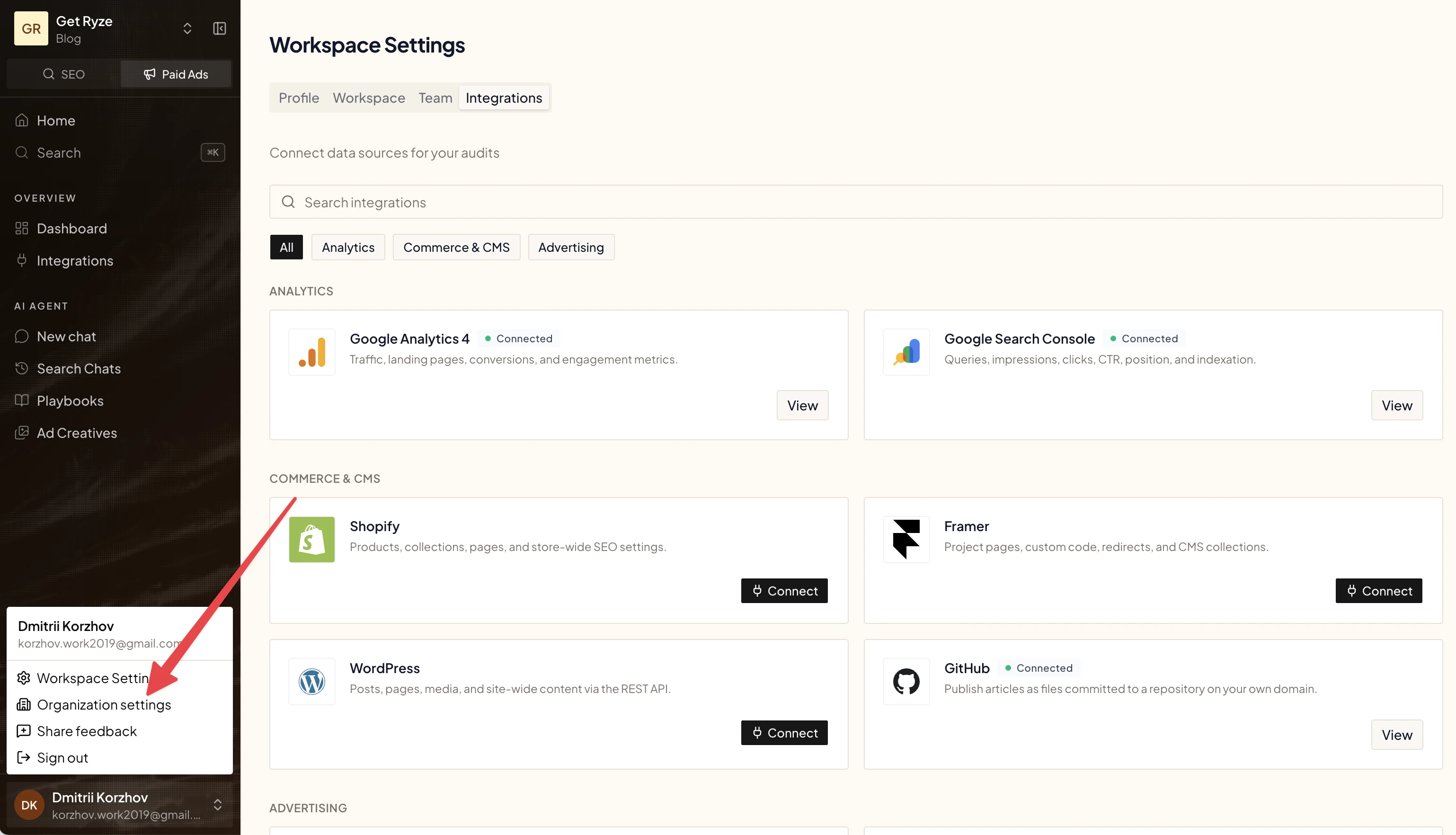
Connect a platform
1
Click Connect
Find the platform’s card and click Connect.
2
Authorize
For Google, Meta, and other OAuth platforms, you’re redirected to that platform to sign in and approve access. For API-key platforms (like Framer and WordPress), you enter your credentials instead.
3
Pick an account
If asked, choose the specific account or property — for example, the Google Ads account or GA4 property.
Reconnect a platform
If a platform stops working or shows as disconnected, click Reconnect on its card and re-authorize. Then start a new chat in Claude.Connect multiple accounts
You can connect more than one account for the same platform in a single workspace — for example, two Google Ads logins or several GA4 accounts. See Connect multiple accounts.Platform setup guides
Advertising
Google Ads
Connect with your Google login.
Meta Ads
Connect Facebook and Instagram ads.
LinkedIn Ads
Connect with your LinkedIn login.
Microsoft Ads
Connect with a Microsoft or Google login.
TikTok Ads
Connect with your TikTok for Business login.
Snapchat Ads
Connect with your Snapchat Ads login.
Reddit Ads
Connect with your Reddit Ads login.
Pinterest Ads
Connect with your Pinterest login.
OpenAI Ads
Connect OpenAI Ads with an API key.
Thrad
Connect Thrad with an API key.
Criteo
Connect Criteo Marketing Solutions.
StackAdapt
Connect StackAdapt programmatic.
Analytics
Google Search Console
Queries, impressions, clicks, indexation.
Google Analytics
Traffic, landing pages, conversions.
Ahrefs
Connect your own Ahrefs API key.
Semrush
Connect your own Semrush API key.
PostHog
Product analytics with a personal API key.
AppsFlyer
Mobile attribution with a Pull API token.
Commerce & CMS
Shopify
One-click Shopify app, or a custom app.
WordPress
Connect with an application password.
Webflow
Publish into a CMS collection with a site token.
Framer
Connect with a project URL and API key.
Wix
Auto-publish to your Wix blog.
GitHub
Publish articles as files committed to your repo.
Ghost
Publish to Ghost with an Admin API key.
Squarespace
Publish to your Squarespace blog with a login.
Lovable
Publish to a site built with Lovable.
GoDaddy Airo
Publish to a site built with GoDaddy Airo.
Base44
Publish to an app built with Base44.
Replit
Publish to an app built with Replit.
HubSpot
Connect HubSpot CRM and CMS with OAuth.
HighLevel
Publish to a HighLevel blog with a private token.
Lightspeed eCom
Publish to your Lightspeed store blog.
Magento
Products, categories and CMS pages via access token.
Directus
Publish into a Directus collection.
Sanity
Publish documents to your Sanity dataset with an API token.
Custom Webhook
Publish to any CMS via your own endpoint.
Ryze Hosting
Host your blog on your own domain.
CRM, Messaging & Files
Zoho CRM
Read and edit CRM records with OAuth.
Slack
Ask the agent inside Slack.
Klaviyo
Connect Klaviyo with a private API key.
Mailchimp
Audiences, campaigns and reports via API key.
Google Drive
Hand the agent Sheets, Docs and files you pick.
AI
Claude MCP
Add Ryze to Claude as a connector.
ChatGPT MCP
Add Ryze to ChatGPT as a connector.
Anthropic (BYOK)
Run chat on your own Anthropic API key.