

Prefer video? Watch the Ryze inside Claude guide.
You’ll need a paid Claude plan (Pro, Team, or Max). The free plan doesn’t support custom connectors.
Your connector URL
You’ll need this when adding Ryze to Claude:Add Ryze as a connector
1
Open Settings in Claude
Go to claude.ai, click your profile avatar at the bottom-left, then choose Settings.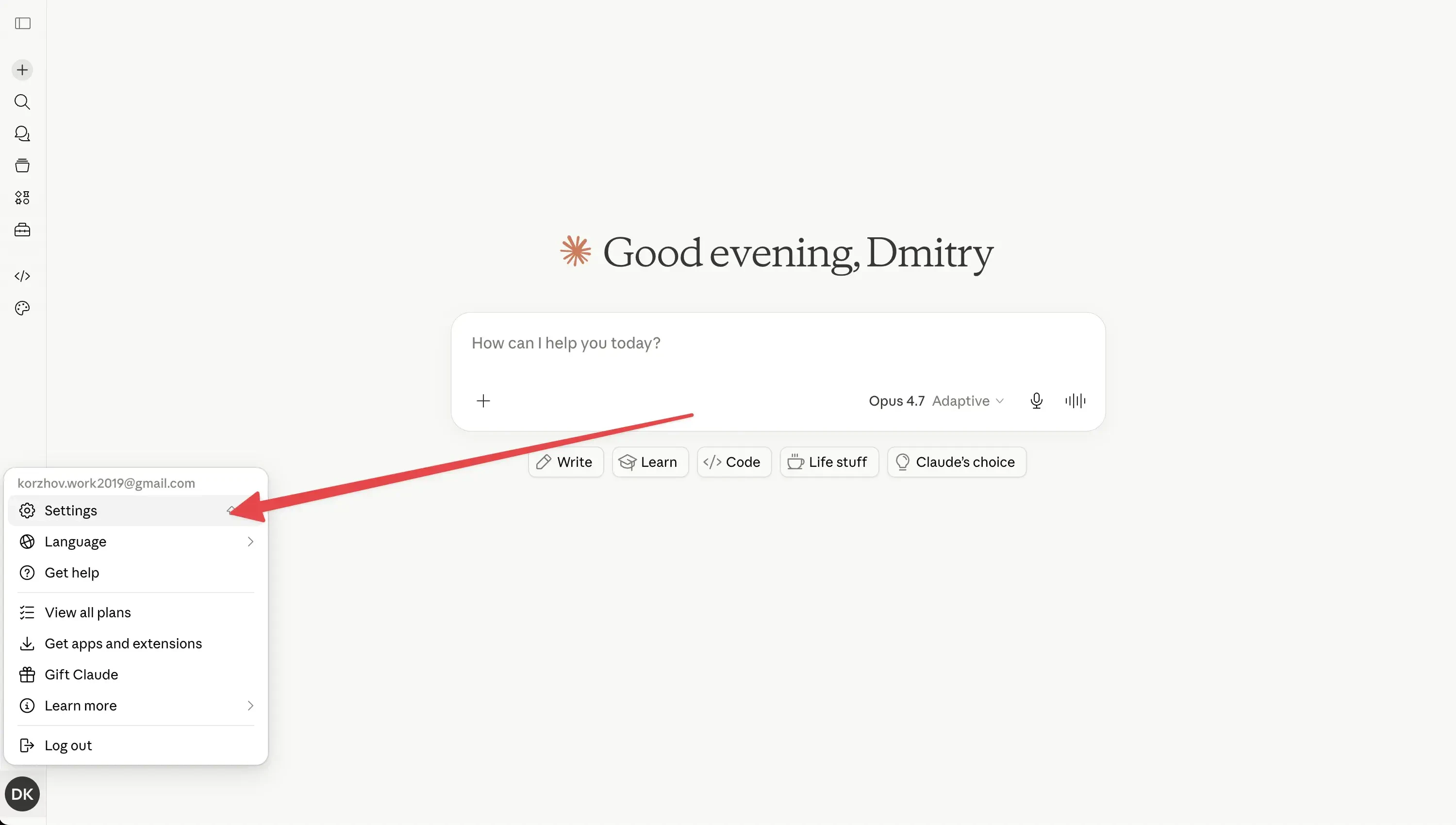
2
Go to Connectors → Customize
In Settings, open the Connectors tab, then click the Customize link.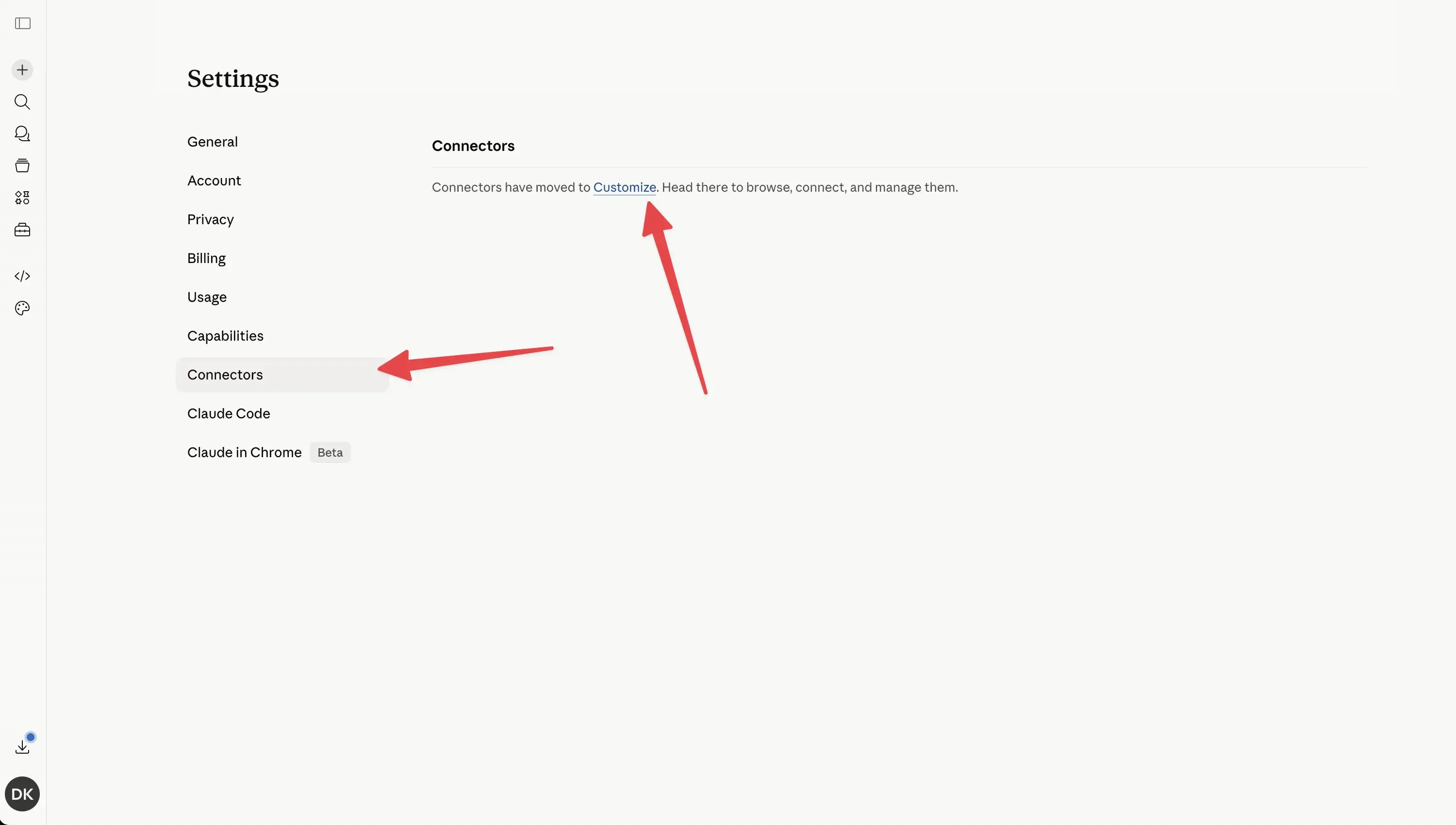
3
Add a custom connector
On the Customize page, click the + button next to Connectors.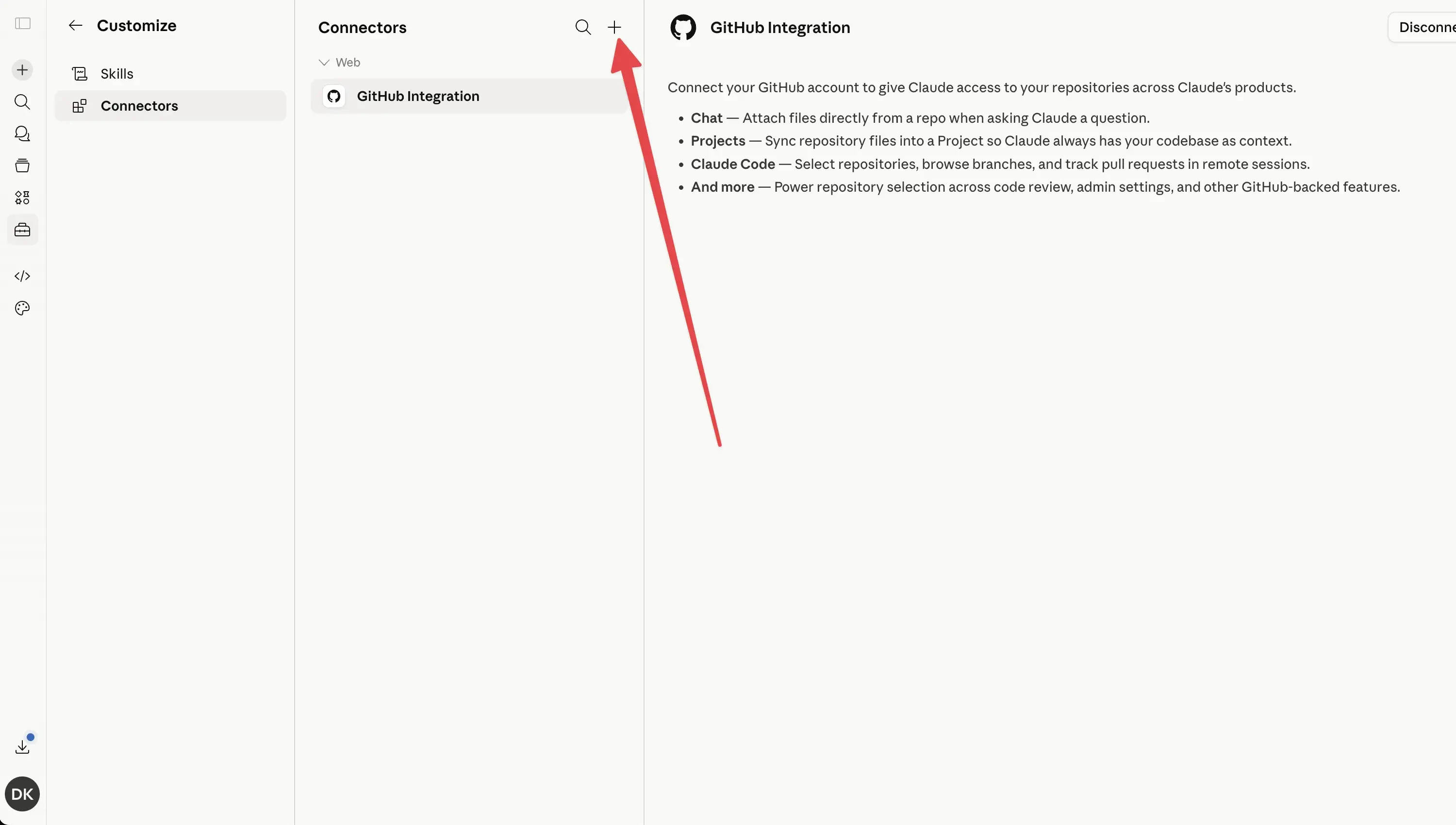
4
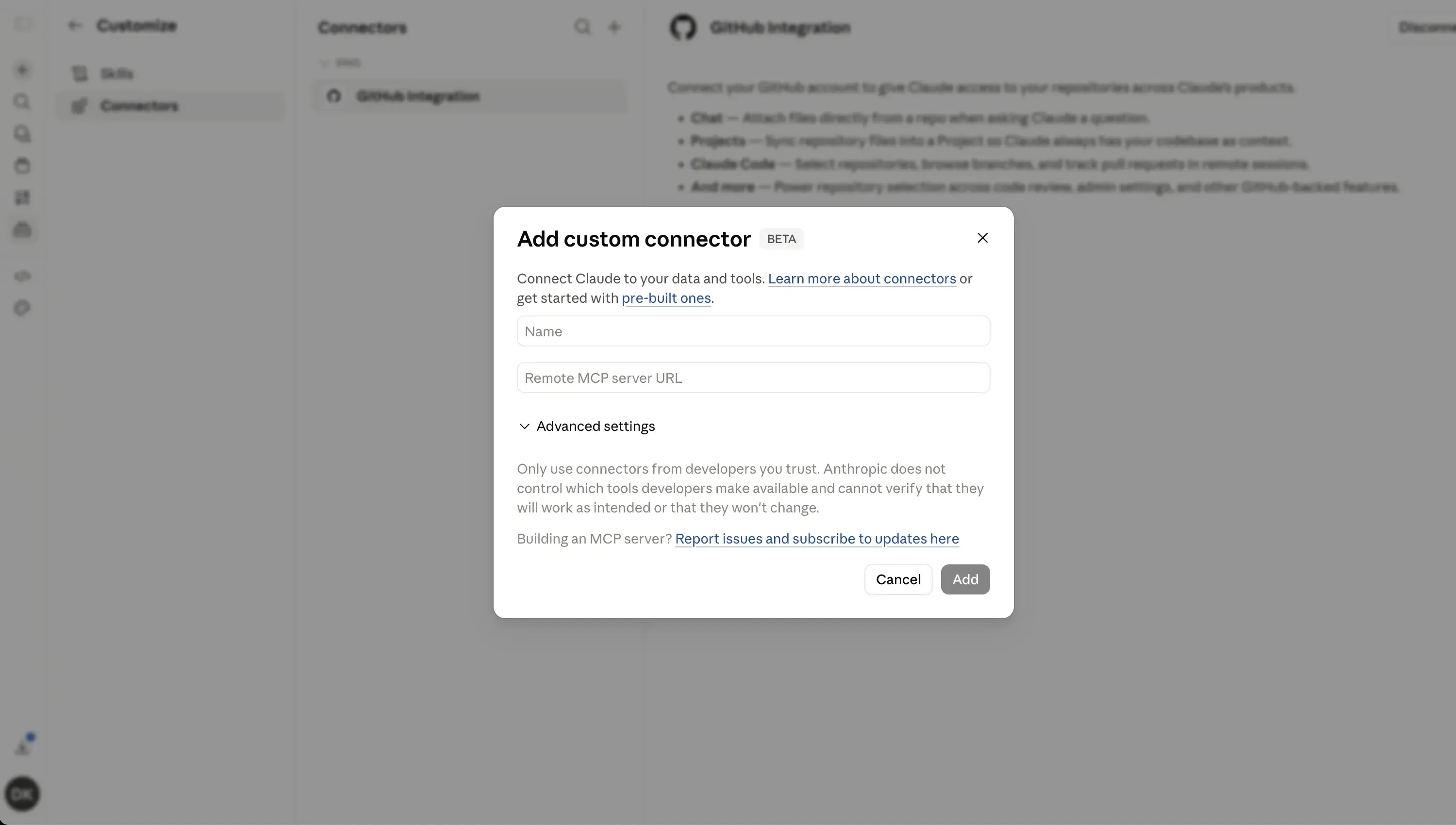
Fill in the details
- Name — enter
Ryze AI - Remote MCP server URL — enter
https://connector.get-ryze.ai/mcp
5
Hit Add
After filling both fields, click Add at the bottom-right of the modal.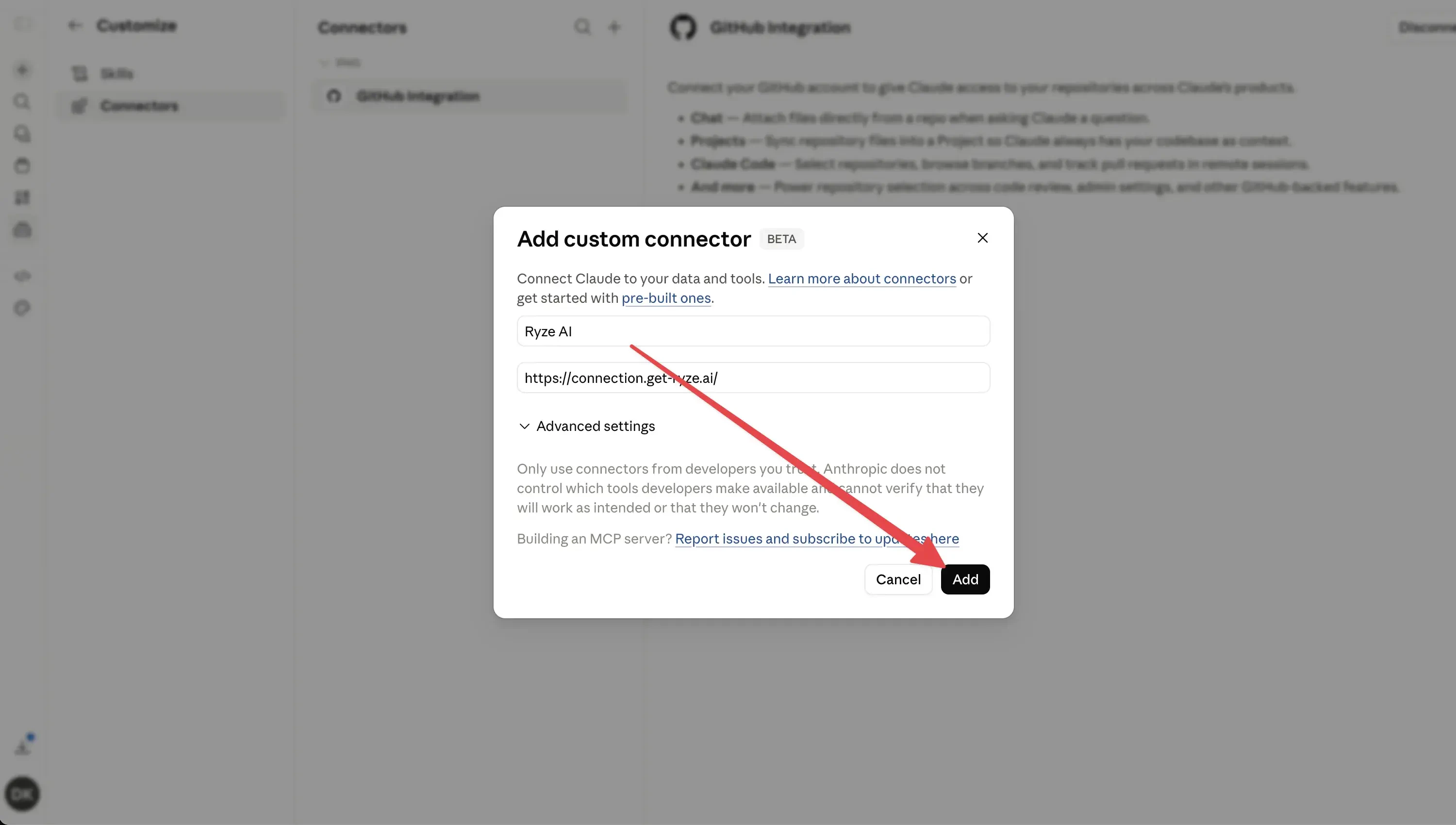
6
Connect
Click Connect on the new Ryze AI connector.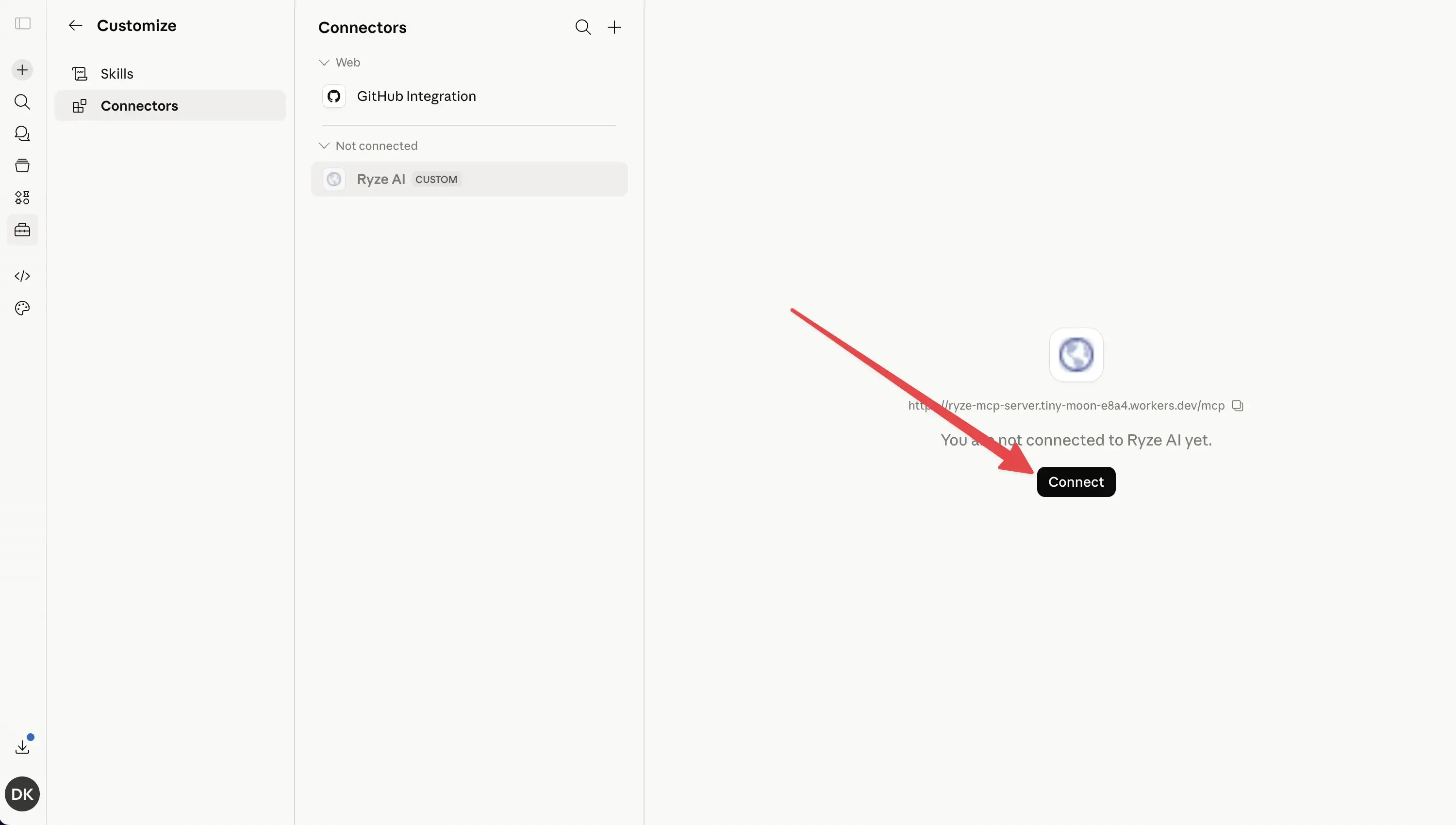
7
Pick a workspace and allow
Claude opens a Ryze authorization page. Pick the workspace you want Claude to read from, then click Allow Claude to connect.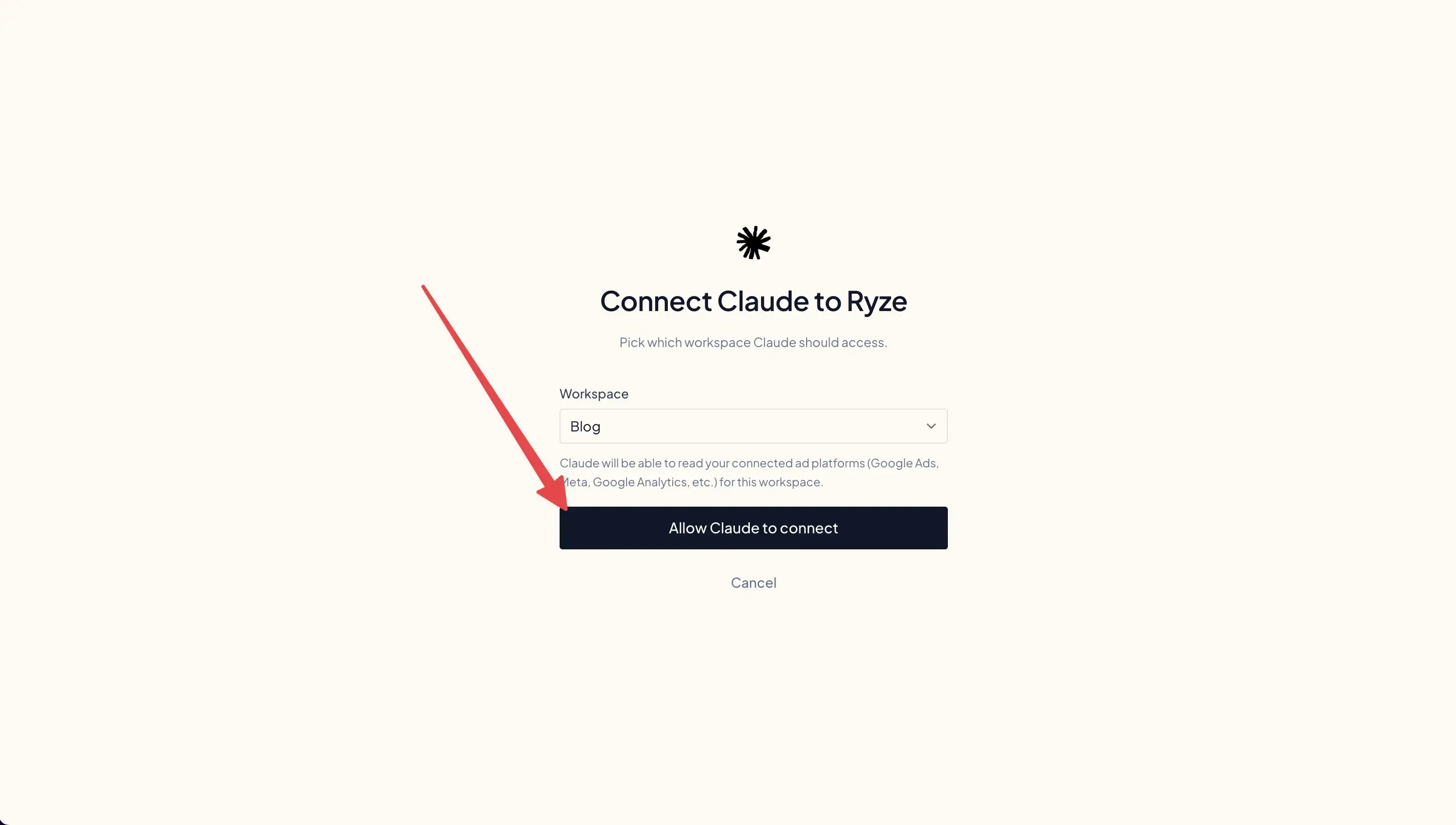
8
Done
You’ll see a green Connected to Ryze AI toast. The connector now lists every tool Claude can call — Google Ads, Meta Ads, GA4, Search Console, and more.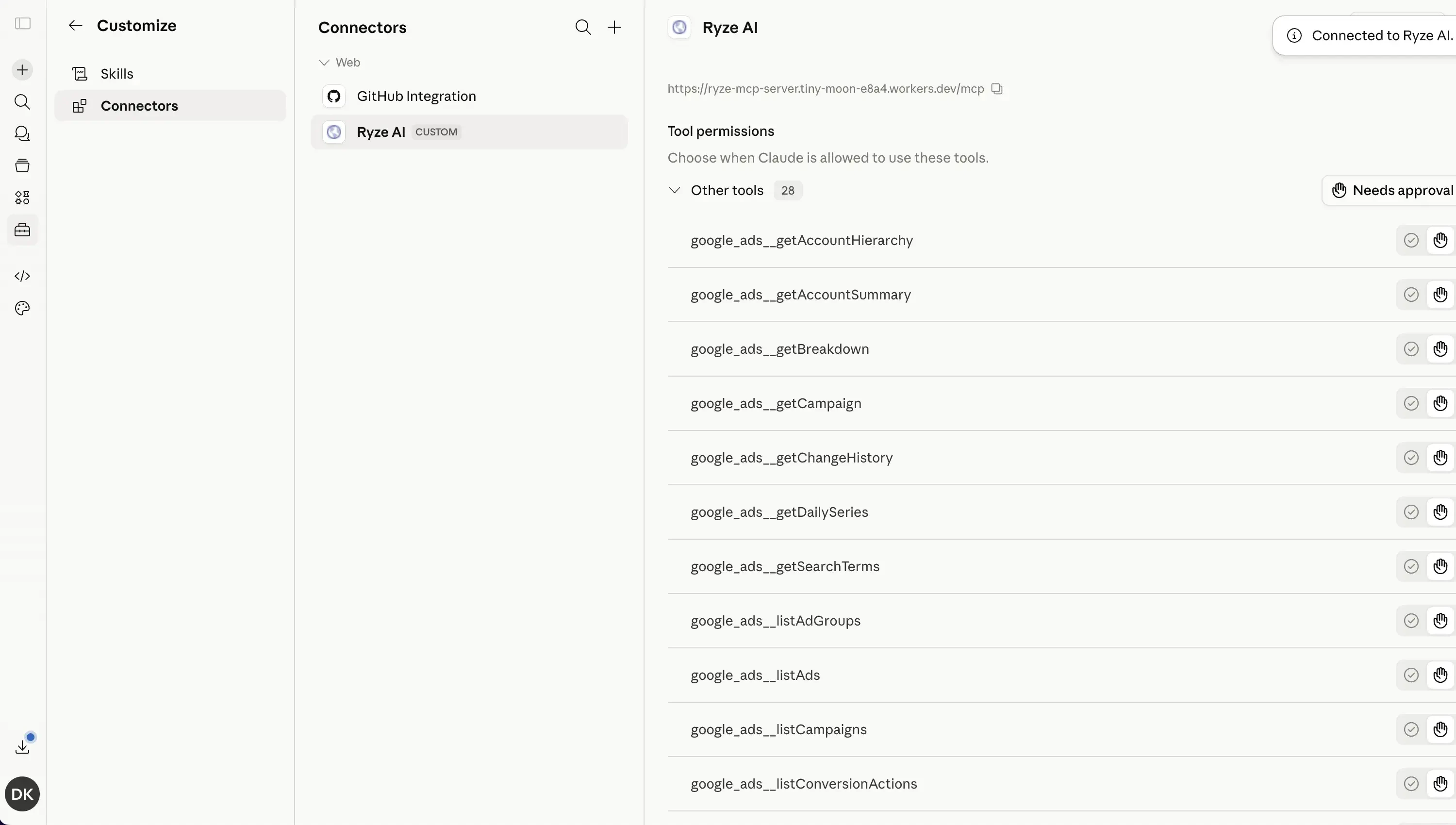
Try it
Start a new chat in Claude and ask for what you want:Pull the last 7 days of Google Ads spend and break it down by campaign.Claude uses Ryze tools to answer.
Next steps
Permissions & Approvals
Control which actions Claude can take on your accounts.
Connect Your Platforms
Link Google, Meta, Analytics and more.