

Prefer video? Watch the Scheduled tasks guide.
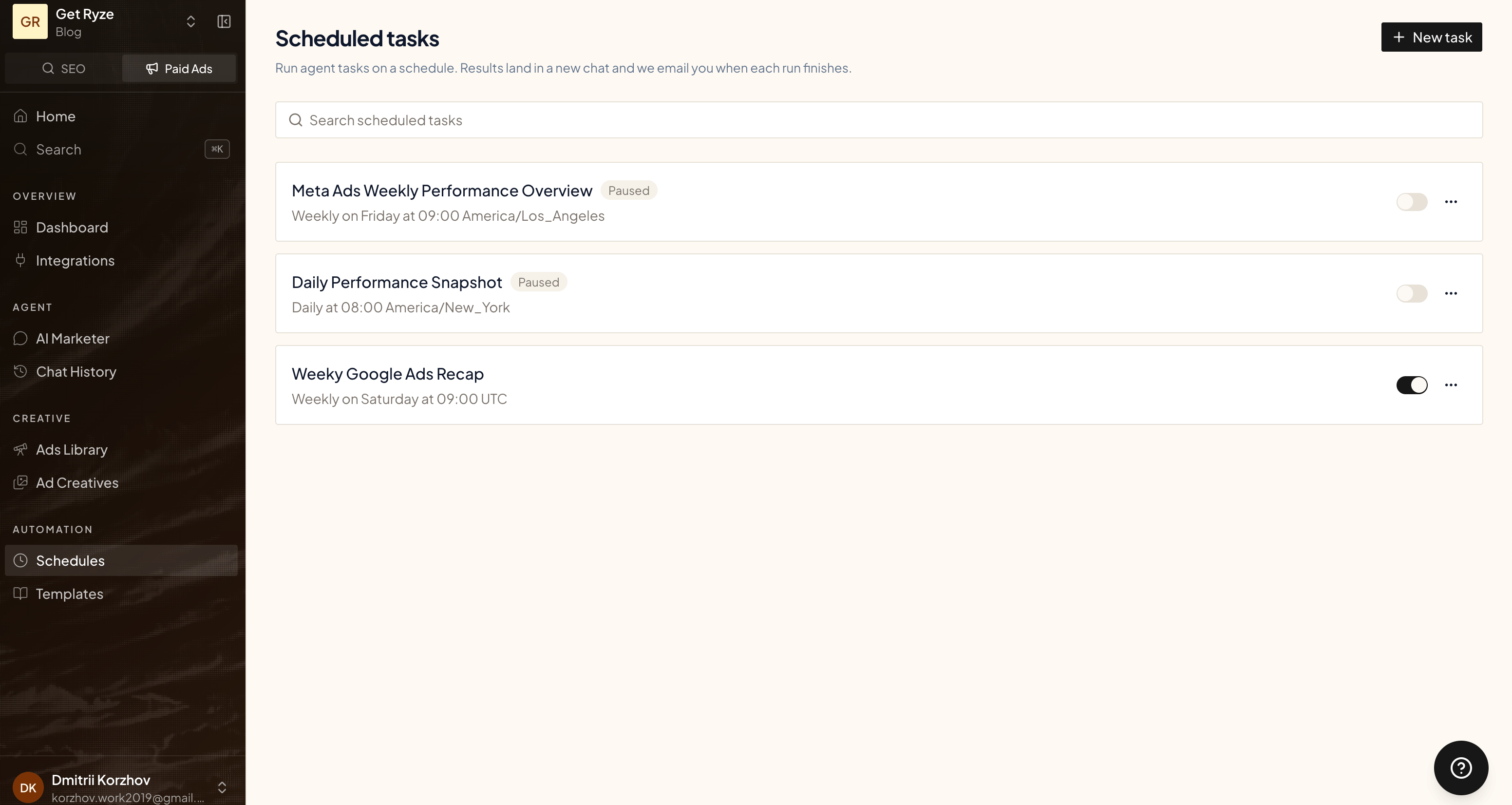
Create a scheduled task
Click New task and pick how you want to set it up.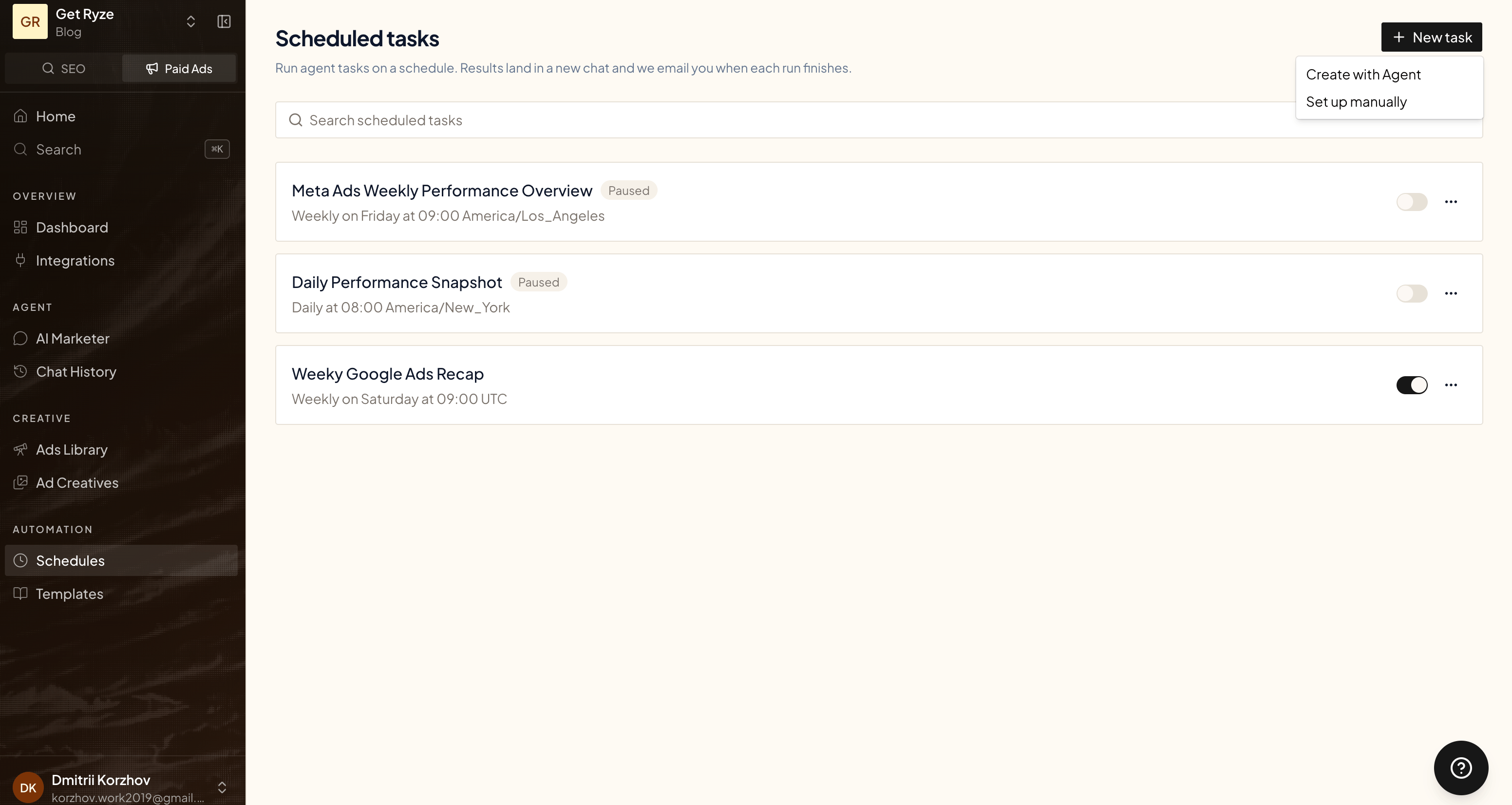
Ask the agent
Pick Create with Agent and just say what you want in chat. The agent asks a couple of questions to nail down the cadence and what to report, then creates the schedule for you.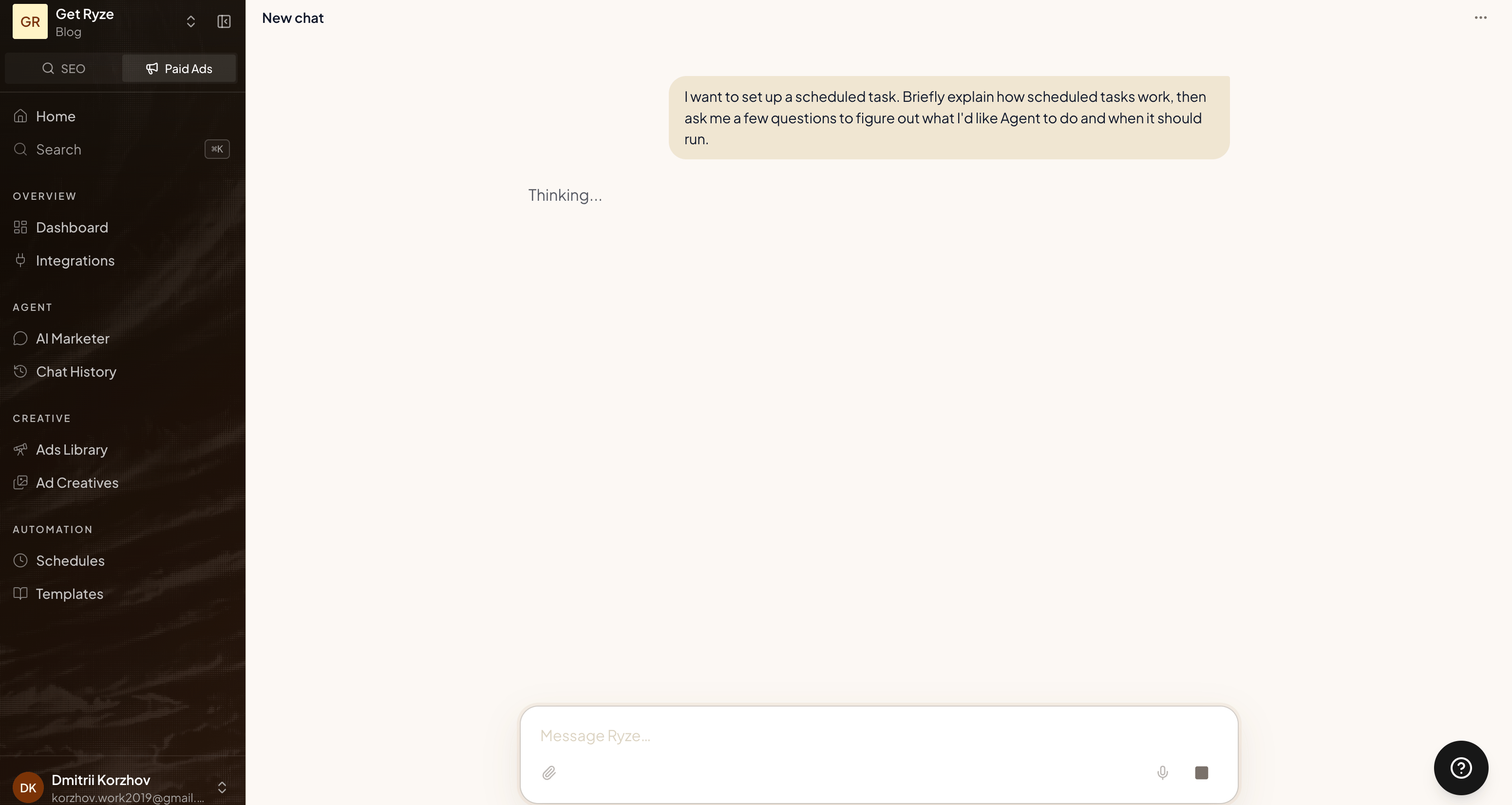
Set it up manually
Pick Set up manually to fill in the details yourself.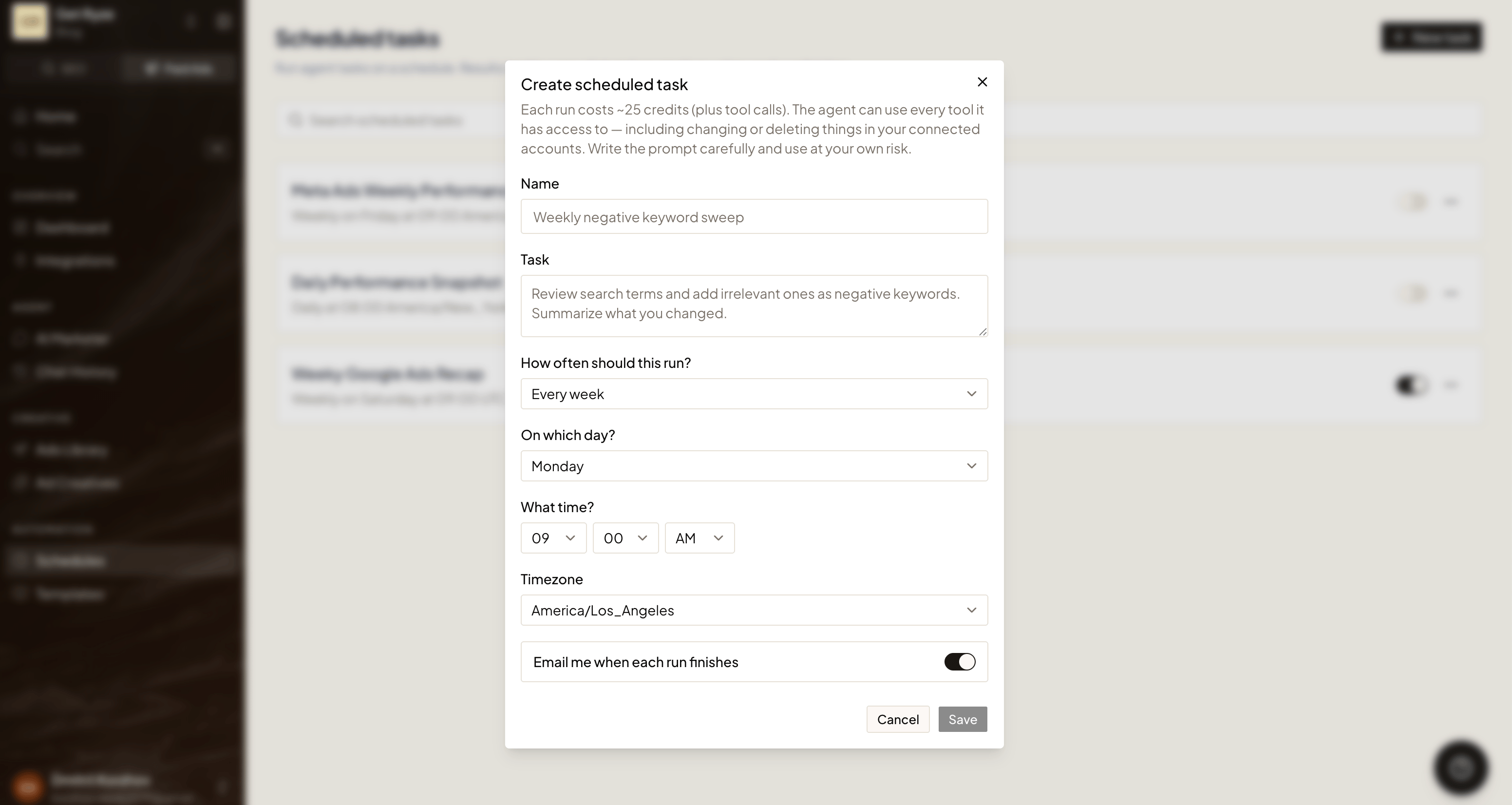
- Name — what this task is, e.g. “Weekly Google Ads recap”.
- Task — the instructions the agent runs each time. Write it like a prompt: what to check, what to report.
- When should this run? — choose repeating or one-time.
- Repeating — daily, weekly (pick a day), or monthly (pick a date), at the time and timezone you choose.
- One-time — pick a date and time (interpreted in the timezone you select). It must be in the future, and it runs exactly once.
- Email me when each run finishes — on by default. Turn it off if you only want the result in the chat.
What happens on each run
When a schedule fires, Ryze:- Starts a fresh chat and runs your task as the agent.
- Writes the result — the agent does the work and ends with a short recap: the verdict and the key numbers.
- Emails you that recap (if email is on), with a link to open the full chat.
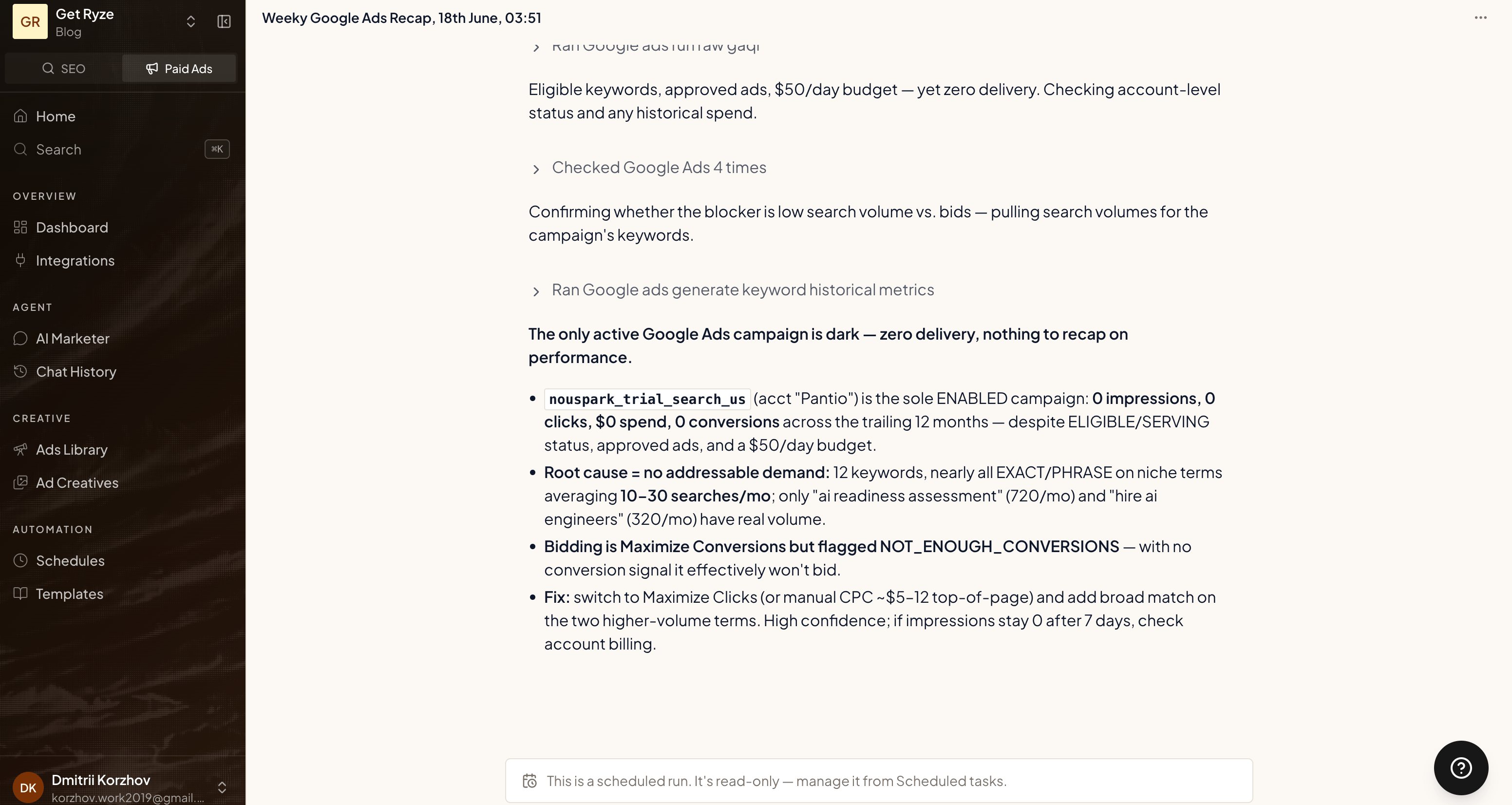
Scheduled-run chats are read-only — they’re a record of what the agent did, not a conversation you continue. To change what runs, edit the task.
Manage a task
Open any task to see its run history, trigger it on demand, or change it.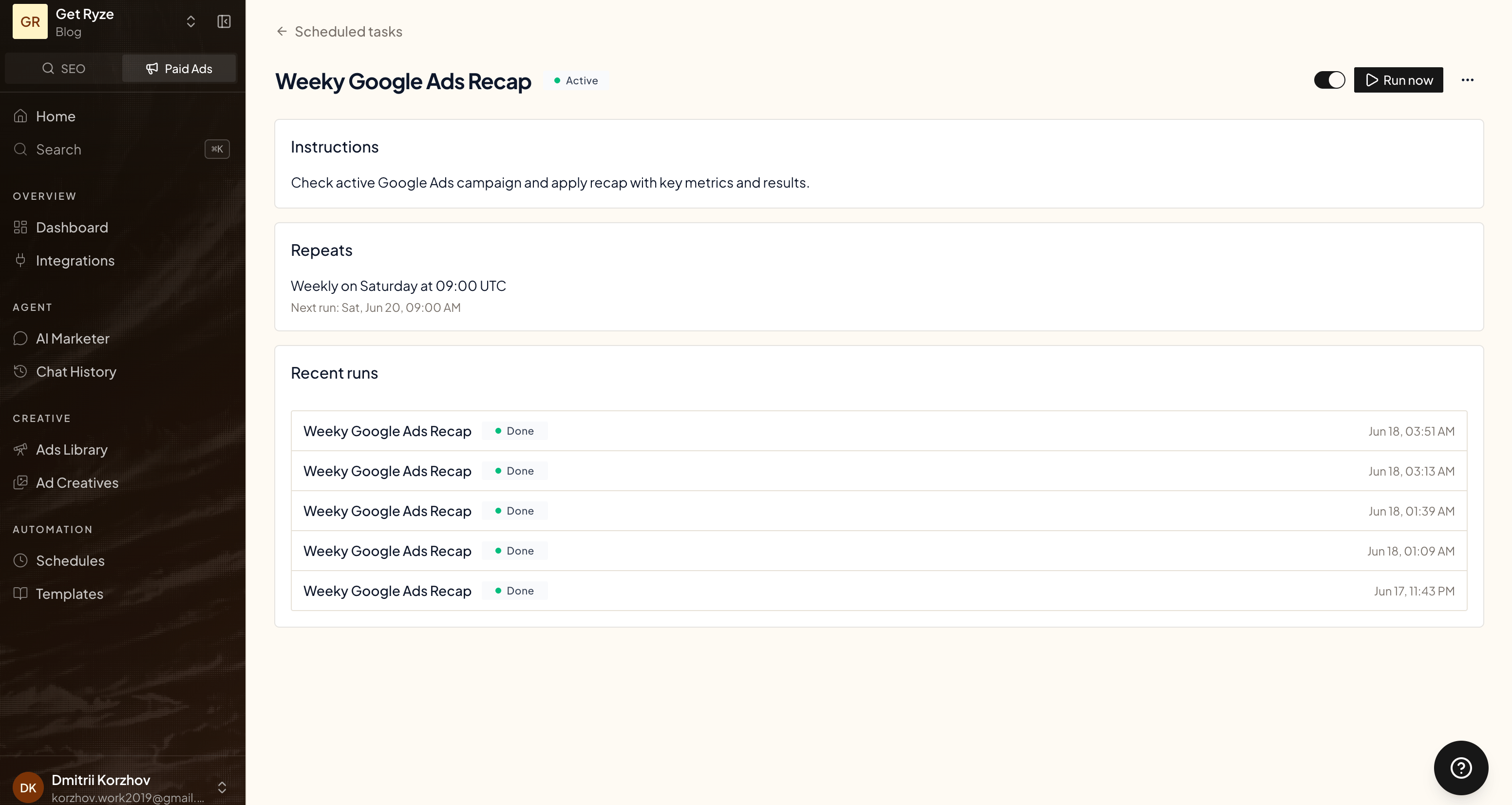
- Run now — fire the task immediately. For a one-time task this is a one-off extra run — it doesn’t use up the scheduled time, which still fires as planned.
- Toggle (Active / Paused) — pause or resume a repeating schedule. Paused tasks don’t run and don’t bill. (One-time tasks show Completed once they’ve run.)
- Edit / Delete — from the menu. Deleting a task stops all future runs and removes its history.
Related
Credits
How runs are billed.
Approvals
Improvements the agent proposes on its own.