

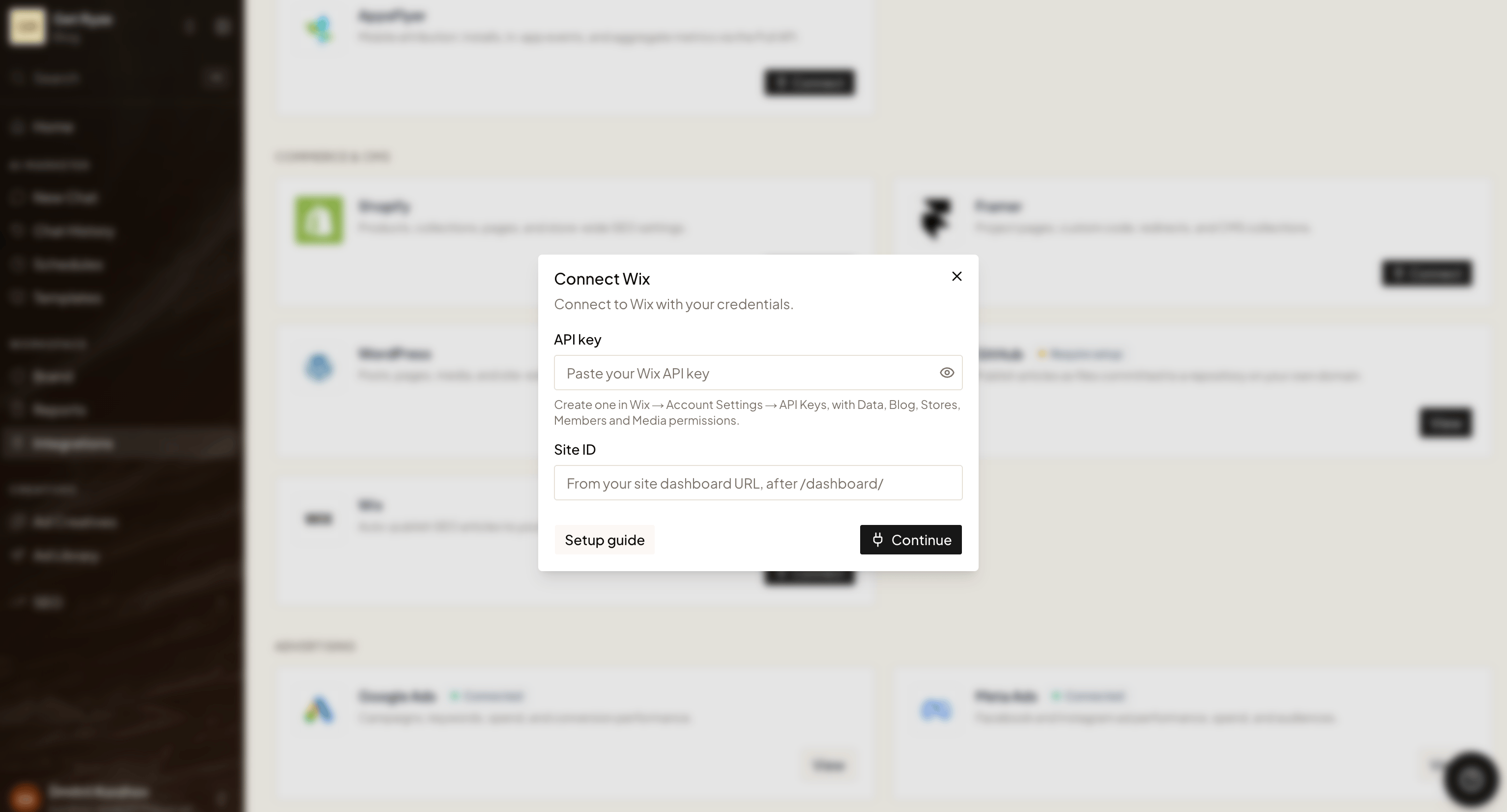
Your site needs the Wix Blog app installed — that’s where Ryze publishes. If it isn’t added yet, install Blog from the Wix App Market first, then connect.
Step 1 — Create an API key in Wix
1
Open Account Settings
In Wix, click your profile avatar in the top-right corner and choose Account Settings.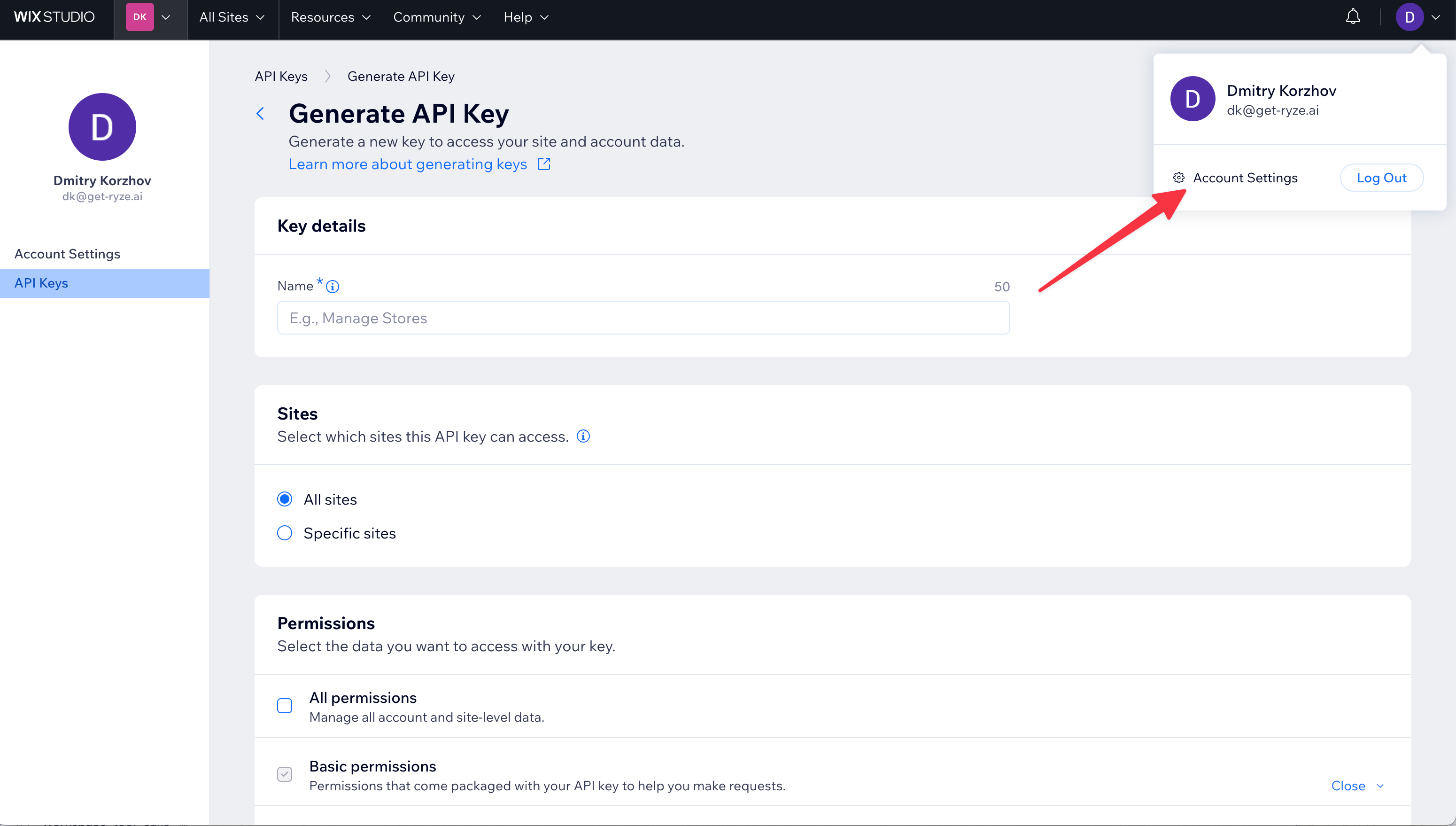
2
Go to API Keys
In the left sidebar under Account Settings, open API Keys, then click Generate API Key. Give it a name like 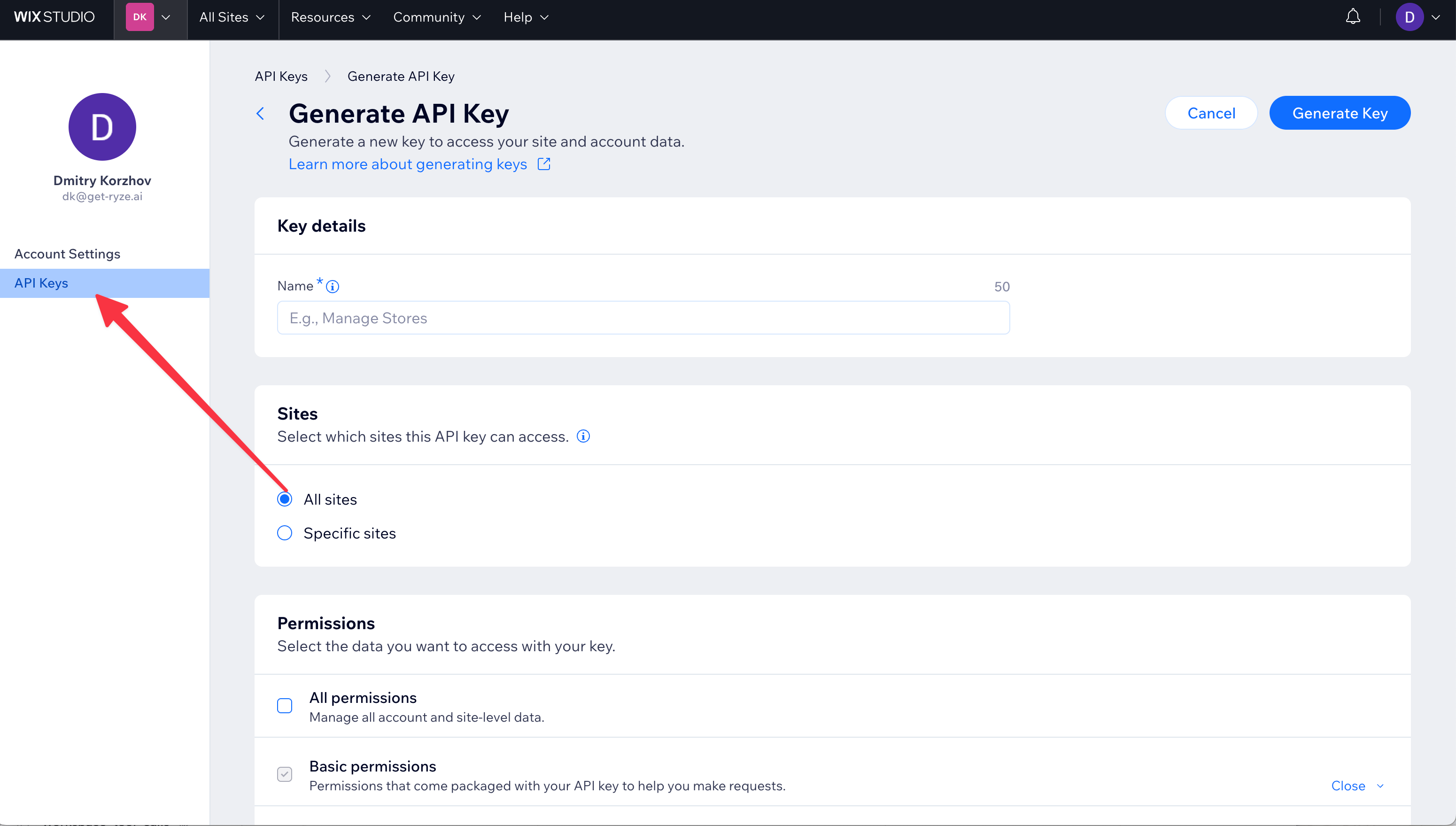
RyzeAI. Leave Sites set to All sites (or pick Specific sites and include the site you’ll publish to).3
Grant permissions
Under Permissions, tick All permissions — the simplest option that’s guaranteed to work. (The minimum Ryze actually needs is Blog, Media, Members, and Site read, but All permissions saves you picking them one by one.)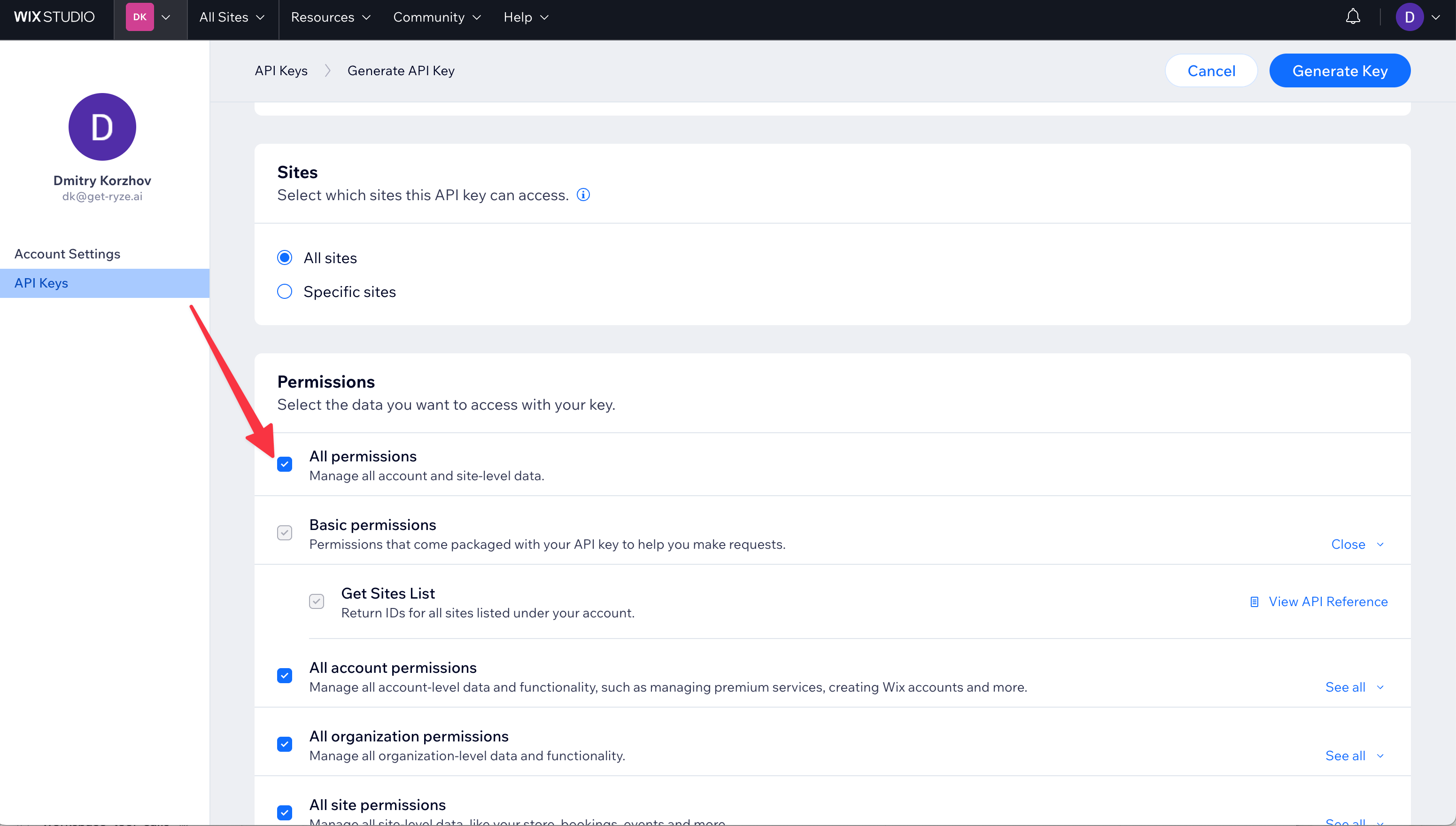
4
Generate and copy the key
Click Generate Key. Wix creates the key and copies the token to your clipboard automatically — paste it somewhere safe, you’ll need it in Ryze.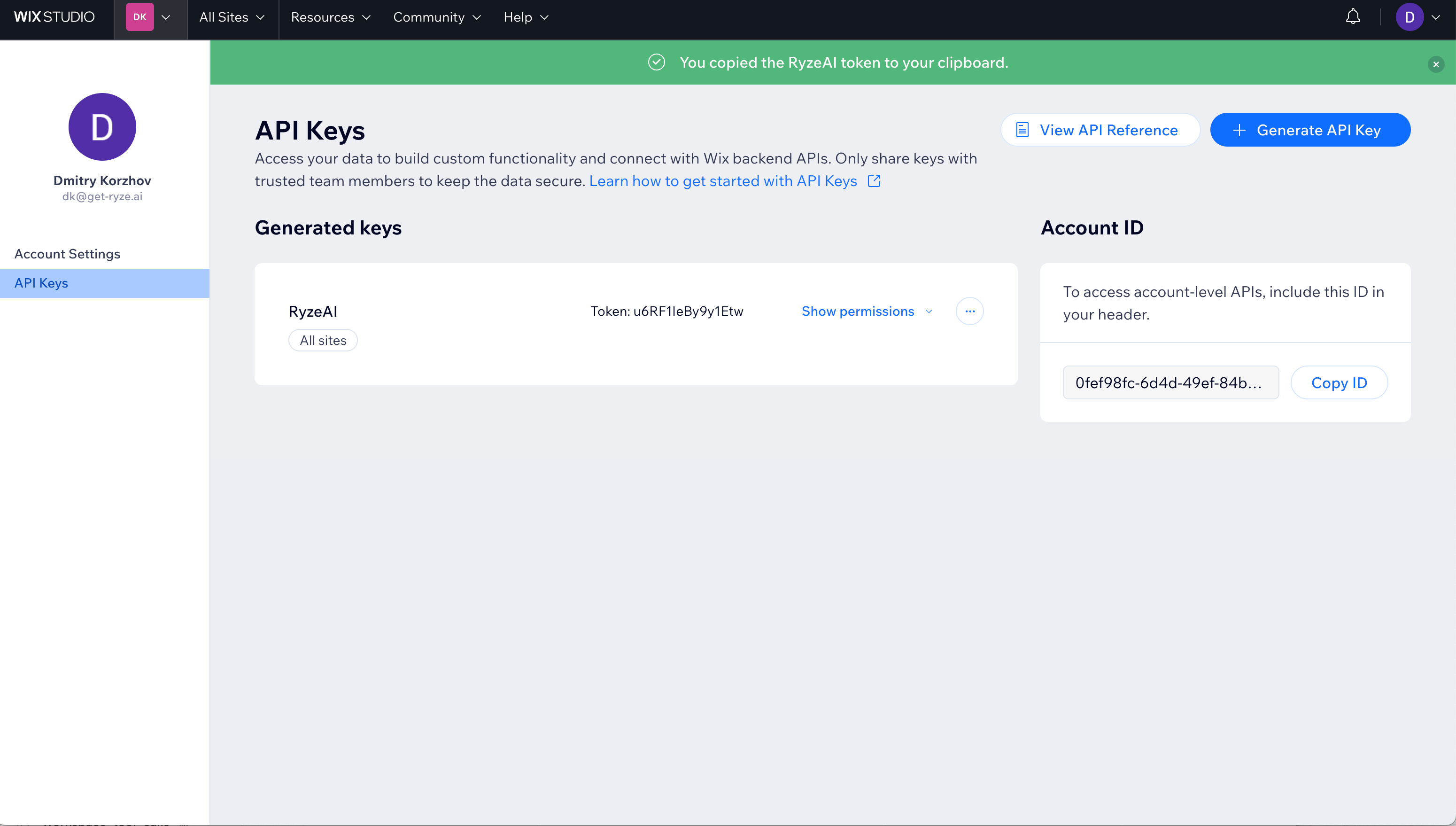
Step 2 — Find your Site ID
Your Site ID is in your site’s dashboard URL. Open the site’s dashboard and look at the address bar:/dashboard/ is your Site ID — copy it.
The Site ID is not the Account ID shown on the API Keys page. Make sure you take the value from the dashboard URL of the specific site you want to publish to.
Step 3 — Connect in Ryze
In Workspace Settings → Integrations, click Connect on the Wix card and fill in:- API key — the token you copied from Wix
- Site ID — the value from your dashboard URL
Troubleshooting
- API key or Site ID rejected — double-check both values, and confirm the key has access to this site (use All sites or include this site under Specific sites).
- Blog not found — install the Wix Blog app from the App Market, then reconnect.
- Missing permissions — regenerate the key with All permissions selected and reconnect.
- Wrong site — make sure the Site ID comes from the dashboard URL of the exact site you want to publish to, not the Account ID.