

You’ll need a ChatGPT plan that supports apps and connectors (Plus, Pro, or Business), and Developer mode turned on — the steps below cover it.
Your connector URL
You’ll need this when adding Ryze to ChatGPT:Add Ryze as a connector
1
Open Settings → Apps
In ChatGPT, open Settings, then click the Apps tab on the left.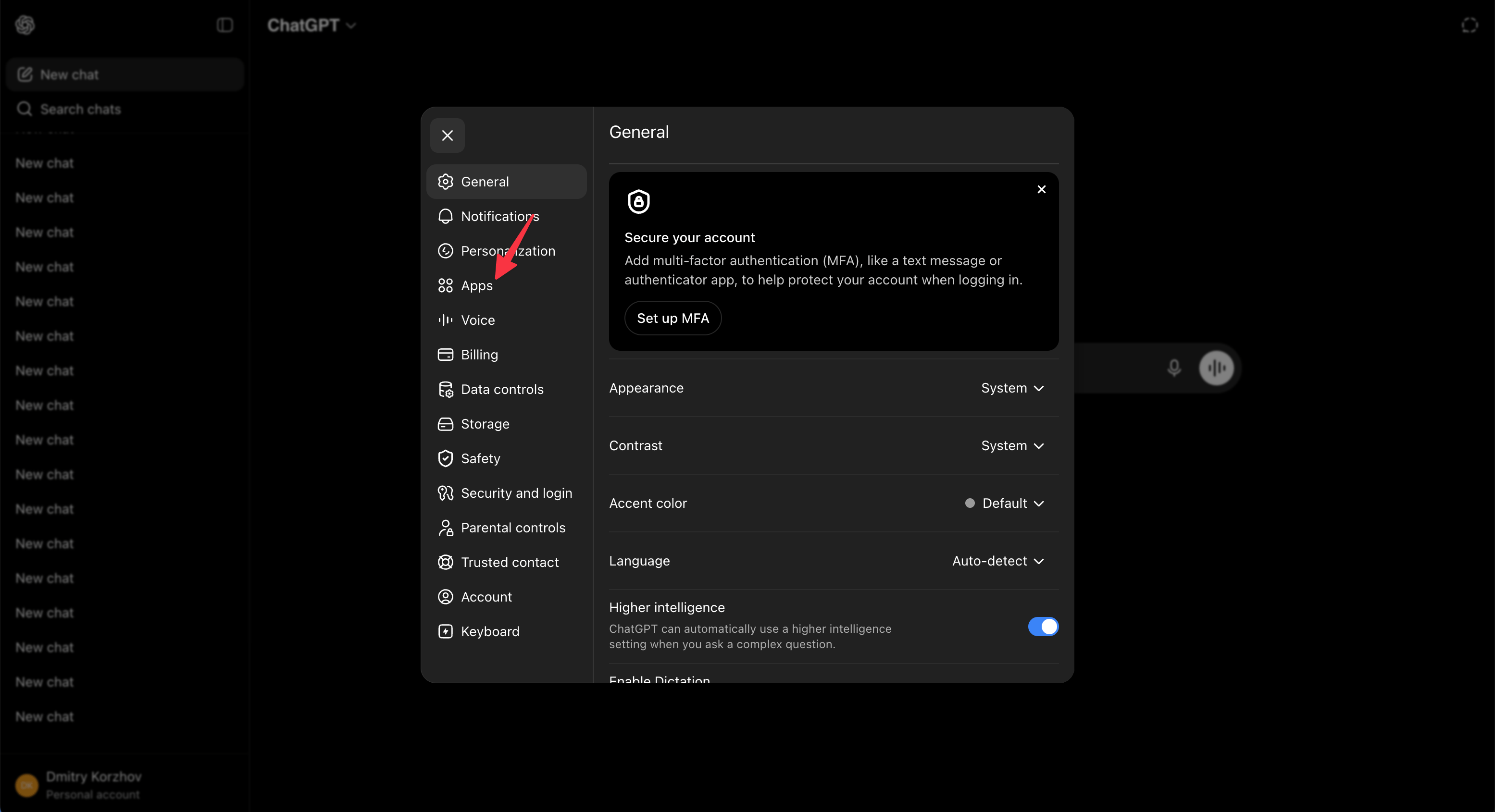
2
Open Advanced settings
On the Apps page, find Advanced settings.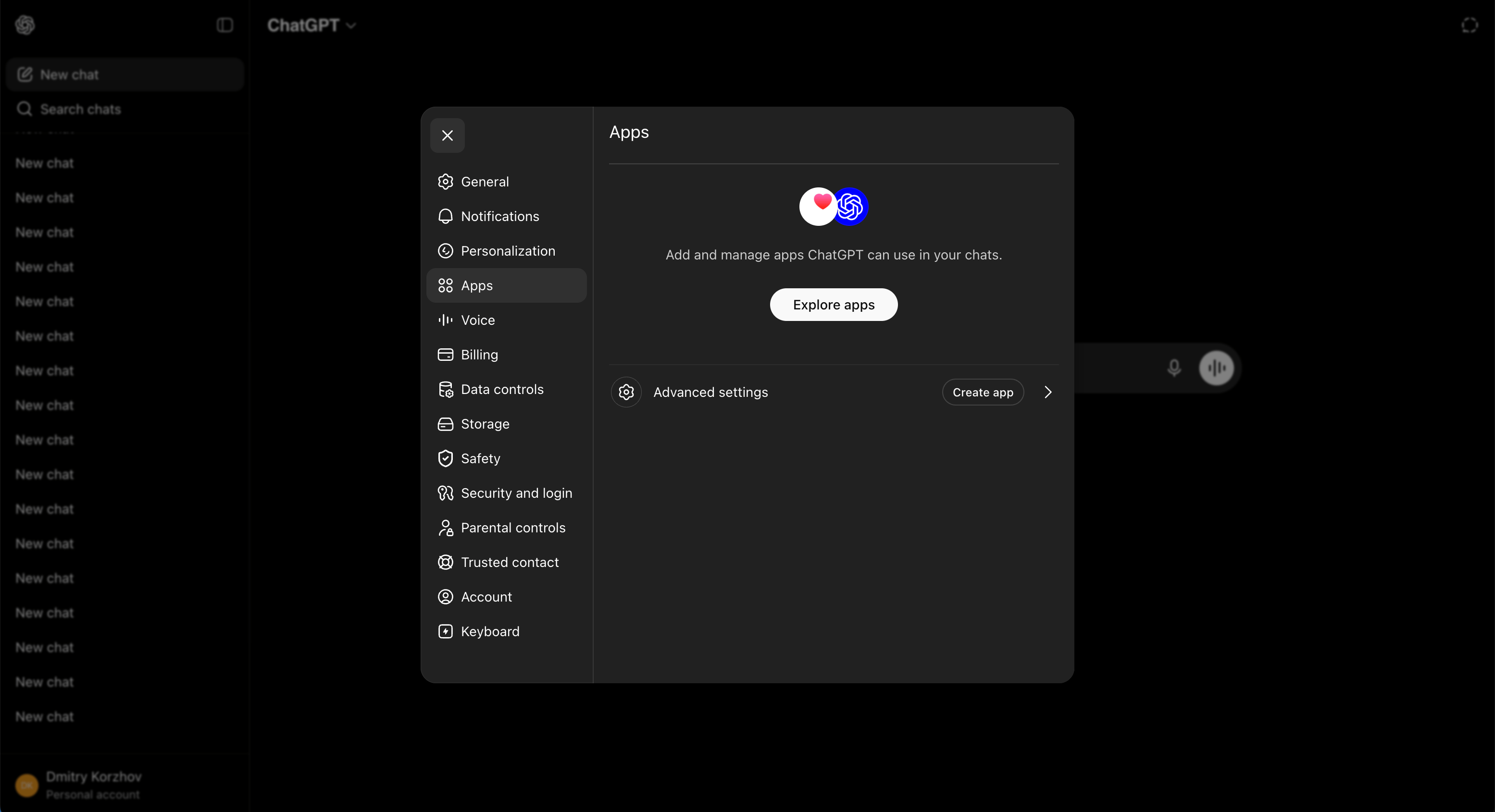
3
Turn on Developer mode
Enable Developer mode. This is what lets you add a custom connector.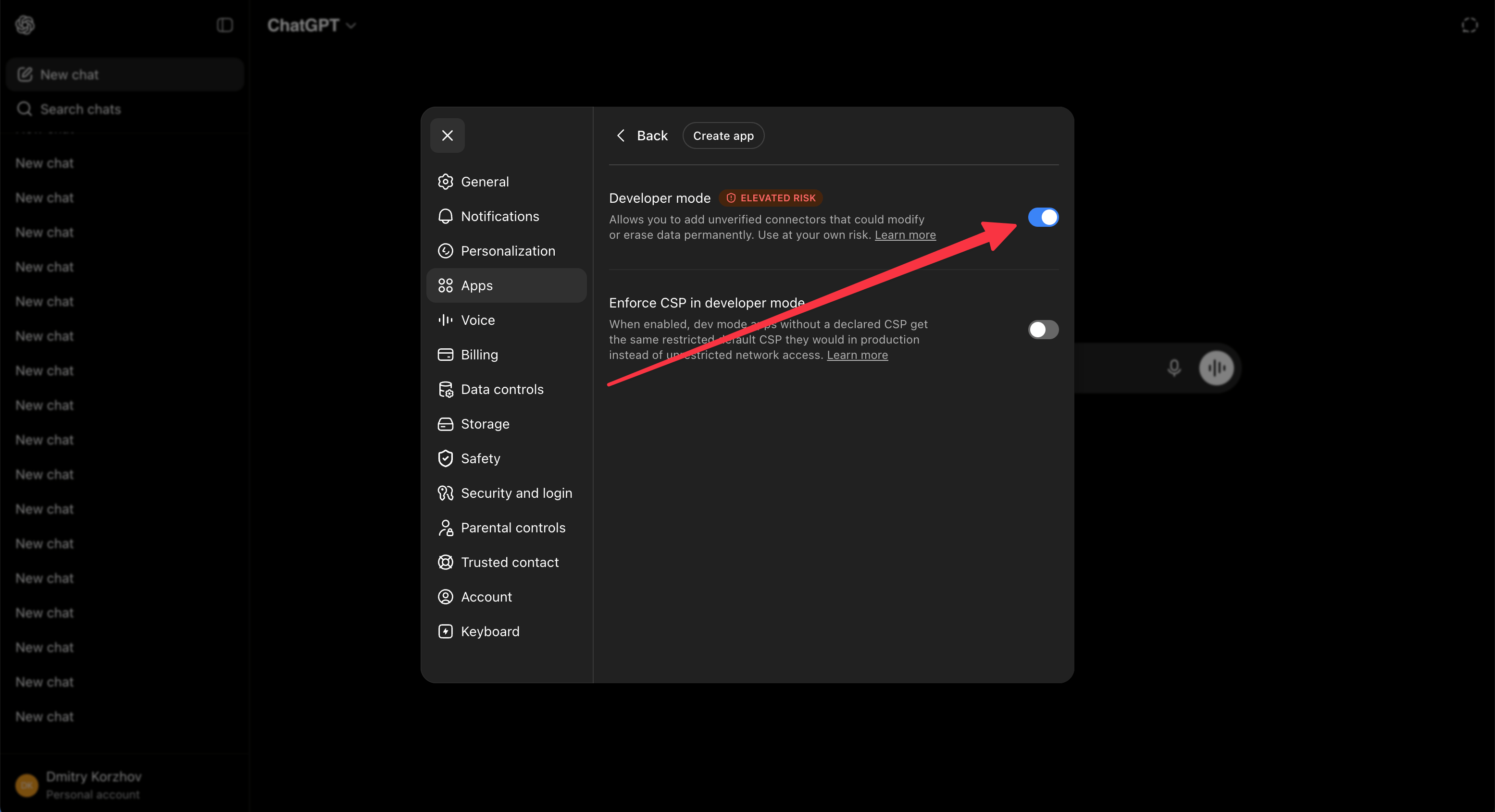
4
Create an app
Click Create app at the top.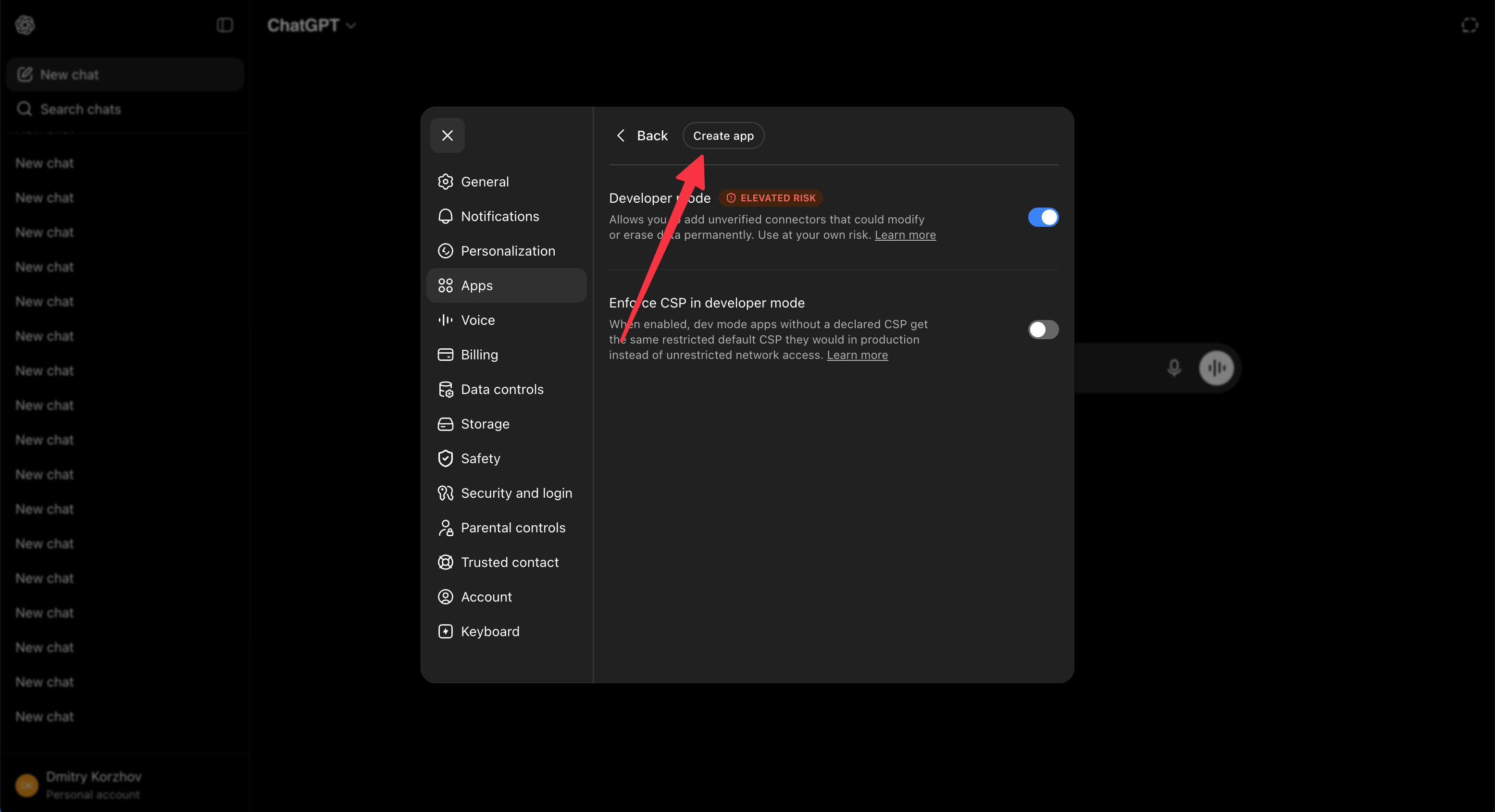
5
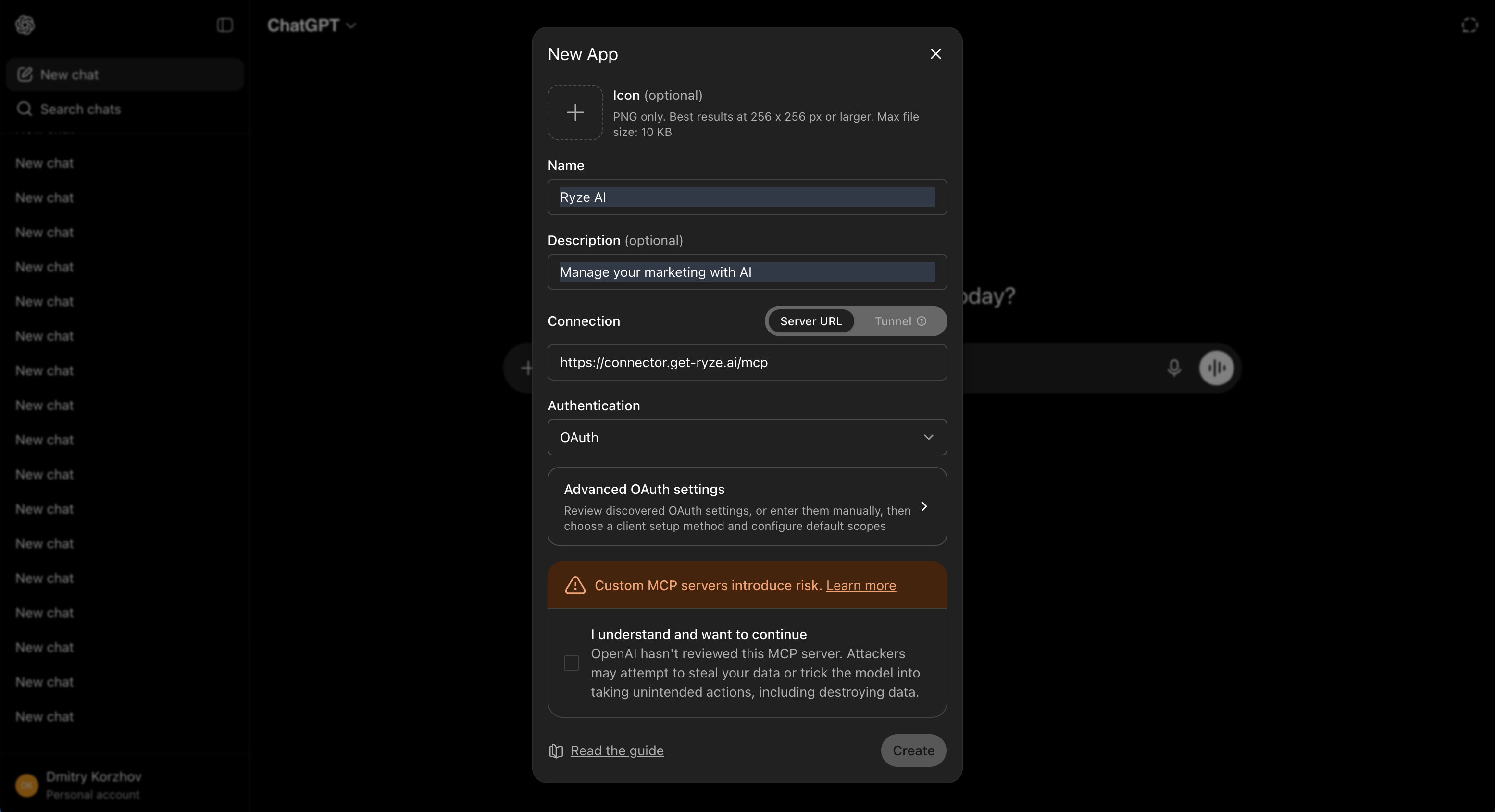
Fill in the details
- Name — enter
Ryze AI - MCP server URL — enter
https://connector.get-ryze.ai/mcp(keep Server URL selected, not Tunnel) - Authentication — choose OAuth
- Tick I understand and want to continue, then click Create
6
Sign in with Ryze AI
ChatGPT opens a Ryze authorization page. Click Sign in with Ryze AI.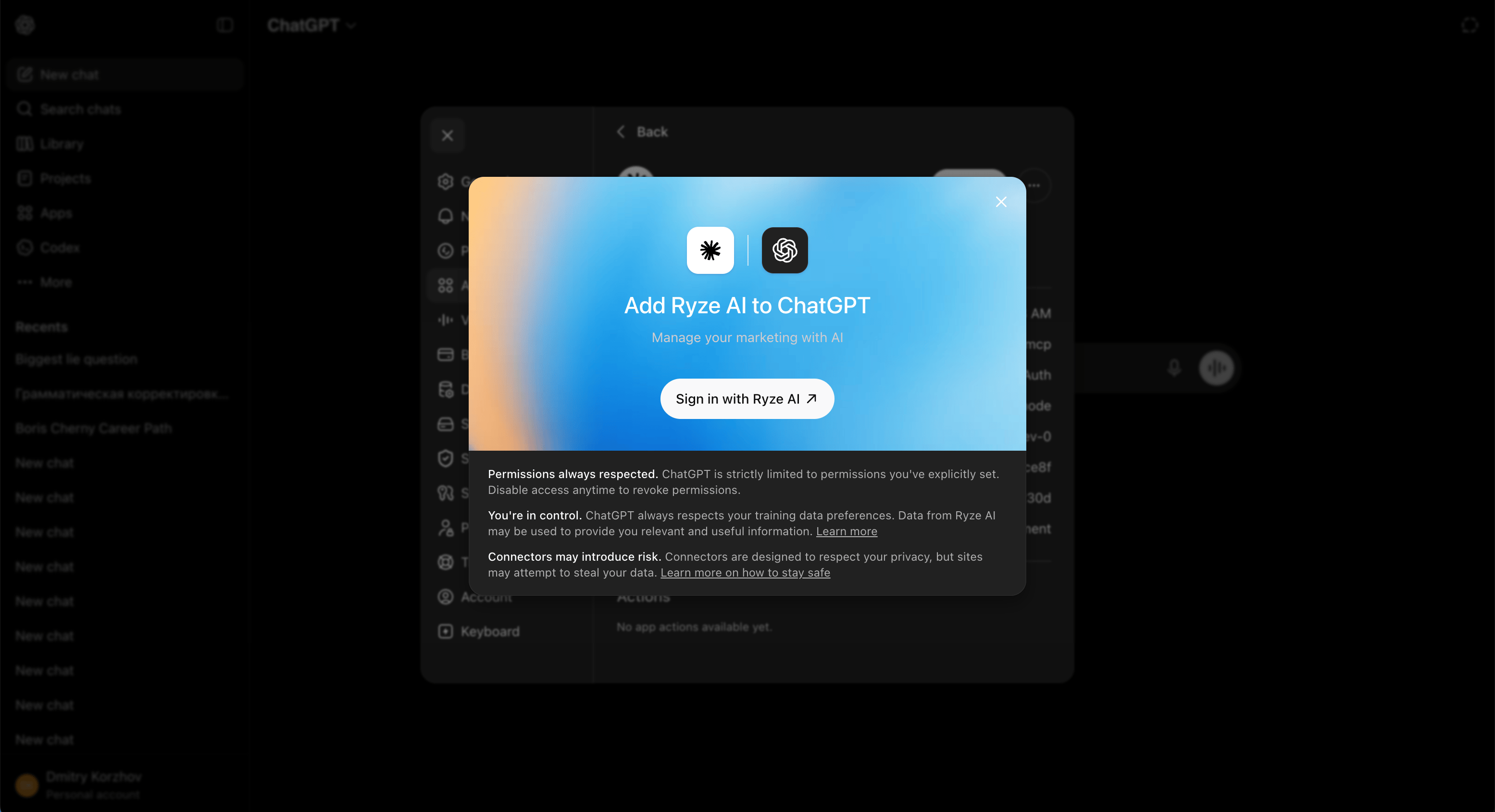
7
Pick a workspace and allow
Choose the workspace you want ChatGPT to read from, then click Allow to connect.
8
Done
You’ll see a green Ryze AI is installed toast. The app page lists the connection details and the tools ChatGPT can call — Google Ads, Meta Ads, GA4, Search Console, and more.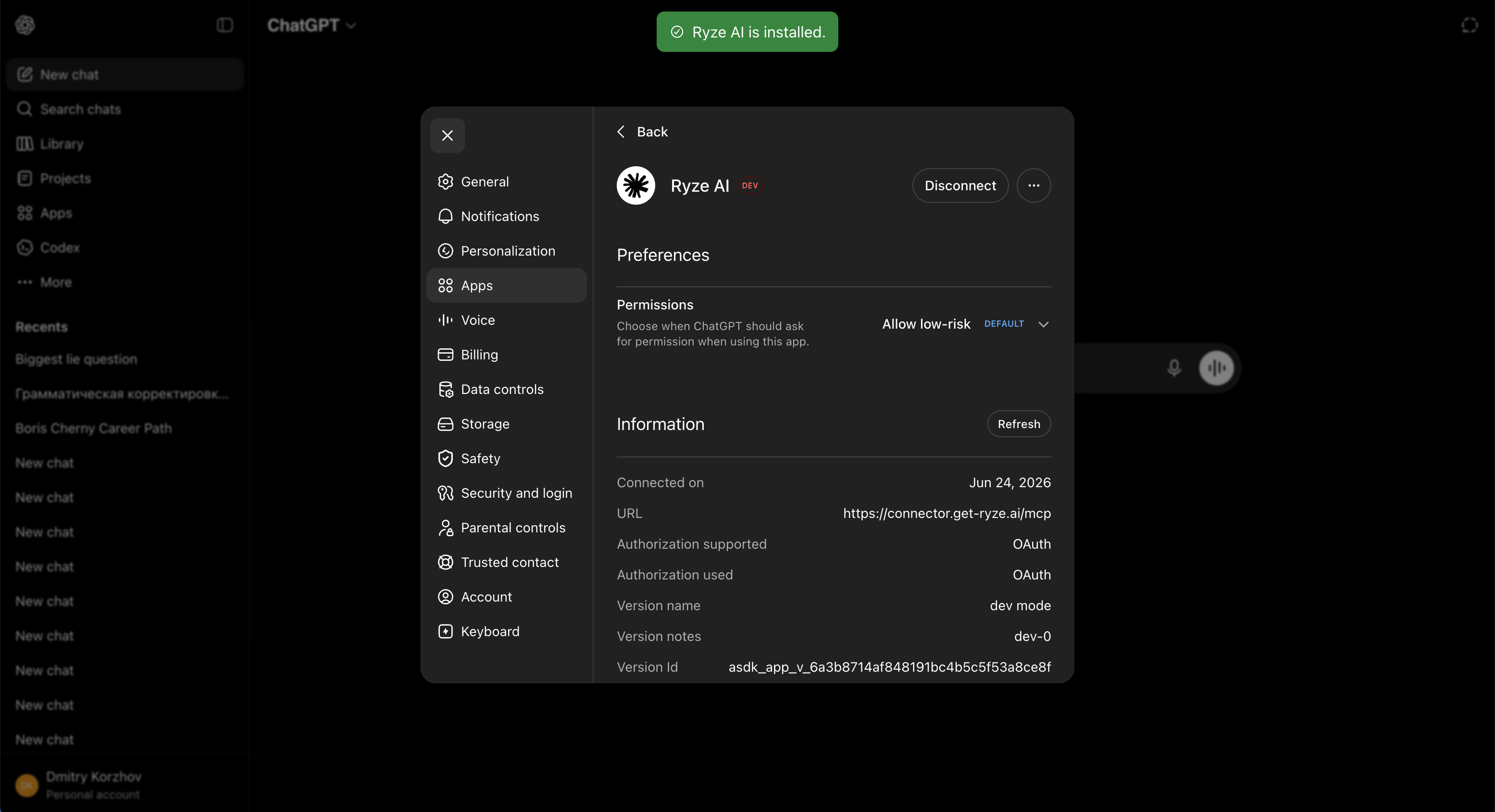
Try it
Start a new chat in ChatGPT and ask for what you want:Pull the last 7 days of Google Ads spend and break it down by campaign.ChatGPT uses Ryze tools to answer.
Connected a new platform after installing?
ChatGPT saves the list of Ryze tools at the moment you install the app. Platforms you connect in Ryze afterwards (Google Ads, GA4, Search Console, WordPress…) don’t appear in ChatGPT on their own, even in a new chat. To refresh the list: in ChatGPT open Settings → Apps & Connectors, remove Ryze AI, install it again, then start a new chat. Reconnecting the platform on the Ryze side doesn’t refresh ChatGPT’s saved list.Next steps
Permissions & Approvals
Control which actions the assistant can take on your accounts.
Connect Your Platforms
Link Google, Meta, Analytics and more.