

Step 1 — Connect in Ryze
In Workspace Settings → Integrations, find the HubSpot card and click Connect. You’re redirected to HubSpot to authorize.Step 2 — Authorize in HubSpot
1
Sign in to HubSpot
Sign in to the HubSpot account you want to connect, or create a new one.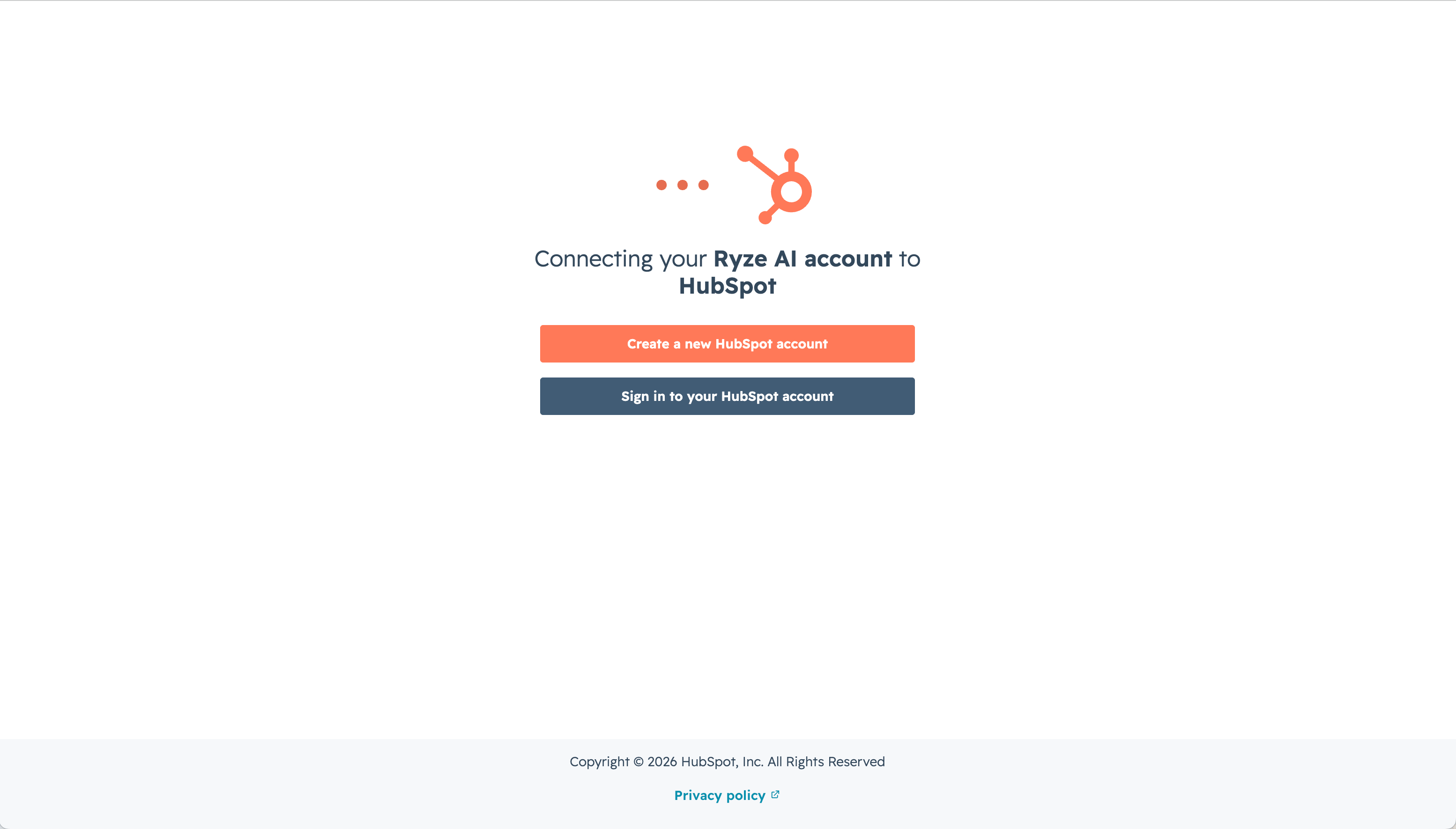
2
Choose the account
If you have access to more than one HubSpot account (portal), pick the one you want Ryze to work with, then click Choose Account.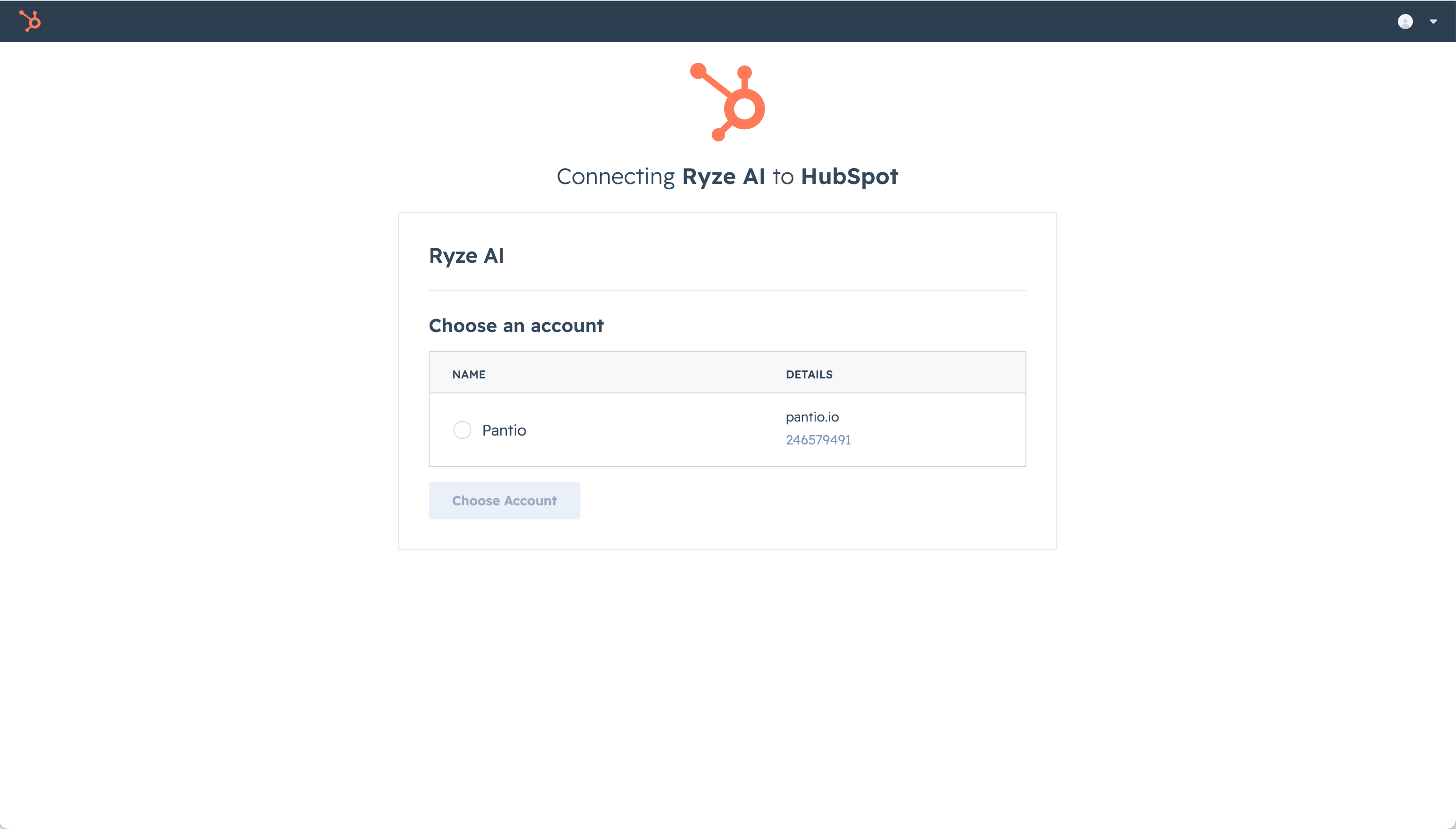
3
Approve access
Review the requested permissions and approve. HubSpot sends you back to Ryze and the connection is saved.
Step 3 — Confirm the connection
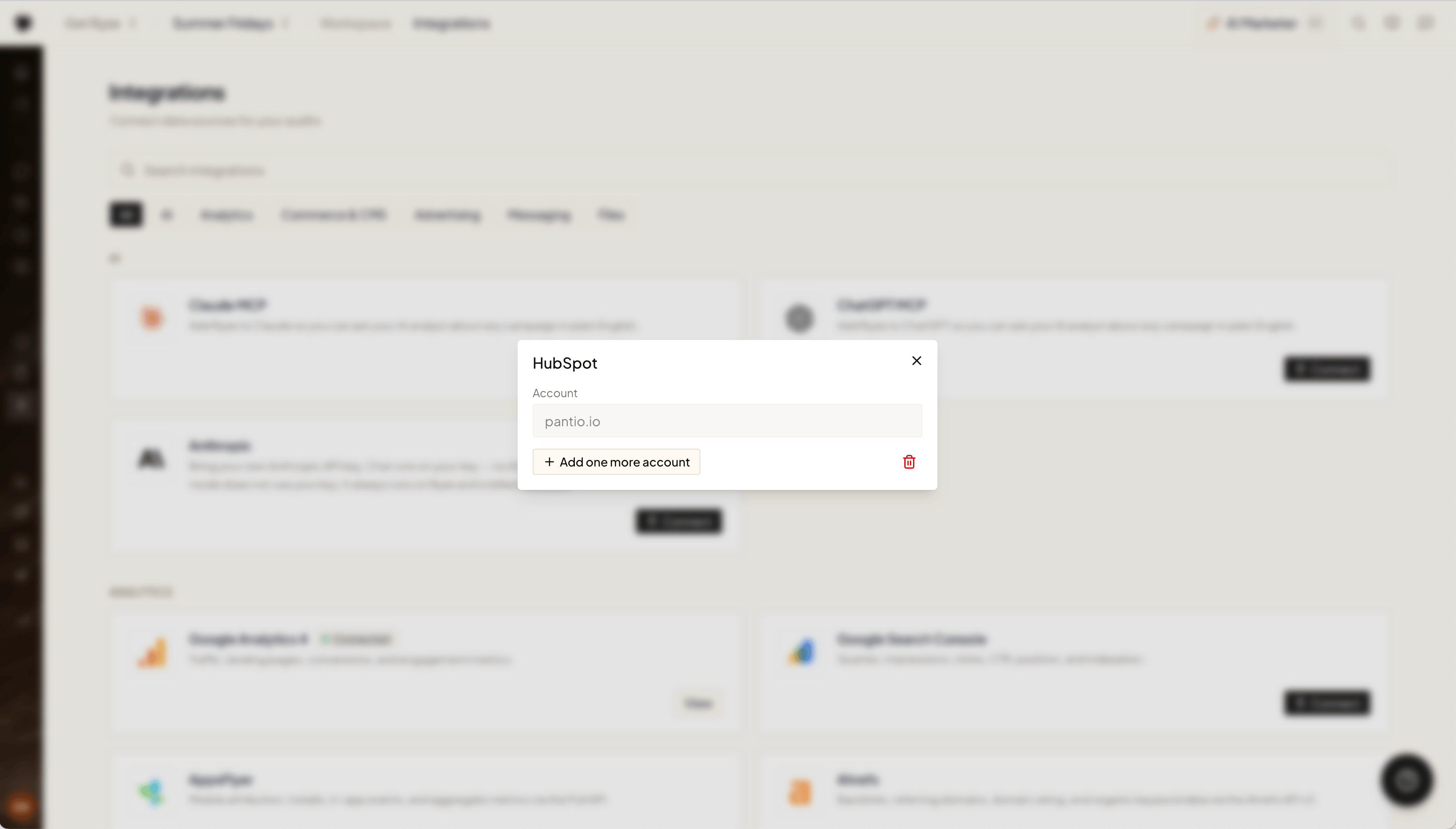
Back in Ryze, the HubSpot card shows a Connected badge and the account you linked — identified by its domain (likepantio.io).
Connect multiple accounts
You can connect more than one HubSpot account (portal) in the same workspace. Click Add one more account on the HubSpot card and repeat the authorization. See Connect multiple accounts for how the agent picks between them.What the agent can do
Once connected, the agent works with HubSpot through your account:- CRM records — read and edit contacts, companies, and deals
- Search — filter and query records with the HubSpot CRM Search API
- Lists — read your contact lists
- Owners — look up account owners to attribute records
- CMS — read and edit blog content
Publishing articles to HubSpot
HubSpot is also a publishing destination: programmatic articles can land on your HubSpot blog instead of (or as well as) a separate CMS.- When you connect, Ryze asks you to pick the blog and the author the posts should use — both are stored choices, so every article publishes consistently. Reconnecting keeps them.
- Ryze publishes using HubSpot’s own slug and publish rules, and only marks an article as published once HubSpot confirms the post is actually live.
- If an image can’t be uploaded to HubSpot, the article still publishes and the skipped image shows as a warning on the article, so you can fix it rather than lose the post.
HubSpot needs an existing blog in the portal. If the blog list is empty when you connect, create a blog in HubSpot (Marketing → Website → Blog) and reconnect — most HubSpot portals used only for CRM don’t have one yet.
Troubleshooting
- Wrong account connected — each connection is one HubSpot portal. To switch, connect the right portal with Add one more account, or reconnect and choose a different account during authorization.
- Connection stopped working — click Reconnect on the HubSpot card and re-authorize. This refreshes access if permissions changed or the token was revoked in HubSpot.
- Missing records or fields — HubSpot returns a default set of properties; ask the agent for the specific fields you need. If a whole object type is missing, the connected user may not have access to it in HubSpot.