

Add Ryze AI
1
Open Connect Apps
In Grok Bot, open Connect Apps.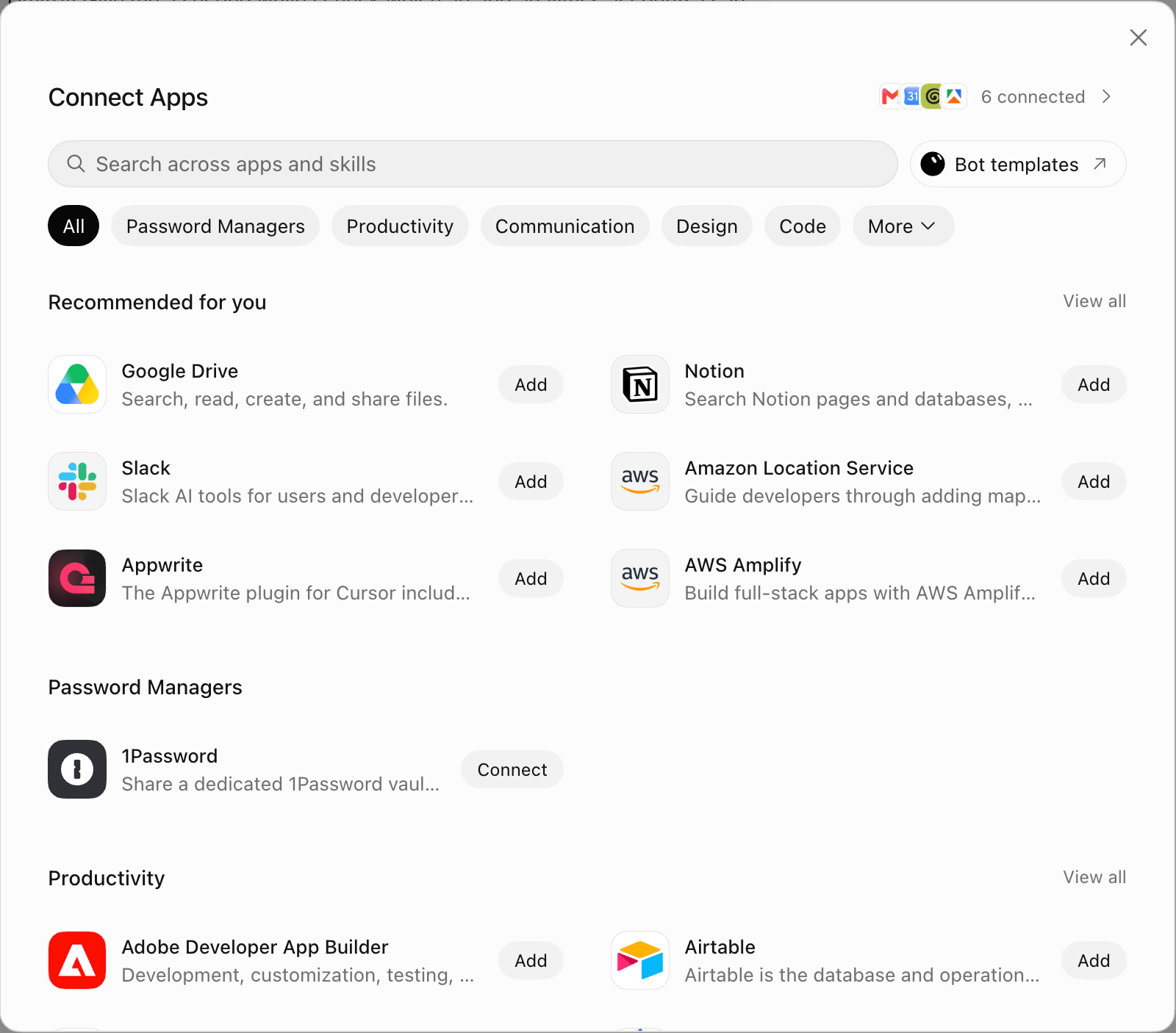
2
Search for Ryze AI and click Add
Type 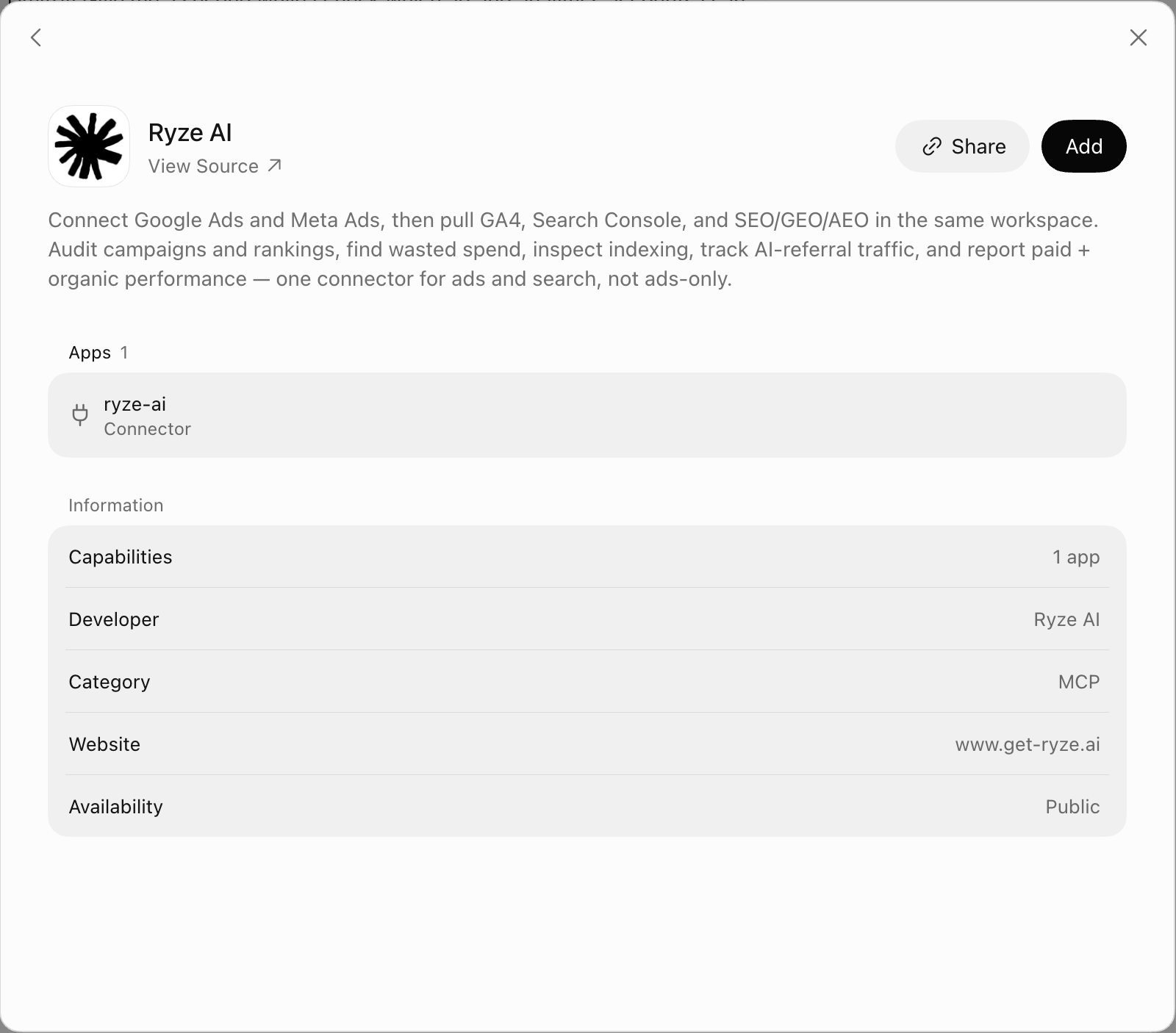
Ryze AI in Search across apps and skills, open Ryze AI (developer: Ryze AI), and click Add.3
Sign in and pick workspaces
Your browser opens Ryze. Sign in if asked, choose which workspaces Grok Bot can access (or All workspaces), then click Allow connection.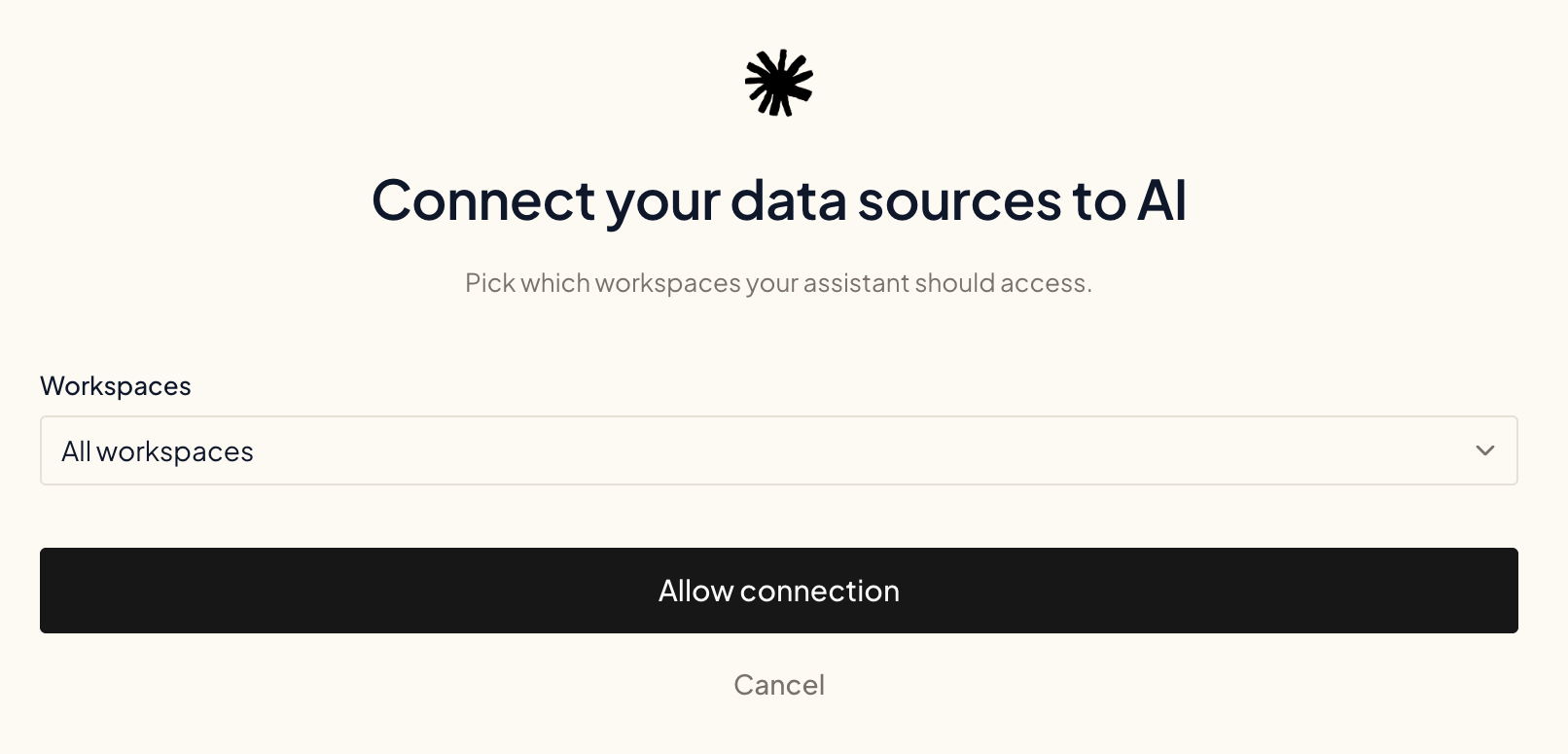
4
Return to Grok Bot
You’ll see Authorization complete! Click Open Grok Bot in the browser prompt, or Return to Grok Bot.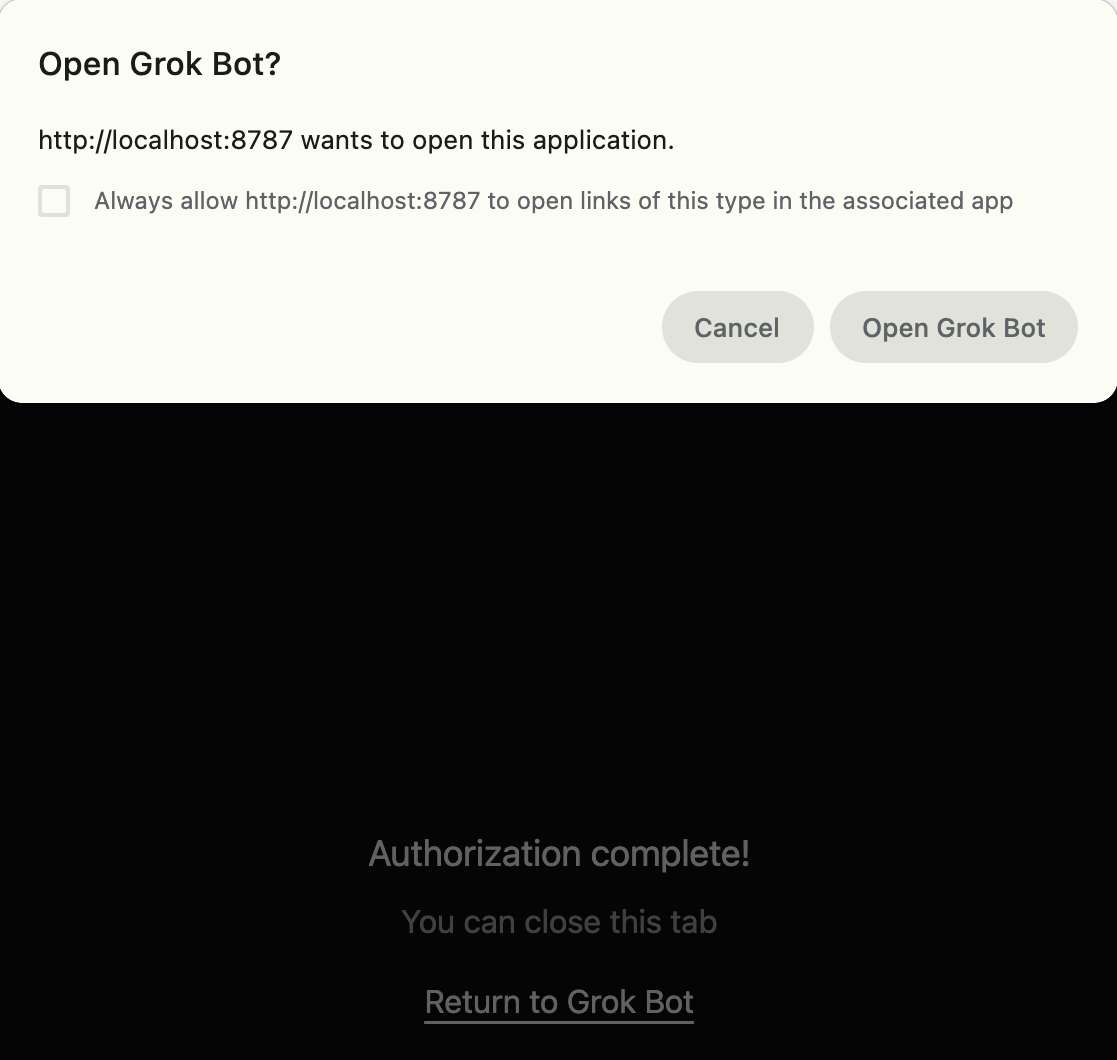
5
Done
The Ryze AI page in Grok Bot now shows your account as Connected and lists the Ryze tools Grok Bot can call.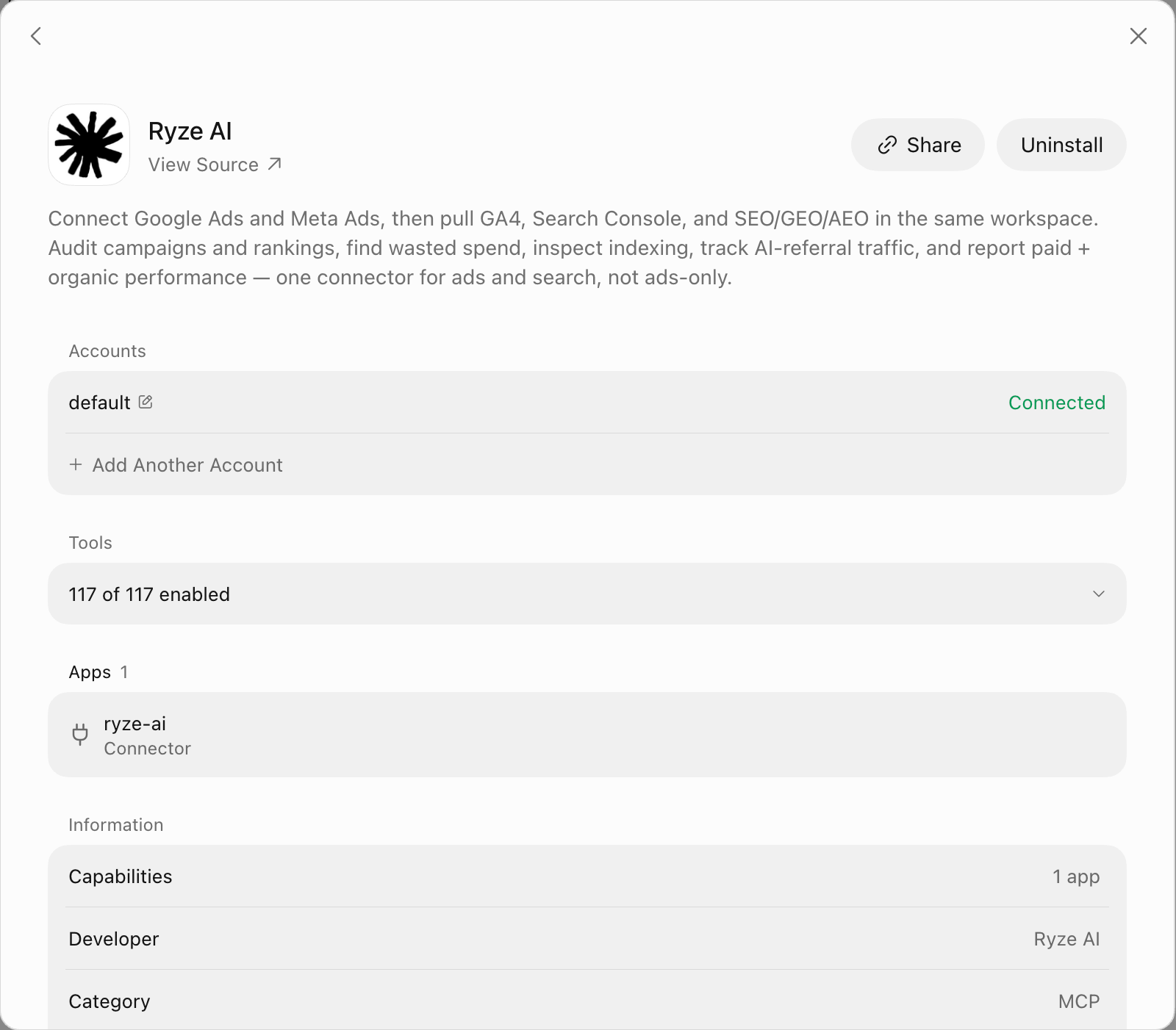
Try it
Start a new chat in Grok Bot and ask for what you want:Pull the last 7 days of Google Ads spend and break it down by campaign.Grok Bot uses Ryze tools to answer.
Added Ryze as a custom MCP server before?
You don’t need it anymore. Uninstall the custom server and add Ryze AI from Connect Apps instead, so you don’t have two copies of the same tools.Next steps
Permissions & Approvals
Control which actions the assistant can take on your accounts.
Connect Your Platforms
Link Google, Meta, Analytics and more.